Tugger was designed with security at its core. This page covers how your data is protected, the compliance standards Tugger meets, and the security features available in your Tugger account.
Certifications and compliance
ISO 27001:2022 - Tugger is ISO 27001:2022 certified, meaning we follow globally recognised best practices for information security management. This covers how we handle, store, and protect your data across the entire platform.
GDPR - Tugger is fully compliant with the EU's General Data Protection Regulation. For details on how we collect and process personal data, see our Privacy Policy and Data Processing Agreement.
Data encryption
All data is encrypted using industry-standard methods, both in transit and at rest. When data moves between your source apps, Tugger, and your reporting tools, it is encrypted during transmission. Data stored in Tugger's data warehouse is also encrypted at rest.
Data hosting
Tugger's data warehouses are based in the UK. Your data will never be moved or replicated outside the UK.
Our hosting environment uses enterprise-level data storage in a data centre that is compliant with ISO/IEC 27001:2005 and 27001 standards. This covers both electronic security and the physical security of the servers.
Infrastructure security
Tugger's hosting environment is maintained with multiple layers of protection:
- Regular audits, including monthly vulnerability scans
- Anti-virus, intrusion prevention, DDoS protection, and web filtering
- Next-generation firewalls and unified threat management (UTM)
- Third-party penetration testing carried out several times a year
- Enterprise-level redundancy across the network stack to withstand multiple server failures
Incident management
Tugger has policies and procedures in place for handling security incidents. Any issues are logged, investigated, and customers are notified when needed.
Security features in your Tugger account
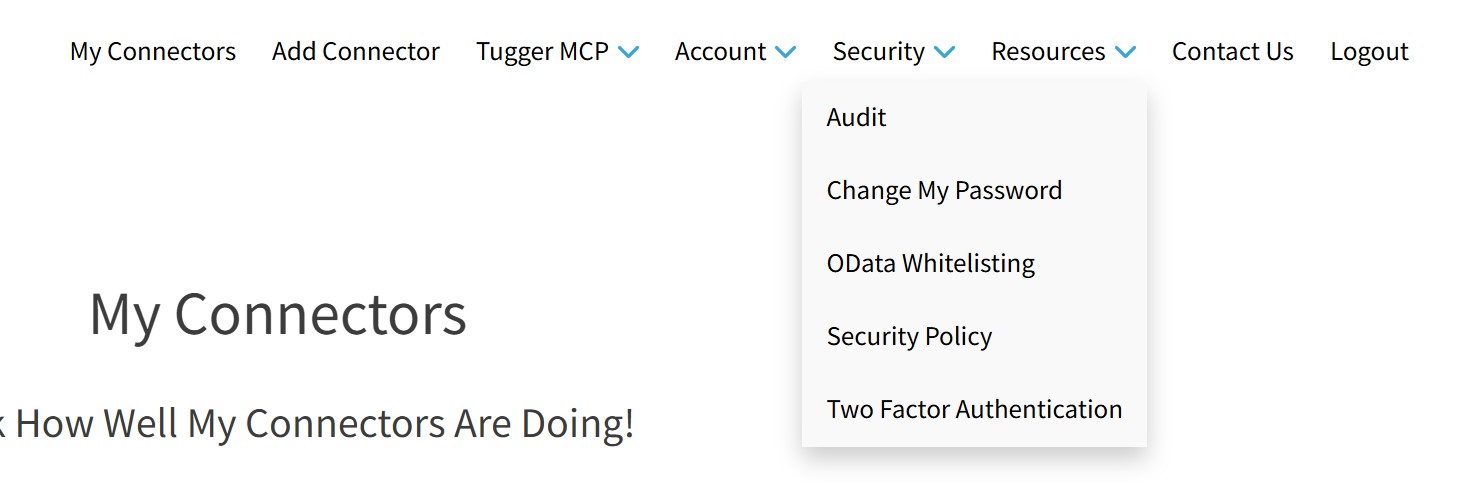
Tugger includes several features you can use to manage security within your account. These are found under the Security menu in the Tugger navigation. Audit, OData Whitelisting and Security Policy are only shown to account administrators.
Two-factor authentication (2FA)
When you sign in with your email and password, Tugger asks for a verification code sent to your email, unless you've chosen to remember the device. You can optionally switch to using an authenticator app (such as Microsoft Authenticator or Google Authenticator) for faster, offline code generation.
See Setting Up Two-Factor Authentication for setup instructions.
OData IP whitelisting
Restrict which IP addresses can access your Tugger data via OData. When activated, once you add at least one IP address, only connections from IP addresses on your whitelist, plus Power BI Service, can pull data into Power BI, Tableau or Excel.
See OData IP Whitelisting for setup instructions.
Audit log
View a log of actions taken on your Tugger account, including logins, connector changes, manual sync triggers, and credential regenerations. Each entry shows the date and time (UTC), the action, and who performed it.
See Viewing Your Audit Log for more detail.
Security policy
Configure password expiry settings for your account. When enabled, users will be required to change their password after a set period of time (e.g. every 30 days).
See Managing Your Security Policy for more detail.
Change password
You can change your Tugger password at any time from the Security menu. See Changing Your Password for instructions. If you've forgotten your password, click Sign in with email on the sign-in page, then Forgot password?. See Login and Password Issues for help.
Further reading
If you have any questions about how Tugger handles your data, contact the Tugger team.
Related articles: