The User Audit Log records key actions taken on your Tugger account, giving you a clear trail of who did what and when. This is useful for tracking activity, reviewing changes, and supporting your organisation's compliance requirements.
Accessing the audit log
- Log in to Tugger at tuggerapp.com
- Click Security in the top navigation bar
- Select Audit
You need to be an account administrator to see Audit.
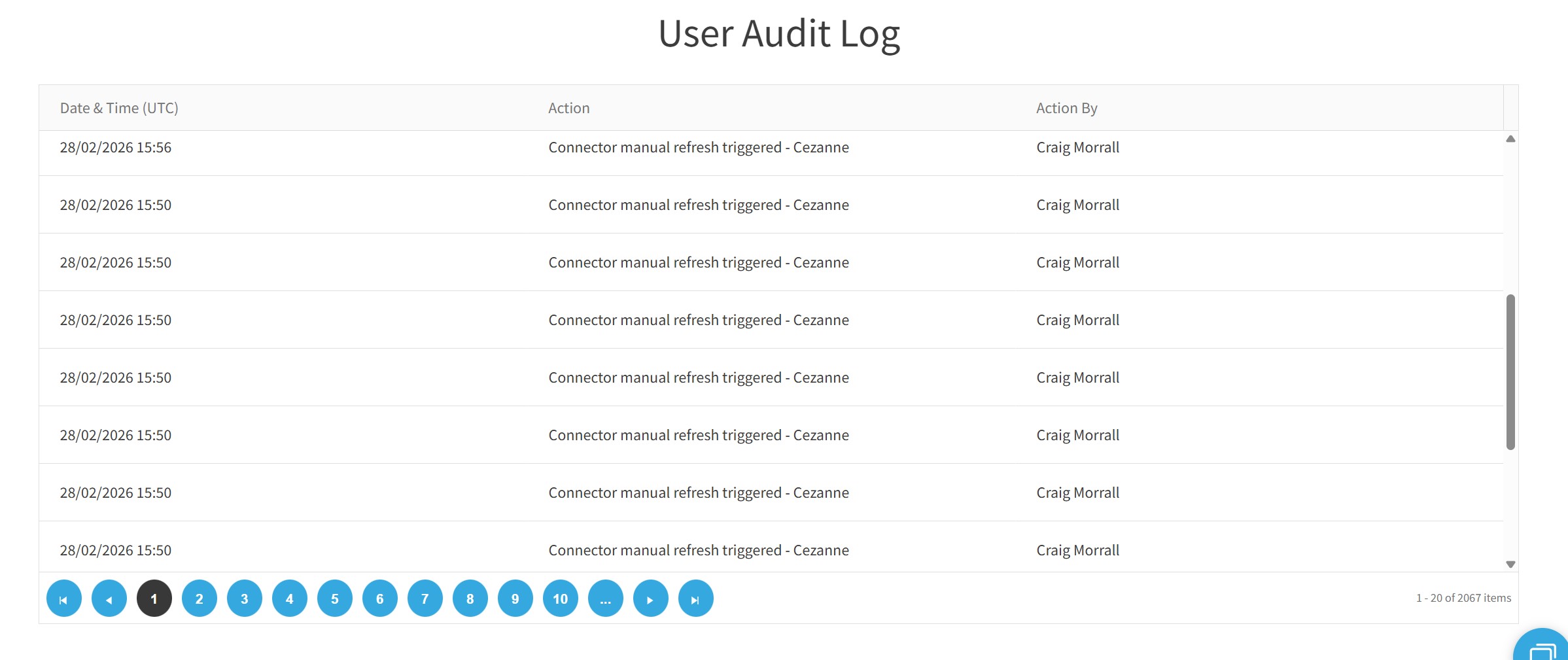
What the audit log shows
The log displays a table with three columns:
- Date & Time (UTC) - when the action took place, shown in UTC time
- Action - a description of what happened (e.g. "Connector manual refresh triggered - Cezanne")
- Action By - the name of the user who performed the action
Entries are shown in reverse chronological order, with the most recent activity at the top. The log is paginated, so you can navigate through older entries using the page controls at the bottom.
What actions are logged
The audit log captures activity across your account, including:
- Manual sync triggers
- Connector configuration changes
- User logins
- Credential regenerations
- Security setting changes
Things to keep in mind
- All timestamps are shown in UTC, regardless of your local timezone or the timezone set in your sync schedule.
- The audit log is read-only. Entries cannot be edited or deleted.
- The log covers all users on your Tugger account, not just your own activity.
Related articles: