You can change your Tugger password at any time from the Security menu. You'll need to know your current password to do this.
How to change your password
-
Log in to Tugger at tuggerapp.com
-
Click Security in the top navigation bar
-
Select Change My Password
-
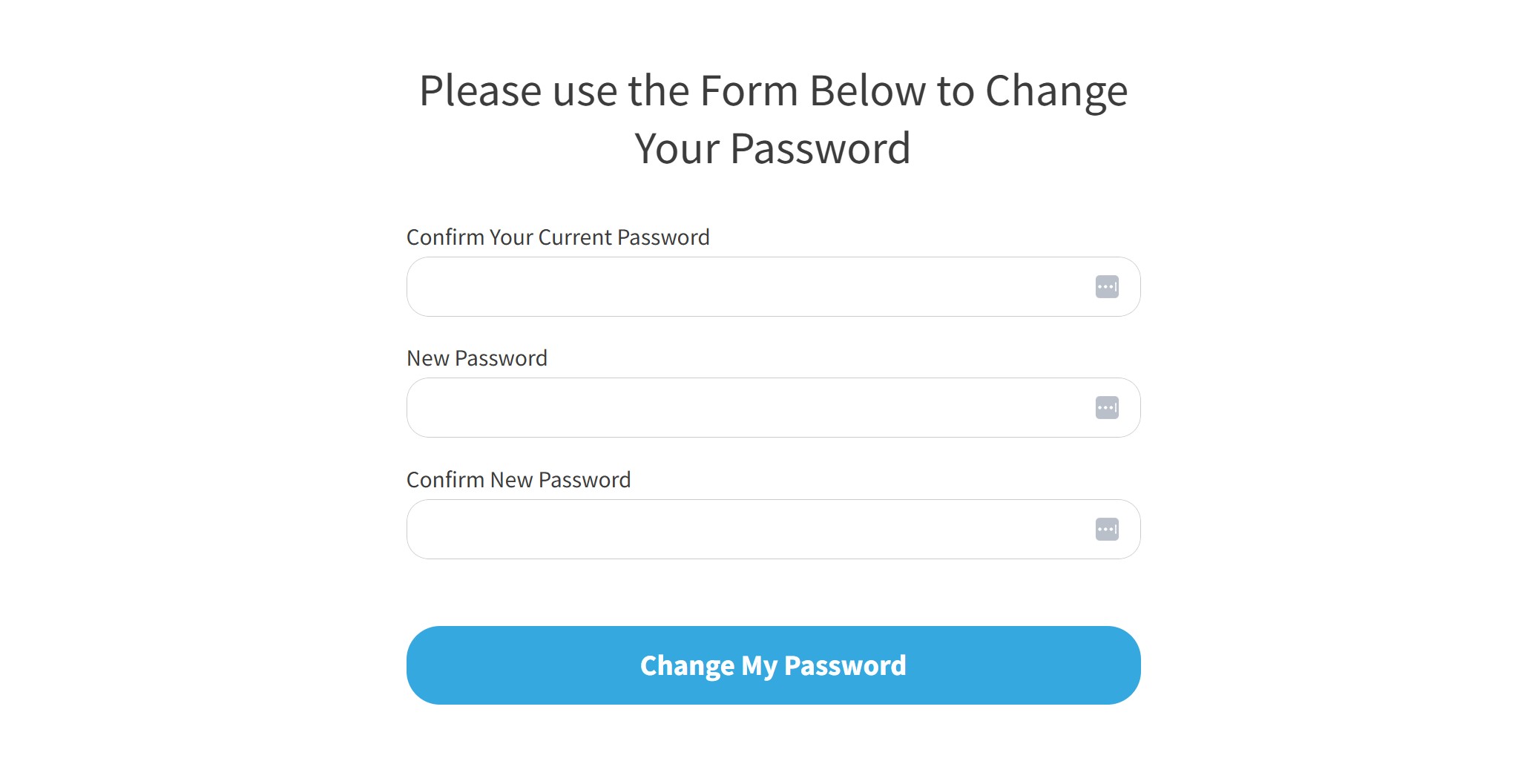
Enter your current password in the Confirm Your Current Password field
-
Enter your new password in the New Password field
-
Enter the new password again in the Confirm New Password field
-
Click Change My Password
Your password will be updated immediately. You'll use the new password the next time you log in.
Forgotten your password?
If you can't remember your current password and can't log in, click Sign in with email on the sign-in page, then click Forgot password? instead. See Login and Password Issues for step-by-step instructions.
Things to keep in mind
- If you created your account with Sign in with Xero, you don't have a Tugger password. You sign in with your Xero details, so change your password in Xero.
- If your account has a password expiry policy enabled, you'll be taken to the Change My Password page once the expiry period is reached, and you'll need to change your password before you can carry on. See Managing Your Security Policy for details.
Related articles: