Tugger's security policy settings let you control password expiry for your account. When enabled, users will be required to change their password after a set period of time.
Configuring password expiry
-
Log in to Tugger at tuggerapp.com
-
Click Security in the top navigation bar
-
Select Security Policy
You need to be an account administrator to see Security Policy.
-
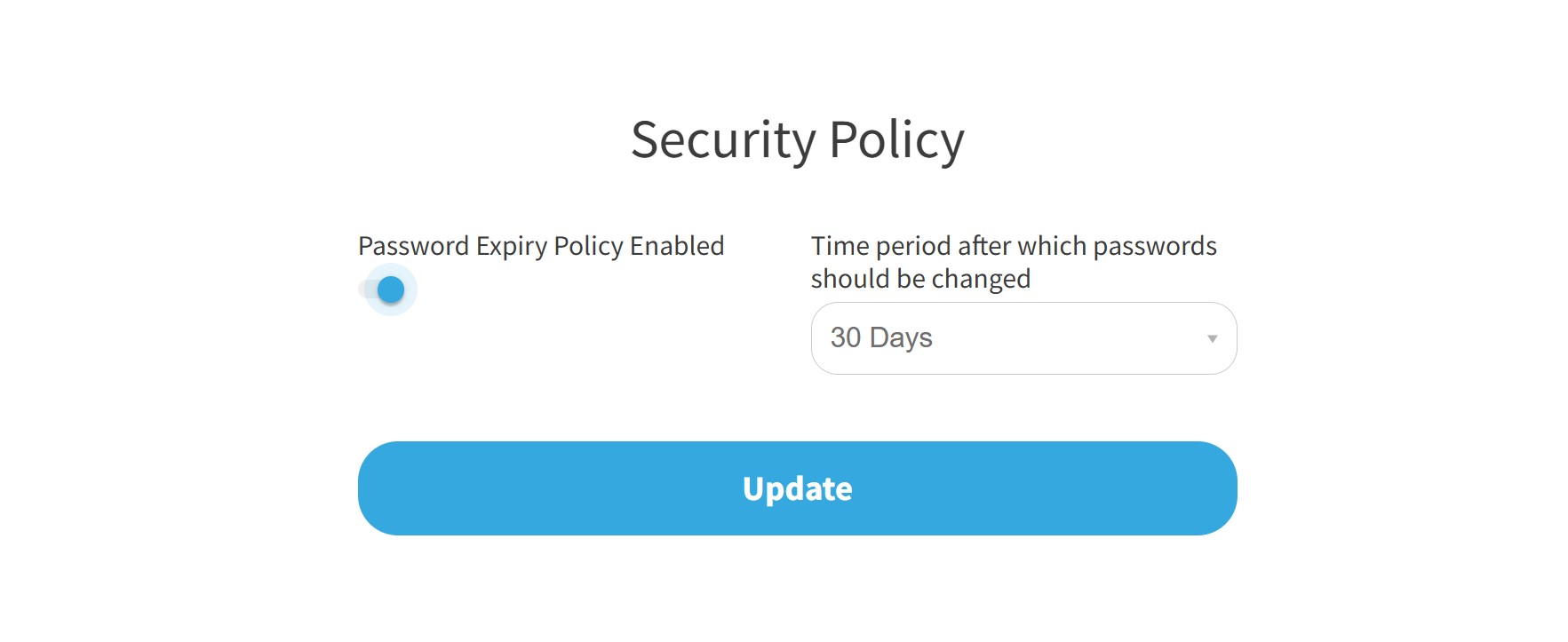
Toggle Password Expiry Policy Enabled to on
-
Use the Time period after which passwords should be changed dropdown to select how often passwords must be changed: 30 Days, 60 Days, 90 Days, 180 Days or 360 Days
-
Click Update
Once enabled, users will need to set a new password when it expires.
Disabling password expiry
If you no longer want to enforce regular password changes:
- Go to Security > Security Policy
- Toggle Password Expiry Policy Enabled to off
- Click Update
Things to keep in mind
- This setting applies to every user on your account, including users who sign in with Xero.
- When a user's password expires, Tugger takes them to the Change My Password page, and they need to set a new password before they can carry on.
- If you also have two-factor authentication enabled, both protections work alongside each other. See Setting Up Two-Factor Authentication for more.
Related articles: