Your Tugger Report Credentials (Username and Password) are used by Power BI, Tableau, and Excel to connect to your data via OData. You can regenerate these at any time, which creates a new Username and Password and immediately invalidates the old ones.
When to regenerate
You should regenerate your credentials if:
- A team member who had access to the credentials has left your organisation
- You suspect the credentials have been shared with someone who shouldn't have them
- You're asked to do so by the Tugger team as part of troubleshooting
How to regenerate
- Log in to Tugger at tuggerapp.com
- Navigate to your connector and select Report Credentials
- Click Regenerate Username and Password
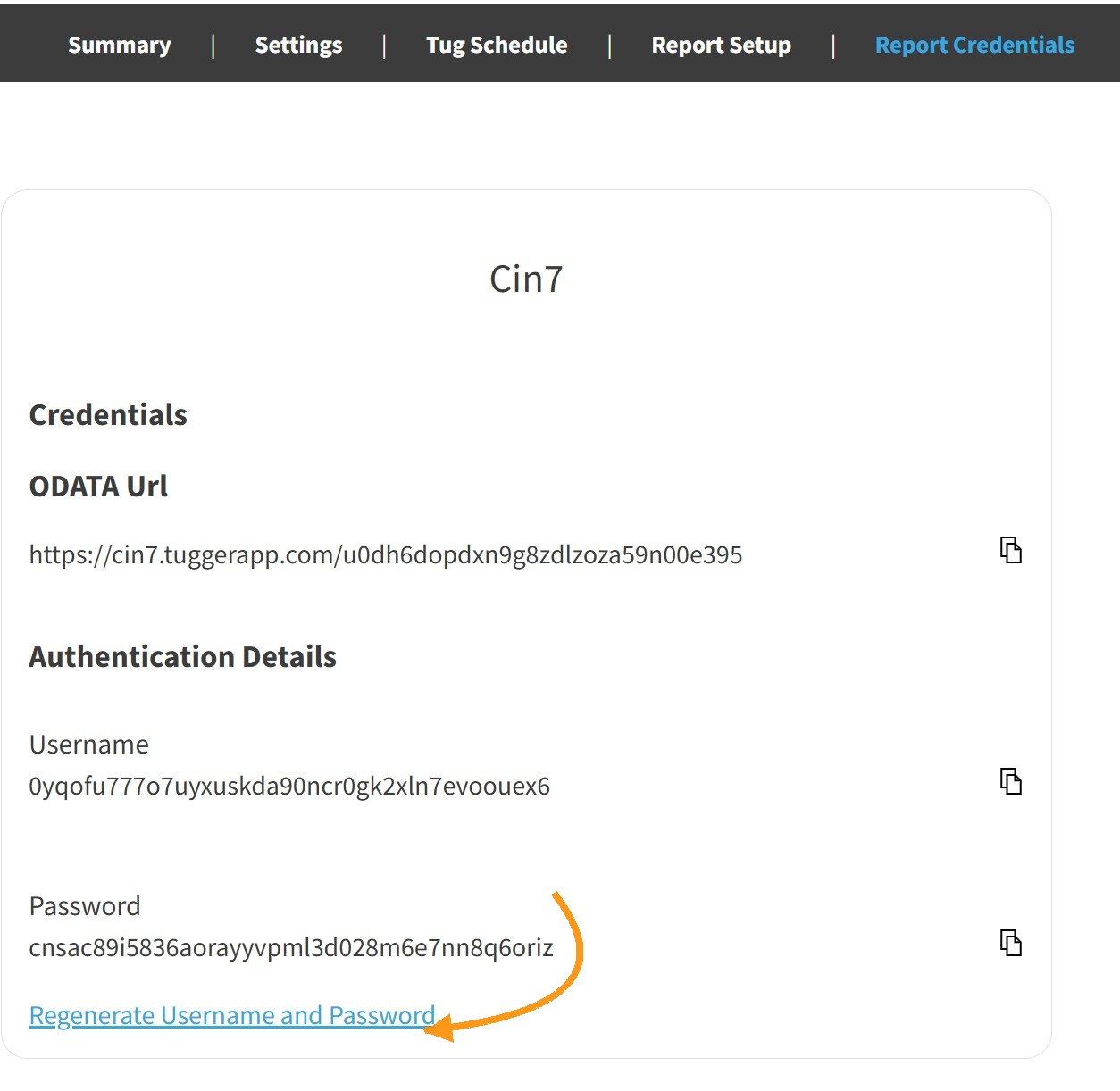
Your Username and Password will be updated immediately. The OData URL stays the same.
Important: Once you regenerate, the old credentials will stop working straight away. Any reports connected using the old credentials will fail to refresh until you update them.
Updating credentials in Power BI Desktop
After regenerating, you'll need to update the stored credentials in Power BI Desktop.
- Open your report in Power BI Desktop
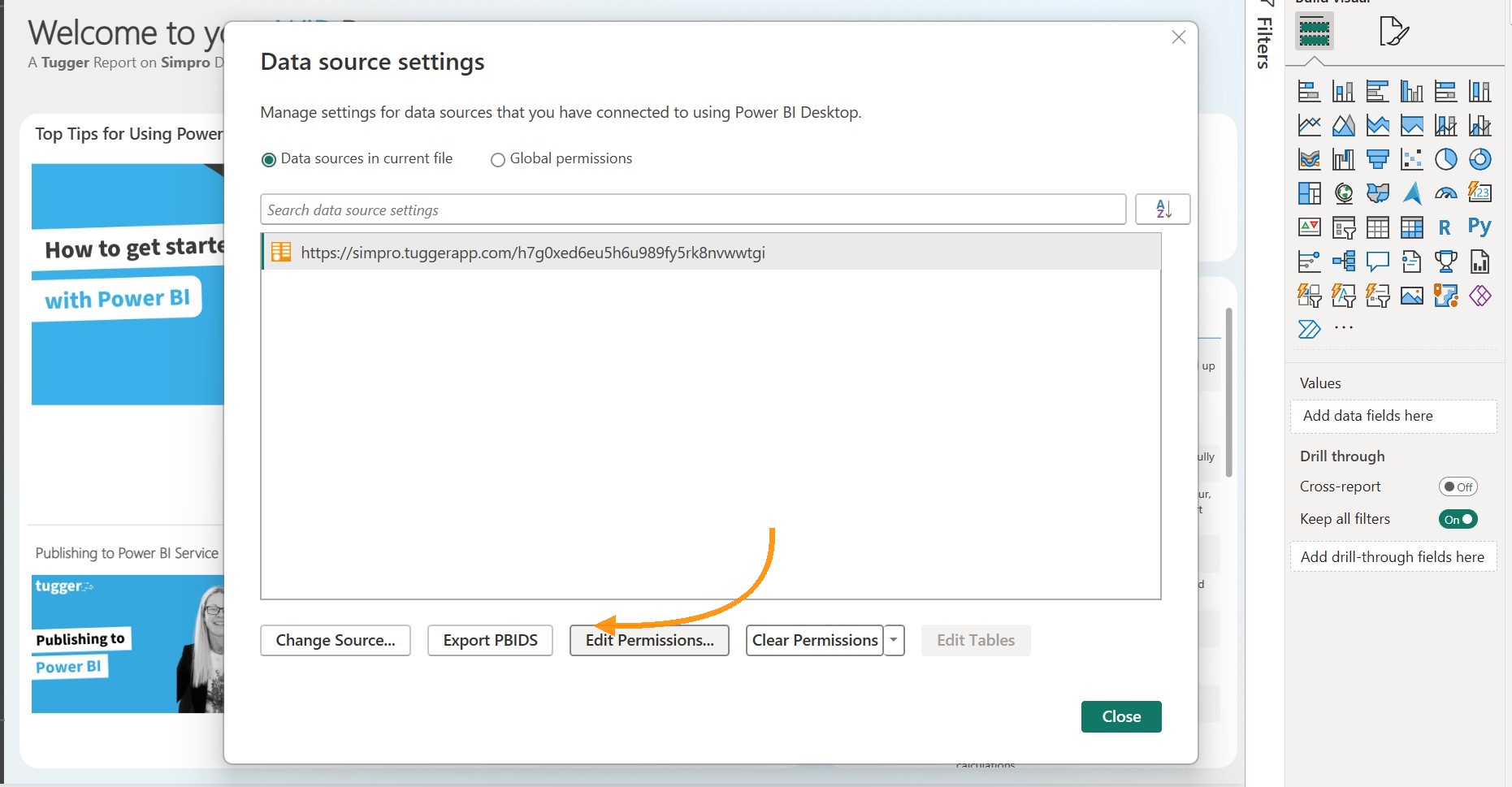
- Go to File > Options and Settings > Data source settings
- Find the Tugger OData entry in the list and click Edit Permissions
- Click Edit under Credentials
- Make sure Basic is selected on the left
- Enter the new Username and Password from Tugger's Report Setup page
- Click Save
- Close the dialogue and click Refresh in the Home ribbon to confirm it's working
Updating credentials in Power BI Service
If you've published your report to Power BI Service, you'll need to update the credentials there too, otherwise scheduled refreshes will fail.
- Go to Power BI Service
- Open your Workspace and find the dataset (not the report)
- Click the Settings icon (gear) or hover over the dataset and click Schedule refresh
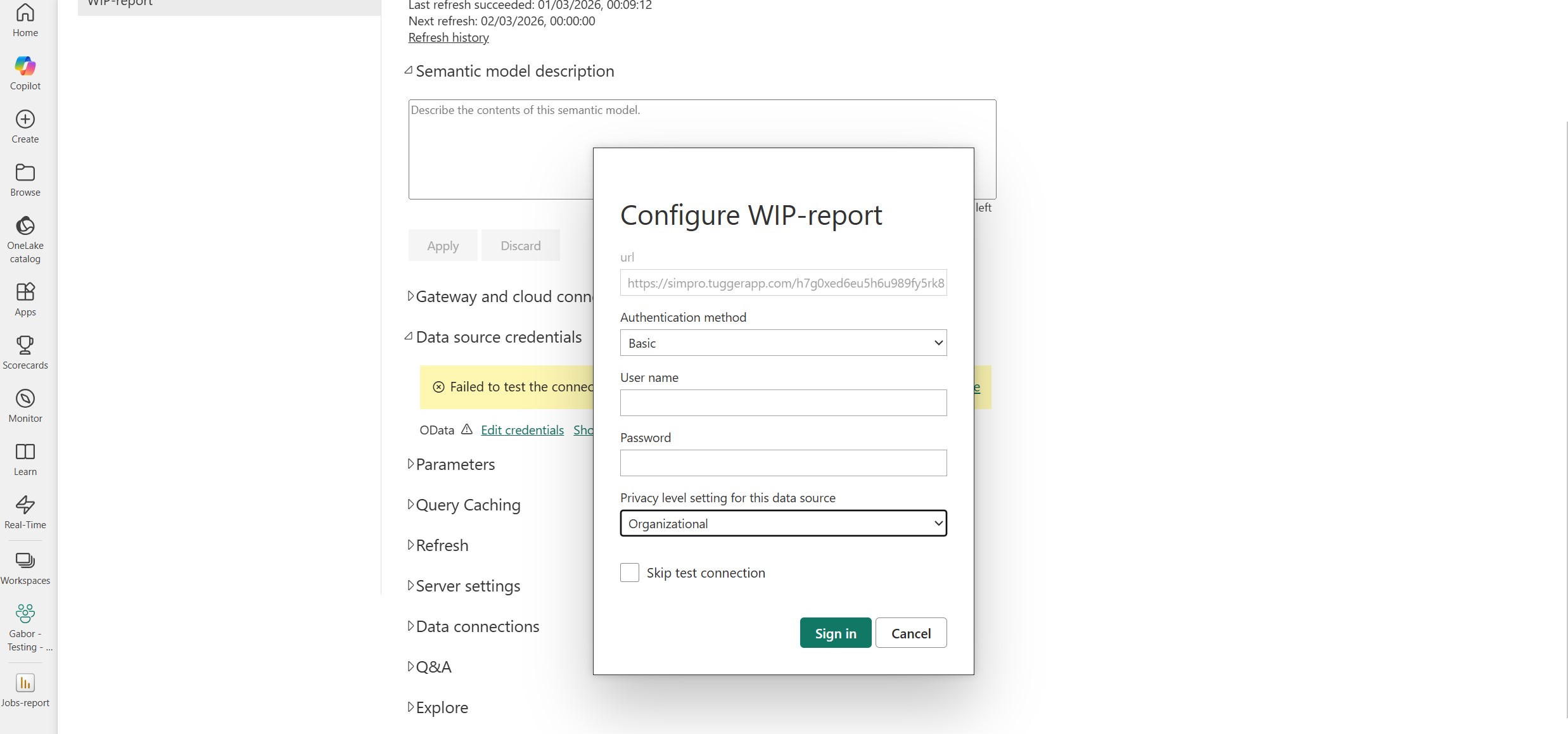
- Under Data source credentials, click Edit credentials
- Set the authentication method to Basic
- Enter the new Username and Password
- Click Sign in
Your next scheduled refresh (or manual refresh) will use the new credentials.
Updating credentials in Excel
If you've connected Excel to Tugger via OData, you'll need to update the stored credentials there too.
- Open your Excel workbook
- Go to the Data tab and click Get Data > Data Source Settings
- Find the Tugger OData entry and click Edit Permissions
- Click Edit under Credentials
- Enter the new Username and Password
- Click Save, then refresh your data
Related articles: