IP whitelisting lets you restrict which IP addresses can access your Tugger data via OData. When activated, only connections from IP addresses on your whitelist, plus Power BI Service, can pull data into Power BI, Tableau, Excel, or any other tool that connects via OData.
This is useful if you want to ensure that only your office network, VPN, or specific machines can access your data feeds.
You need to be an Account Administrator to manage IP whitelisting.
Activating IP whitelisting
By default, IP whitelisting is deactivated, meaning any IP address can connect to your OData feeds (with valid credentials).
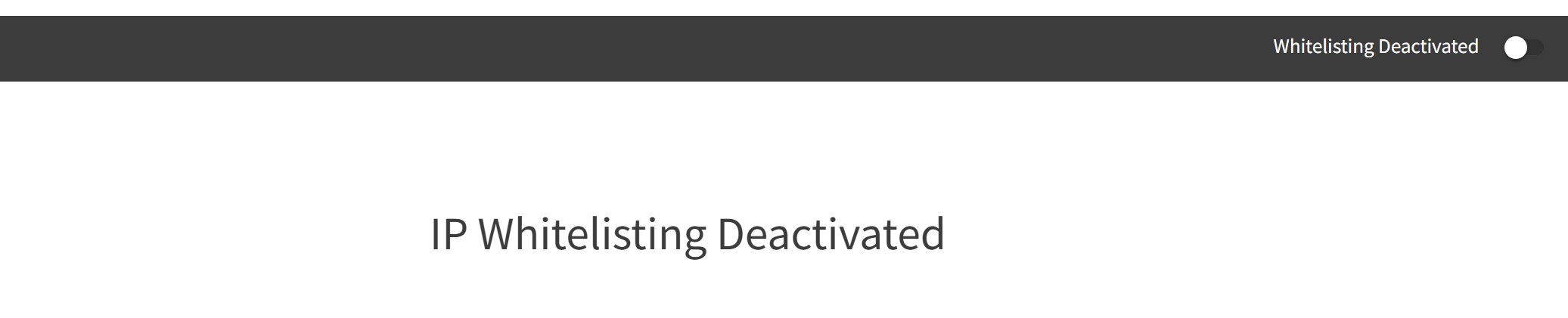
To activate it:
- Log in to Tugger at tuggerapp.com
- Click Security in the top navigation bar
- Select OData Whitelisting
- Click the switch next to Whitelisting Deactivated so it shows YES.
Whitelisting only takes effect once you add at least one IP address. Until then, connections from any IP address are still allowed.
Adding an IP address
- On the IP Whitelisting page, click + Add IP Address to Whitelist
- A new row will appear at the top of the list with two fields:
- Source - enter the IP address you want to allow (e.g. 203.0.113.50). Enter one single IP address per row. IP address ranges can't be added.
- Description - optionally add a label to help you remember what this IP is for (e.g. "Office network" or "Finance laptop")
- Click Save
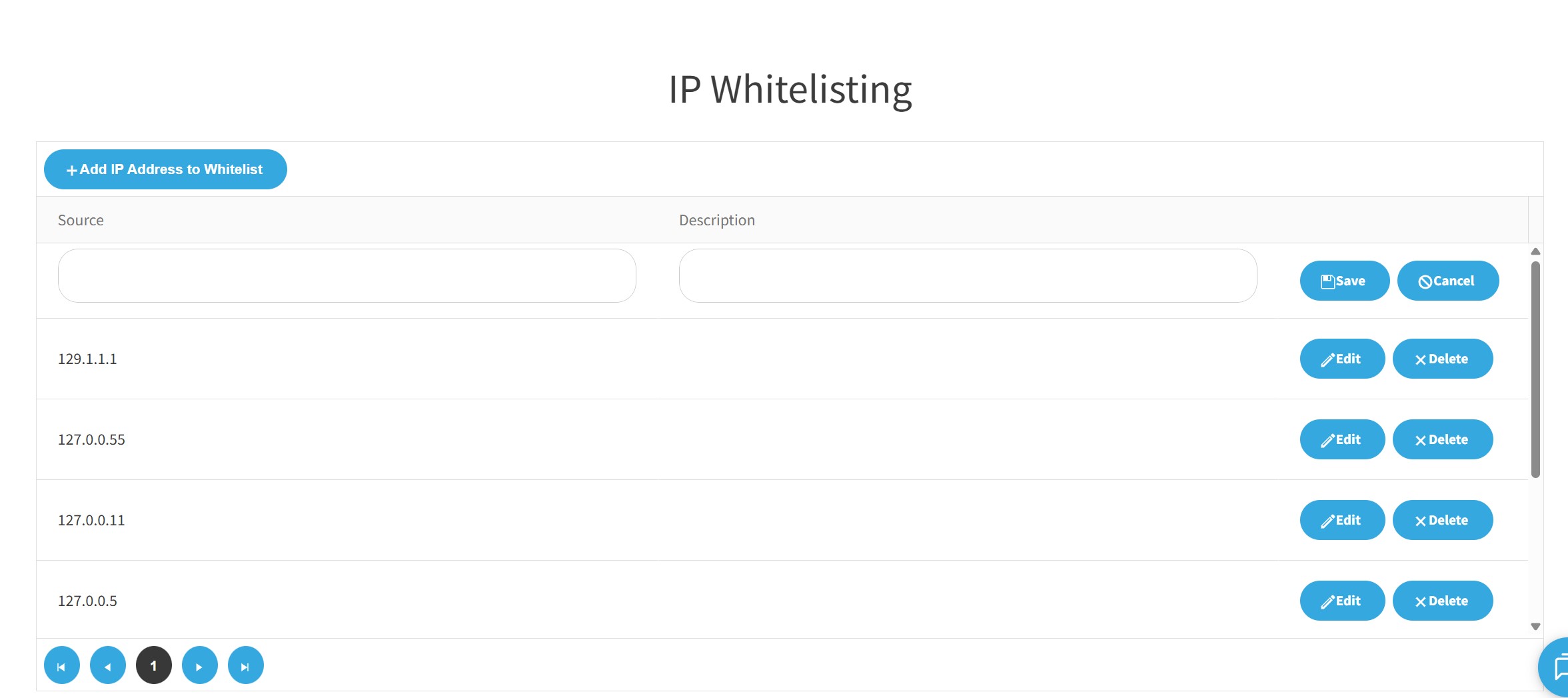
The IP address will be added to your whitelist and connections from that address will be allowed immediately.
You can add as many IP addresses as you need. Each entry appears in the list below with Edit and Delete buttons.
Editing or removing an IP address
To change an existing entry, click Edit next to it, update the details, and click Save.
To remove an IP address from the whitelist, click Delete next to it. Connections from that address will be blocked immediately (assuming whitelisting is still active). If you delete the last address on the list, connections from any IP address are allowed again.
Deactivating IP whitelisting
If you want to turn off IP whitelisting entirely and allow connections from any IP address again:
- Go to Security > OData Whitelisting
- Click the switch so it shows NO
Your saved IP addresses will be kept, so if you reactivate whitelisting later, you won't need to re-enter them.
Finding your IP address
If you're not sure what IP address to add, search "what is my IP address" in your web browser. The result will show the public IP address of the network you're currently connected to.
Keep in mind that if your office uses a dynamic IP address (one that changes periodically), you may need to update the whitelist when it changes. If your IP changes frequently, speak to your IT team about getting a static IP, or consider whether IP whitelisting is the right approach for your setup.
Things to keep in mind
-
IP whitelisting applies to OData connections only. It does not affect logging in to Tugger via the website.
-
If you activate whitelisting without adding any IP addresses, connections from any IP address are still allowed. The restriction starts when you add your first address.
-
You don't need to add Power BI Service's IP addresses. Tugger allows them automatically, so scheduled refresh in Power BI Service keeps working when whitelisting is on.
Related articles: