If you signed up to Tugger through the Xero App Store, or prefer to use your Xero credentials to log in, you can use Xero Single Sign-On (SSO). This guide covers both signing up and logging in with your Xero account.
Signing up with Xero SSO
-
Go to tuggerapp.com
-
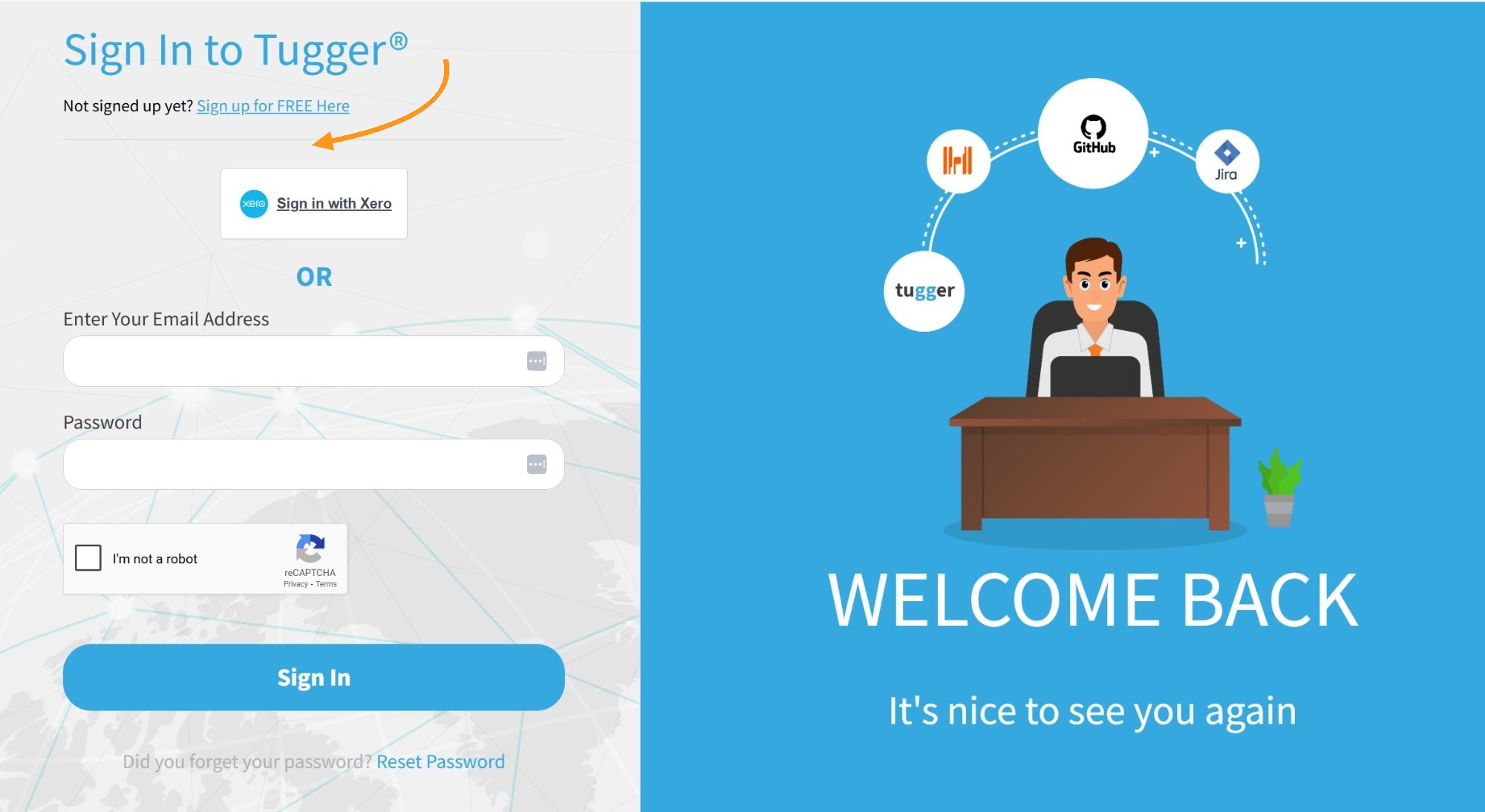
Go to the Tugger sign-in page and click Sign in with Xero
-
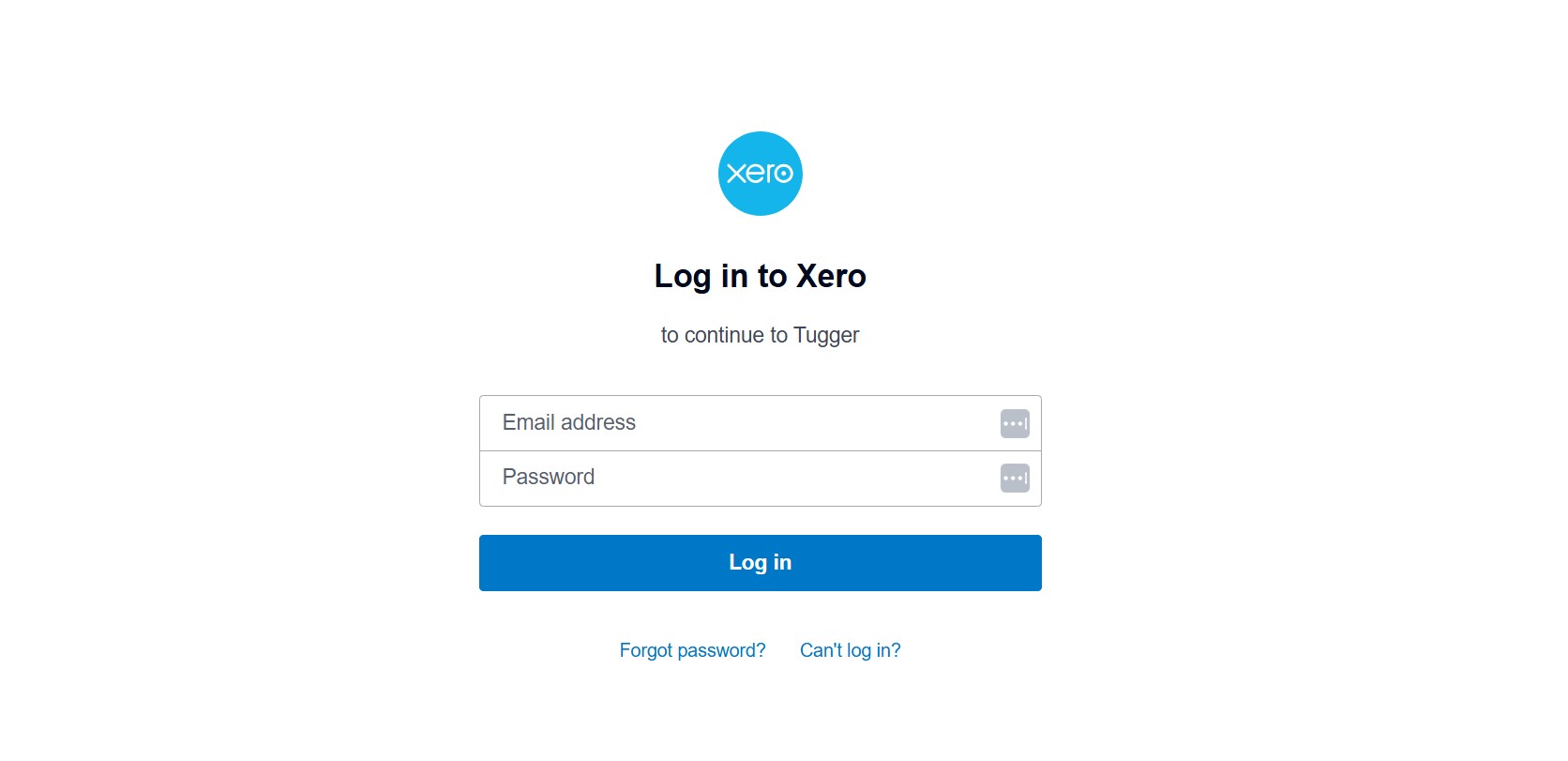
You'll be redirected to Xero's login page. Enter your Xero email and password, then click Login.
-
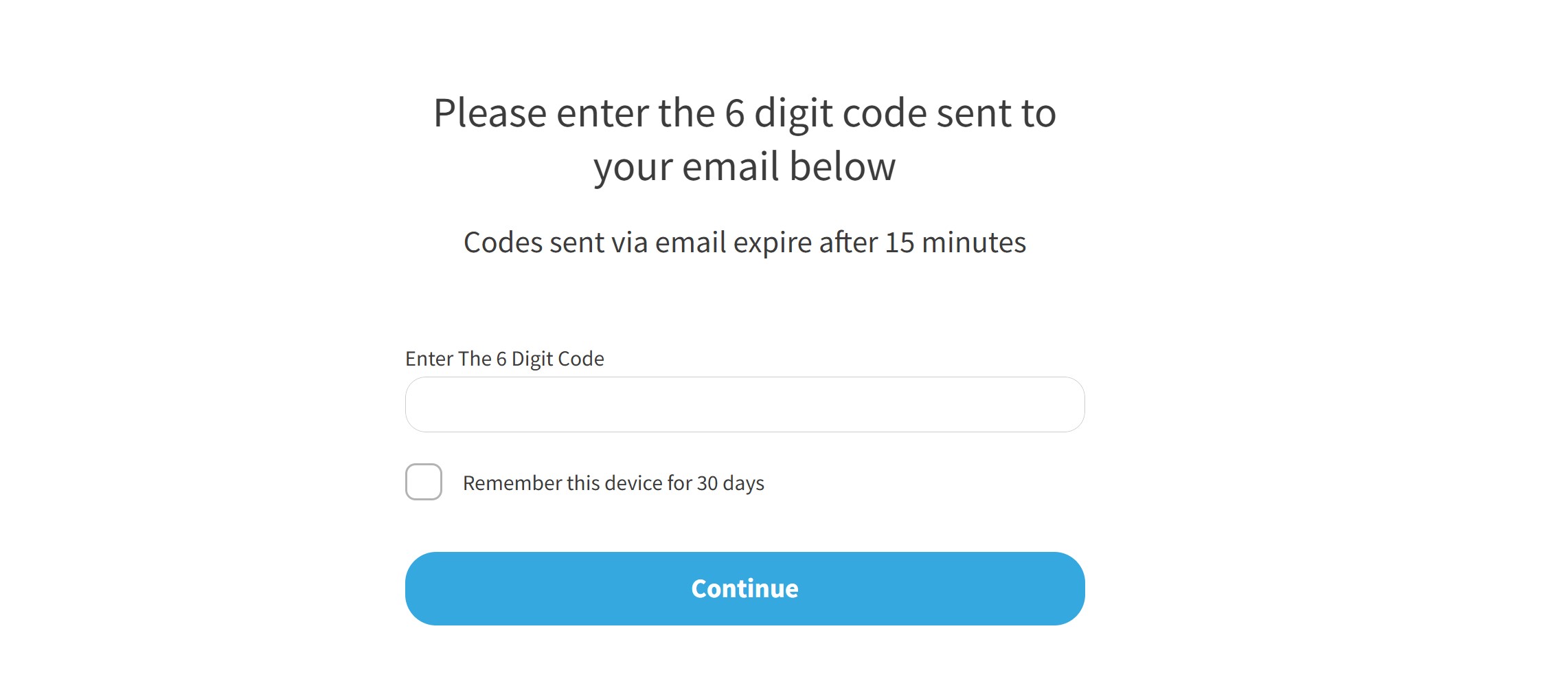
If you have two-factor authentication enabled in Xero, complete that step as normal.
-
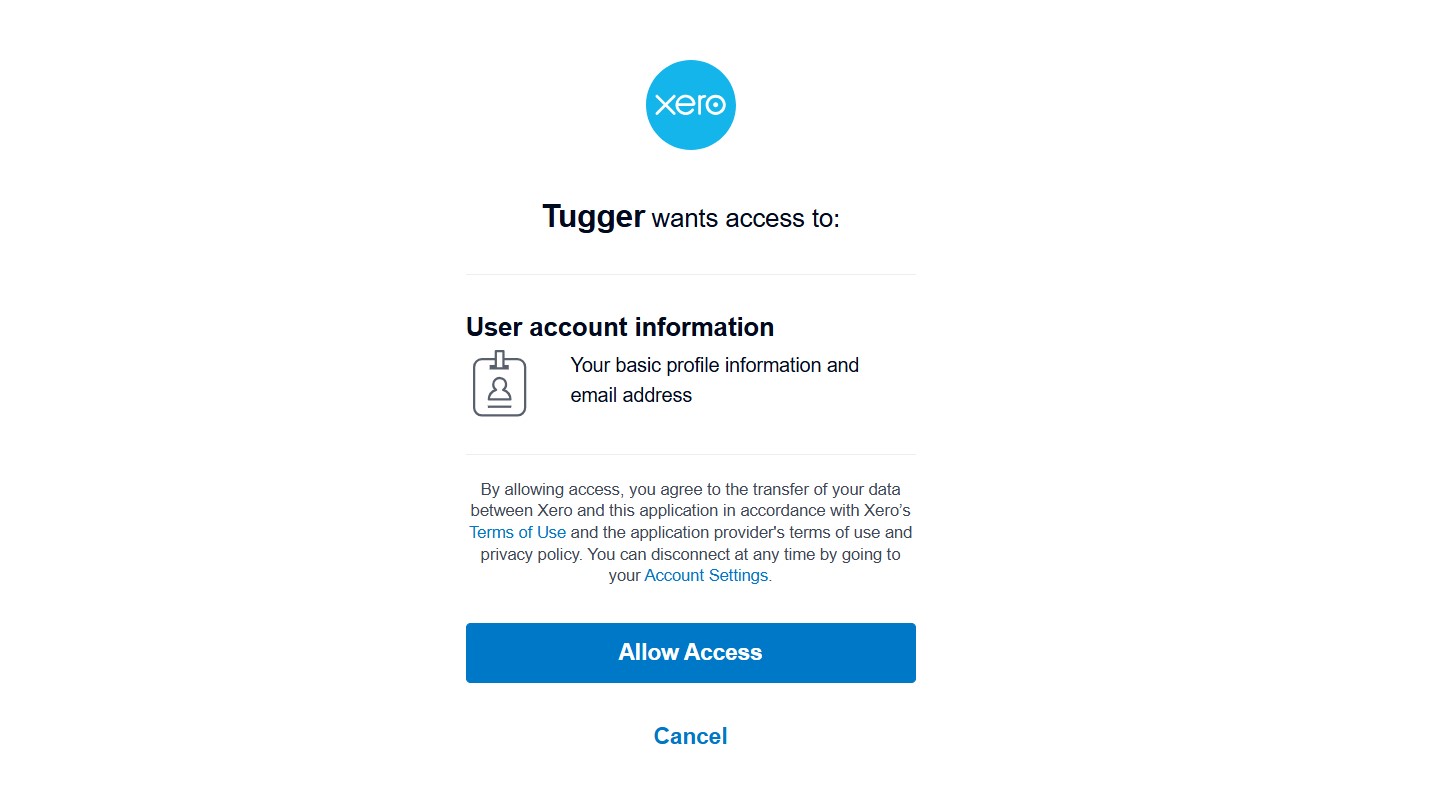
Xero will ask you to grant Tugger access. You'll see details about the Xero organisation and user account being connected. Click Allow Access to continue.
-
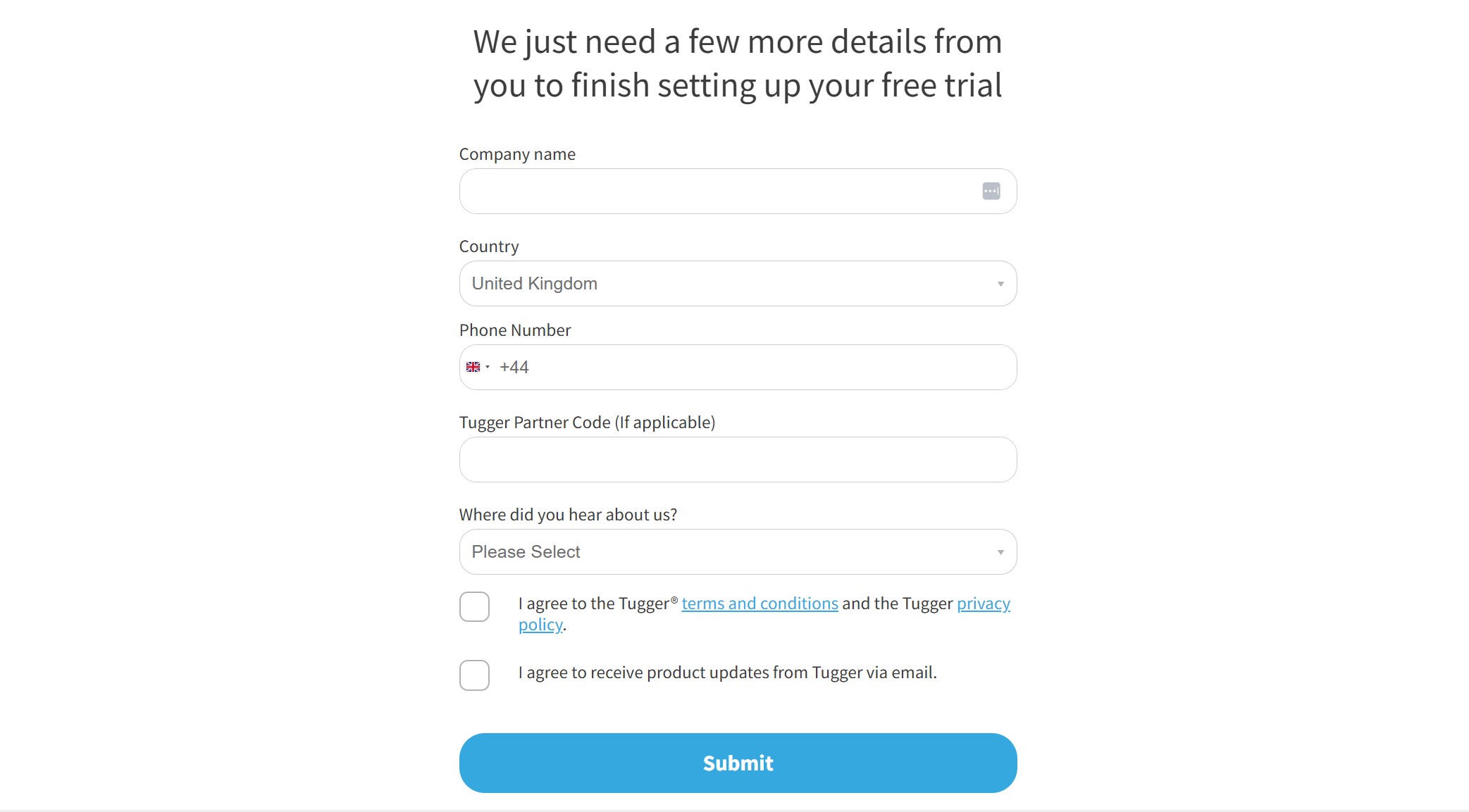
You'll be redirected back to Tugger to complete your registration. Fill in the required details and click Submit.
You'll then be taken through a few short setup steps, starting with How would you like to get set up?, which help you connect your first connector. See Setting Up Your First Connector or the Xero Connector Setup Guide to get started.
Note: You need an existing Xero account for this to work. If you don't have a Xero account, use the standard sign-up process instead.
Logging in with Xero SSO
If you've already signed up using Xero SSO:
-
Go to tuggerapp.com
-
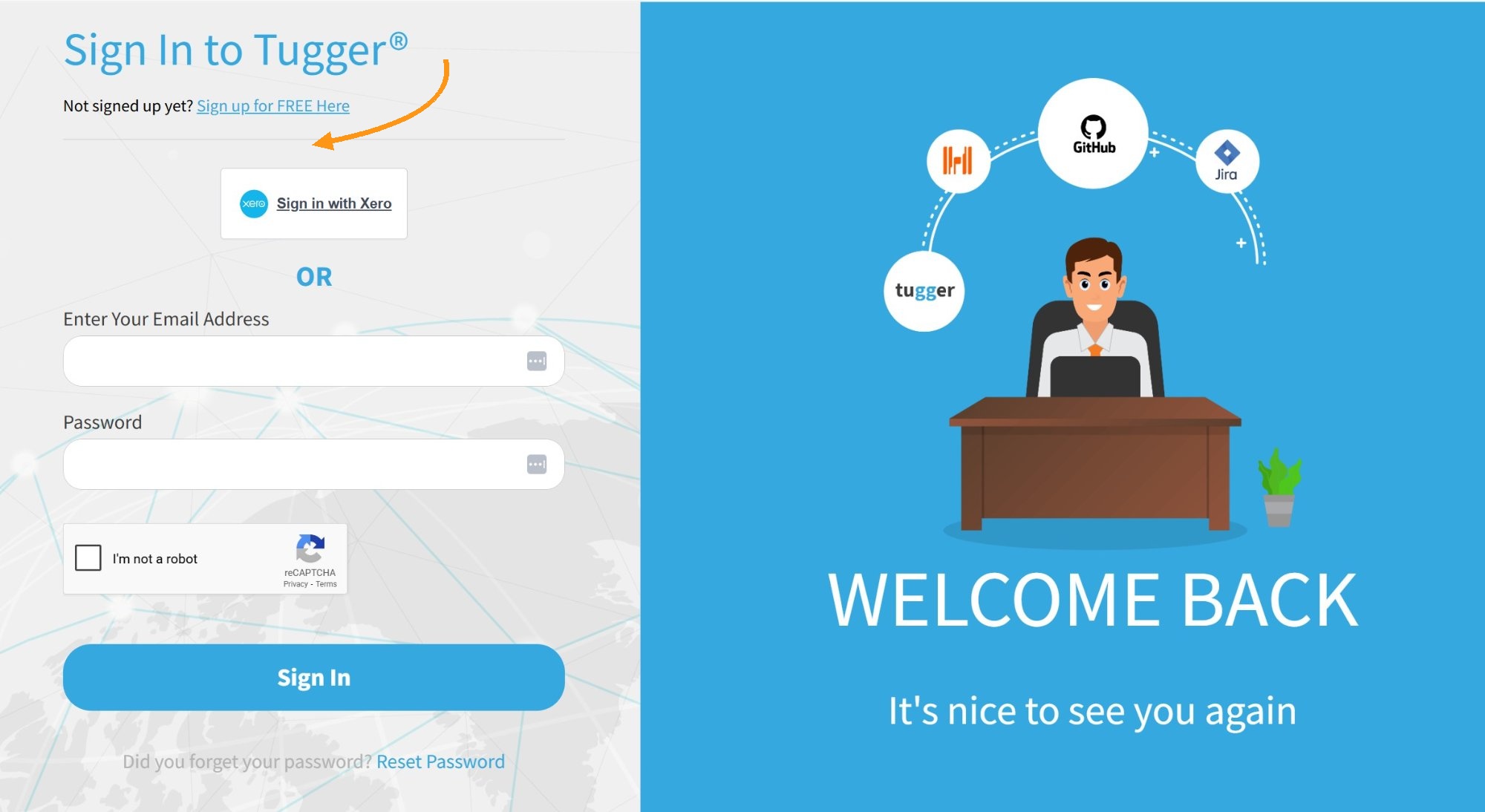
Go to the Tugger sign-in page and click Sign in with Xero
-
Sign in with your Xero email and password
-
Complete two-factor authentication if prompted
-
Click Allow Access when Xero asks you to confirm
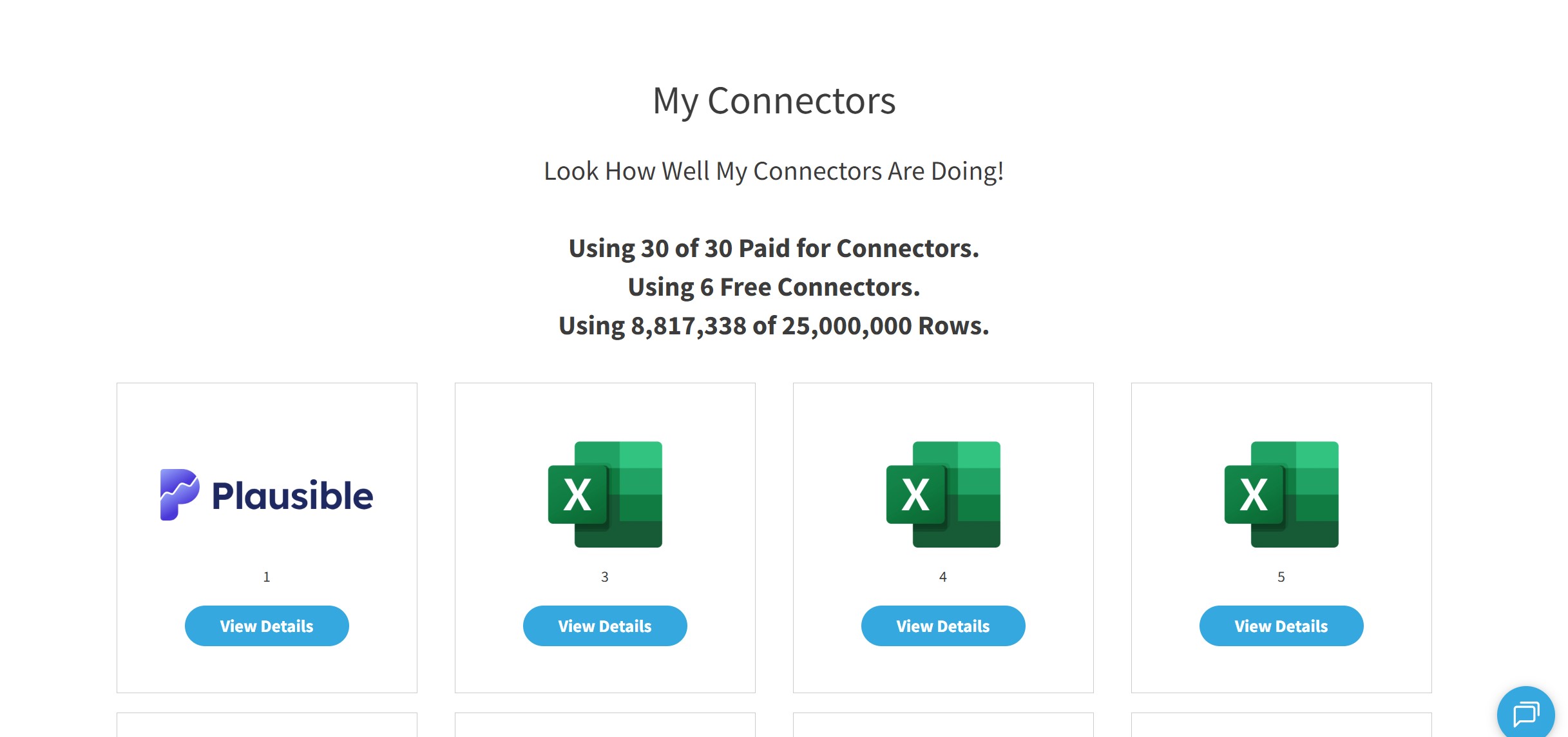
You'll be taken to My Connectors, where your existing connectors are listed.
When you sign in with Xero, Tugger doesn't ask for its own verification code. Xero's sign-in and any two-step verification you've set up in Xero protect your account instead.
Troubleshooting
"Sign in with Xero" isn't working
- Make sure you have an active Xero account. This option won't work without one.
- Check that you're entering the correct Xero email and password.
- If you have two-factor authentication enabled in Xero, make sure you're completing that step.
Signed in but can't see any connectors
- If this is your first time logging in, you'll need to add a connector first. See Setting Up Your First Connector.
Related articles: