When you sign in to Tugger with your email and password, Tugger asks for a verification code sent to your email. If you prefer, you can switch to using an authenticator app instead. Authenticator apps generate codes locally on your phone, so they work even without an internet connection and are generally considered more secure than email-based codes.
If you tick Remember this device for 30 days, you won't be asked for a code on that device for 30 days. If you sign in with Xero, Tugger doesn't ask for a code.
Before you start
You'll need an authenticator app installed on your phone. Common options include:
Any app that supports time-based one-time passwords (TOTP) will work.
Switching to an authenticator app
-
Log in to Tugger at tuggerapp.com
-
Click Security in the top navigation bar
-
Select Two Factor Authentication
-
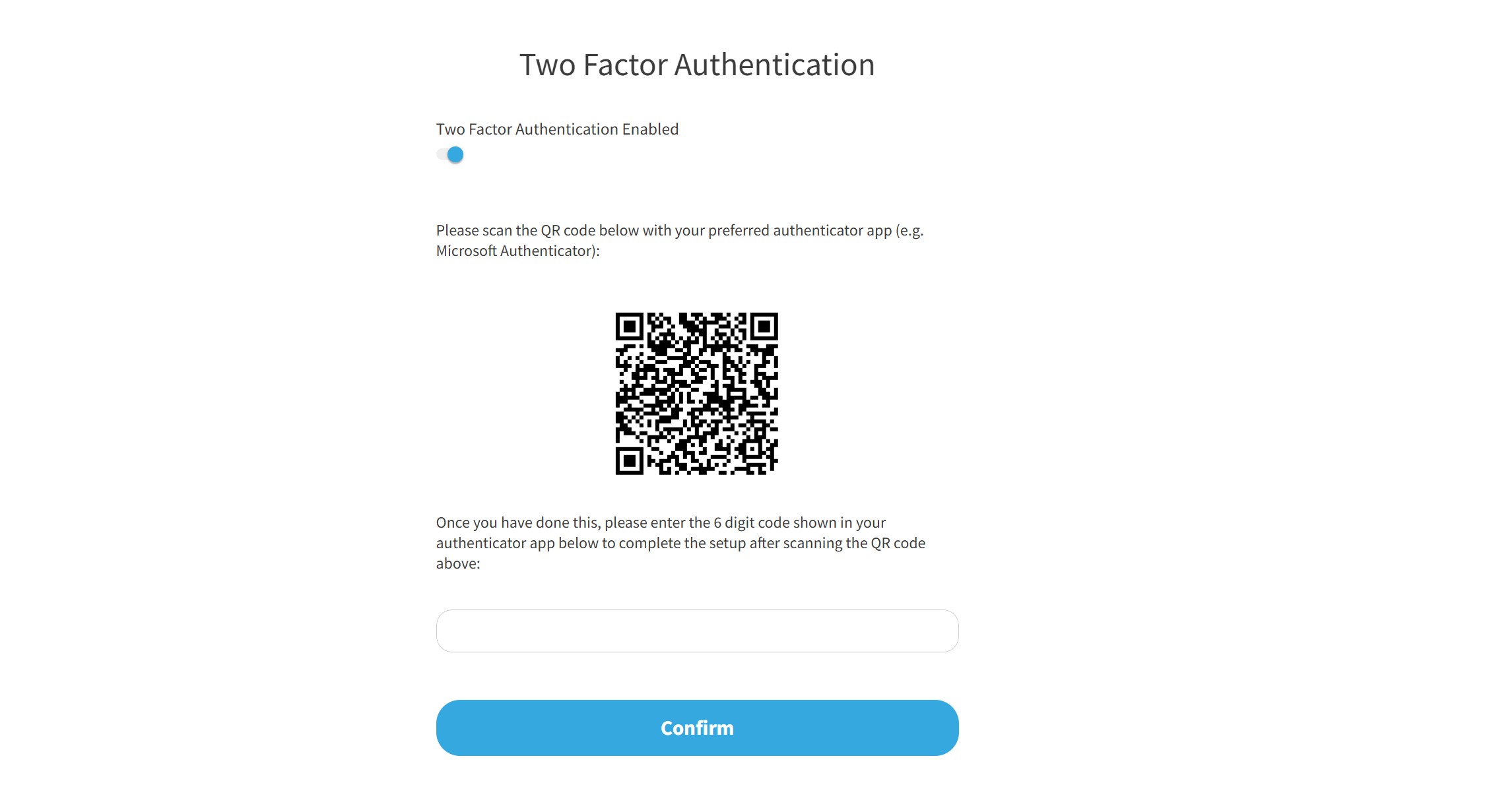
Toggle Two Factor Authentication Enabled to on
-
You'll see a QR code on the screen. Open your authenticator app and scan this QR code.
-
Your authenticator app will generate a 6-digit code. Enter this code in the field below the QR code.
-
Click Confirm
From this point on, you'll be asked to enter a code from your authenticator app when you log in, instead of receiving a code by email.
Logging in with an authenticator app
Once set up, the login process works like this:
- Go to tuggerapp.com and enter your email and password as normal
- You'll be prompted to enter a verification code
- Open your authenticator app and enter the current 6-digit code
- Click Continue to complete your login
The code changes every 30 seconds, so make sure you enter the one currently showing in your app.
After 10 incorrect codes, you'll need to wait 30 minutes before you can sign in again.
Switching back to email-based 2FA
If you want to go back to receiving verification codes by email:
- Log in to Tugger (you'll need to complete the authenticator step to get in)
- Go to Security > Two Factor Authentication
- Toggle Two Factor Authentication Enabled to off
- Enter the current code from your authenticator app in Code from your authenticator app, or enter Your password.
- Click Disable.
This disables the authenticator app and returns your account to the default email-based 2FA.
Troubleshooting
Verification code not working
- Make sure you're entering the code currently displayed in your authenticator app. Codes expire every 30 seconds.
- Check that the time on your phone is correct. Authenticator apps rely on accurate time settings to generate valid codes. Enable automatic time sync in your phone's settings if it isn't already on.
Lost access to your authenticator app
- If you've lost your phone or can no longer use your authenticator app, contact the Tugger team. We can give you a one-time backup code so you can sign in. Once you're in, you can turn off the authenticator app or set it up again.
Related articles: