Connect your ServiceM8 account to Tugger and start asking questions of your data in plain English with AI Insights - or pull it into Power BI, Tableau, or Excel. Setup takes around 5 minutes.
What you'll need
- A Tugger account (sign up free)
- A ServiceM8 account with permission to authorise third-party apps
Connecting multiple ServiceM8 accounts? Each ServiceM8 account counts as one connector on your Tugger plan. You can connect as many as your plan allows.
Step 1: Add the ServiceM8 connector in Tugger
- Log in to Tugger at tuggerapp.com
- Click Add Connector from the menu
- Select ServiceM8, then click Add Connector
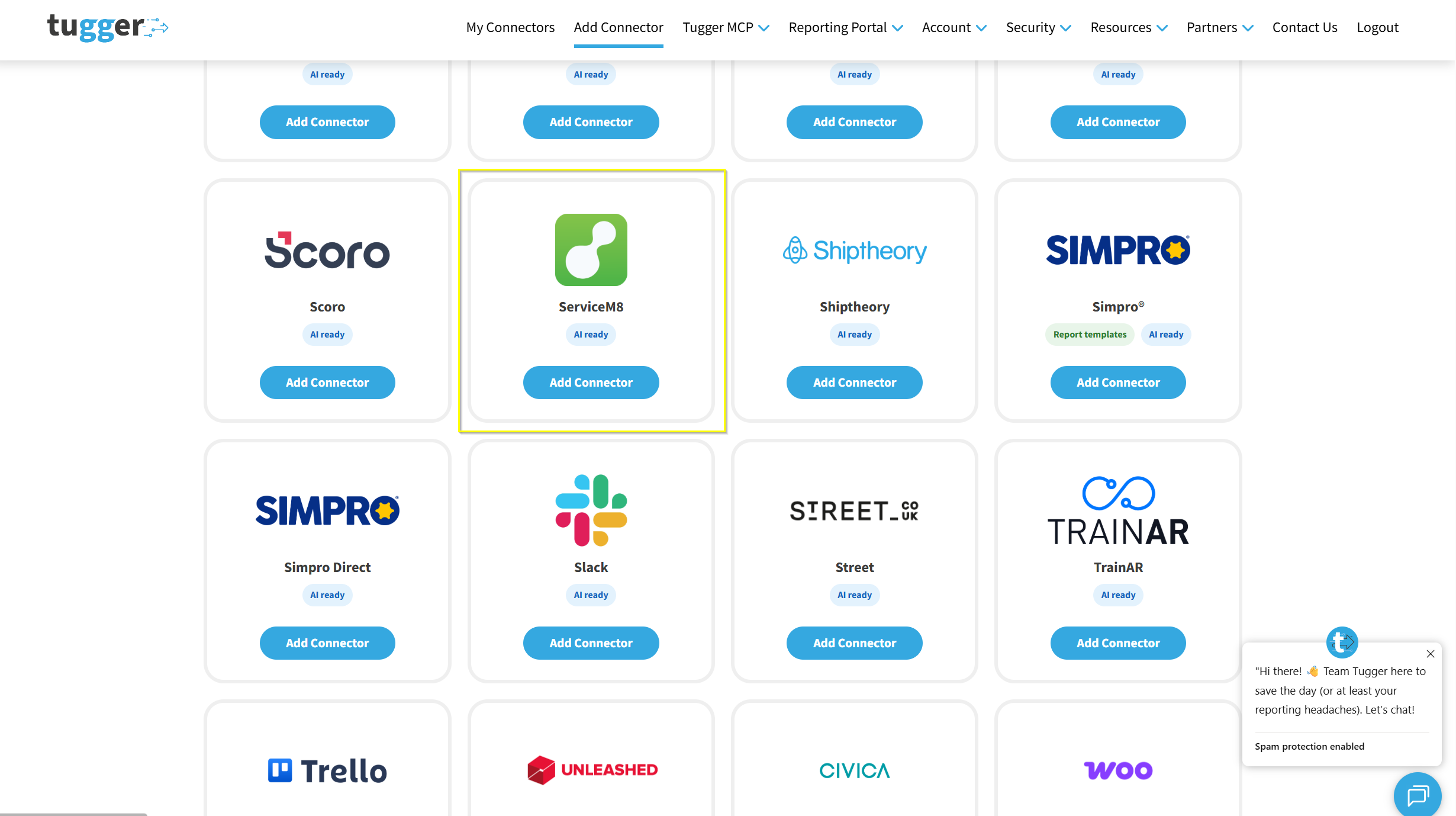
Step 2: Configure your connector
You'll be asked to set up two things:
- Connector Name - give it a name that makes sense to you (e.g. "Acme Ltd ServiceM8" or "ServiceM8 - Main Account").
- Sync Historical Data From - choose how far back you want Tugger to pull data from. The further back you go, the more data will be stored and the longer your first sync will take.
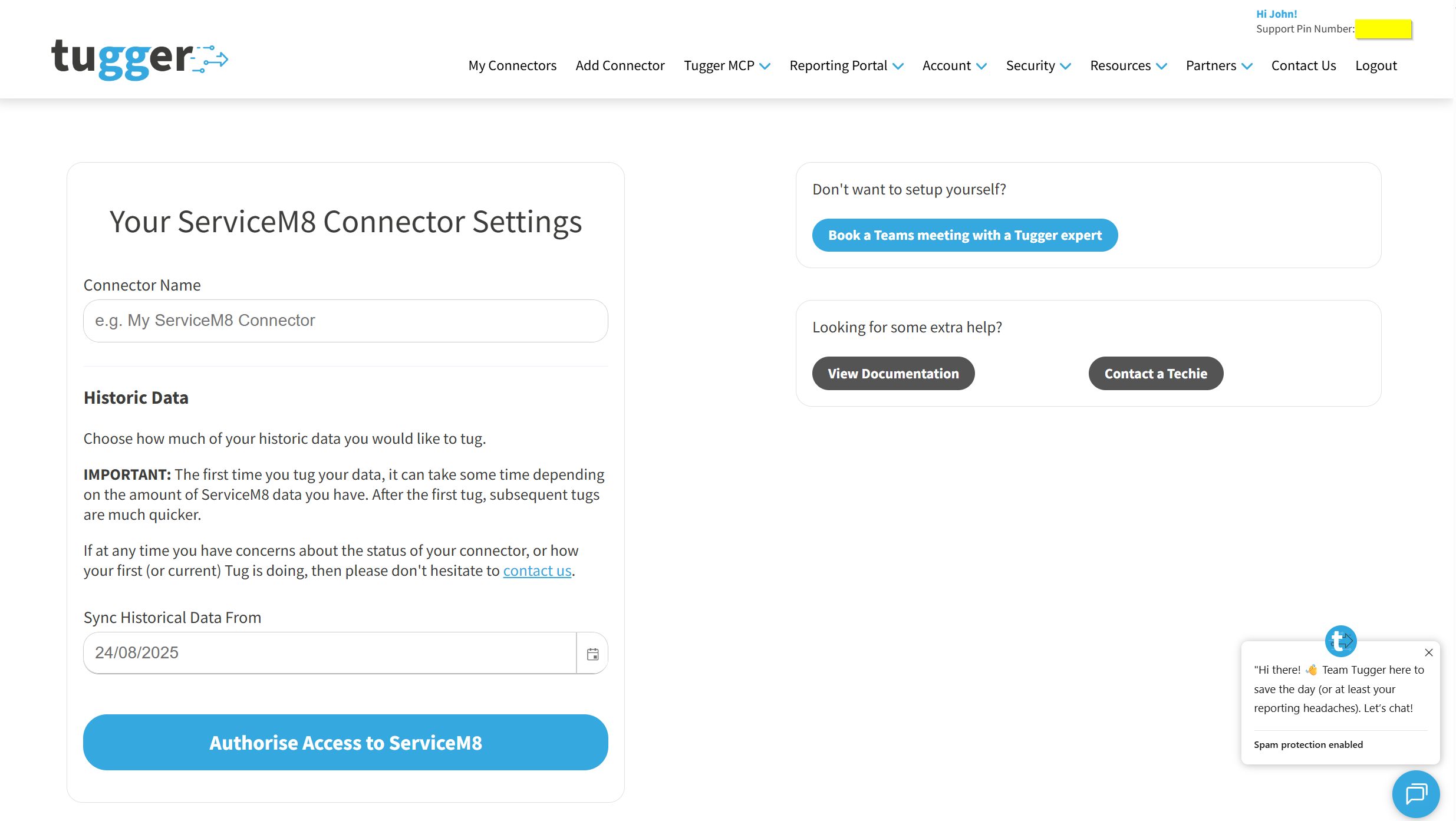
Click Authorise Access to ServiceM8 to save your settings and continue to the next step.
Step 3: Log in to ServiceM8 to authorise the connection
Tugger will ask you to log in to ServiceM8 so it can securely access your data. This is the same kind of "Sign in with..." process you'll have used with other apps.
- You'll be redirected to ServiceM8's login page and asked to sign in (if you aren't already)
- Review the list of permissions Tugger is requesting - these are all read-only and simply let Tugger read your job, customer and business data
- Scroll to the bottom of the list and click Allow
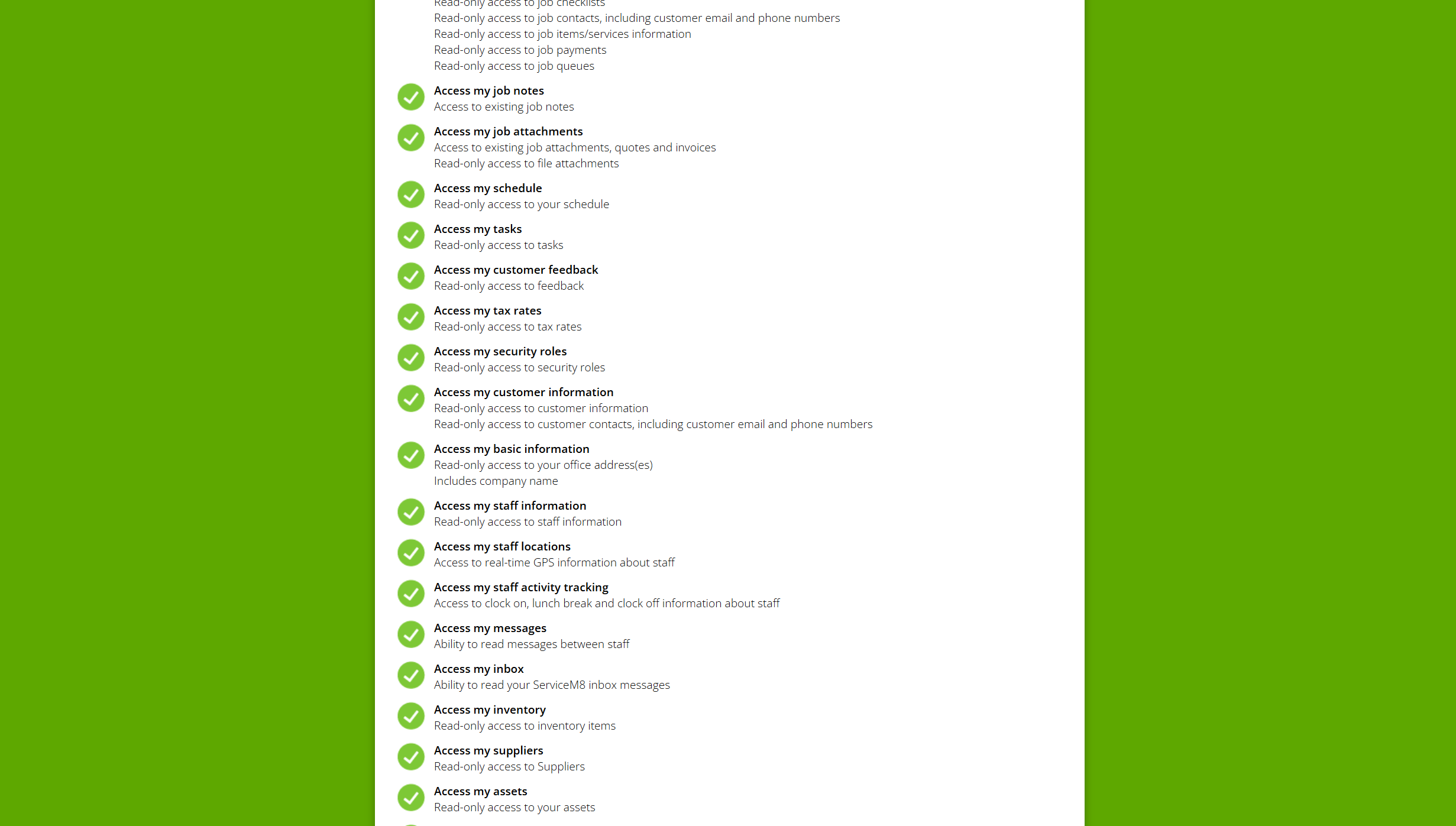
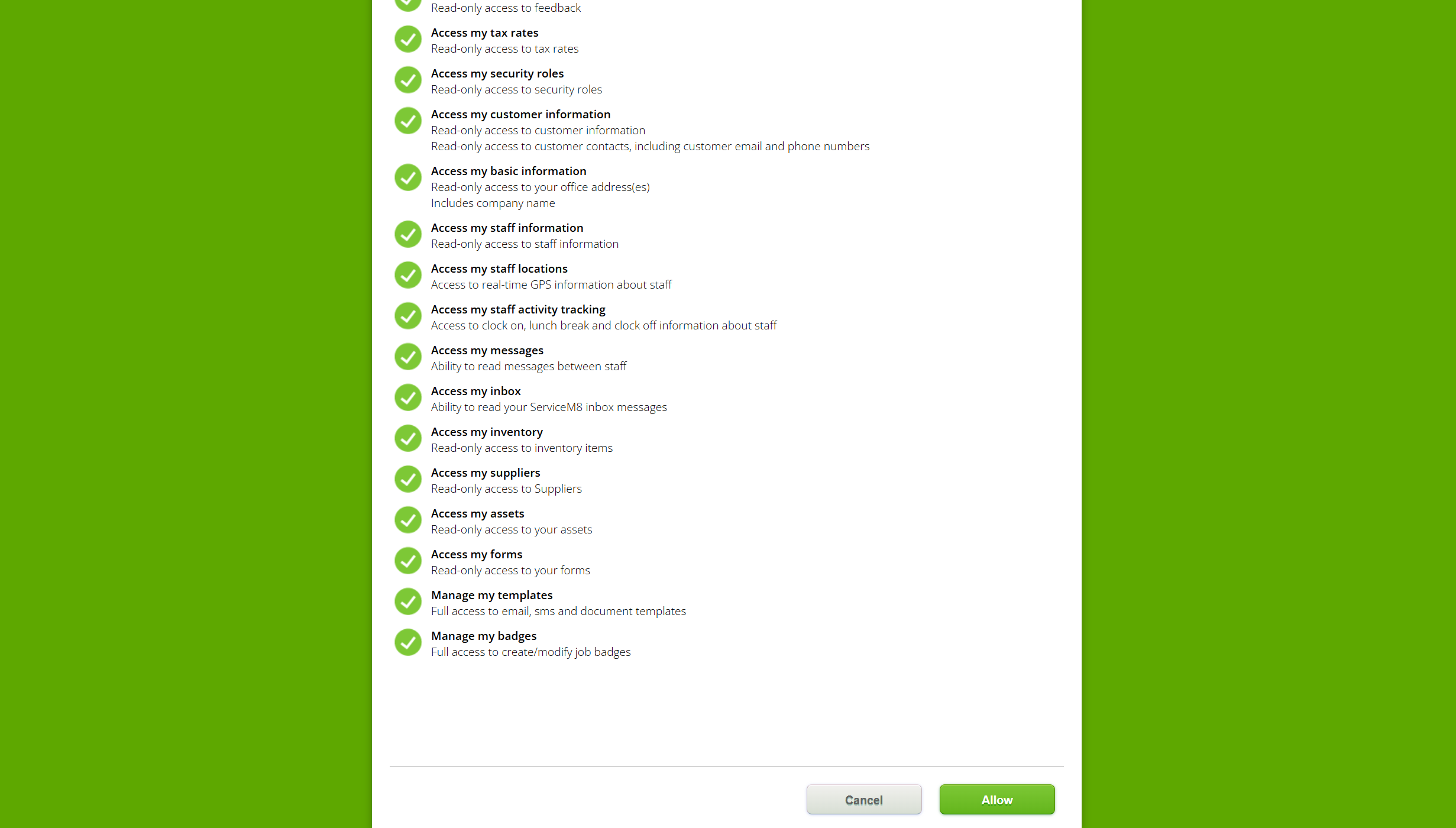
No API keys or technical setup required - just log in and approve.
Step 4: Your first sync
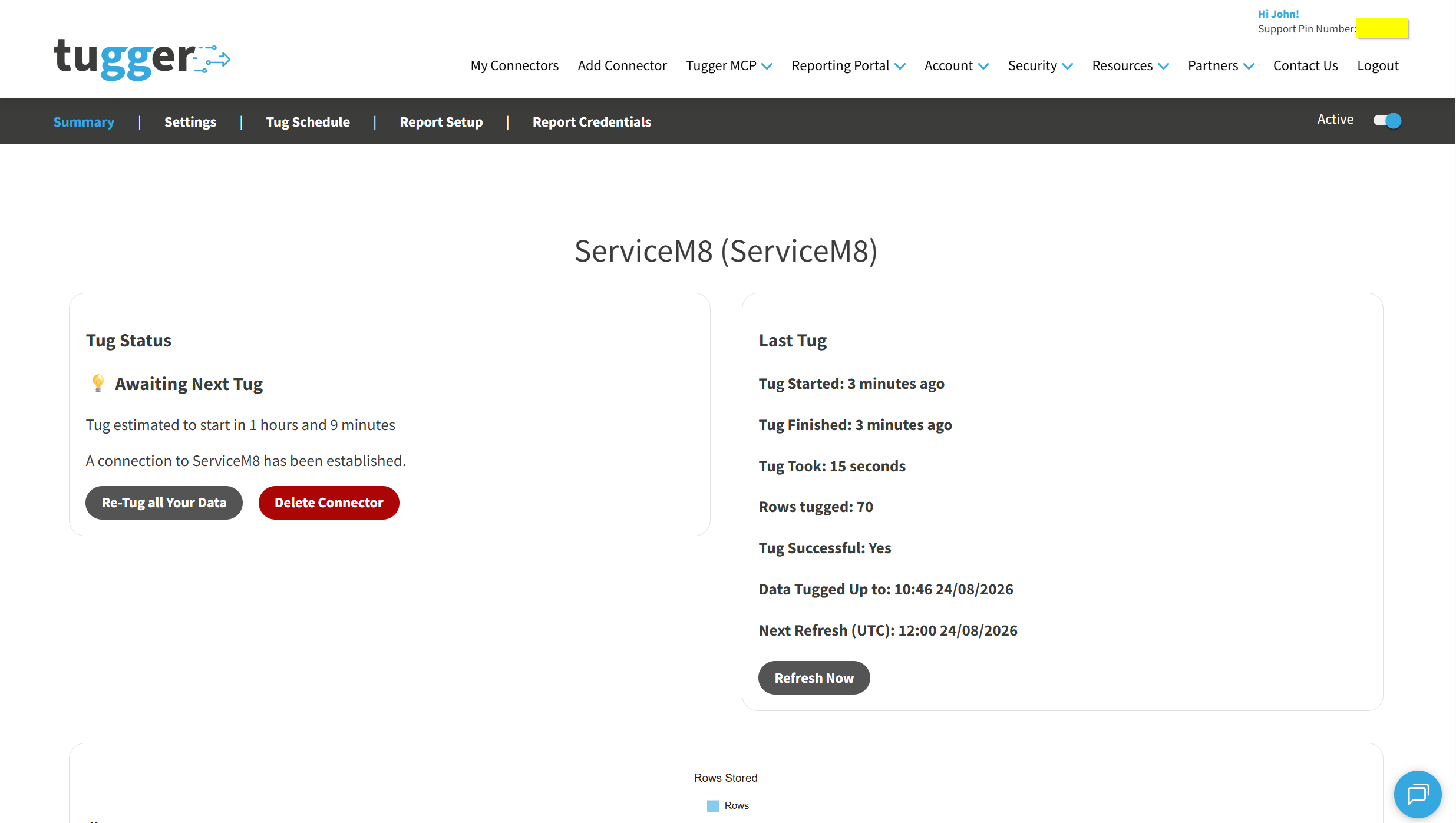
Once setup is complete, Tugger will start pulling your ServiceM8 data automatically. You can check progress on the Summary page.
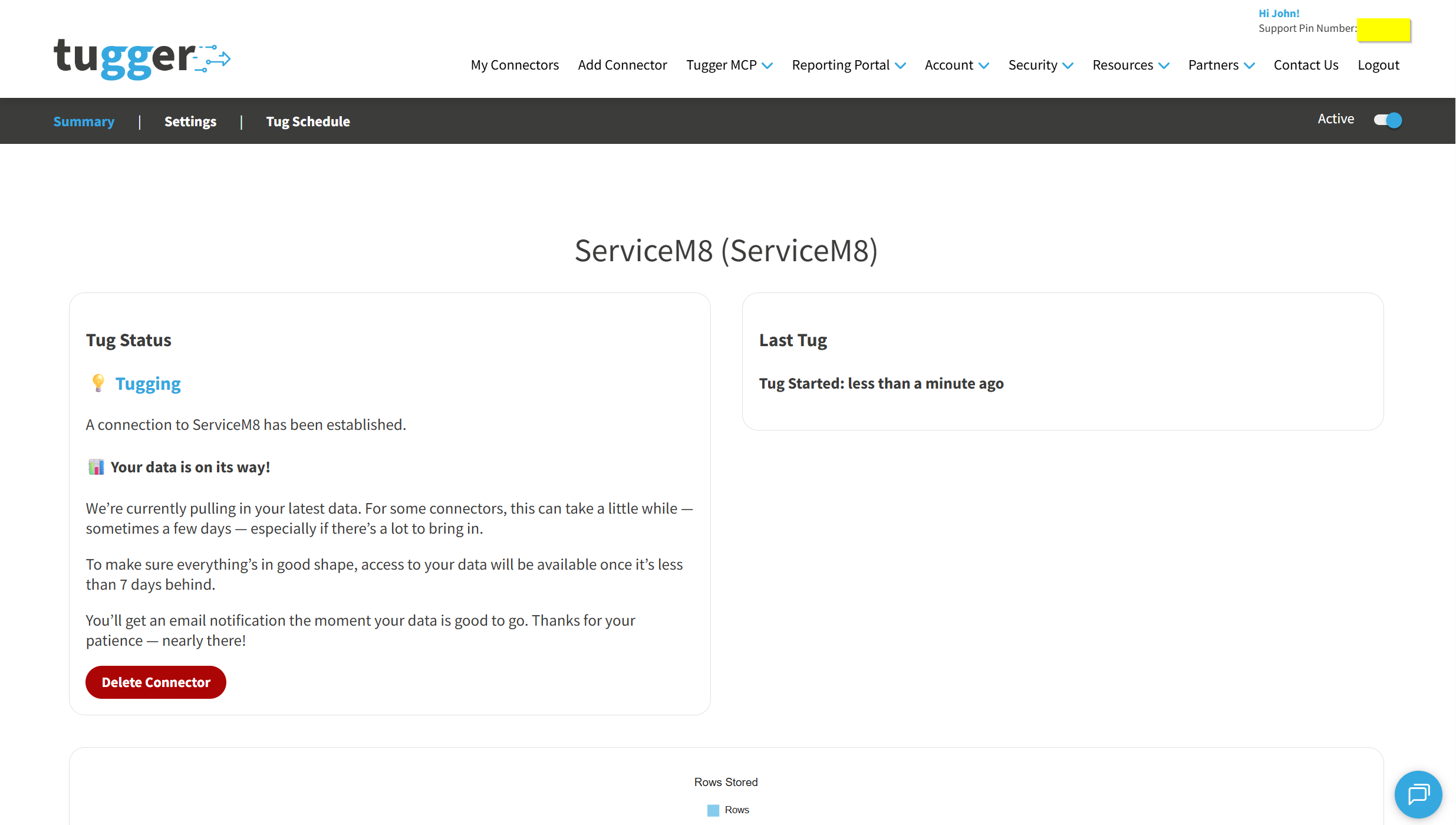
Depending on how much data you have (and how far back your data start date goes), the first sync may take anywhere from a few minutes to a longer period. After that, Tugger syncs your data automatically every day at 08:00 UK time by default. You can change this schedule if needed - see Managing Your Sync Schedule.
You'll receive an email (or SMS, if you've enabled it) once your data is ready. At that point you can start asking questions with AI Insights or building reports.
What data does Tugger pull from ServiceM8?
Tugger syncs a comprehensive set of field-service data from ServiceM8, including:
- Jobs - the full quote-to-completion lifecycle, including scheduled and recorded activities, staff allocations, checklists, contacts, and materials attached to each job
- Clients - companies and individuals you do work for, along with their site and billing addresses
- Client contacts - named billing and site contacts at each client
- Staff - your team, their security roles, and messages sent between staff members
- Payments & invoicing - payments recorded against jobs, invoice totals, and tax rates
- Materials & bundles - your materials catalogue, pricing, and reusable material bundles used on jobs
- Assets - customer-owned equipment you service (e.g. air conditioners, fire extinguishers), their types, and custom fields
- Forms & checklists - custom on-site forms, their submitted responses, and job checklists
- Attachments - photos, documents, and signed PDFs attached to jobs, clients, and other records
- Communications - inbox messages (email, SMS, online bookings), notes, and customer feedback ratings
- Suppliers - your supplier records
- Configuration - job categories, tax rates, badges, allocation windows, queues, and job/SMS templates
For a full list of data tables and fields, ask Tugger AI Insights - try "What data is available from my ServiceM8 connector?"
What's next?
Once you've received the email (or SMS) confirming your data is ready:
AI Insights
- What is Tugger AI Insights? - ask questions about your ServiceM8 data in plain English
- Connect Tugger to Claude | ChatGPT
Reporting
Manage your sync schedule
- Managing Your Sync Schedule - change when and how often Tugger pulls your data
Need help? Contact the Tugger team - we're always happy to help you get up and running.