This guide shows you how to load your Tugger data into Microsoft Excel using OData. Once connected, you can select the tables you need and work with your data directly in Excel.
Before you start
- Your first sync must be complete - you'll have received an email from Tugger confirming your data is ready
- Microsoft Excel installed on your computer (Microsoft 365 or Excel 2016 and later)
Step 1: Find your connection details in Tugger
You'll need your OData URL, Username, and Password from Tugger.
- Log in to Tugger at tuggerapp.com
- Navigate to your connector
- Click Report Credentials
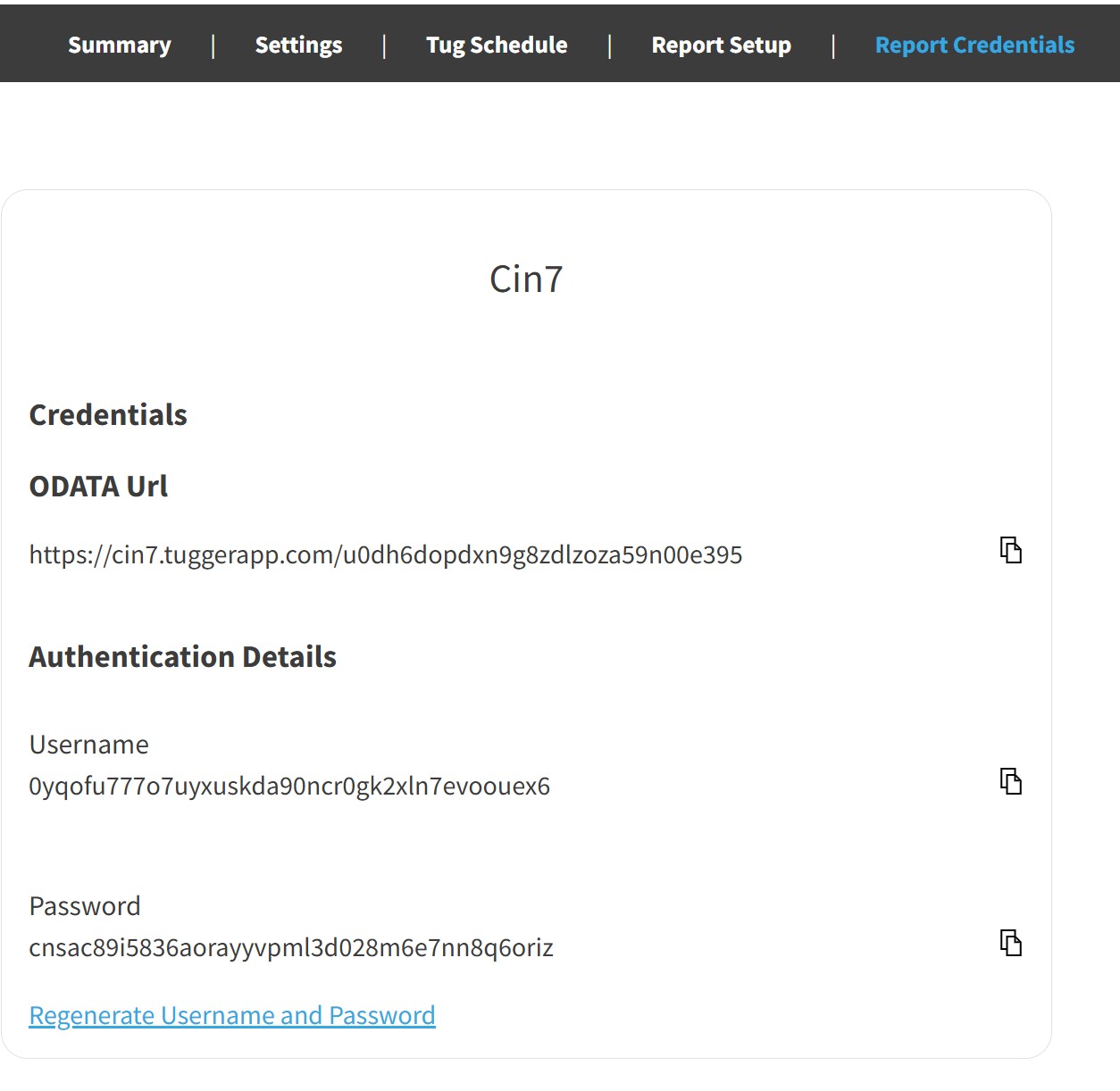
You'll see your OData URL, Username, and Password, each with a copy button. Keep this page open for the next steps.
Tip: You can also find these details by going to Report Setup and selecting Excel, which will walk you through the process step by step.
Step 2: Connect Excel to your Tugger data
- Open Excel and create a new blank workbook
- Go to the Data tab in the ribbon
- Click Get Data, then search for OData, then select OData
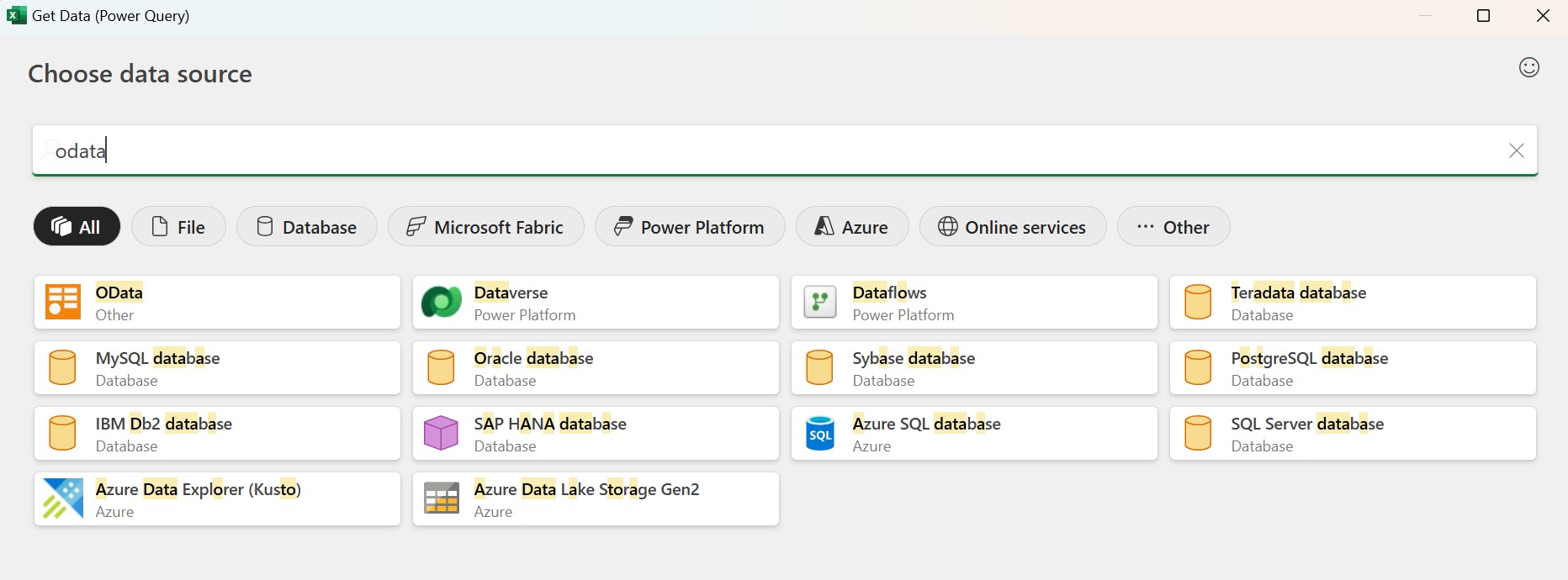
- Paste your OData URL from Tugger into the URL field and click OK
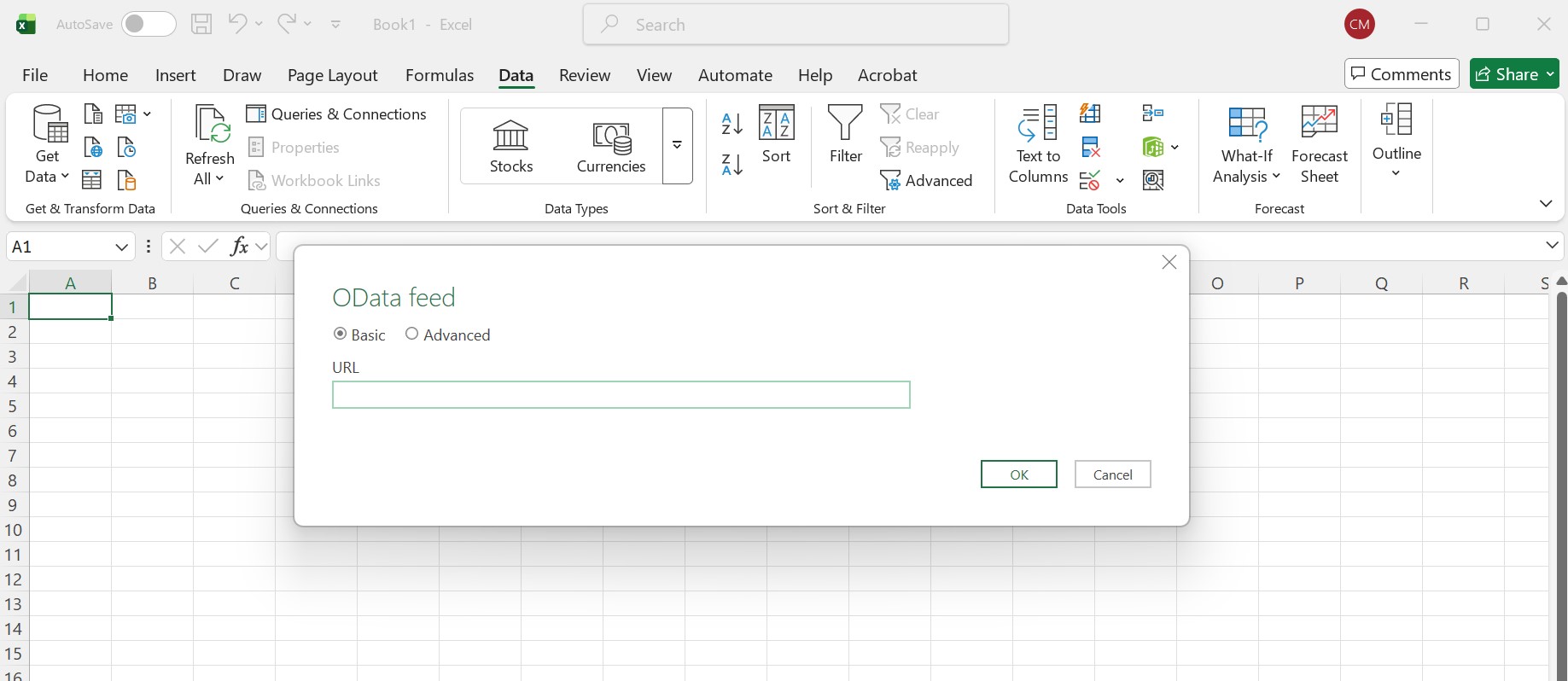
Step 3: Enter your credentials
Excel will ask you to authenticate.
- Select Basic from the left-hand side
- Check the dropdown at the top of the dialogue and make sure it matches the base Tugger URL. If the levels don't match, it can cause issues.
- Enter the Username and Password from your Tugger Report Credentials
- Click Connect
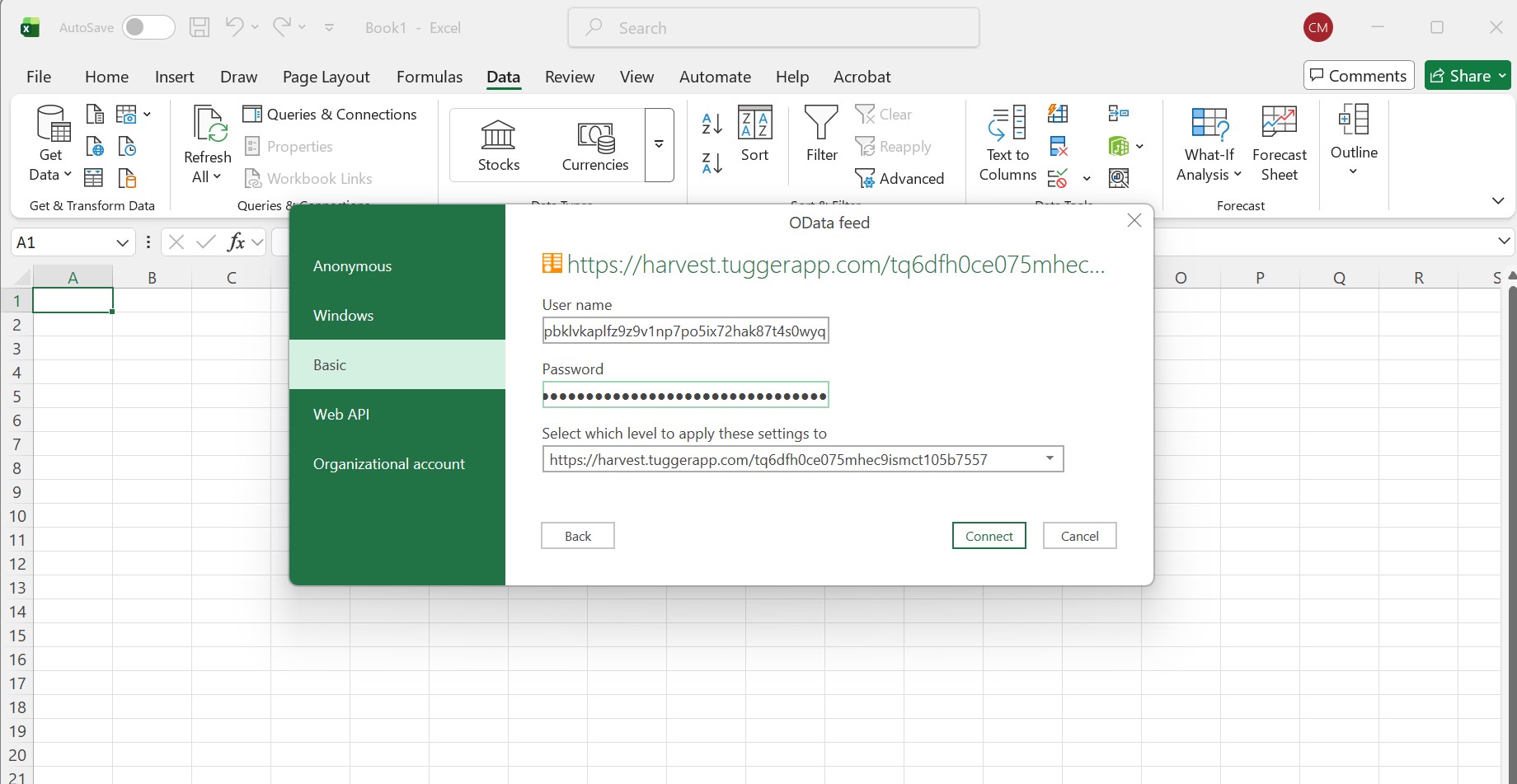
Note: Once entered, Excel will remember these credentials. You won't need to enter them again unless you clear them or regenerate your credentials in Tugger. See Regenerating Report Credentials.
Step 4: Select your tables
The Navigator window will appear, showing all the available data tables from your connector.
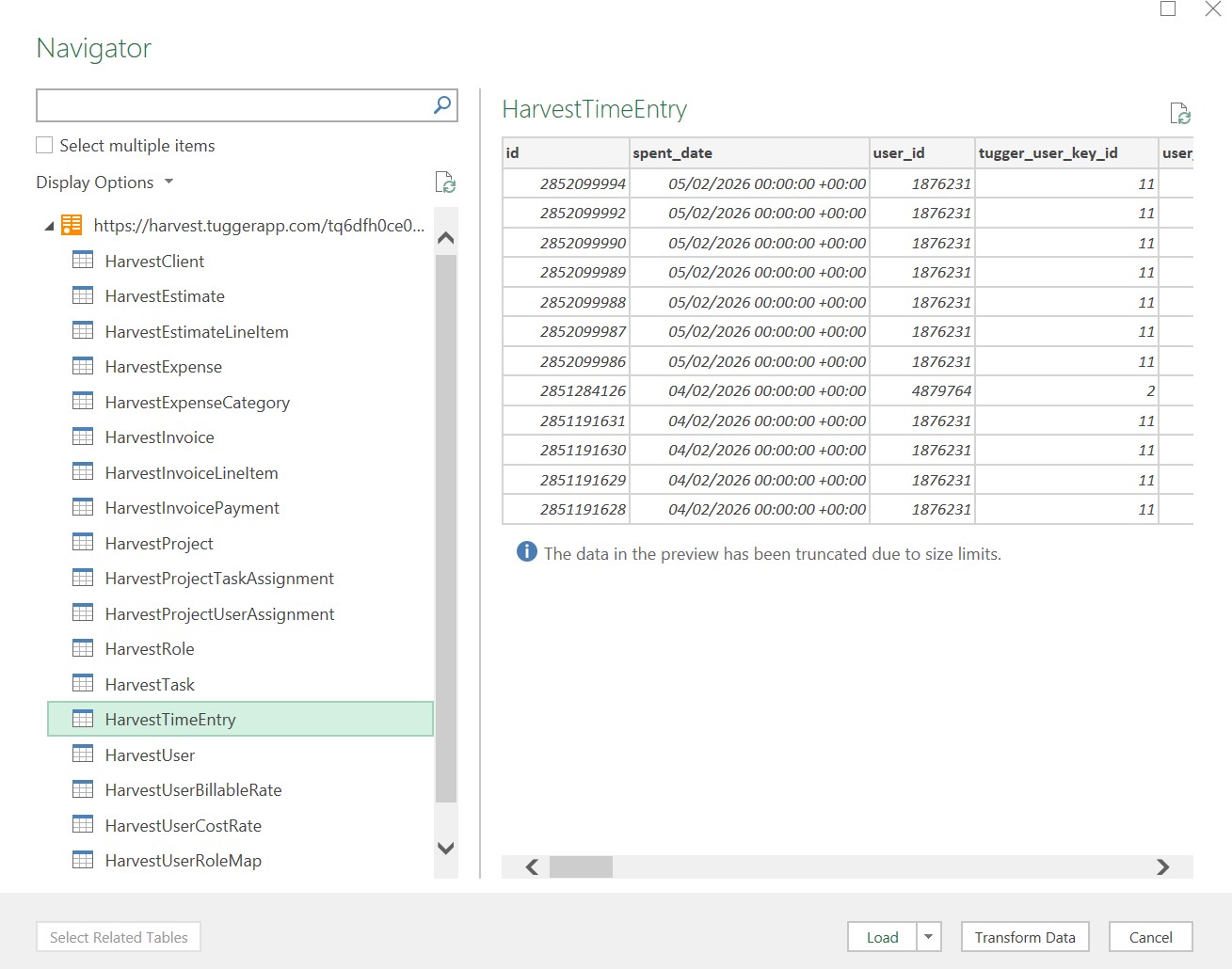
- Click on a table name to see a preview of its data on the right
- Tick the checkbox next to each table you want to import (you can select multiple)
- Click Load to bring the data straight into Excel, or Transform Data to open Power Query Editor first
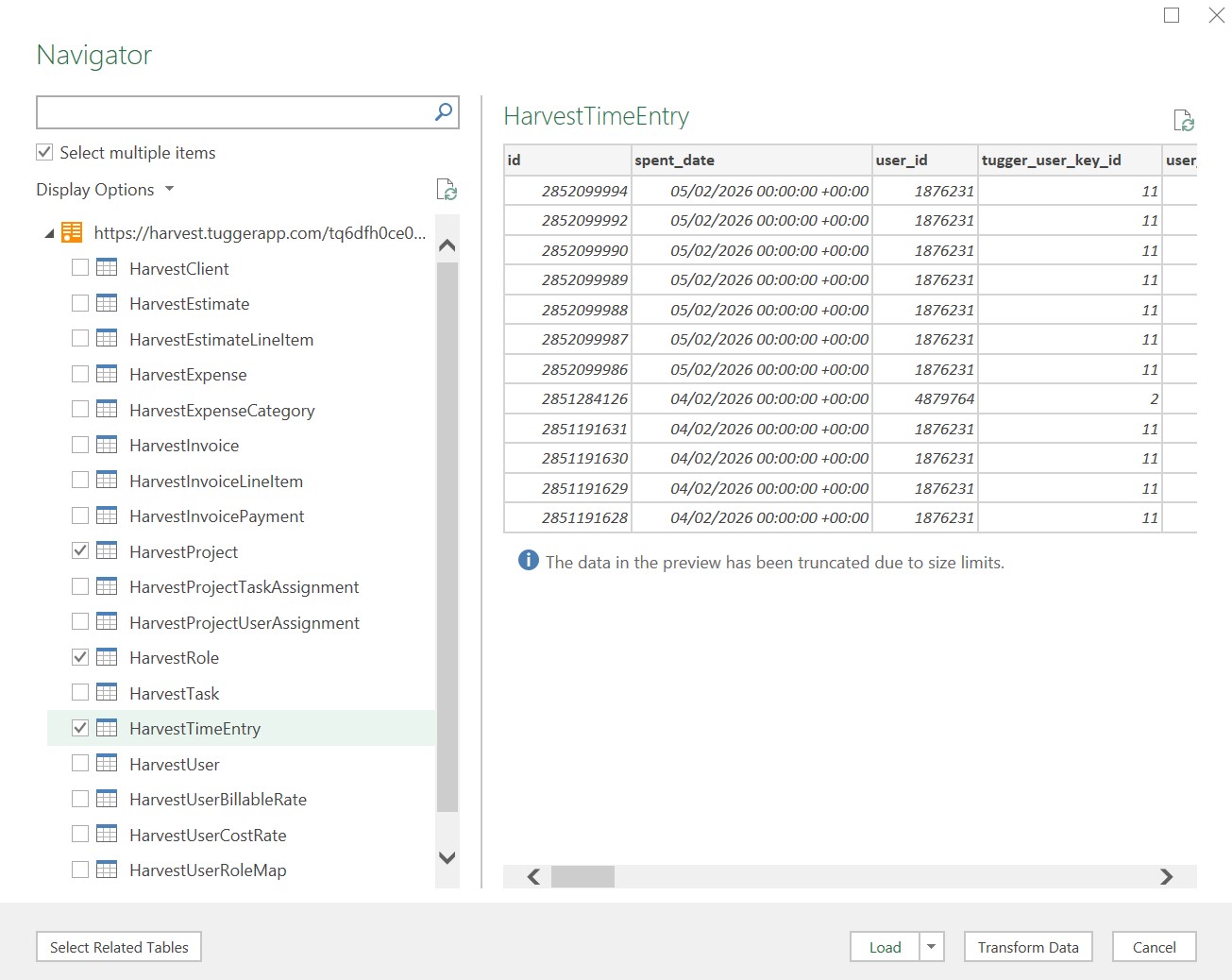
Load will add each selected table as a separate sheet in your workbook.
Transform Data opens the Power Query Editor, where you can filter columns, change data types, join tables, and reshape the data before loading it. This is useful if you only need certain columns or want to combine data from multiple tables.
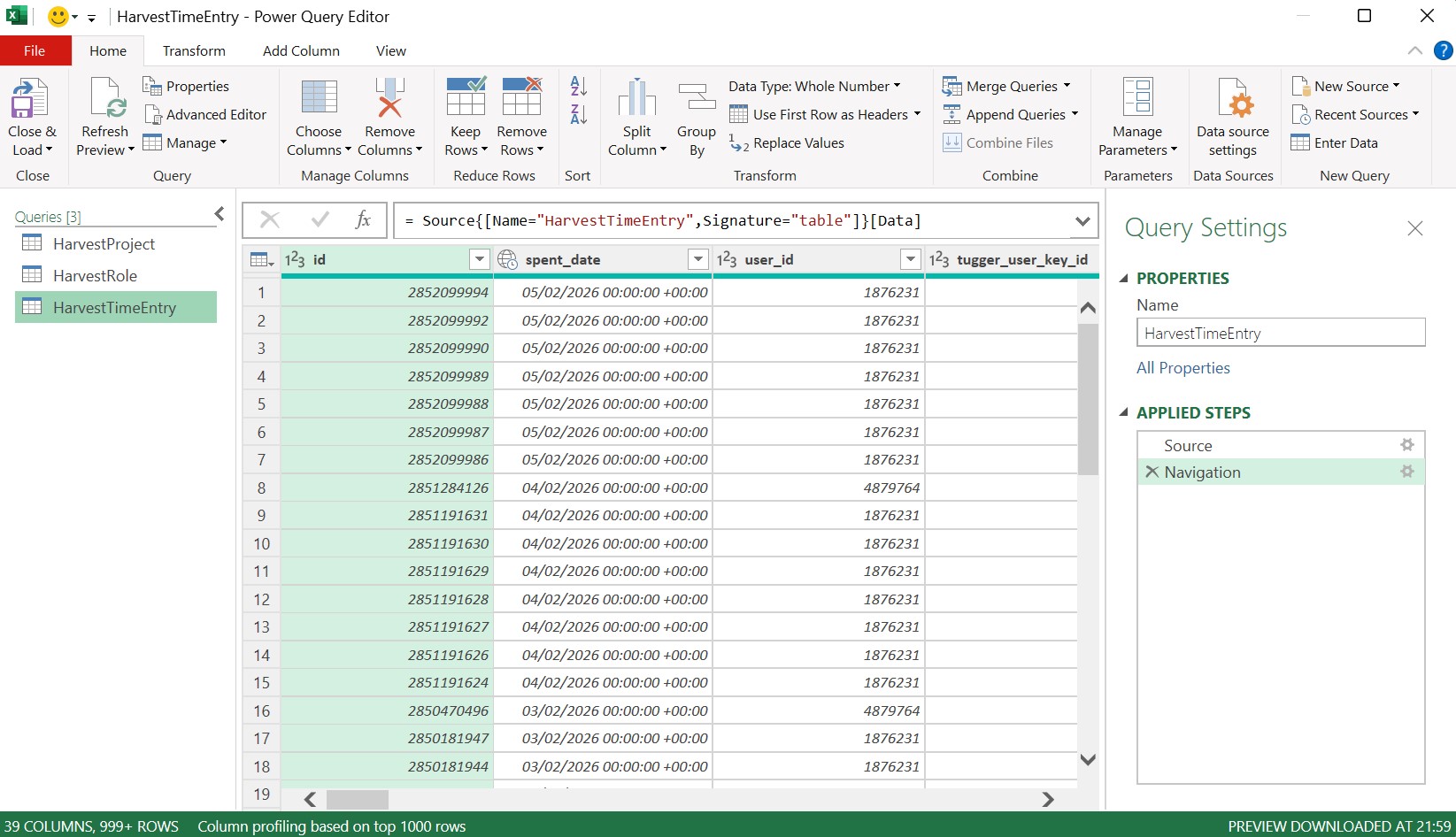
Note: If you close the Power Query Editor without saving, your loaded tables will be lost. Make sure to click Close & Load when you're done.
Refreshing your data
To pull the latest data from Tugger at any time:
- Go to the Data tab
- Click Refresh All
Excel will reconnect to Tugger and update all your imported tables with the most recent data.
Troubleshooting
"From OData Feed" option is missing
- This feature requires Microsoft 365 or Excel 2016 or later. Earlier versions of Excel may not support OData connections.
Authentication keeps failing
- Make sure you're selecting Basic (not Anonymous or other options).
- Check the dropdown at the top of the authentication dialogue matches the Tugger URL.
- Double-check your username and password using the copy buttons in Tugger.
No tables showing in the Navigator
- Check that your first sync has completed in Tugger (Summary page).
- Make sure you're using the correct OData URL for the connector you want.
Data seems incomplete
- Check your data start date in Tugger. Data before this date won't be included.
- See Data is Missing in Power BI Desktop for more help.
Related articles: