Connect your Simpro account to Tugger and start asking questions of your data in plain English with AI Insights - or pull it into Power BI, Tableau, or Excel. Setup takes around 5 minutes.
What you'll need
- A Tugger account (sign up free)
- A Simpro account with a login that's allowed to authorise access to your data
- Your Simpro web address - the address you use to log in to Simpro (for example
https://acme-uk.simprosuite.com). You'll need it in Step 2.
Running a multi-company Simpro build? You can bring every company into one connector, or keep each company ring-fenced in its own connector. Each connector counts as one connector on your Tugger plan.
Step 1: Add the Simpro connector in Tugger
- Log in to Tugger at tuggerapp.com
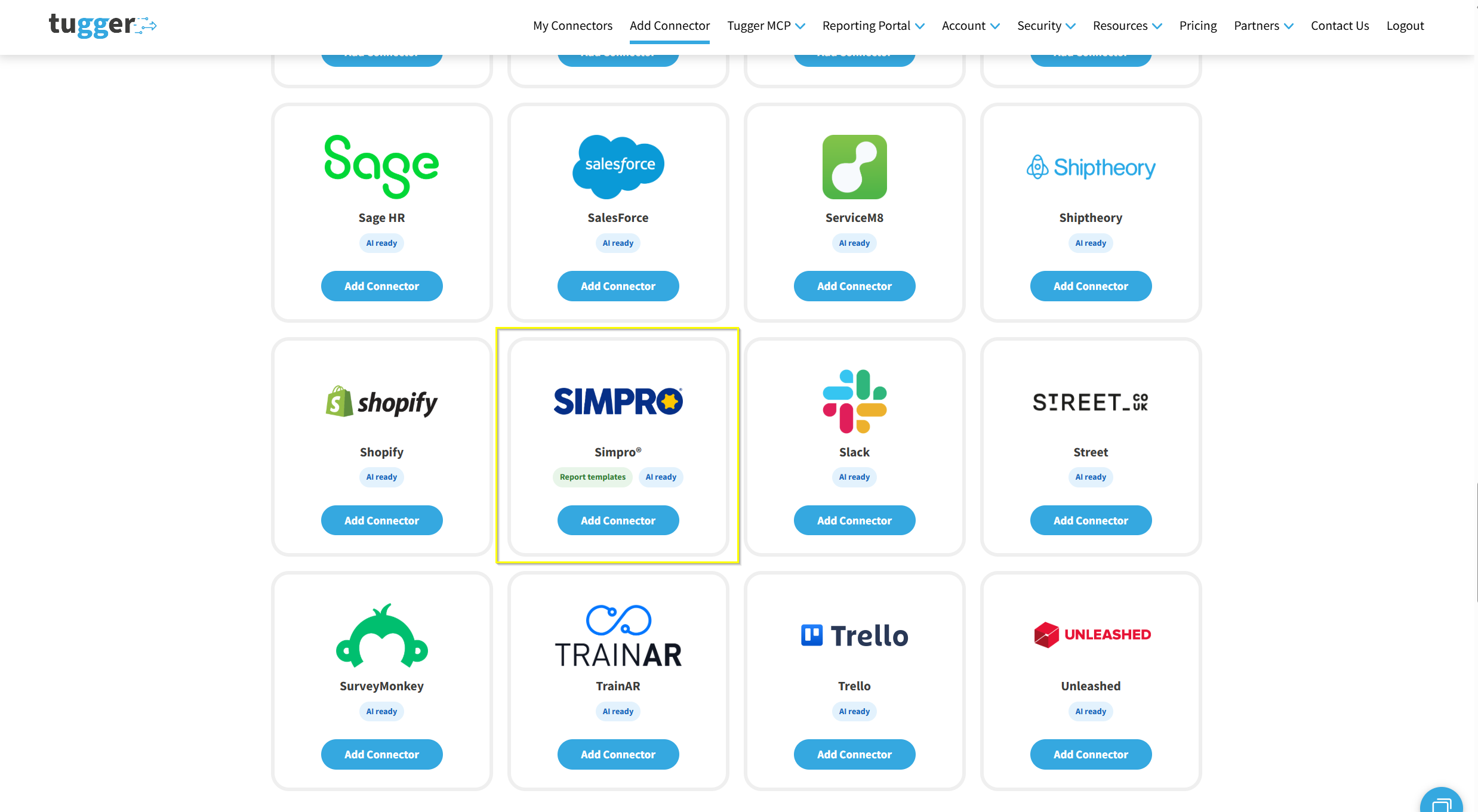
- Click Add Connector from the menu
- Select Simpro, then click Add Connector
Step 2: Name your connector and point it at your Simpro build
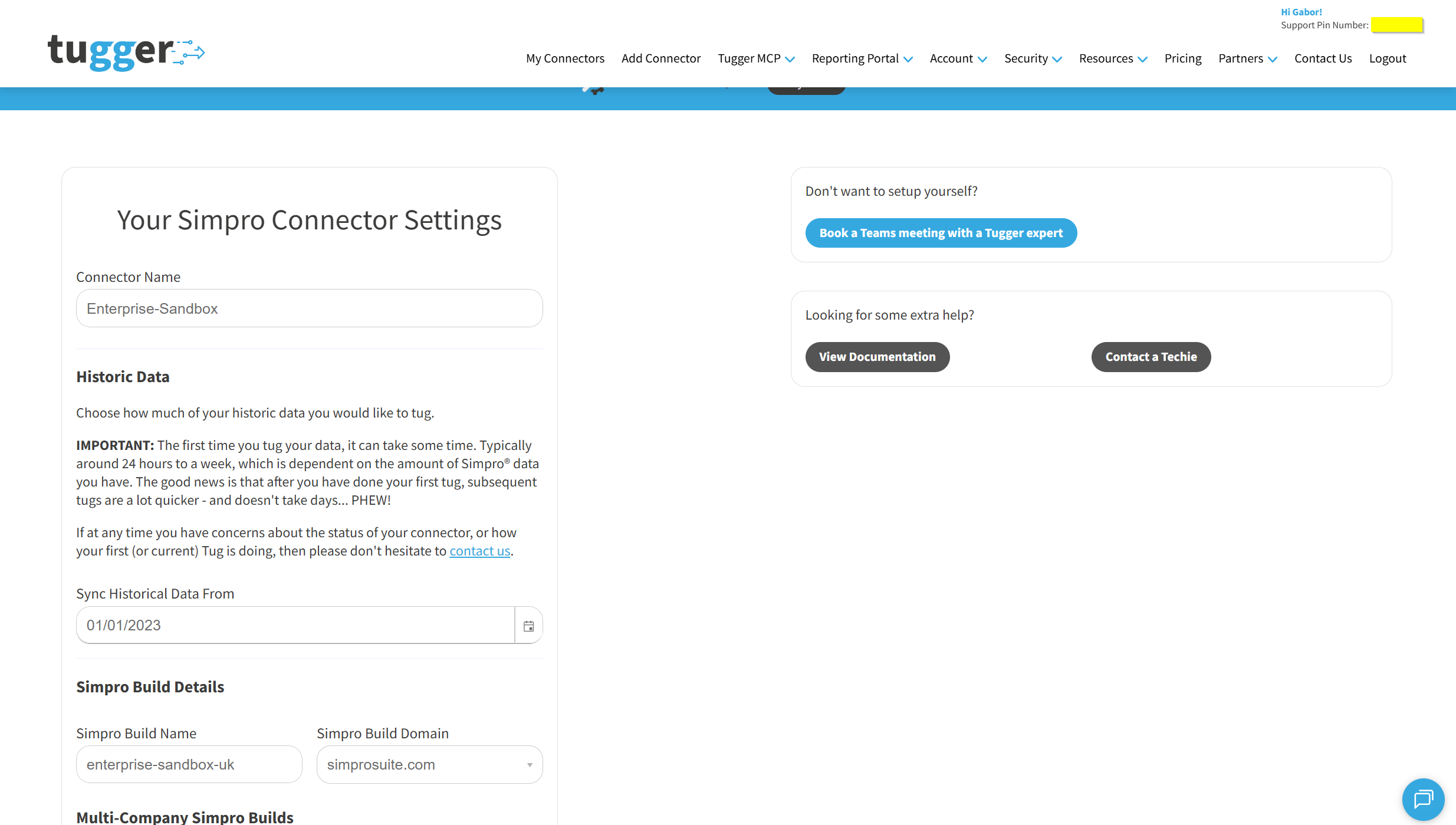
You'll land on the Your Simpro Connector Settings page.
- Connector Name - give it a name that makes sense to you (e.g. "Acme Ltd Simpro"). This is especially helpful if you're connecting more than one Simpro company.
- Sync Historical Data From - choose how far back you want Tugger to pull data from. The further back you go, the more data will be stored and the longer your first sync will take. Choose carefully, because this date is locked once the connector has been created.
- Simpro Build Name and Simpro Build Domain - together these make up your Simpro web address. If you log in to Simpro at
https://acme-uk.simprosuite.com, then the build name isacme-ukand the domain issimprosuite.com. Pick the domain from the dropdown that matches your own address.
Step 3: Choose your company setup and reporting options
Keep scrolling down the same page.
Multi-Company Simpro Builds - if your Simpro build holds several companies, you have a choice here. Leave Only Report on a Specific Company unticked and Tugger brings every company in the build through together, as one combined set of data. Tick it if you’d rather report on just one company, or if you want to keep your companies separate by setting up a connector for each one - you’ll choose which company in Step 5. If you have a single-company build, leave it unticked; it makes no difference to your setup.
Report Options
- Start of Financial Year (Month) - set this so your reports line up with your own financial year.
- How many days before a job is considered overdue, based on its due date? - a job that's past its due date by more than this many days will count as overdue in your reports.
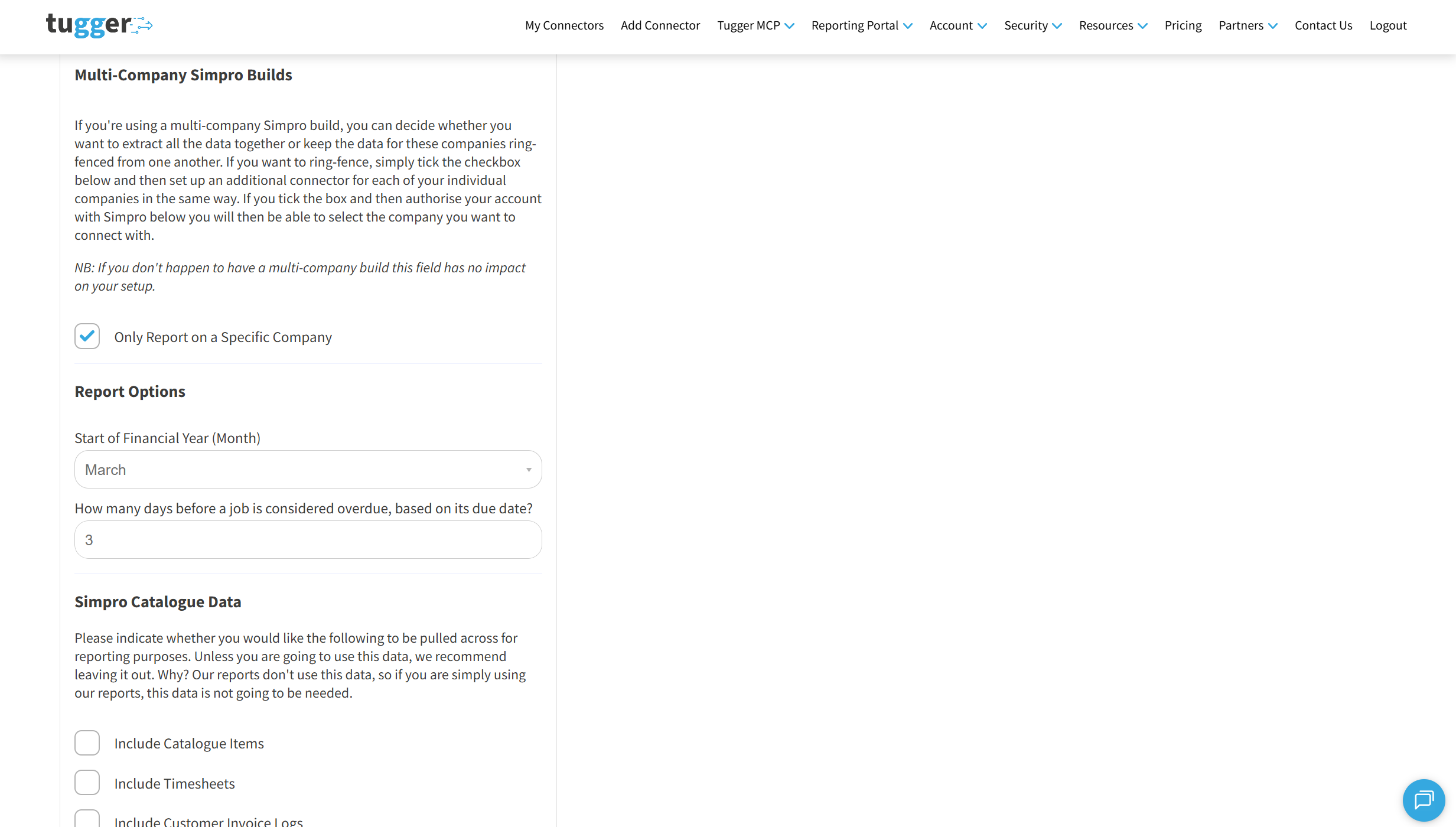
Simpro Catalogue Data - these extras are switched off to begin with, because they're large and most reports don't need them. Tick any you know you'll use:
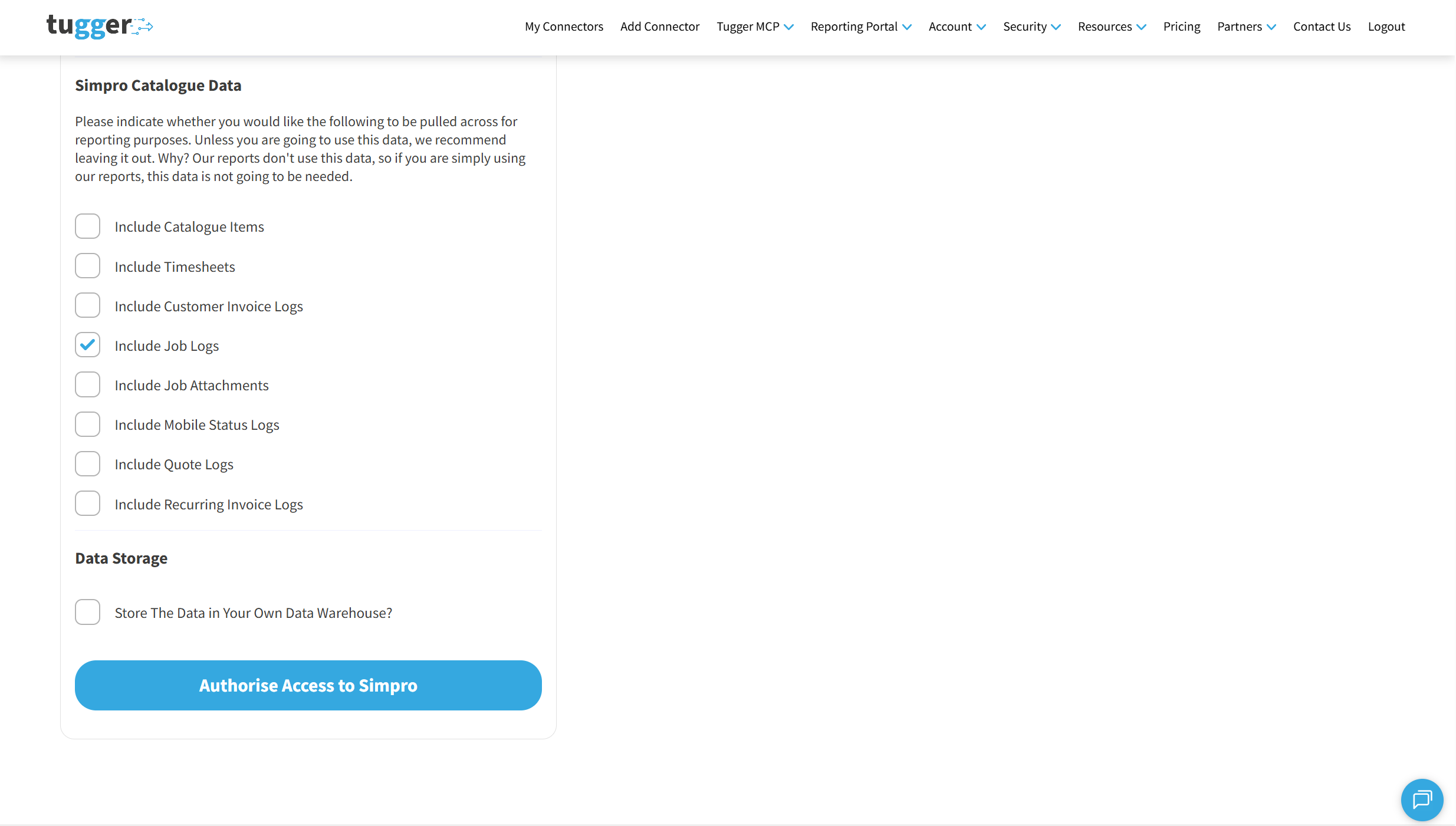
- Include Catalogue Items - your catalogue list. Ticking this reveals Include Catalogue Inventories, which tracks stock levels for every catalogue item in every storage location. That one can add millions of rows, so only tick it if you really need it.
- Include Timesheets - employee timesheet detail
- Include Customer Invoice Logs, Include Job Logs, Include Quote Logs, Include Recurring Invoice Logs - the audit trail of who changed what, and when
- Include Job Attachments - details of files attached to jobs
- Include Mobile Status Logs - status updates sent from Simpro Mobile
Please choose these before you carry on. If you leave one switched off you won't be able to turn it on again yourself later, so get in touch if you change your mind and we'll sort it out for you.
Data Storage - leave Store The Data in Your Own Data Warehouse? unticked unless you already have your own data warehouse and want Tugger to write there instead.
When you're happy, click Authorise Access to Simpro.
Step 4: Log in to Simpro and approve access
Tugger will send you over to Simpro so you can approve access to your data. This is the same kind of "Sign in with..." process you'll have used with other apps.
- You'll be taken to your own Simpro login page
- Sign in with your usual Simpro username and password
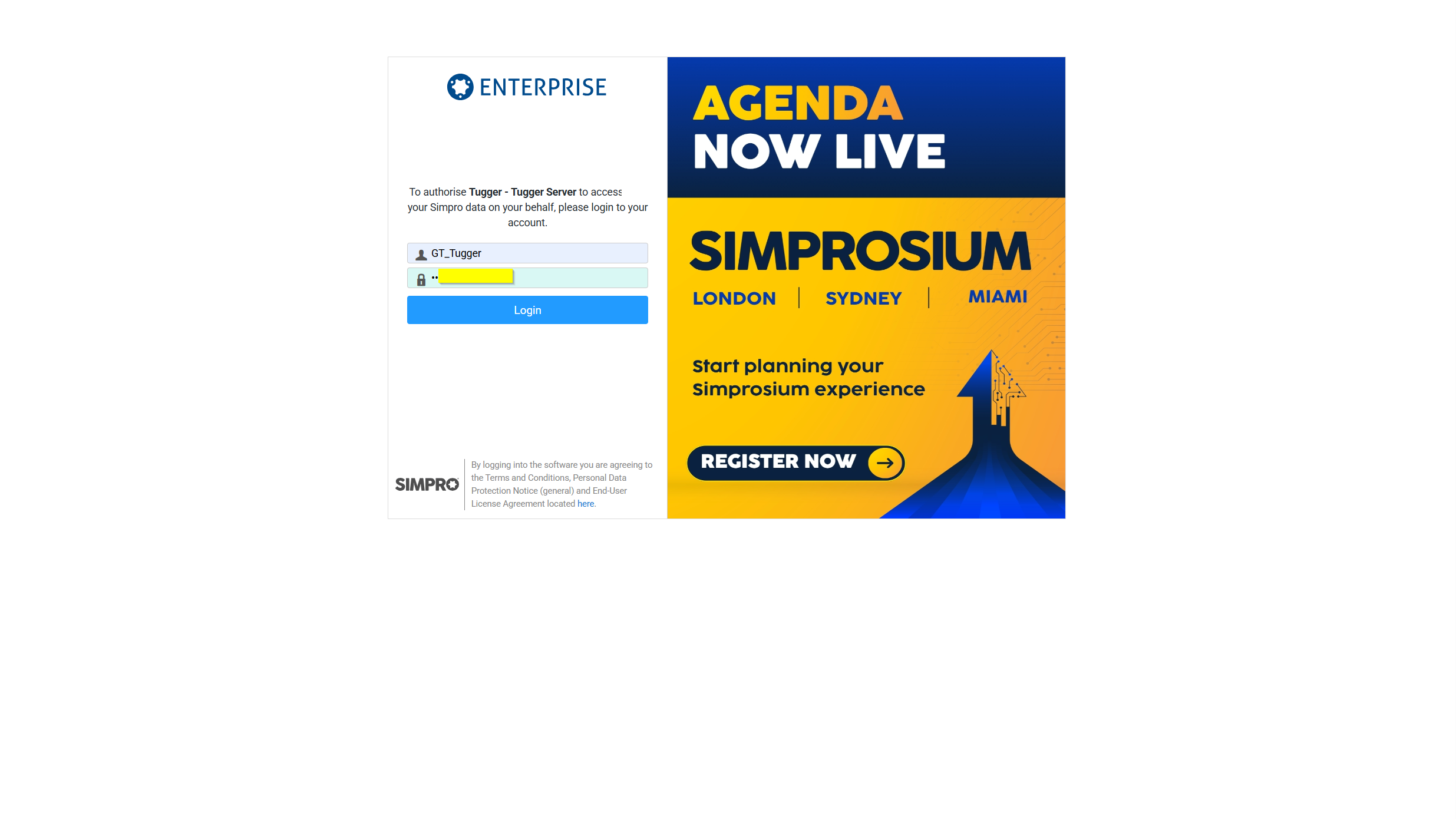
- Simpro will ask whether you authorise Tugger to access your data on your behalf. Click YES
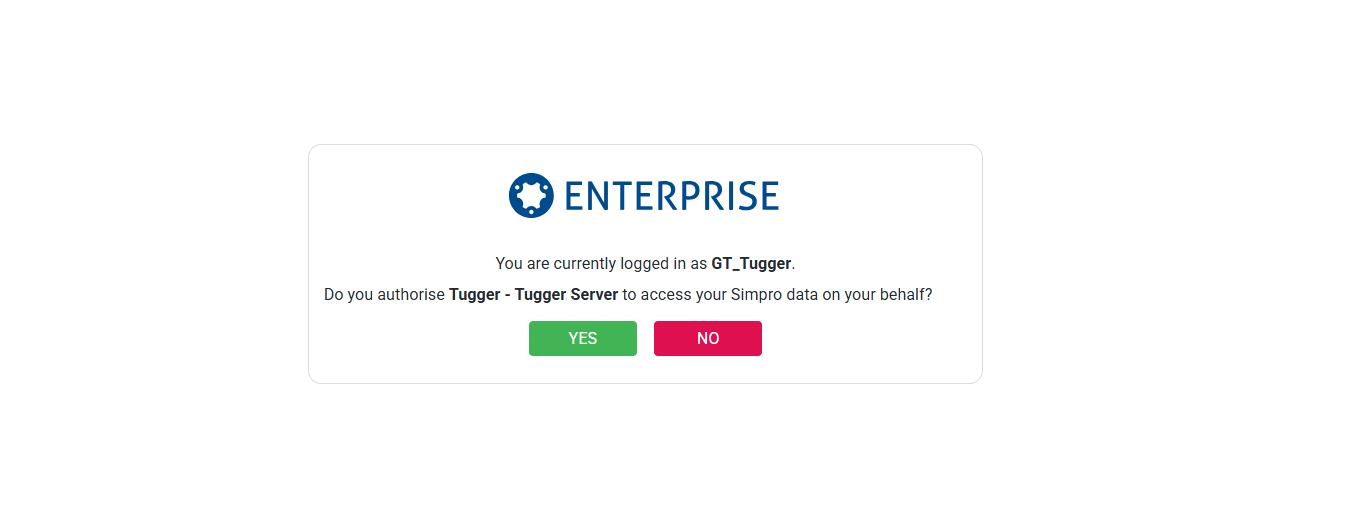
No API keys or technical setup required - just log in and approve.
Step 5: Choose your company
You'll only see this step if you ticked Only Report on a Specific Company back in Step 3. If you didn't, skip straight to Step 6.
On the Company Selection page:
- Click the Company dropdown to see the companies in your Simpro account
- Select the company you want to connect
- Click Confirm Selection
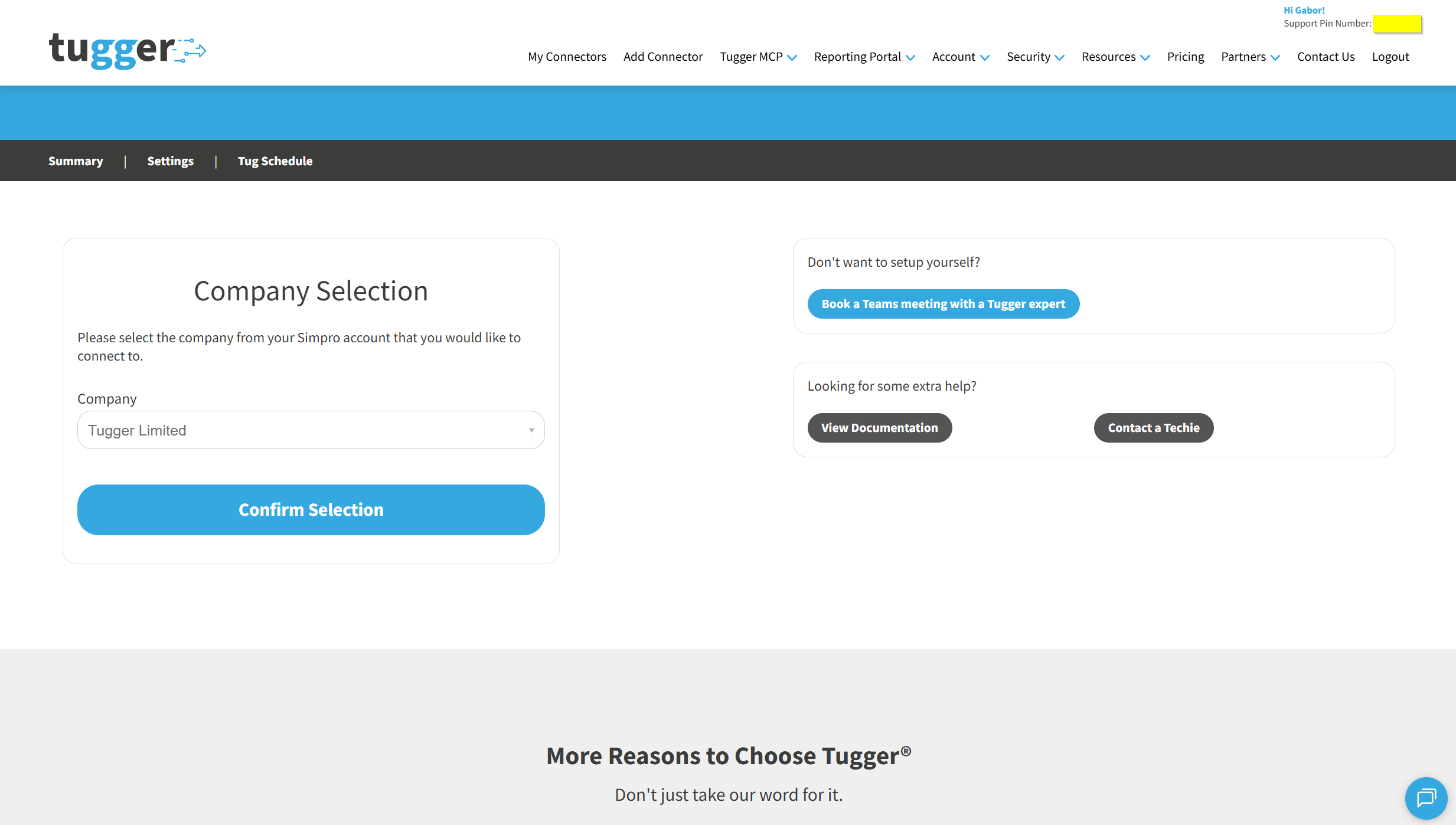
Got more companies to connect? One connector covers one company. To add the others, repeat this process and set up a new connector for each one.
Step 6: Your first sync
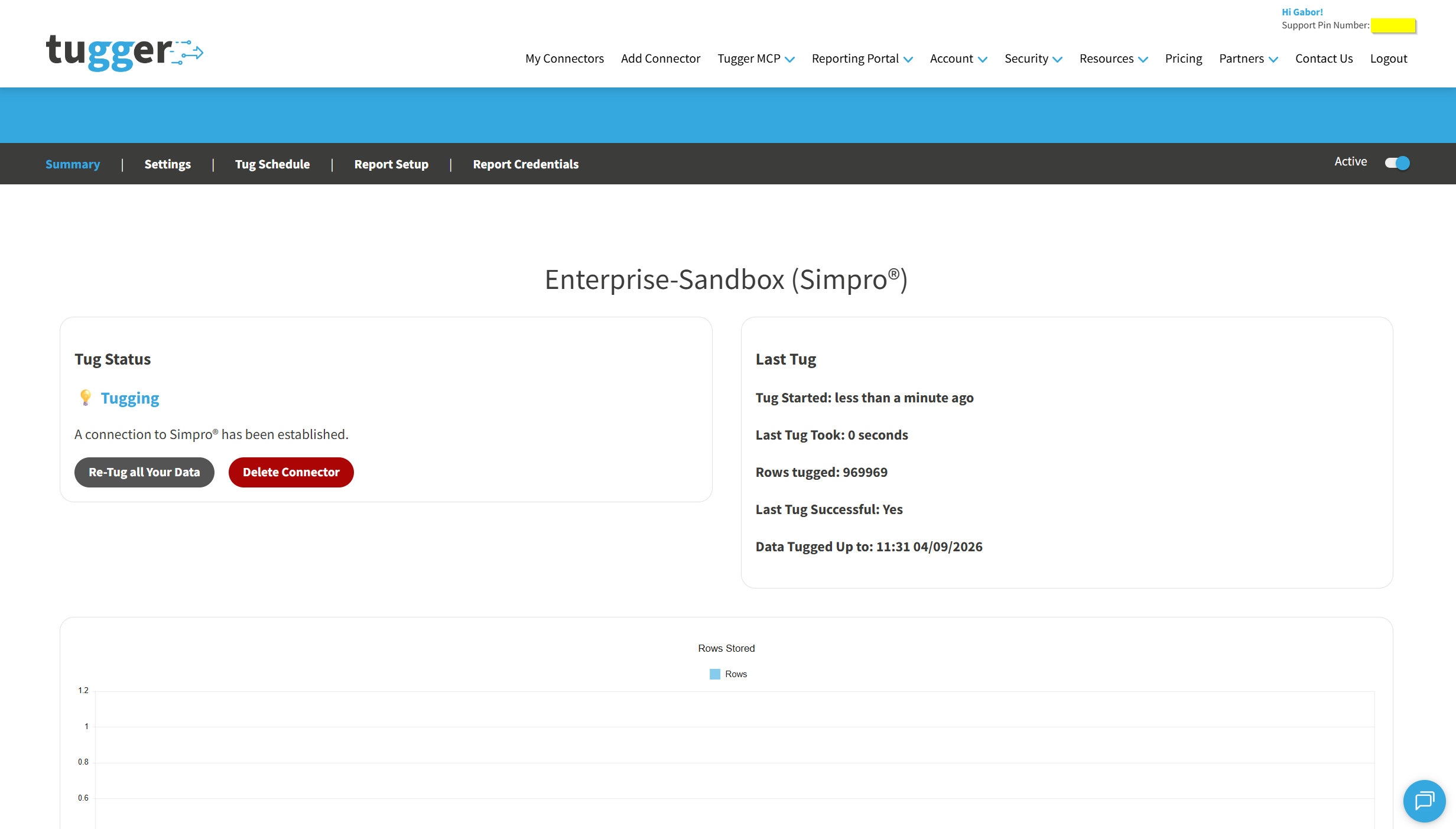
That's setup done. Tugger starts pulling your Simpro data straight away, and you can follow along on the Summary page.
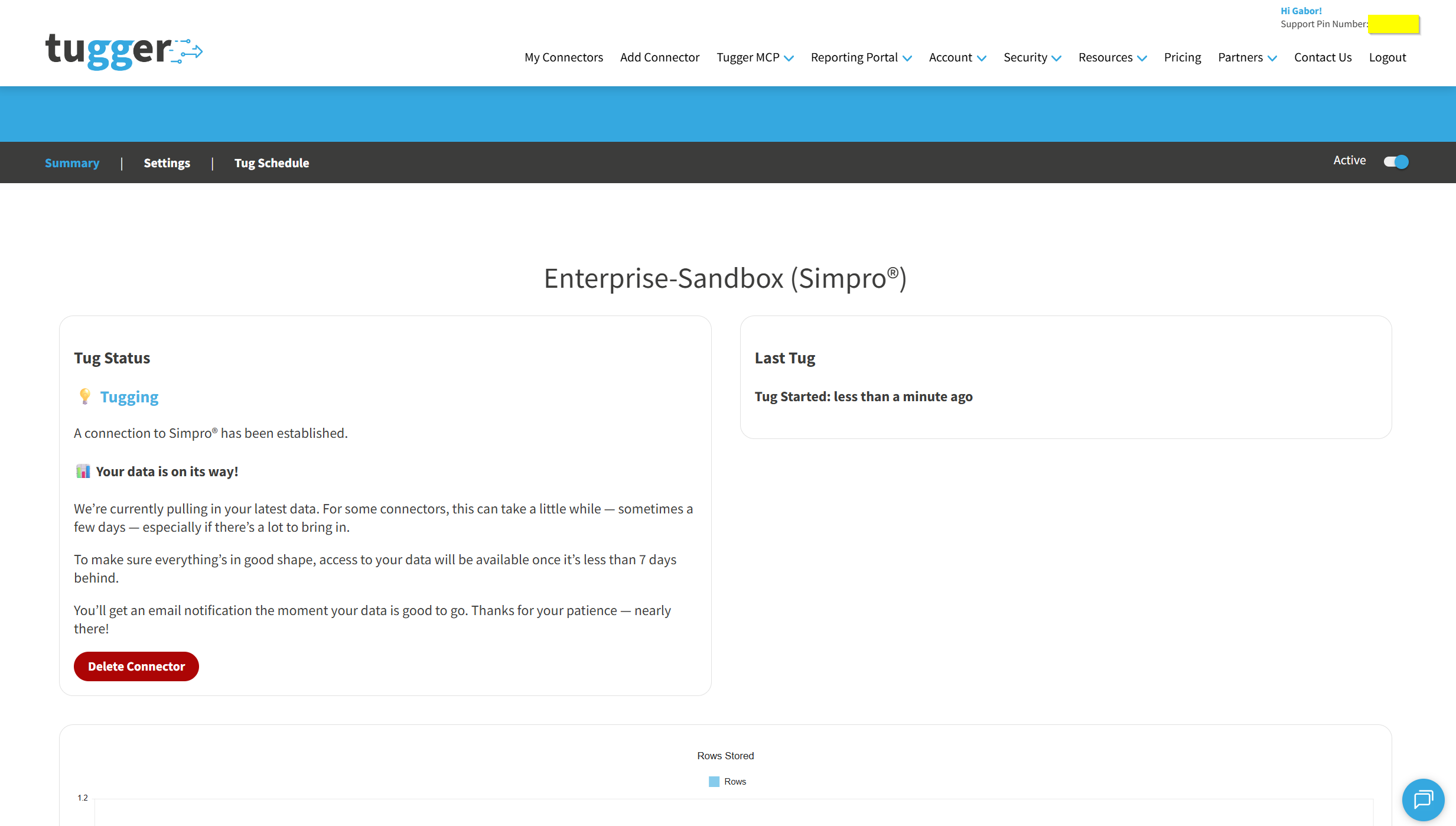
Simpro holds a lot of detail, so the first sync takes a while - typically anywhere from 24 hours to about a week, depending on how much data you have and how far back your start date goes. The good news is that every sync after that is much quicker. To make sure everything is in good shape, your data opens up for reporting once the first sync has caught up to within 7 days of today.
After that, Tugger syncs your data automatically every day at 08:00 UK time by default. You can change this schedule if needed - see Managing Your Sync Schedule.
You'll receive an email (or SMS, if you've enabled it) once your data is ready. At that point you can start asking questions with AI Insights or building reports.
What data does Tugger pull from Simpro?
Tugger syncs a comprehensive set of your Simpro data, including:
- Jobs and work orders - jobs, sections, cost centres, labour, materials, one-off items, assigned technicians, notes and timelines
- Quotes - quotes with their sections, cost centres, line-level detail, technicians and take-off templates
- Invoices, payments and credit notes - customer invoices, receivable and payable invoices, payments, credit notes and retentions
- Customers, sites and contacts - customers, groups, profiles, sites, contacts, tags and your custom fields
- Contracts and recurring work - customer contracts, service levels, response times, and your recurring job and recurring invoice templates
- Assets and testing - customer assets, asset types, service levels, test readings, test history, failure points and recommendations
- Purchasing and vendors - vendors, branches, vendor orders and their items, receipts, credits and vendor quotes
- Stock and catalogue - stock items, storage devices, transfers, stocktakes and inventory journals, plus catalogue items and prebuilds if you switched those on
- People, teams and scheduling - staff, users, licences, teams, zones, activities and the schedule itself
- Timesheets and rates - employee and contractor timesheets (if switched on), with labour, plant and schedule rates
- Leads, tasks and change history - leads, tasks, and the stage and status changes your jobs and quotes have been through
- Financial setup - chart of accounts, accounting categories, tax codes, payment methods, currencies, cost centres and business groups
Tugger also builds a set of ready-joined reporting views for the busiest areas - jobs, quotes, invoices, customers, cost centres and materials ordered - so the customer, site, status and manager names are already sitting alongside each job or invoice and you don't have to piece them together yourself.
For a full list of data tables and fields, ask Tugger AI Insights - try "What data is available from my Simpro connector?"
What's next?
Once you've received the email (or SMS) confirming your data is ready:
AI Insights
- What is Tugger AI Insights? - ask questions about your Simpro data in plain English
- Connect Tugger to Claude | ChatGPT
Reporting
- Connect Power BI Desktop to Tugger - use Tugger's pre-built Simpro report templates or build your own
- Connect Tableau to Tugger
- Export to Excel
Manage your sync schedule
- Managing Your Sync Schedule - change when and how often Tugger pulls your data
Need help? Contact the Tugger team - we're always happy to help you get up and running.