Connect your Pipedrive account to Tugger and start asking questions of your data in plain English with AI Insights - or pull it into Power BI, Tableau, or Excel. Setup takes around 5 minutes.
What you'll need
- A Tugger account (sign up free)
- A Pipedrive account with permission to authorise third-party apps
- Nothing else. There are no API keys to find and nothing technical to set up
Connecting more than one Pipedrive company? Tugger connects to the Pipedrive company you log in as, so each company needs its own connector. Each one counts as a single connector on your Tugger plan, and you can connect as many as your plan allows.
Step 1: Add the Pipedrive connector in Tugger
- Log in to Tugger at tuggerapp.com
- Click Add Connector from the menu
- Find Pipedrive, then click Add Connector on its card
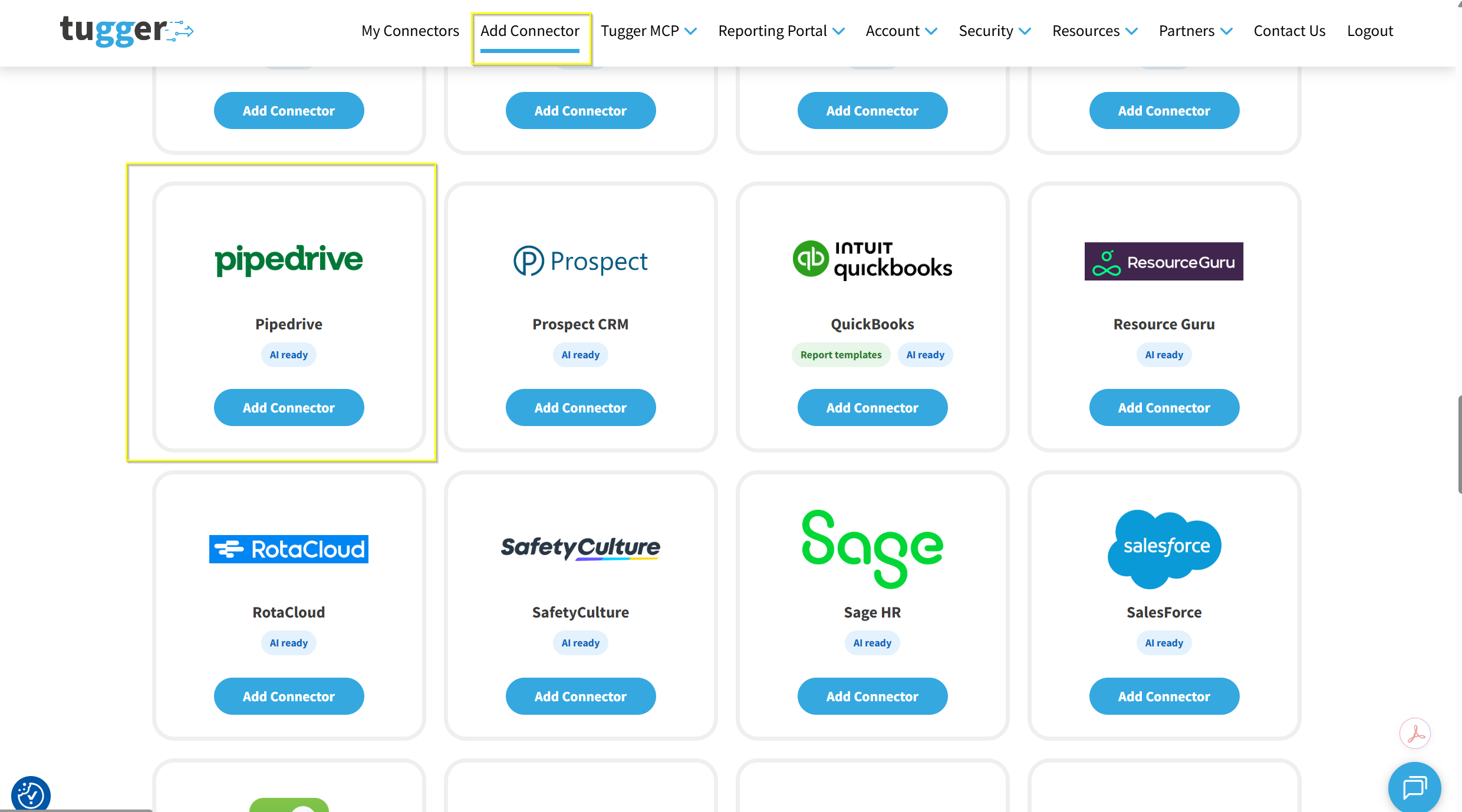
Step 2: Configure your connector
There are two things to set here:
- Connector Name - give it a name that makes sense to you (e.g. "Acme Pipedrive"). This is especially helpful if you're connecting more than one Pipedrive company.
- Sync Historical Data From - under Historic Data, choose how far back you want Tugger to pull data from. The further back you go, the more data will be stored and the longer your first sync will take.
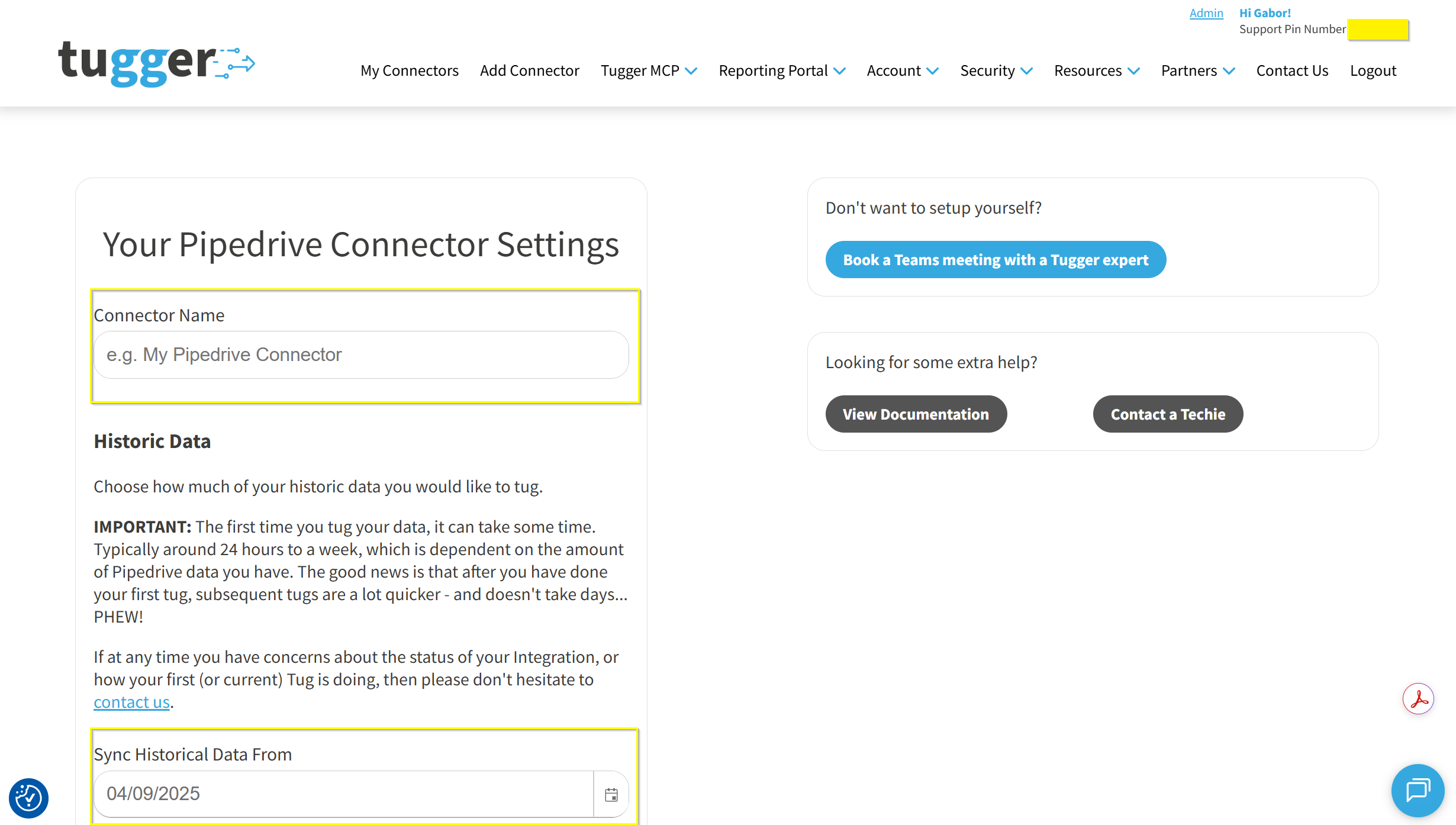
Choose your start date carefully. Once the connector has been created, Sync Historical Data From is fixed and you won't be able to change it yourself. If you need to move it later, get in touch and we'll sort it out for you.
If your plan includes storing data in your own database, you'll also see a Data Storage section on this page. Most people can leave it as it is.
When you're happy, click Authorise Access to Pipedrive at the bottom of the page.

Step 3: Log in to Pipedrive to authorise the connection
Tugger will ask you to log in to Pipedrive so it can securely access your data. This is the same kind of "Sign in with..." process you'll have used with other apps.
- You'll be taken to Pipedrive's login page
- Sign in with your Pipedrive email address and password
- Check that the company shown is the one you want to connect, then approve access for Tugger
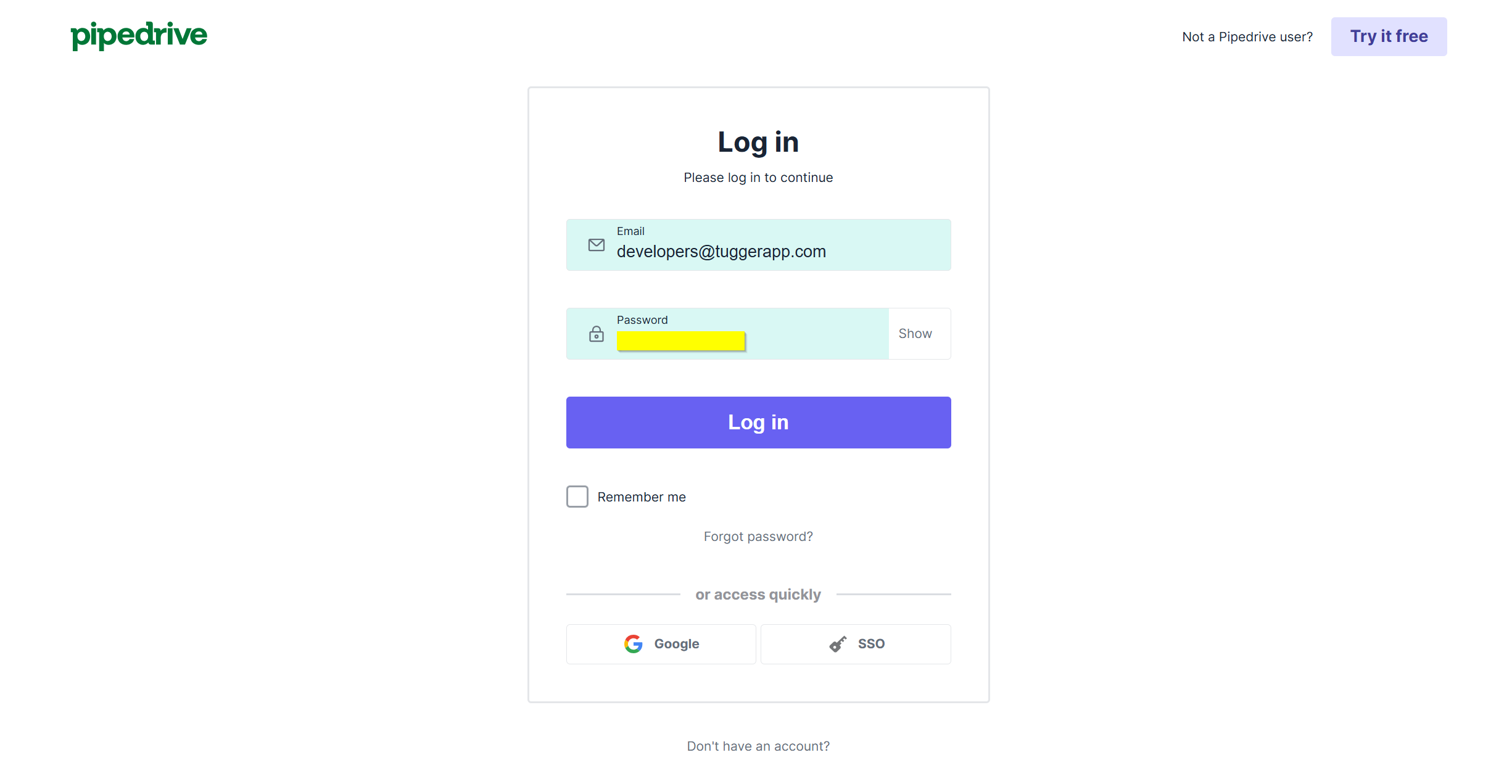
No API keys or technical setup required - just log in and approve.
Once you've approved, Pipedrive sends you straight back to Tugger and your connector is live.
Already signed in to a different Pipedrive company? Pipedrive connects whichever company you're signed in as. If that isn't the one you want, sign out of Pipedrive first, then come back and start Step 3 again.
Step 4: Your first sync
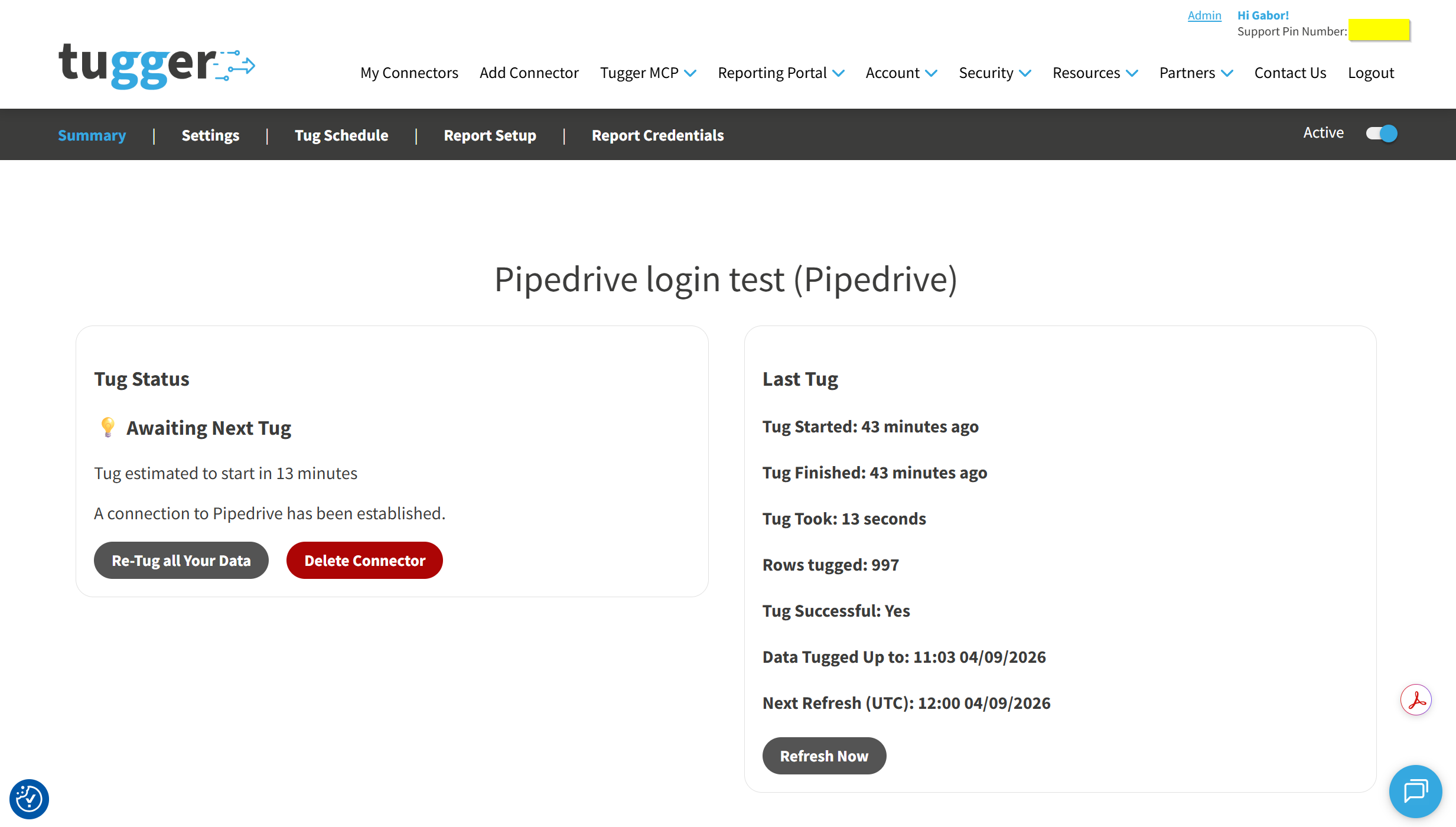
Tugger starts pulling your Pipedrive data straight away. You can watch progress on the Summary page, which will show Tugging while it works.
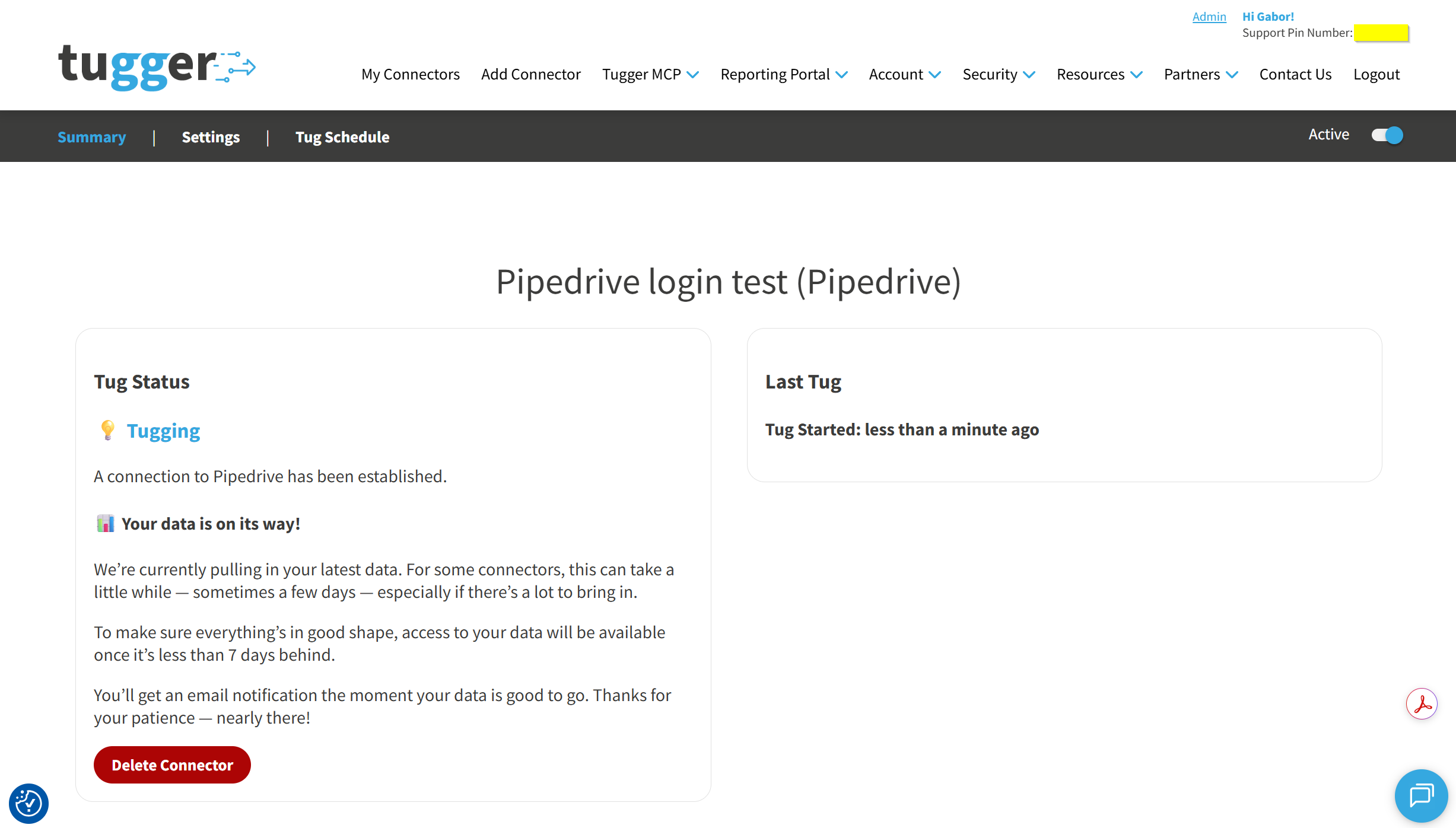
The first sync is the slow one. Depending on how much data you have and how far back your start date goes, it typically takes anywhere from 24 hours to about a week. Every sync after that is much quicker. To make sure everything is in good shape, your data becomes available to use once the sync is less than 7 days behind.
After the first sync, Tugger refreshes your data automatically every day at 08:00 UK time by default. You can change this if you'd like - see Managing Your Sync Schedule.
You'll receive an email (or SMS, if you've enabled it) once your data is ready. At that point you can start asking questions with AI Insights or building reports.
What data does Tugger pull from Pipedrive?
Tugger syncs a comprehensive set of your Pipedrive data, including:
- Deals - values, currencies, stages, won and lost outcomes, and the full history of how each deal changed
- Pipelines and stages - your pipeline structure, so you can measure movement and conversion between stages
- Leads - your leads inbox, with labels and sources
- Organisations - the companies you sell to, including relationships between them
- People - your contacts, and who they belong to
- Activities and calls - meetings, calls, tasks and emails logged against your records, with activity types and call outcomes
- Notes, emails and files - notes and their comments, linked mail, and files attached to deals, people and organisations
- Products - your product catalogue, and the products attached to each deal with quantities, discounts and instalments
- Projects and tasks - projects with their boards, phases, groups and plans, plus the tasks underneath them
- Goals - the targets set for your people and teams, so you can report on progress
- Users and teams - who is in your account and how they're grouped, for reporting by owner or team
- Custom fields - your own deal, person, organisation, product and activity fields, alongside currencies and subscription add-ons
For a full list of data tables and fields, ask Tugger AI Insights - try "What data is available from my Pipedrive connector?"
What's next?
Once you've received the email (or SMS) confirming your data is ready:
AI Insights
- What is Tugger AI Insights? - ask questions about your Pipedrive data in plain English
- Connect Tugger to Claude | ChatGPT
Reporting
Manage your sync schedule
- Managing Your Sync Schedule - change when and how often Tugger pulls your data
Need help? Contact the Tugger team - we're always happy to help you get up and running.