Connect your Klaviyo account to Tugger and start asking questions of your data in plain English with AI Insights - or pull it into Power BI, Tableau, or Excel. Setup takes around 5 minutes.
What you'll need
- A Tugger account (sign up free)
- A Klaviyo account with permission to approve new apps
- Nothing else - there are no API keys to create and nothing to set up in Klaviyo beforehand
Connecting more than one Klaviyo account? Each Klaviyo account counts as one connector on your Tugger plan. You can connect as many as your plan allows - just repeat these steps for each one.
Step 1: Add the Klaviyo connector in Tugger
- Log in to Tugger at tuggerapp.com
- Click Add Connector from the menu
- Find Klaviyo, then click Add Connector
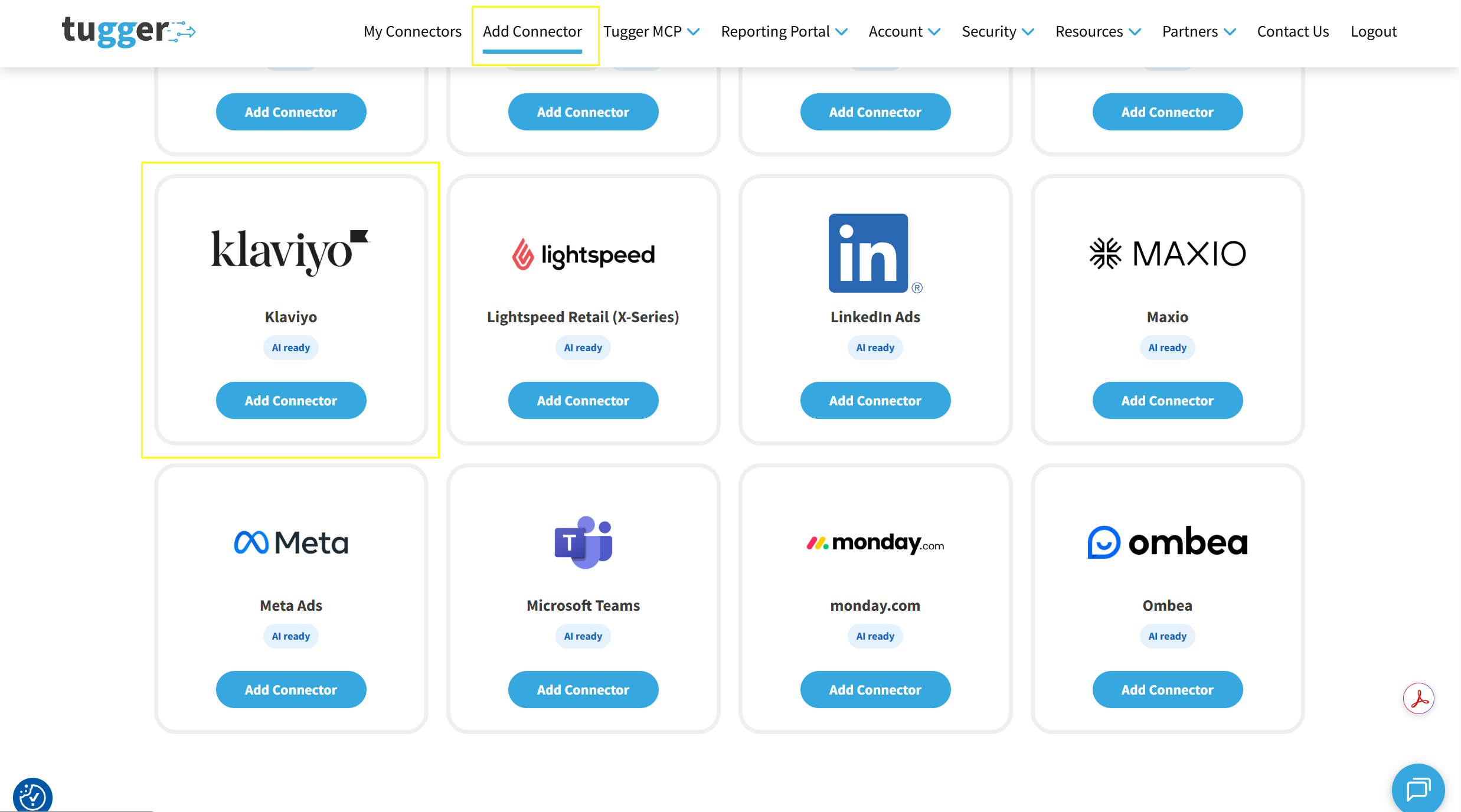
Step 2: Configure your connector
On the Your Klaviyo Connector Settings page you'll be asked to set up two things:
- Connector Name - give it a name that makes sense to you (e.g. "Acme Ltd Klaviyo" or "Klaviyo - Main Account"). This is especially helpful if you're connecting more than one Klaviyo account.
- Sync Historical Data From - choose how far back you want Tugger to pull data from. The further back you go, the more data will be stored and the longer your first sync will take.
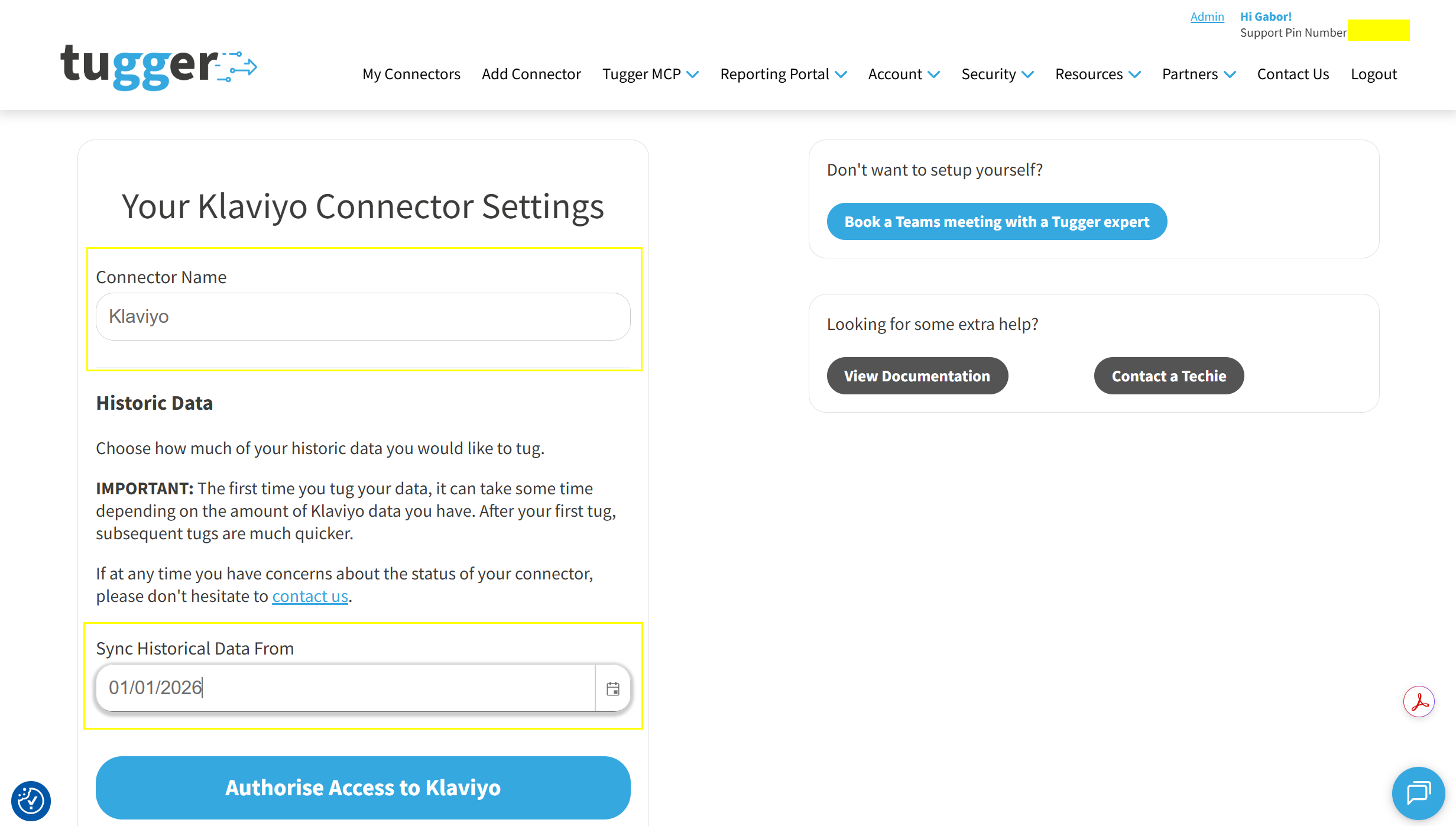
When you're happy with both, click Authorise Access to Klaviyo.
Step 3: Log in to Klaviyo to authorise the connection
Tugger will ask you to log in to Klaviyo so it can securely access your data. This is the same kind of "Sign in with..." process you'll have used with other apps.
Sign in with your usual Klaviyo details if you're prompted to.
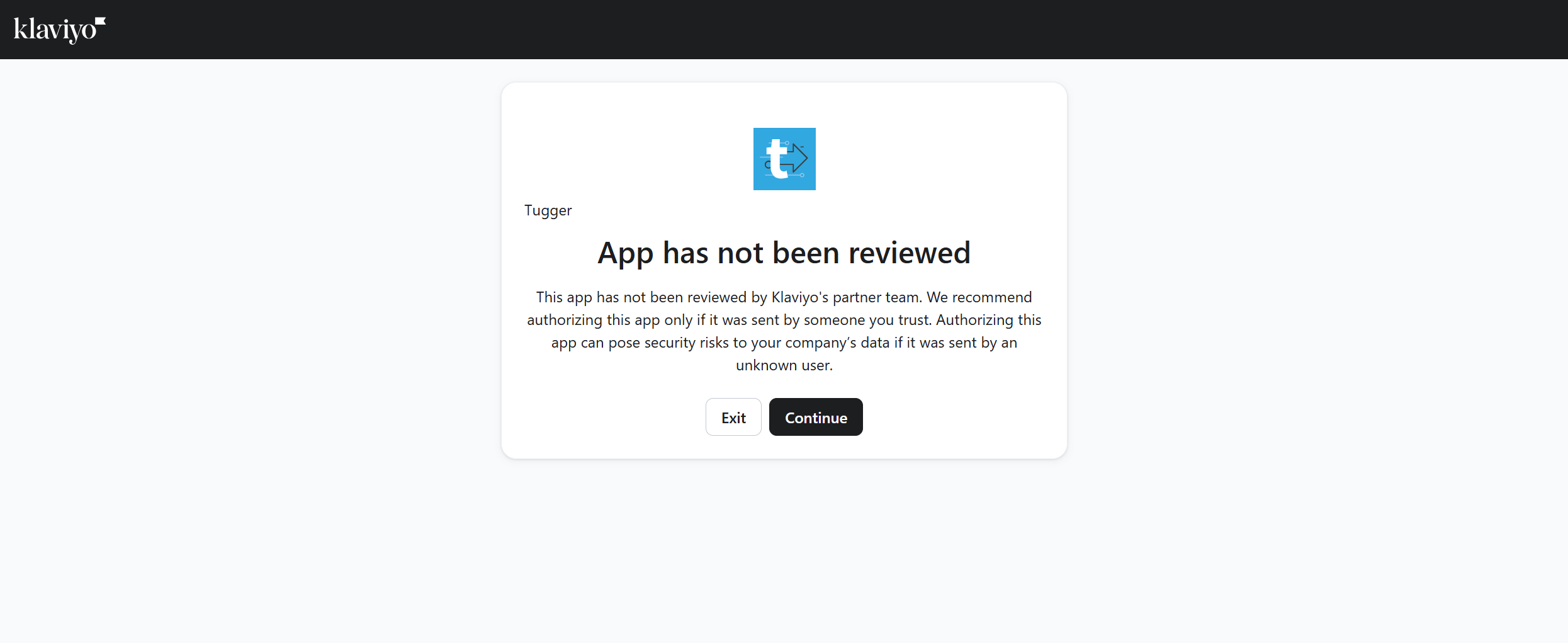
If you see "App has not been reviewed"
Klaviyo shows this screen for any app that hasn't been through its partner review process. It doesn't mean anything is wrong, and it doesn't change what Tugger is allowed to see - the next screen shows you exactly that, and every permission is read-only.
Click Continue to carry on.
Approve the connection
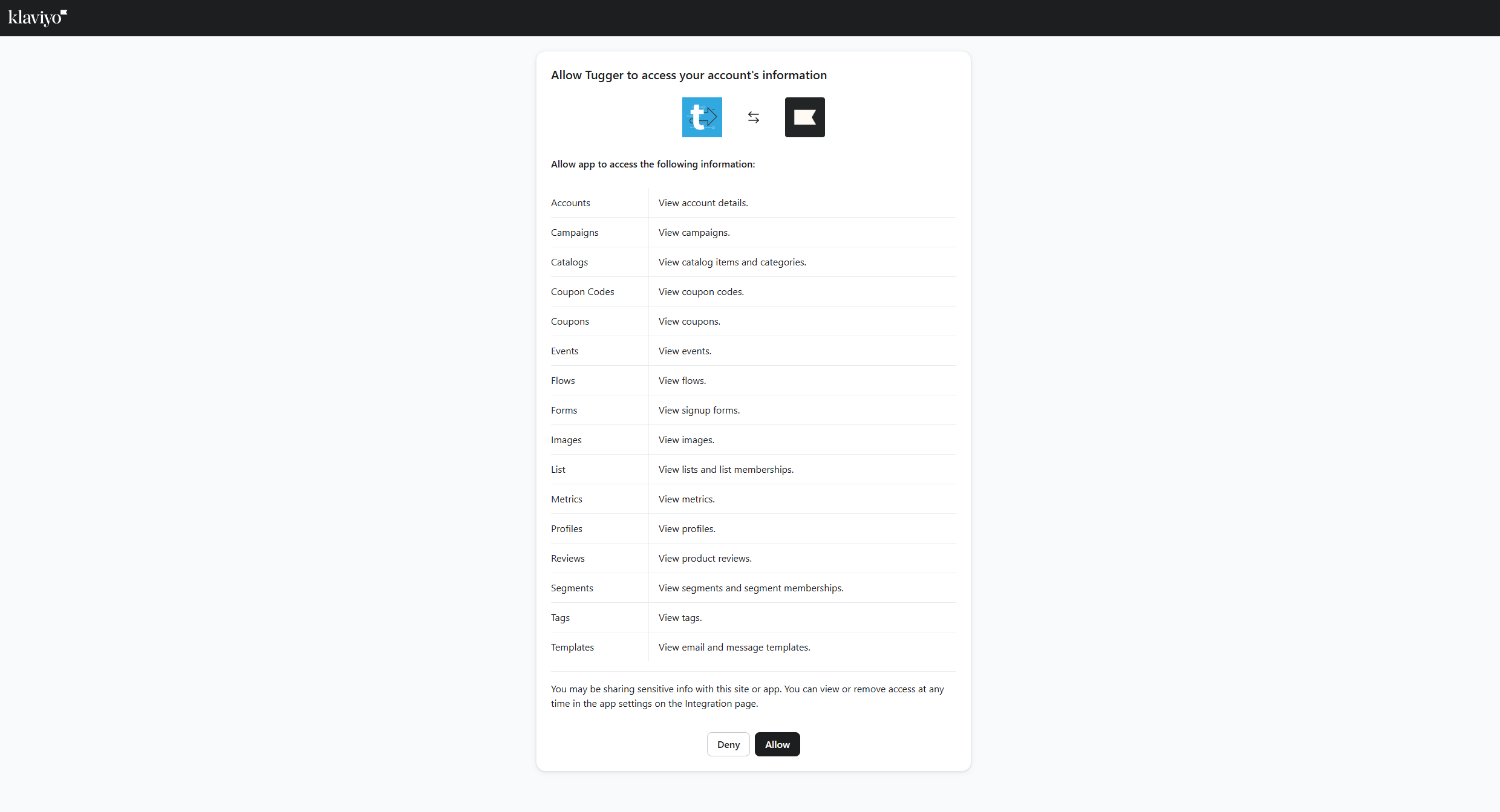
Klaviyo will then show you everything Tugger is asking to access - campaigns, flows, profiles, lists, segments, events, templates, forms, images, catalogue items, coupons, reviews and tags.
Every line on this screen begins with View. Tugger only ever reads your Klaviyo data. It cannot send campaigns, change your flows, or edit anything in your account.
Click Allow to finish connecting.
No API keys or technical setup required - just log in and approve.
Step 4: Your first sync
Once setup is complete, Tugger will start pulling your Klaviyo data automatically. You can check progress on the Summary page.
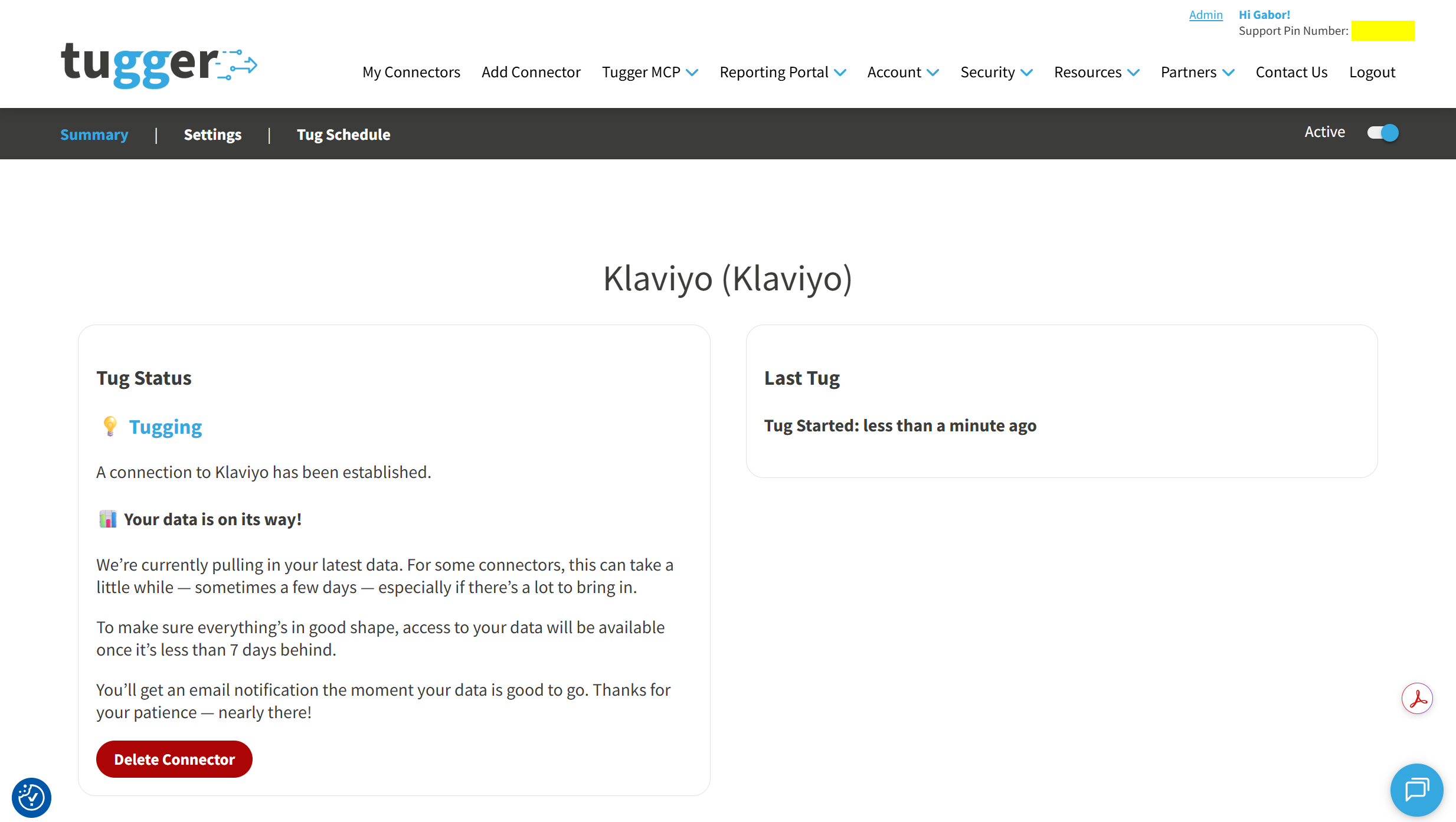
Depending on how much data you have (and how far back your Sync Historical Data From date goes), the first sync may take anywhere from a few minutes to a longer period. After that, Tugger syncs your data automatically every day at 08:00 UK time by default. You can change this schedule if needed - see Managing Your Sync Schedule.
You'll receive an email (or SMS, if you've enabled it) once your data is ready. At that point you can start asking questions with AI Insights or building reports.
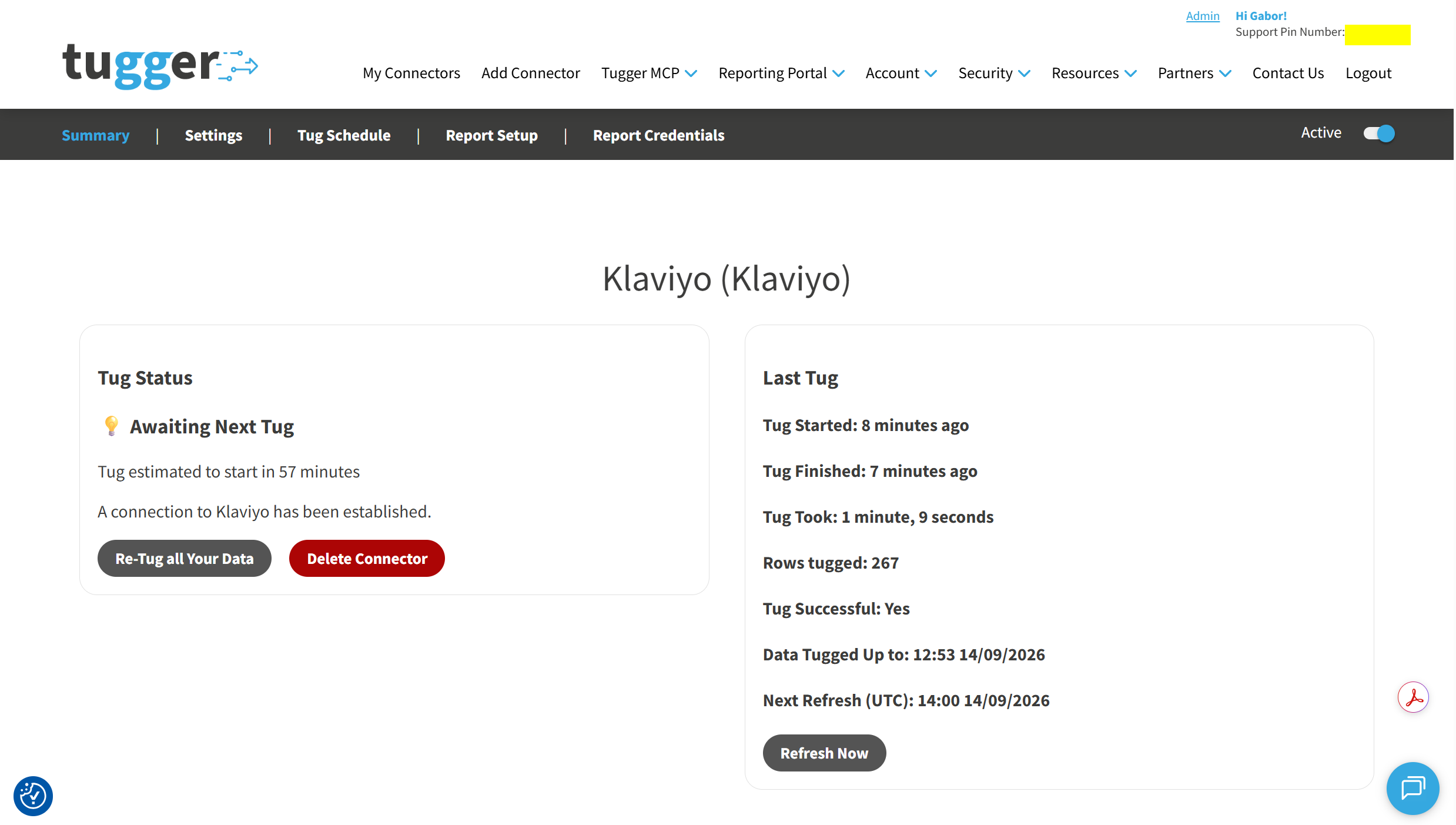
The Summary page then shows when your data was last brought up to date, along with the next scheduled refresh.
What data does Tugger pull from Klaviyo?
Tugger syncs a comprehensive set of marketing data from Klaviyo, including:
- Campaigns - your email and SMS campaigns, with audiences, scheduling, and send detail
- Flows and automations - each flow, the individual steps within it, and the messages those steps send
- Profiles - customer and subscriber profiles, with contact details, custom properties, and engagement history
- Lists and segments - your subscriber lists and dynamic segments, including who belongs to them
- Events - individual tracked activity such as orders placed, emails opened, and links clicked
- Metrics - the definitions behind those events, so you can group and compare activity by type
- Templates - the email and SMS templates used by your campaigns and flows
- Sign-up forms - your forms, pop-ups, and embedded sign-up boxes
- Images - the image library used across your templates, campaigns, and forms
- Product catalogue - catalogue items, their variants, and the categories used to group them
- Coupons - coupon definitions along with the individual codes generated from them
- Product reviews - reviews collected through Klaviyo, with ratings and moderation status
- Account settings and tags - account-level details such as timezone and currency, plus the tags and tag groups used to organise your campaigns, flows, lists, and segments
For a full list of data tables and fields, ask Tugger AI Insights - try "What data is available from my Klaviyo connector?"
What's next?
Once you've received the email (or SMS) confirming your data is ready:
AI Insights
- What is Tugger AI Insights? - ask questions about your Klaviyo data in plain English
- Connect Tugger to Claude | ChatGPT
Reporting
Manage your sync schedule
- Managing Your Sync Schedule - change when and how often Tugger pulls your data
Need help? Contact the Tugger team - we're always happy to help you get up and running.