Connect your HubSpot account to Tugger and start pulling your CRM, sales, marketing, and service data into Claude, ChatGPT, Power BI, Tableau, or Excel. Setup takes around 5 minutes.
What you'll need
- A Tugger account (sign up free)
- A HubSpot account with super admin rights, so you can authorise third-party apps
Connecting multiple HubSpot accounts? Each HubSpot account counts as one connector on your Tugger plan. You can connect as many as your plan allows.
Step 1: Add the HubSpot connector in Tugger
- Log in to Tugger at tuggerapp.com
- Click Add Connector from the menu
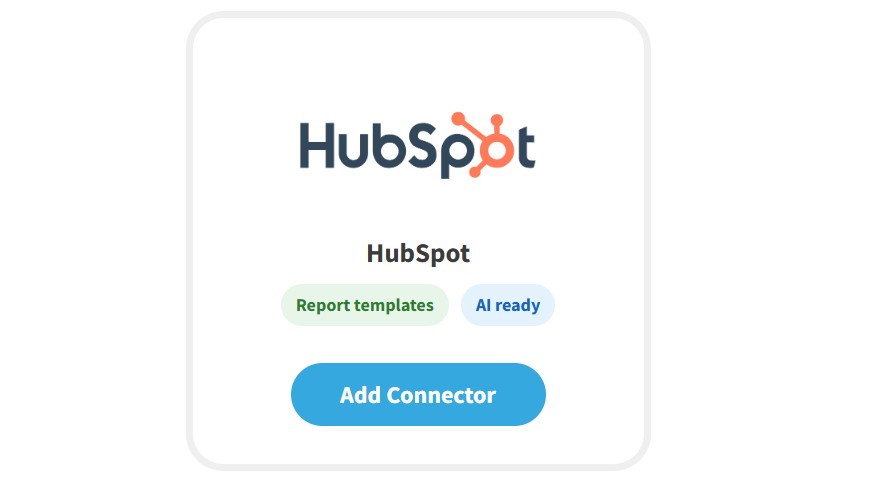
- Find HubSpot, then click Add Connector
Step 2: Configure your connector
You'll see the HubSpot Connector Settings screen, with three things to set up:
- Connector name - give it a name that makes sense to you (e.g. "Acme Ltd HubSpot"). This is especially helpful if you're connecting multiple HubSpot accounts.
- Sync historical data from - choose how far back you want Tugger to pull data from. The further back you go, the more data will be stored and the longer your first sync will take.
- Optional data - tick the extra data you'd like Tugger to sync, such as calls, emails, meetings, form submissions, and commerce data. These are all on by default, and you can turn any of them on or off again later.
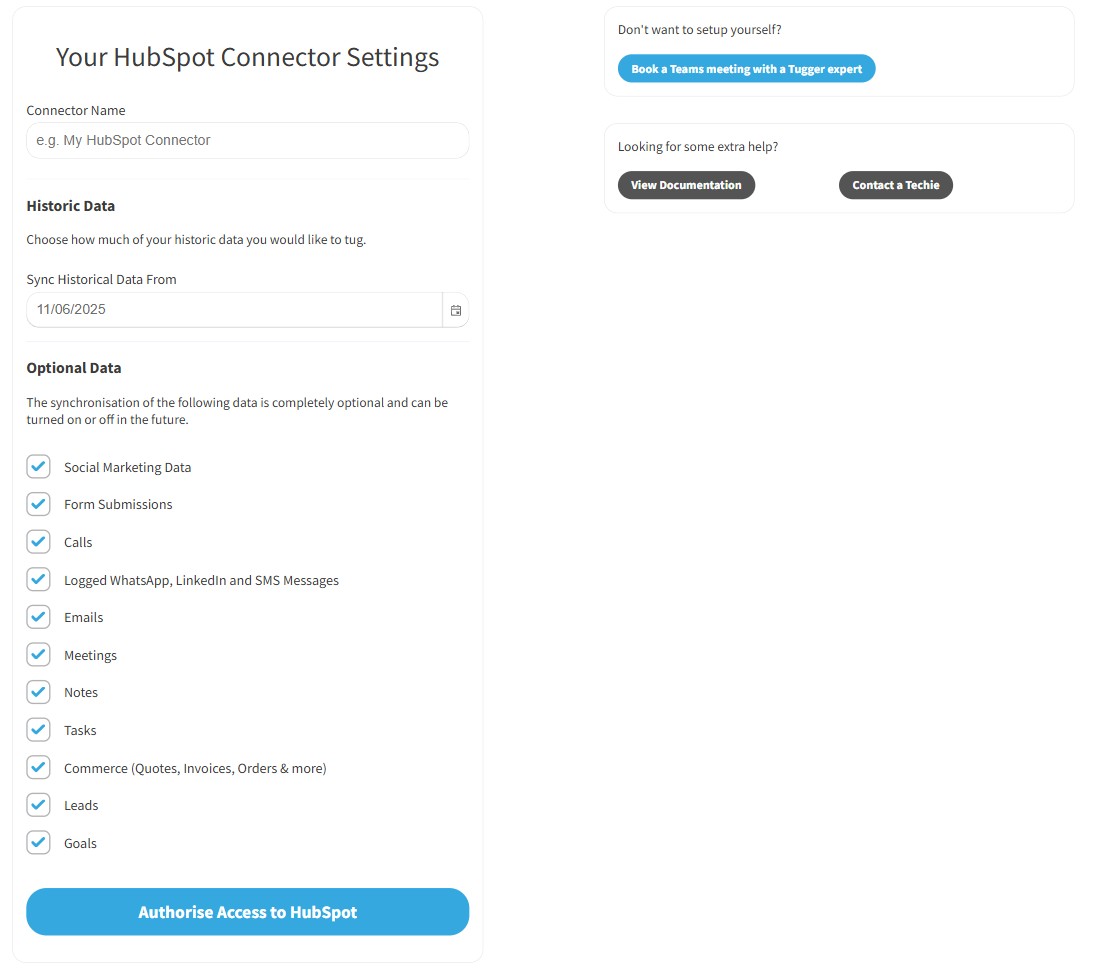
Click Authorise Access to HubSpot to proceed.
Step 3: Log in to HubSpot to authorise the connection
- You'll be redirected to HubSpot's login page (if you're already signed in to HubSpot in this browser, this step is skipped)
- Sign in with your HubSpot username and password
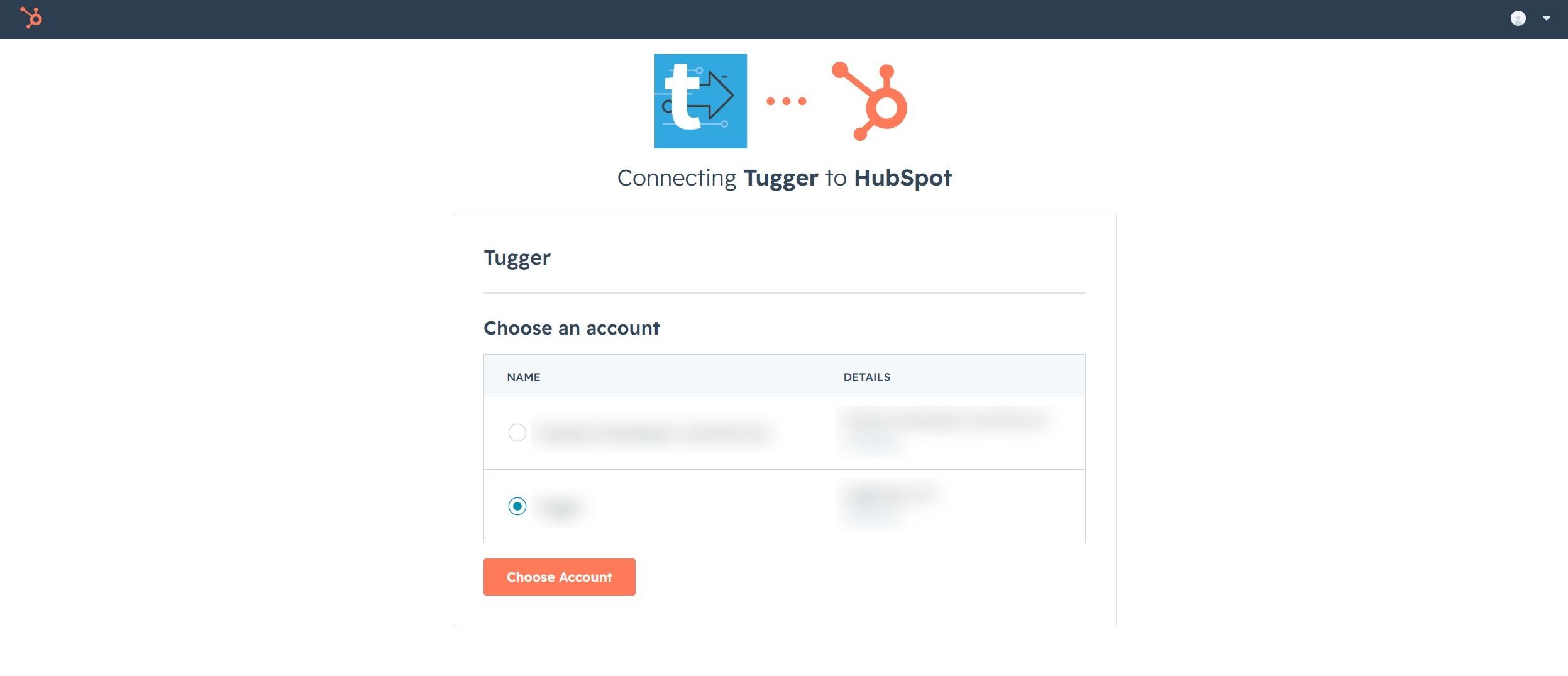
- Select the HubSpot account you want to connect, then click Choose Account
Step 4: Your first sync
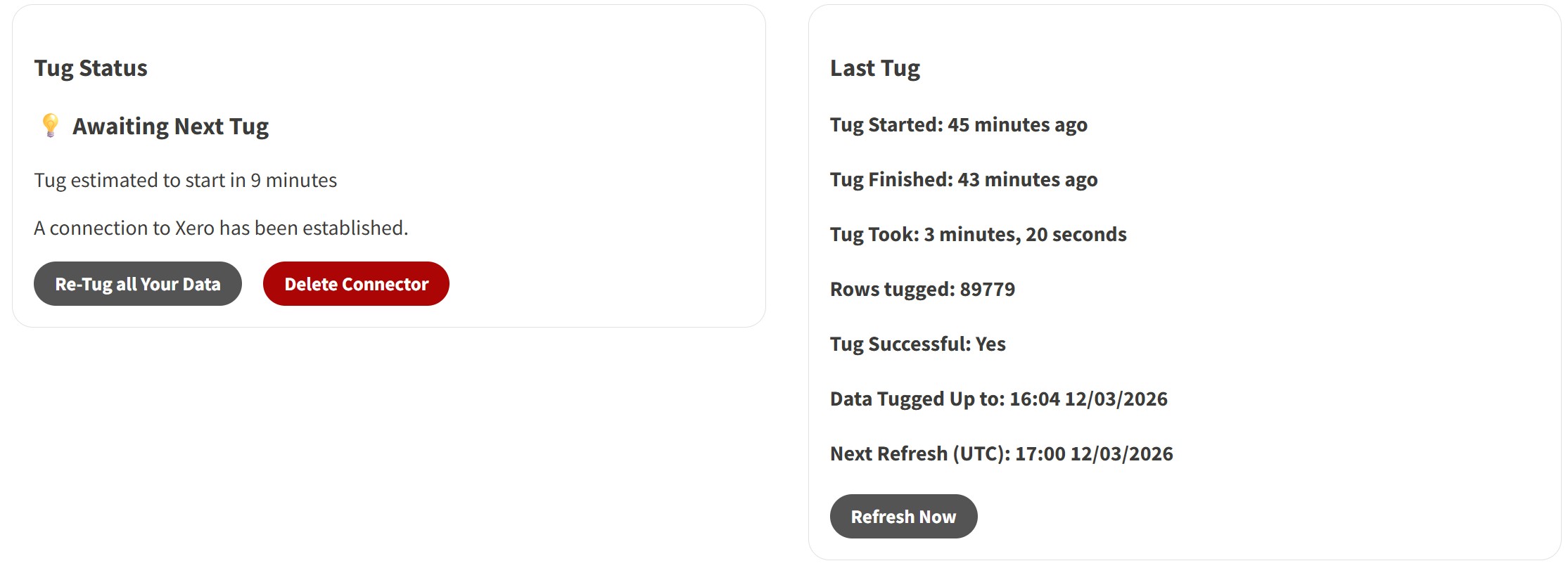
Once setup is complete, Tugger will start pulling your HubSpot data automatically. You can check progress on the Summary page.
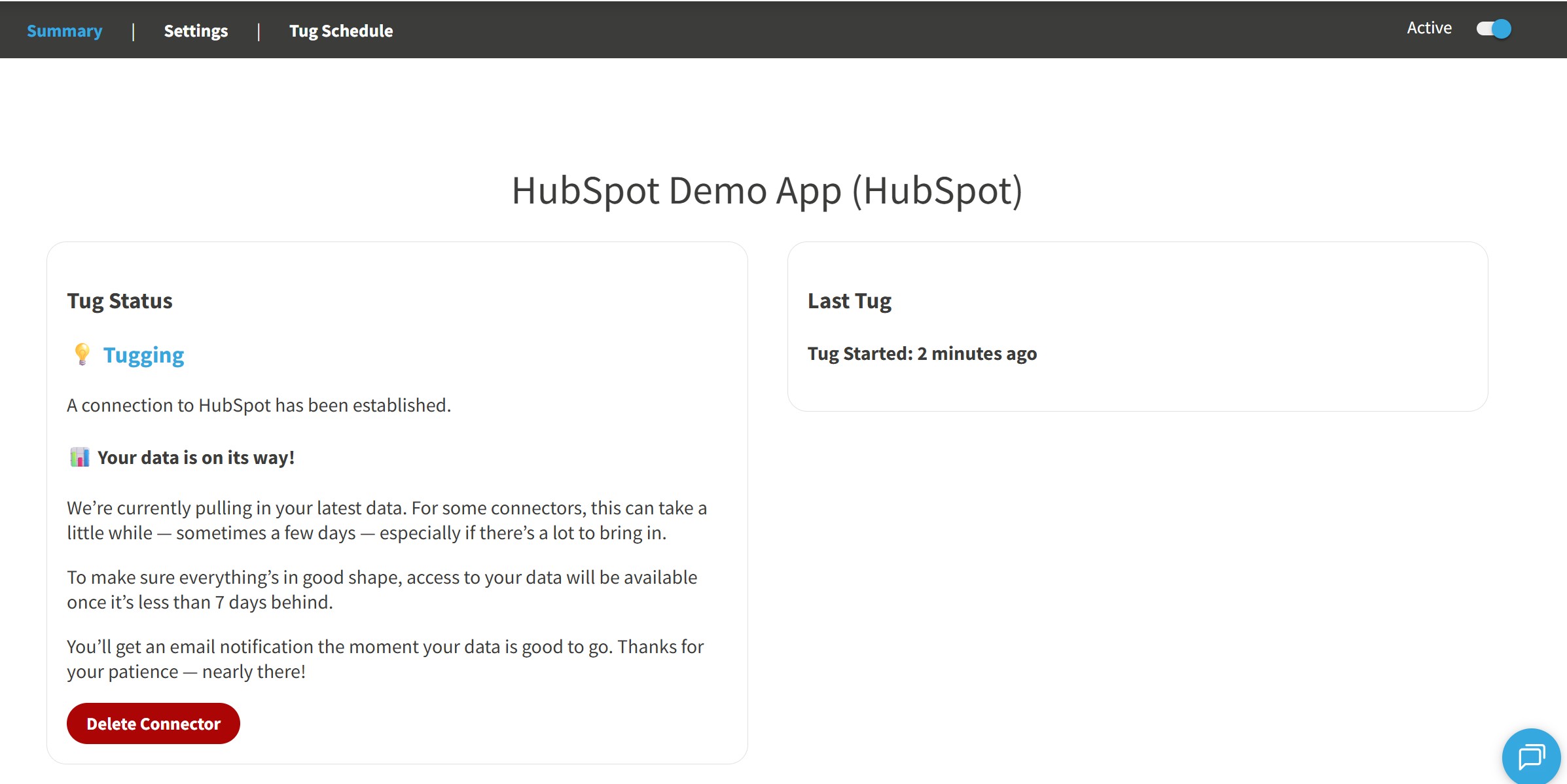
Depending on how much data you have (and how far back your data start date goes), the first sync may take anywhere from a few minutes to a few hours. After that, Tugger syncs your data automatically every hour. You can change this schedule if needed - see Managing Your Sync Schedule.
You'll receive an email once your data is ready. At that point, the reporting options will appear in Tugger and you can start building reports or using AI Insights.
What data does Tugger pull from HubSpot?
Tugger syncs a comprehensive set of data from HubSpot, including:
- Contacts and companies - with owners, lifecycle stages, and the links between them
- Deals - amounts, pipelines, stages, and full stage change history
- Leads and goals - early-stage opportunities and sales targets by owner
- Line items and products - the products and services attached to deals
- Tickets - Service Hub tickets with pipelines, stages, and stage change history
- Activity - calls, emails, meetings, notes, tasks, and logged WhatsApp, LinkedIn and SMS messages, linked to the records they relate to
- Commerce - quotes, invoices, orders, payments, and subscriptions
- Marketing - marketing emails with performance stats, plus forms and form submissions
- Social marketing - connected channels and the posts published through them
- Owners and teams - your HubSpot users and team structure
- Custom objects and custom properties - so your custom fields are available in reports too
Some of these (such as activity, commerce, and social marketing data) are part of the optional data settings from Step 2, so they'll only sync if ticked.
For a full list of data tables and fields, ask Tugger AI Insights - try "What data is available from my HubSpot connector?"
What's next?
Once you've received the email confirming your data is ready:
Reporting
- Connect Power BI Desktop to Tugger - use Tugger's pre-built HubSpot report templates or build your own
- Connect Tableau to Tugger
- Export to Excel
AI Insights
- What is Tugger AI Insights? - ask questions about your HubSpot data in natural language
- Connect Tugger to Claude | ChatGPT
Manage your sync schedule
- Managing Your Sync Schedule - change when and how often Tugger pulls your data
Need help? Contact the Tugger team - we're always happy to help you get up and running.