Connect your Trello account to Tugger and start asking questions of your data in plain English with AI Insights - or pull it into Power BI, Tableau, or Excel. Setup takes around 5 minutes.
What you'll need
- A Tugger account. If you don't have one yet, you can sign up for free.
- A Trello account that is a member of the boards you want to report on. Tugger brings through every board that account can see, across all of its Workspaces, so sign in as someone who has access to all the boards you need.
Reporting on more than one Trello account? Each Trello account counts as one connector on your Tugger plan. Add them one at a time, following these steps for each.
Step 1: Add the Trello connector in Tugger
- Log in to your Tugger account.
- Click Add Connector from the menu at the top of the page.
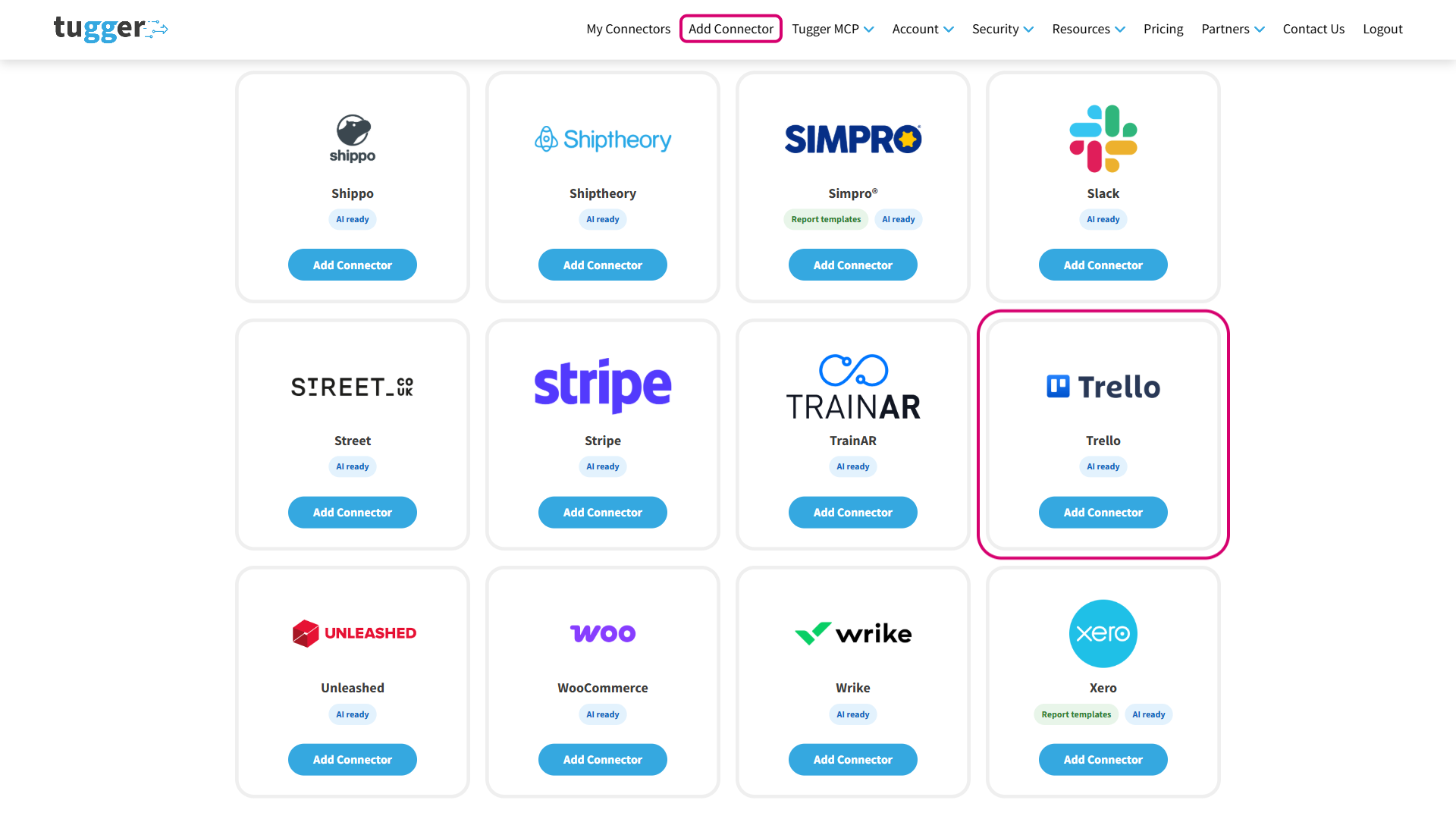
- Find Trello in the list of connectors and click Add Connector on its tile. The list is in alphabetical order, so you can either scroll down to it or type trello into the Search connectors box at the top to jump straight there.
Step 2: Configure your connector
Give your connector a name and choose how far back to pull your data.
- In Connector Name, type a name that will help you recognise this connection later - for example, My Trello Connector.
- In Sync Historical Data From, choose the date you'd like your data to start from. This sets how far back Tugger goes for your board activity, such as card moves and comments. Your boards, lists and cards are brought through in full whatever date you pick.
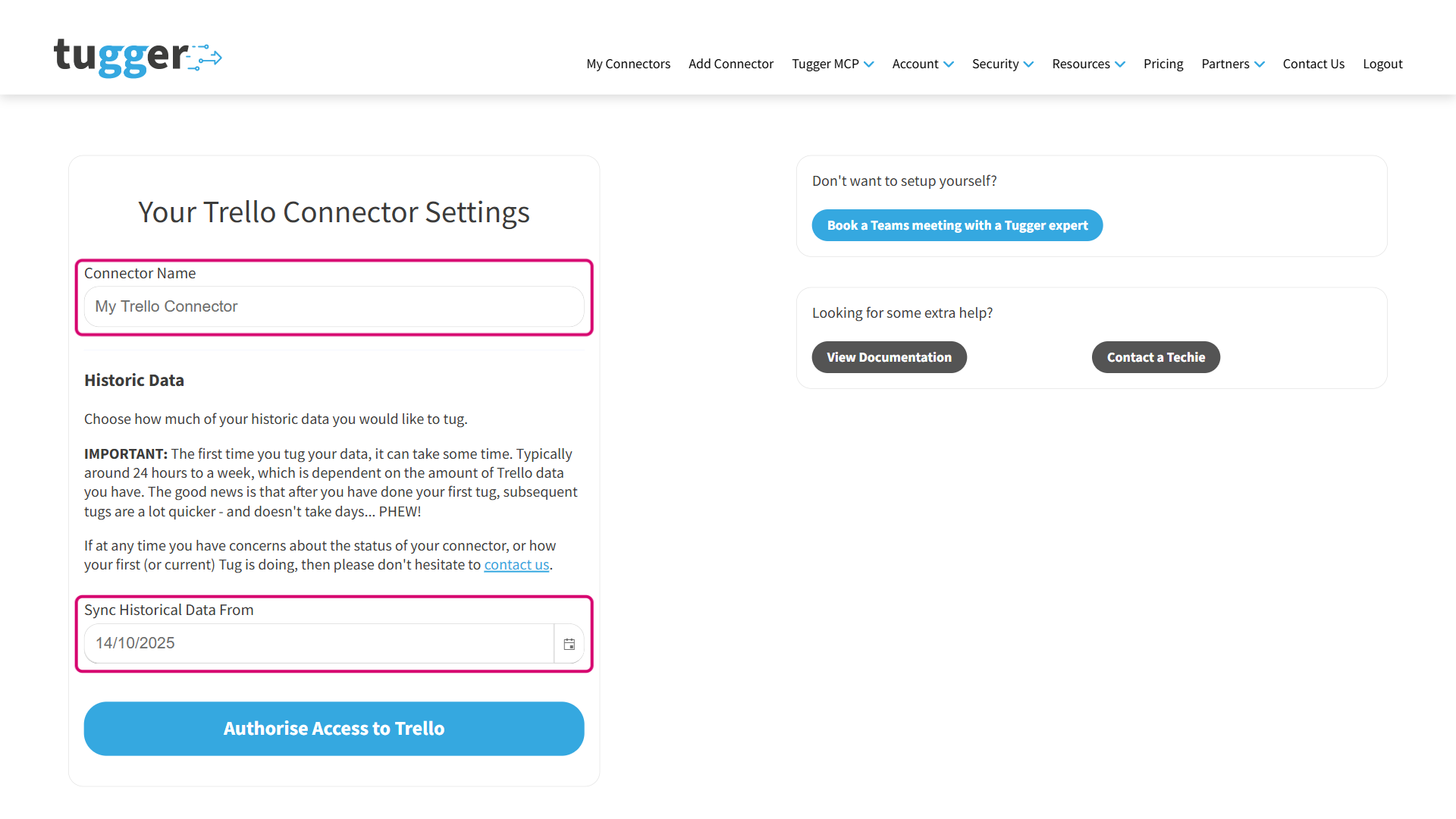
When you're happy, click Authorise Access to Trello.
Step 3: Log in to Trello to authorise the connection
Tugger will now send you to Trello to confirm you're happy to share your data. This is the same kind of "Sign in with..." process you'll have used with other apps.
- Sign in with your Trello (Atlassian) login details, if you aren't signed in already.
- Trello shows what Tugger will be able to do. Check the details and click Accept.
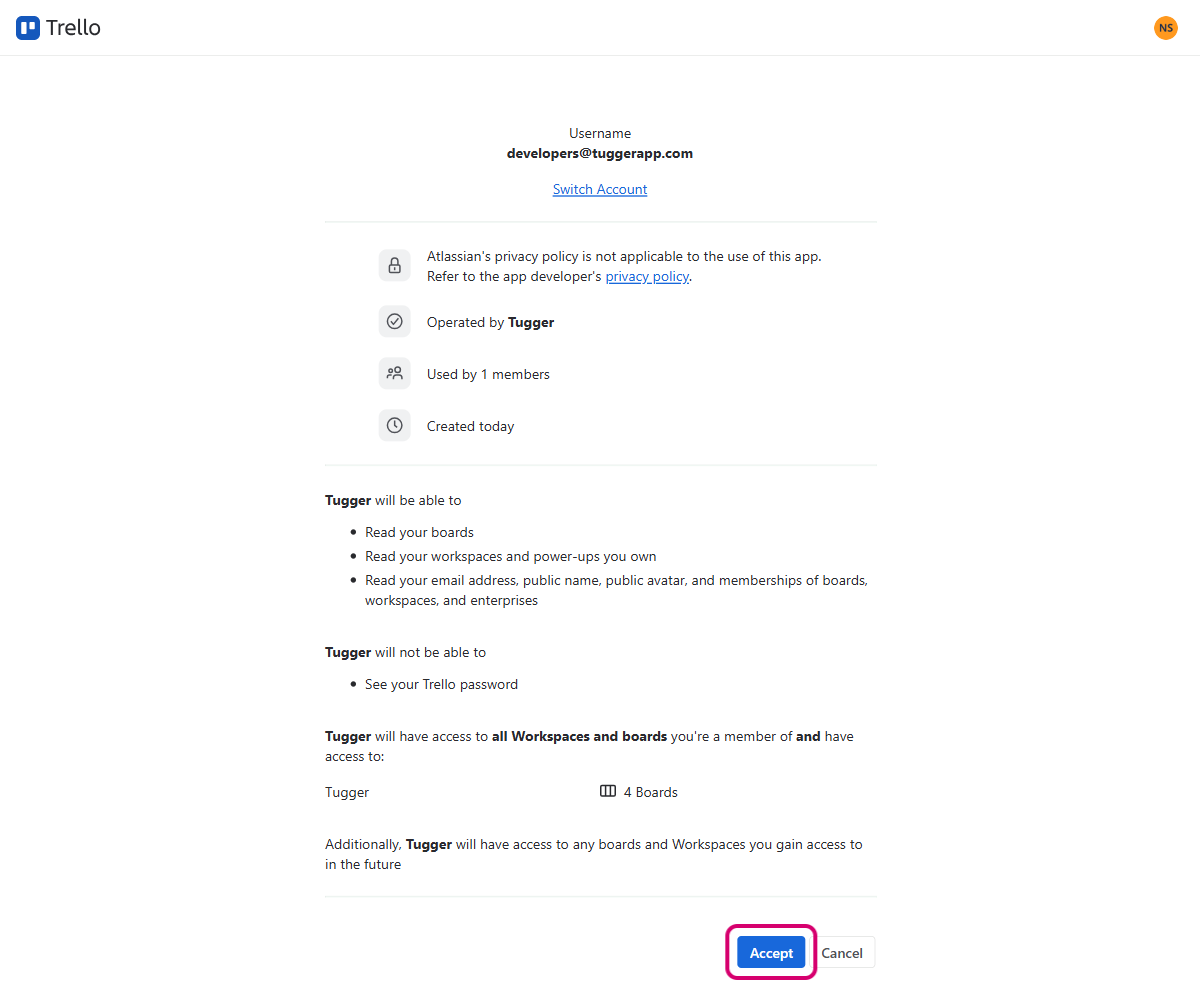
No API keys or technical setup required - just log in and approve. Trello shows you exactly what Tugger is asking for: to read your boards and your Workspaces, plus your email address, public name, public avatar and board memberships. Tugger only ever reads your data - it never creates, moves or deletes anything in Trello.
Which boards does Tugger see? Every board in every Workspace the account you sign in with can access - including boards you're added to later. If there are boards you don't want reported on, sign in with an account that isn't a member of them.
Step 4: Your first sync
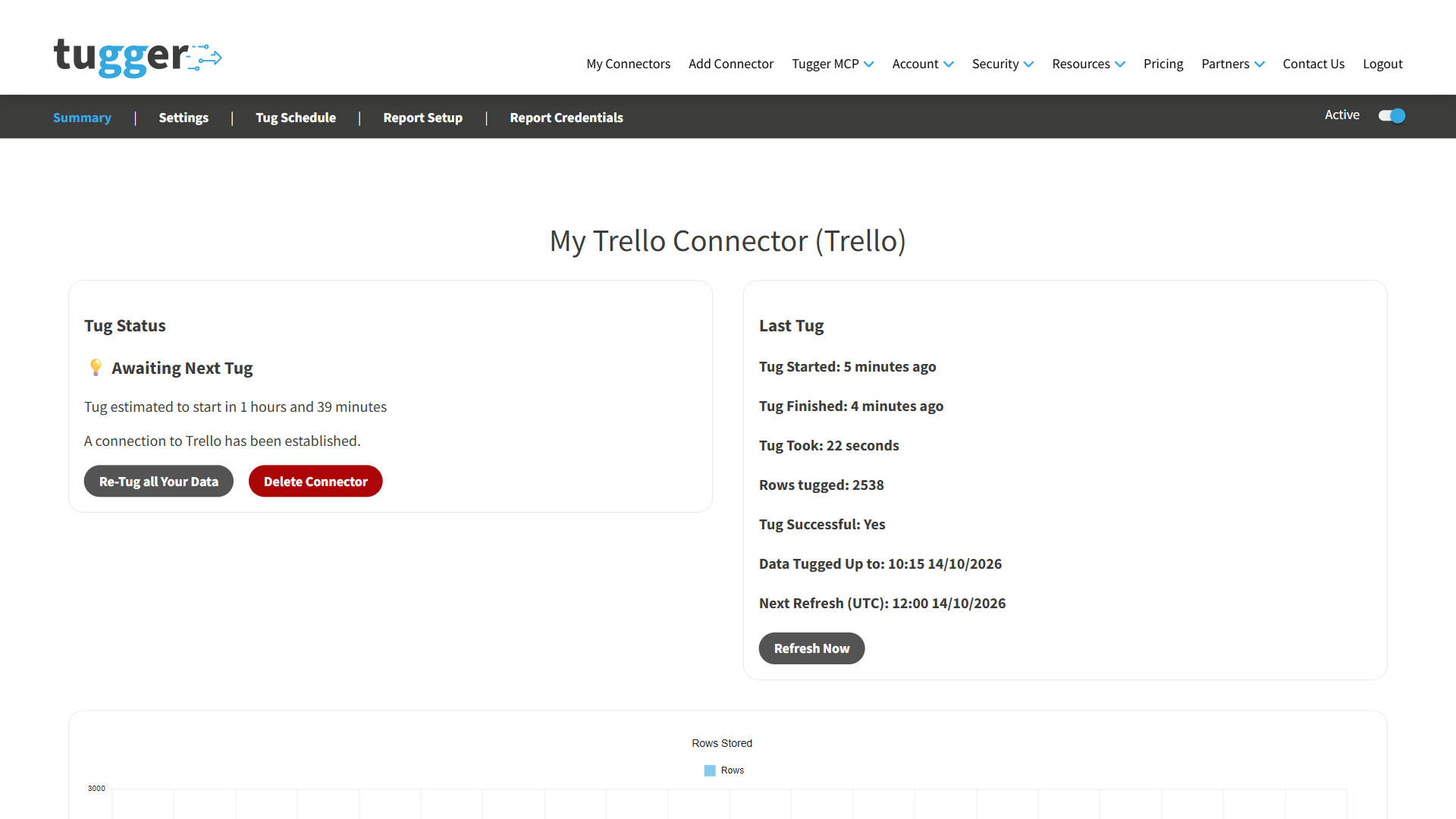
Once you've approved the connection, Tugger takes you to the Summary page for your new connector and starts pulling your data straight away.
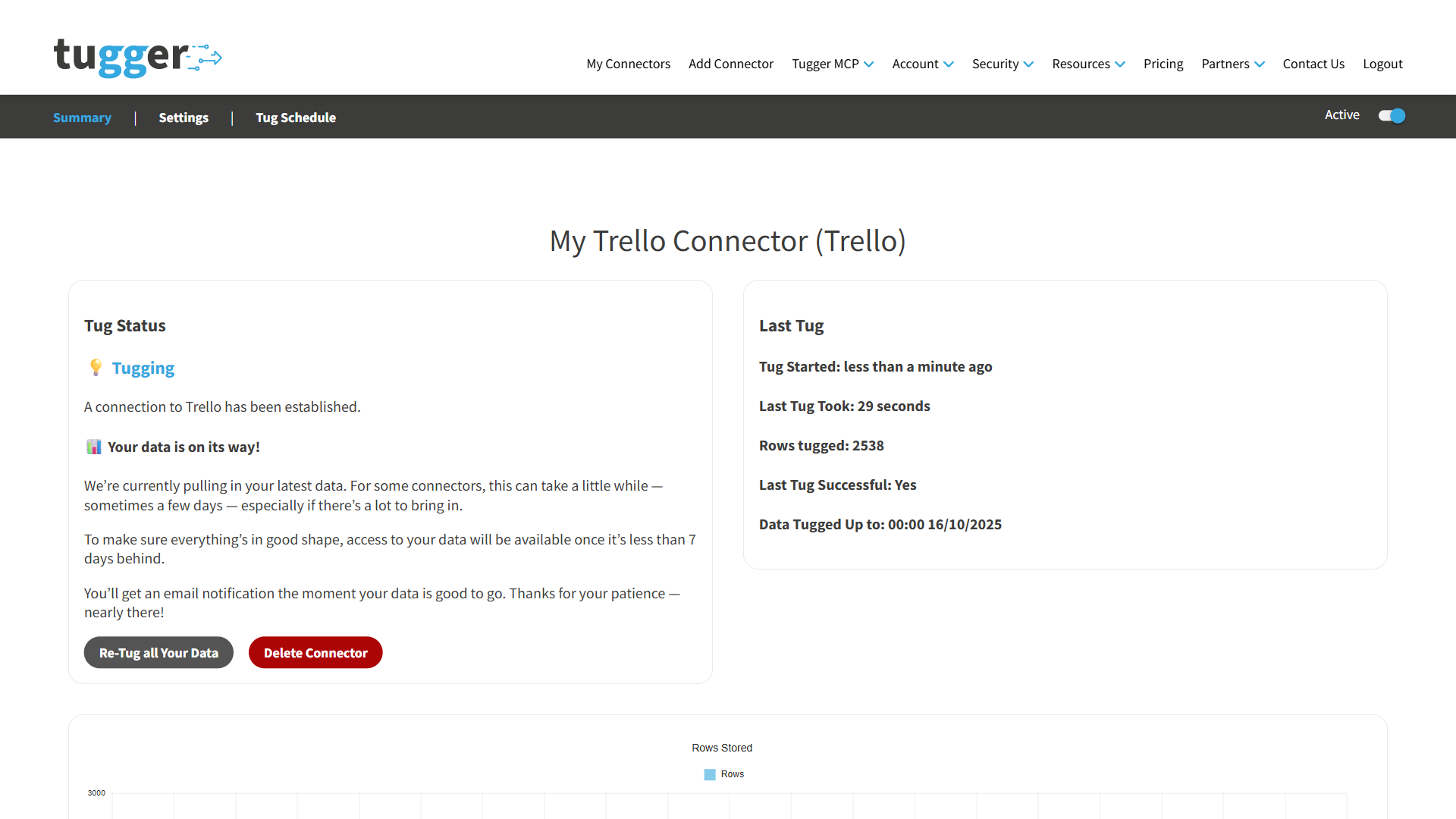
While it's still working, Tug Status reads Tugging, and the Data Tugged Up to date creeps forward as Tugger works through your history. You'll know the first sync has finished when Tug Status changes to Awaiting Next Tug and that date reaches today.
How long the first sync takes depends on how far back you asked for and how many boards and cards you have. Later syncs are much quicker.
After that, Tugger refreshes your data automatically every hour. You can change this whenever you like - see Managing Your Sync Schedule.
You'll receive an email (or SMS, if you've enabled it) once your data is ready. At that point you can start asking questions with AI Insights or building reports.
What data does Tugger pull from Trello?
Tugger brings through your boards and everything on them, so you can see where work is, who has it and how it's moving.
- Workspaces - your Trello Workspaces, with their member and seat counts.
- Boards - every board you can see, open or archived, with when each was last active and when it was archived.
- Lists - the columns on each board, including archived lists, in their board order.
- Cards - every card, open or archived, with its list, due and start dates, whether it's been marked complete, its labels and who it's assigned to.
- Labels - the labels on each board and how many cards use each one.
- Checklists and checklist items - every checklist on your cards, and whether each item has been ticked off.
- Custom fields - the custom fields set up on your boards, and the values entered on each card, including dropdown choices.
- Attachments - the files and links attached to your cards.
- Members - the people on your boards and their role on each one (admin, normal or observer).
- Board activity - a history of what happened on each board, such as cards being created and moved between lists, comments being added and fields being changed, so you can see how work flows over time.
For a full list of data tables and fields, ask Tugger AI Insights - try "What data is available from my Trello connector?"
What's next?
Once you've received the email (or SMS) confirming your data is ready:
AI Insights
- What is Tugger AI Insights? - ask questions about your Trello data in plain English, without building a report first.
- Connect Tugger to Claude
- Connect Tugger to ChatGPT
Reporting
Manage your sync schedule
Need help? Contact the Tugger team - we're always happy to help you get up and running.