Connect your monday.com account to Tugger and start asking questions of your data in plain English with AI Insights - or pull it into Power BI, Tableau, or Excel. Setup takes around 5 minutes.
What you'll need
- A Tugger account (sign up free)
- A monday.com account you can log in to, with permission to approve apps. If your monday.com account restricts who can add apps, an admin may need to approve this step for you
- Your monday.com account name, which you can read straight from the address you use to open monday.com
Connecting more than one monday.com account? Each monday.com account counts as one connector on your Tugger plan. You can connect as many as your plan allows, one connector per account.
Step 1: Add the monday.com connector in Tugger
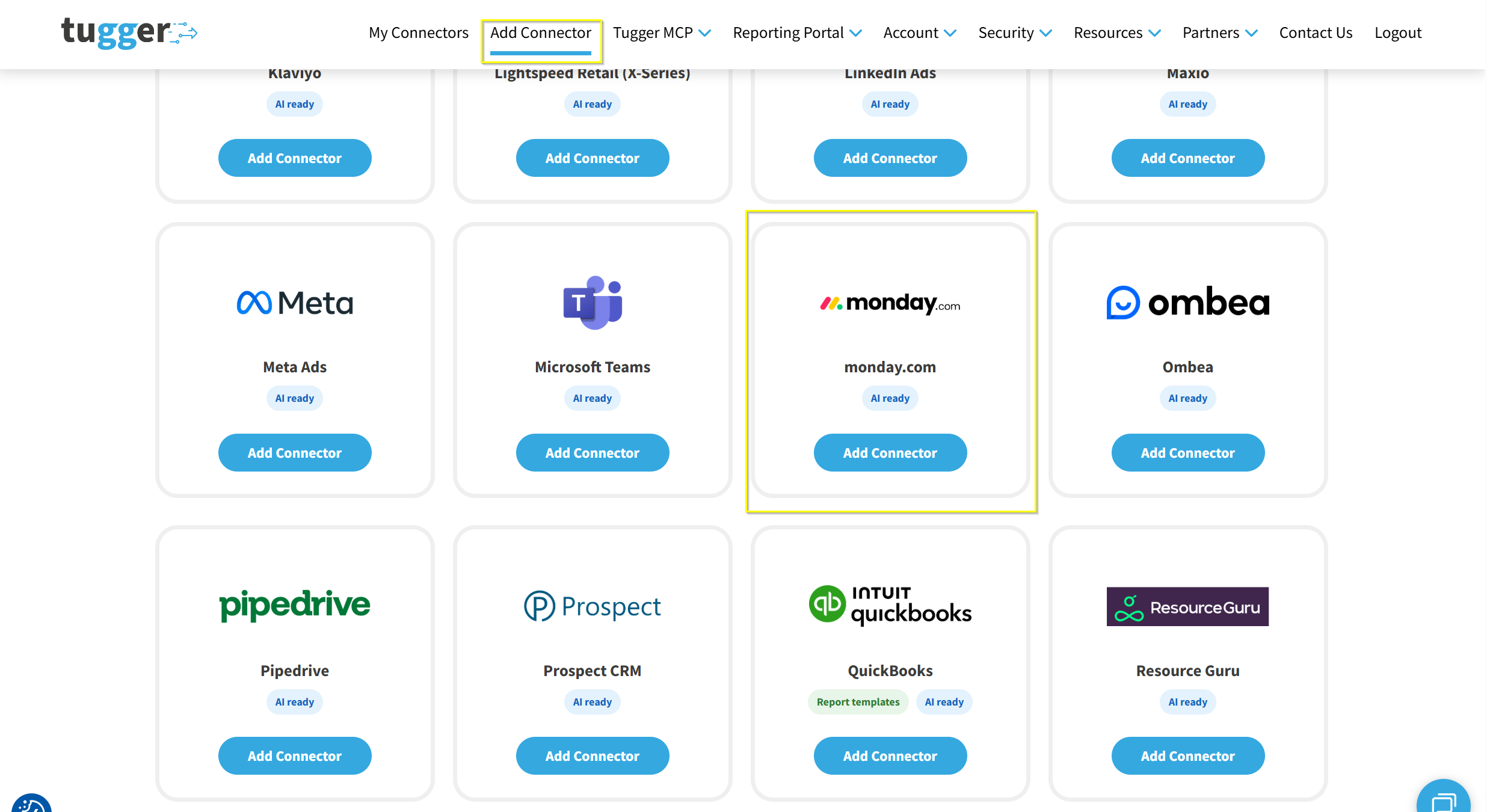
- Log in to Tugger at tuggerapp.com
- Click Add Connector from the menu
- Find monday.com, then click Add Connector on its tile
Step 2: Configure your connector
You'll land on Your monday.com Connector Settings, where there are three things to fill in.
- Connector Name - give it a name that makes sense to you (e.g. "Acme Ltd monday.com"). This is especially helpful if you're connecting more than one monday.com account.
- Account Name - this is the first part of the address you use to open monday.com. If your monday.com address is
https://myaccount.monday.com/, your account name ismyaccount. Enter just that part, with nohttps://and no.monday.com.
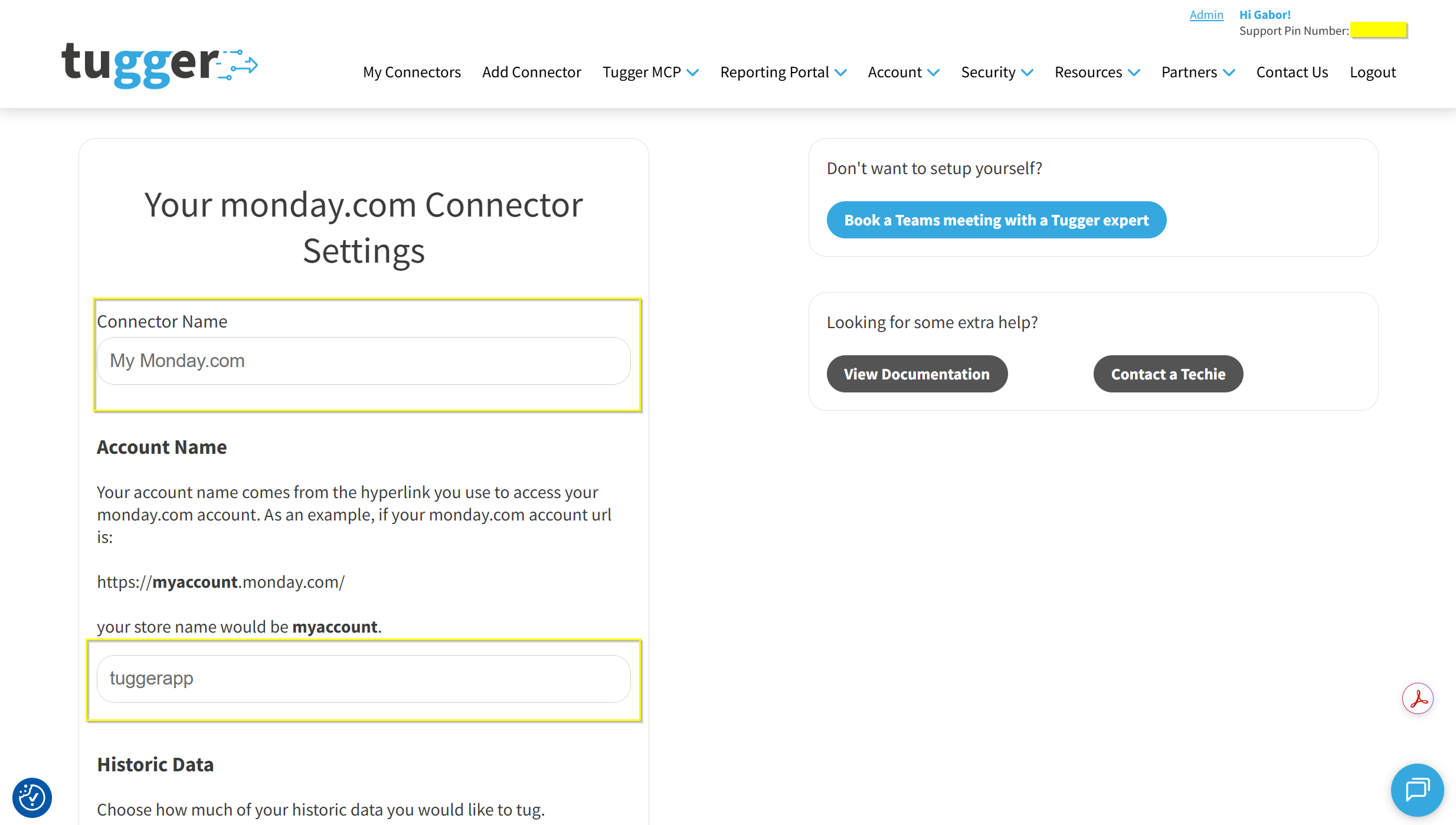
Double-check your account name before you save. Once the connector has been created, the Account Name is fixed and can't be edited. If you get it wrong, you'll need to delete the connector and add a new one.
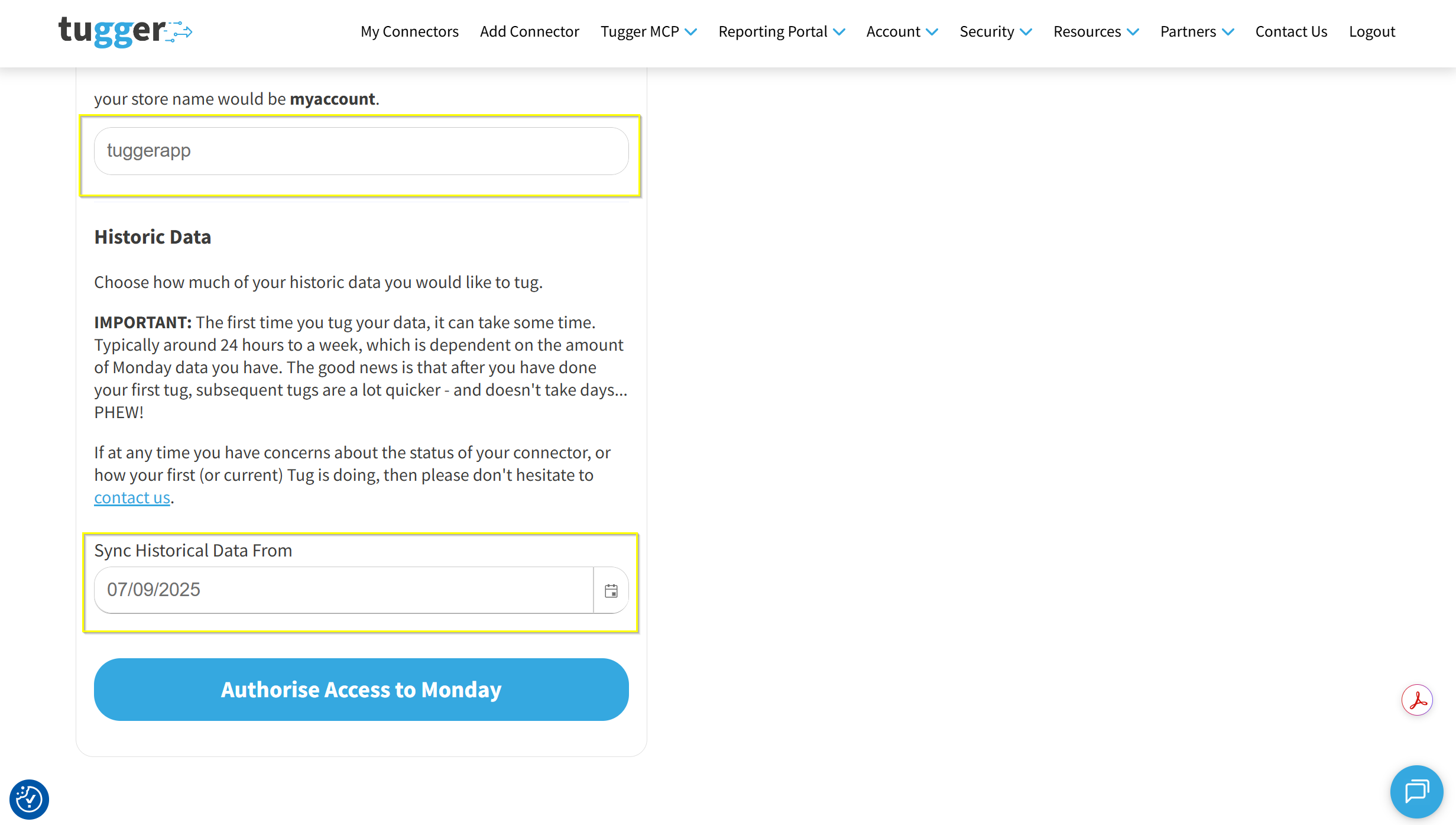
- Sync Historical Data From - choose how far back you want Tugger to pull data from. The further back you go, the more data will be stored and the longer your first sync will take.
Then click Authorise Access to Monday.
Step 3: Approve the connection in monday.com
Tugger will send you over to monday.com so it can securely access your data. This is the same kind of "Sign in with..." process you'll have used with other apps.
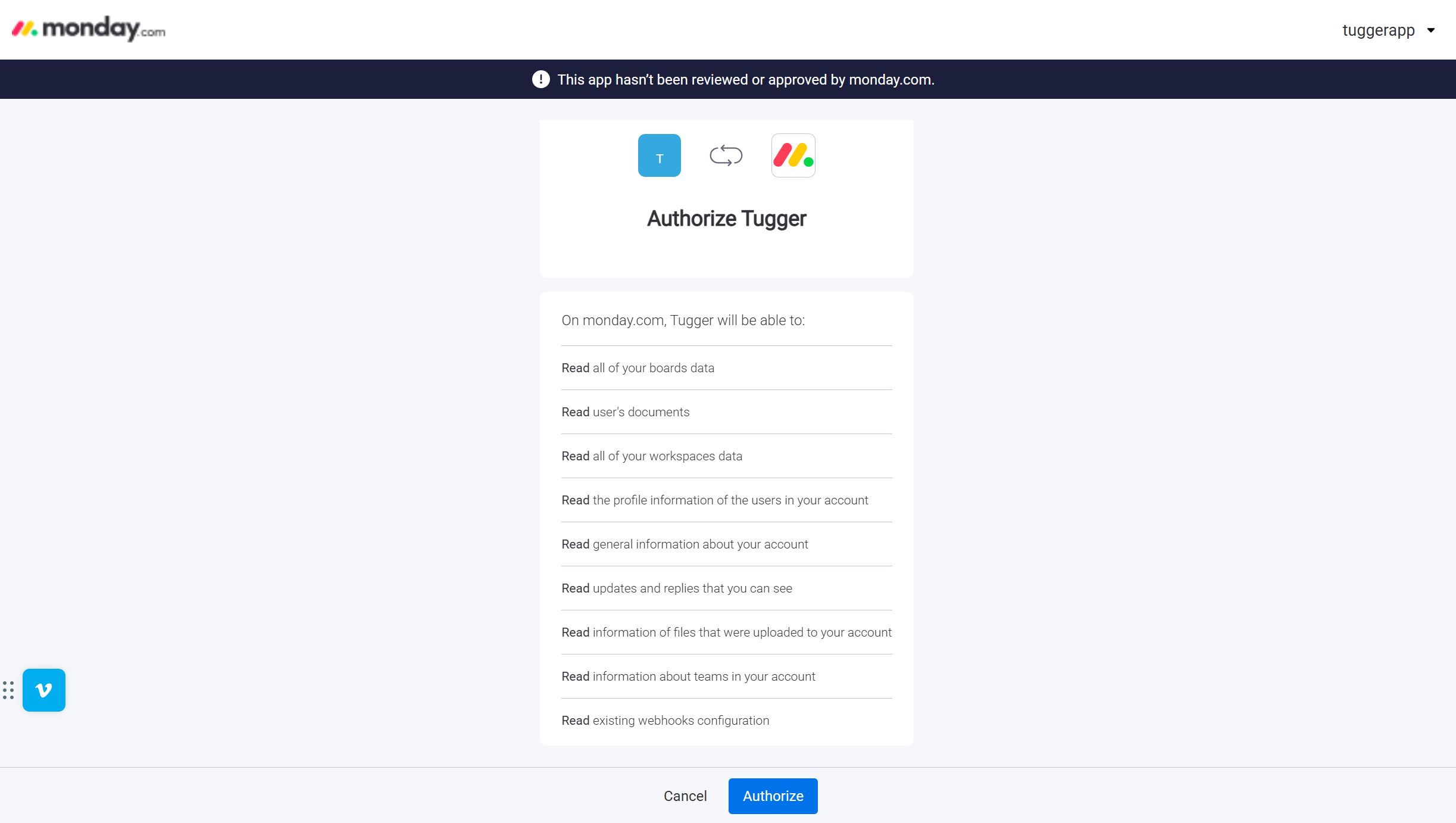
- You'll be taken to monday.com's Authorize Tugger screen
- Check the account name shown in the top corner is the monday.com account you want to connect
- Read the list of things Tugger will be able to do, then click Authorize
No API keys or technical setup required - just log in and approve.
Everything on that list is Read only. Tugger can look at your boards, items, updates, workspaces, teams, departments and users and tags, but it can never change, move, or delete anything in monday.com.
Seeing a note that the app hasn't been reviewed by monday.com? That's expected, and it's safe to carry on. It simply means Tugger is connected directly to your account rather than listed in the monday.com app marketplace.
Step 4: Your first sync
Once you've approved the connection, Tugger starts pulling your monday.com data automatically. You can check progress on the Summary page, where the status will read Tugging while data is coming in.
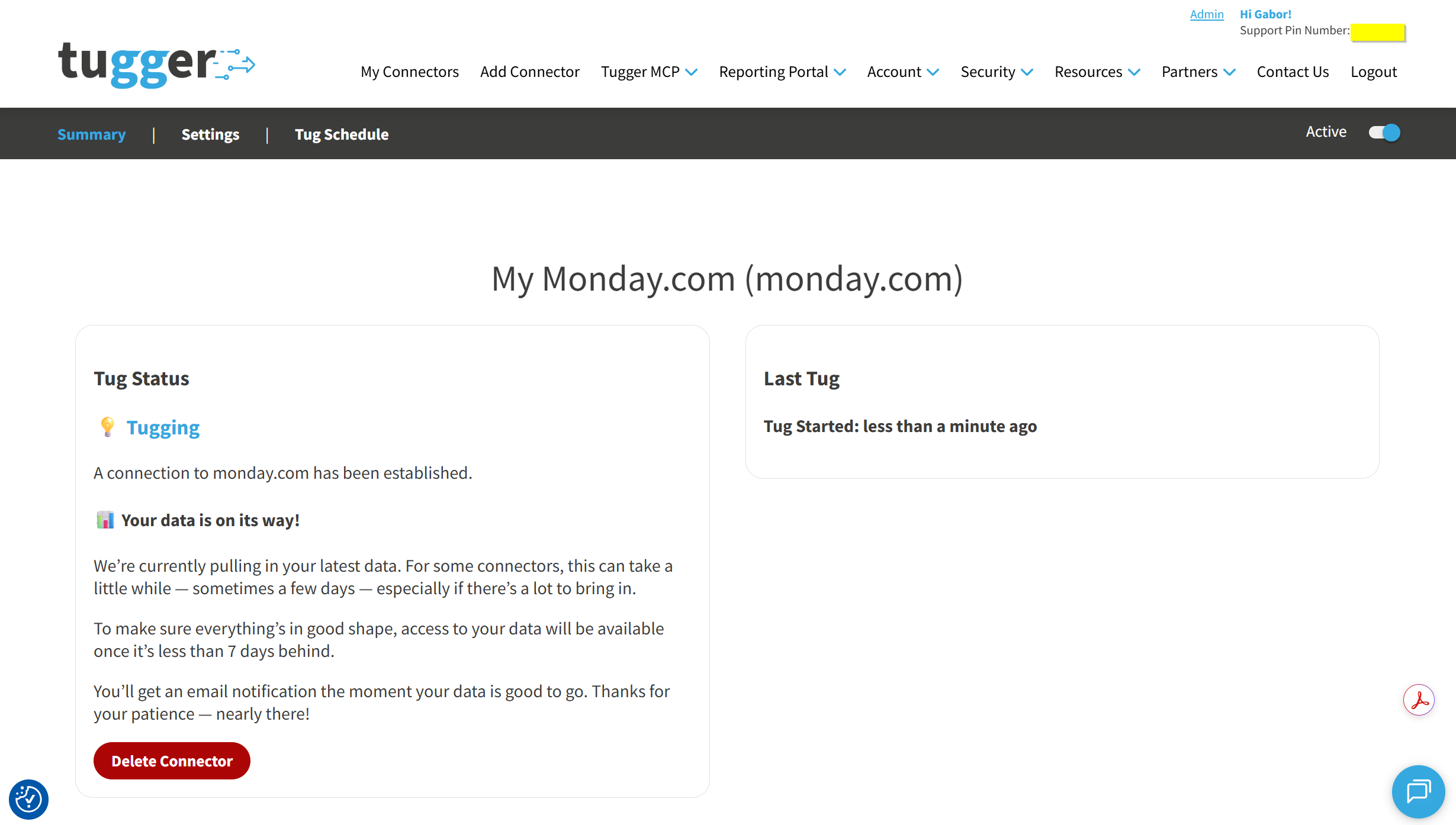
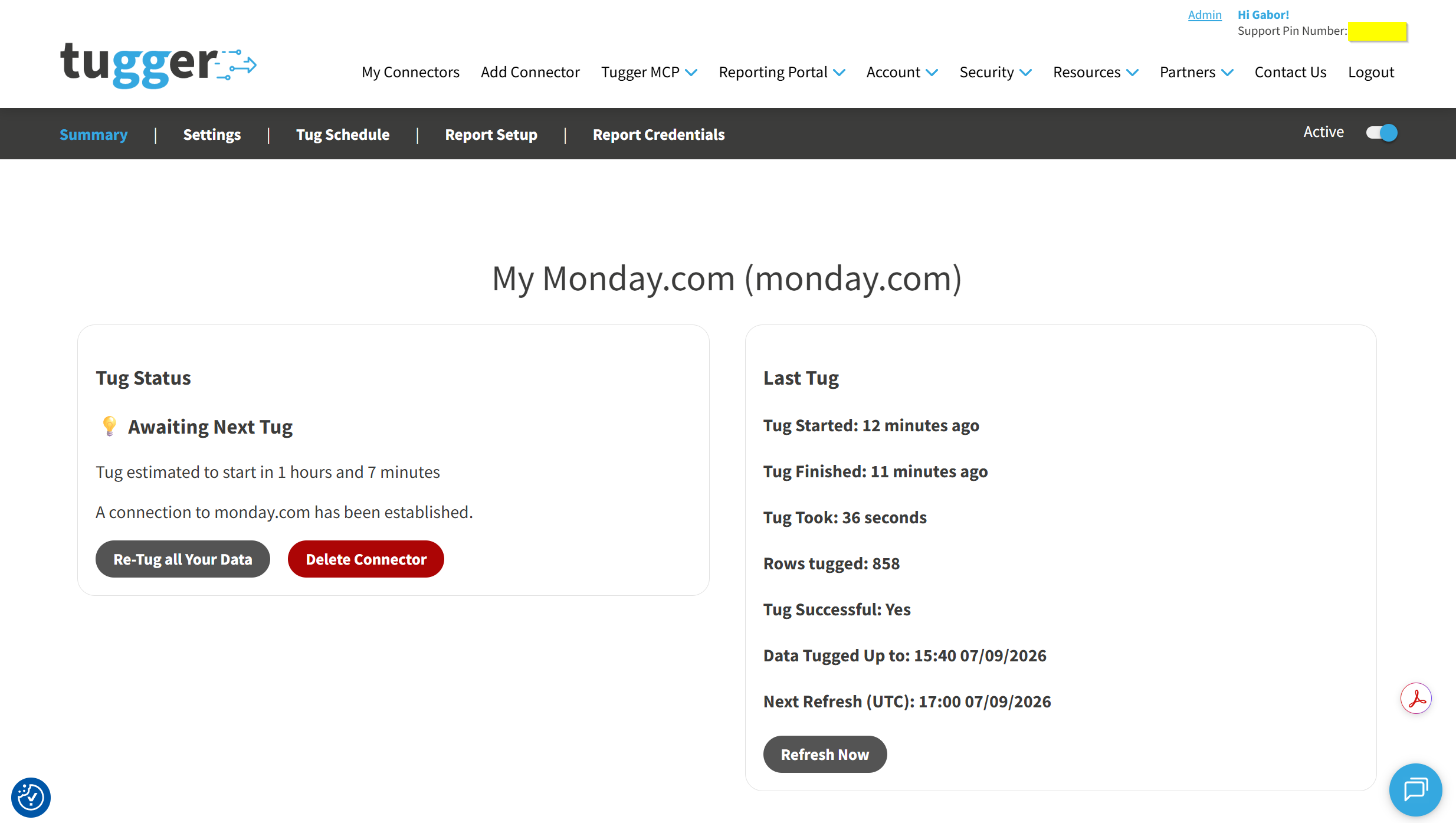
Depending on how many boards and items you have (and how far back your data start date goes), the first sync can take anywhere from a few minutes to a couple of days. So that your reports aren't built on a half-finished picture, your data becomes available to use once it's less than seven days behind. After the first sync, Tugger refreshes your data automatically every hour by default. You can change this on the Tug Schedule tab, or see Managing Your Sync Schedule.
You'll receive an email (or SMS, if you've enabled it) once your data is ready. At that point you can start asking questions with AI Insights or building reports.
What data does Tugger pull from monday.com?
Tugger syncs a broad picture of how work moves through your monday.com account, including:
- Workspaces - every workspace with its type, owners, and subscribers, so you can report by area of the business
- Boards - board names, descriptions, types, and permissions, along with their columns, groups, and views
- Items - the individual rows on your boards, with their column values, groups, states, and any parent and sub-item links
- Updates - the comments and replies posted against items, with who wrote them and when
- Users - names, job titles, teams, and account roles, plus whether each person is active, a guest, or view-only
- Departments - your departments with their members, owners, and how many seats each has been given
- Teams - your teams with their members and owners
- Tags - the labels used to group items across different boards
- Activity history - a log of what changed on each board, by whom, and when, so you can track progress and throughput over time
For a full list of data tables and fields, ask Tugger AI Insights - try "What data is available from my monday.com connector?"
What's next?
Once you've received the email (or SMS) confirming your data is ready:
AI Insights
- What is Tugger AI Insights? - ask questions about your monday.com data in plain English
- Connect Tugger to Claude | ChatGPT
Reporting
Manage your sync schedule
- Managing Your Sync Schedule - change when and how often Tugger pulls your data
Need help? Contact the Tugger team - we're always happy to help you get up and running.