Connect your Xero account to Tugger and start pulling financial data into Power BI, Tableau, or Excel. Setup takes around 5 minutes.
What you'll need
- A Tugger account (sign up free)
- A Xero account with access to the organisation(s) you want to connect
- You'll need permission to authorise third-party apps in Xero
Connecting multiple Xero organisations? Each Xero tenant counts as one connector on your Tugger plan. You can connect as many as your plan allows.
Step 1: Add the Xero connector in Tugger
- Log in to Tugger at tuggerapp.com
- Click Add Connector from the menu
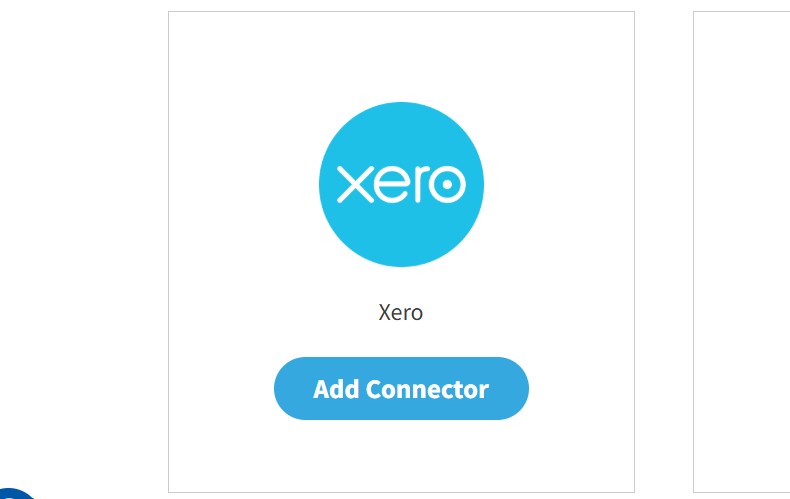
- Select Xero, then click Add Connector
Step 2: Configure your connector
You'll be asked to set up two things:
- Connector name - give it a name that makes sense to you (e.g. "Acme Ltd Xero" or "Xero - Main Company"). This is especially helpful if you're connecting multiple Xero organisations.
- Data start date - choose how far back you want Tugger to pull data from. The further back you go, the more data will be stored and the longer your first sync will take.
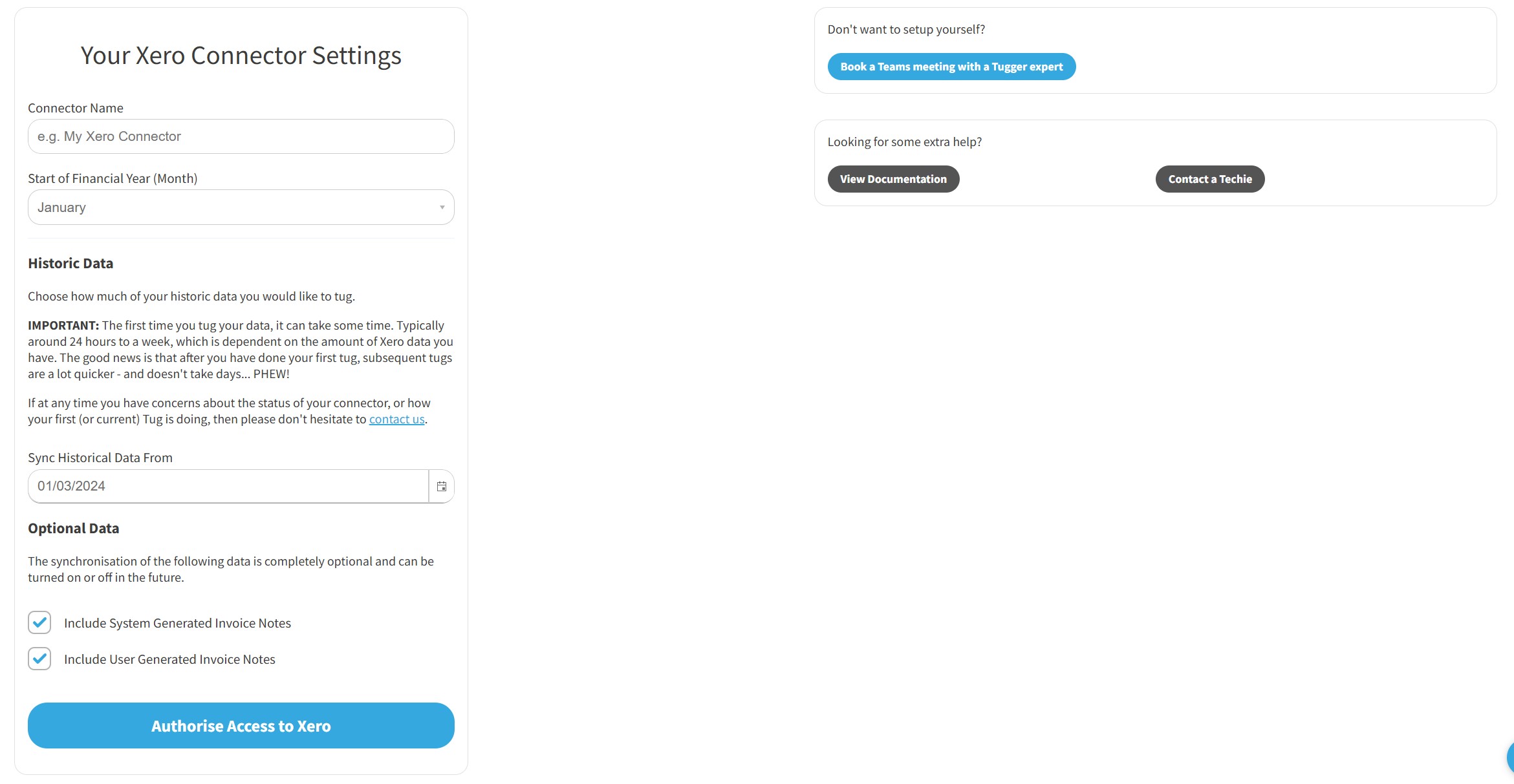
Click Save (or the equivalent button) to proceed.
Step 3: Log in to Xero to authorise the connection
Tugger will ask you to log in to Xero so it can securely access your data. This is the same kind of "Sign in with..." process you'll have used with other apps.
- You'll be redirected to Xero's login page
- Sign in with your Xero username and password
- Click Allow to give Tugger permission to read your Xero data
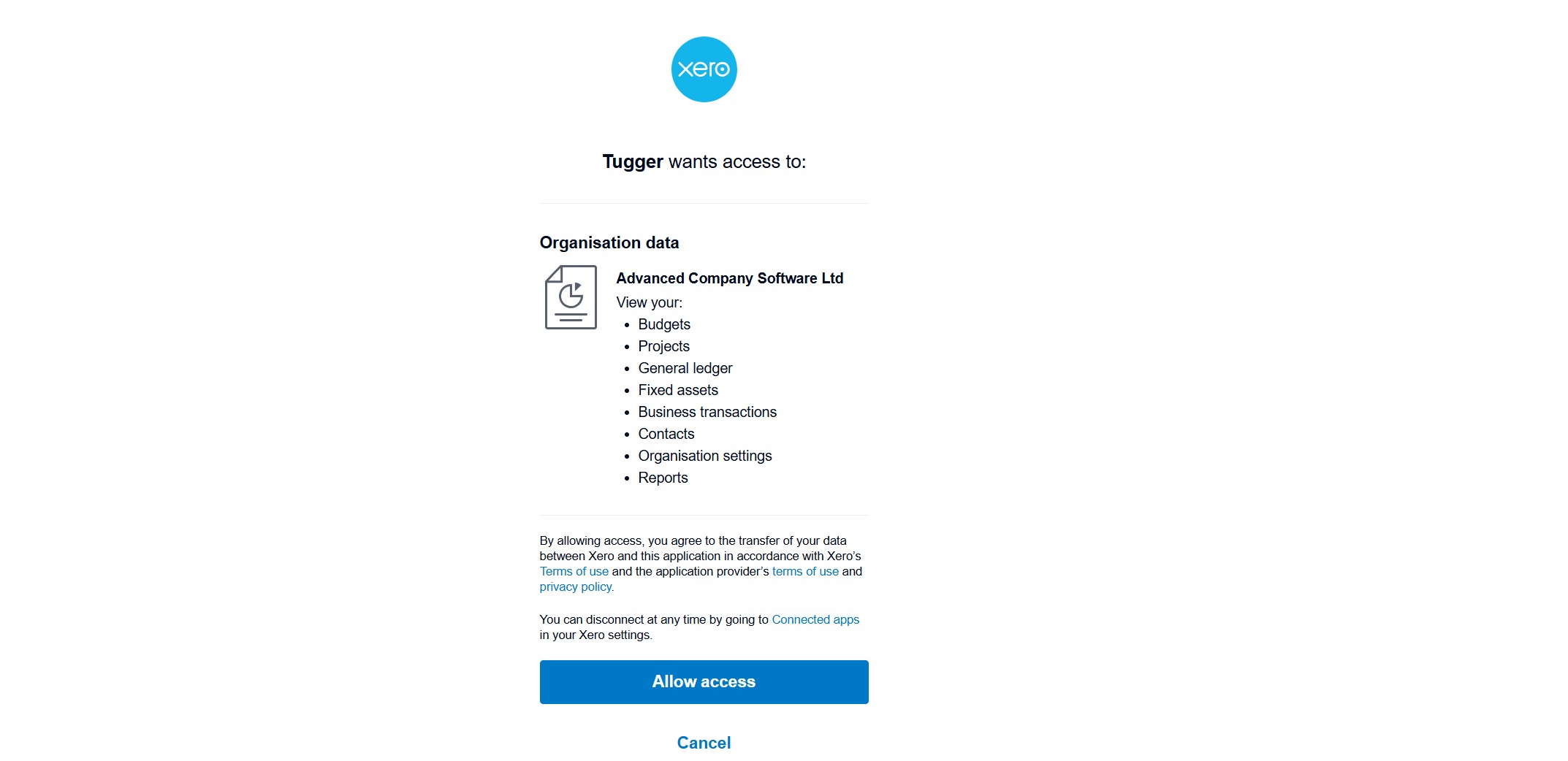
No API keys or technical setup required - just log in and approve.
Already see a message that someone in your organisation has connected? This means a Xero connector already exists on your Tugger account, either set up by you or a colleague. You can still add an additional organisation if needed.
Step 4: Select your Xero organisation
After logging in, you'll be taken to the Tenant Selection page.
- Click the dropdown to see your available Xero organisations
- Select the organisation you want to connect
- Confirm your selection
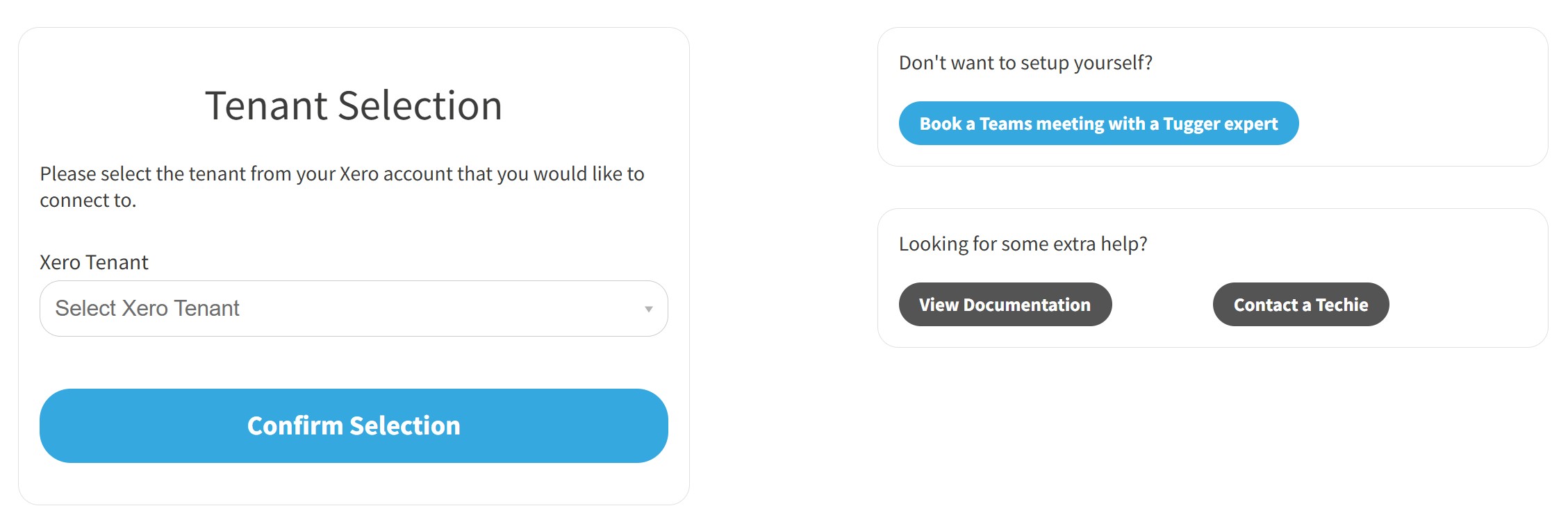
Multiple organisations? You can only connect one organisation per connector. To connect additional organisations, repeat this process and add a new connector for each one.
Step 5: Your first sync
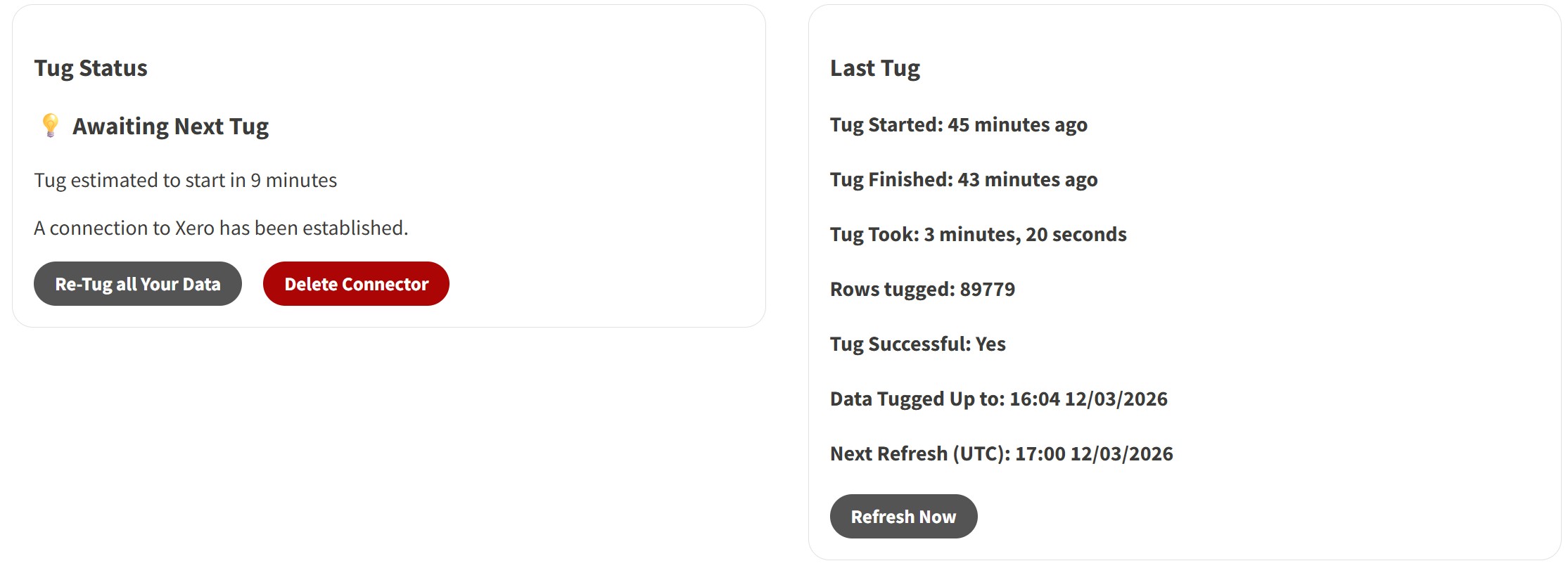
Once setup is complete, Tugger will start pulling your Xero data automatically. You can check progress on the Summary page.
.jpg)
Depending on how much data you have (and how far back your data start date goes), the first sync may take anywhere from a few minutes to a longer period. After that, Tugger syncs your data automatically every day at 08:00 UK time by default. You can change this schedule if needed - see Managing Your Sync Schedule.
You'll receive an email once your data is ready. At that point, the reporting options will appear in Tugger and you can start building reports or using AI Insights.
What data does Tugger pull from Xero?
Tugger syncs a comprehensive set of financial data from Xero, including:
- Invoices and bills - sales invoices, purchase bills, line items, and payment status
- Contacts - customers and suppliers with groupings
- Accounts - your full chart of accounts
- Bank transactions and transfers - money in, money out, and inter-account transfers
- Payments - payments against invoices, credit notes, prepayments, and overpayments
- Journals - system-generated and manual journal entries with line-level detail
- Credit notes - customer and supplier credit notes with line items
- Quotes and purchase orders - with line item detail
- Budgets - budget definitions with monthly balances by account
- Projects, tasks, and time entries - from Xero Projects
- Reports - trial balance, balance sheet, aged receivables, and aged payables
- Configuration - tax rates, currencies, tracking categories, and repeating invoices
For a full list of data tables and fields, see Xero Data Reference or ask Tugger AI Insights - try "What data is available from my Xero connector?"
What's next?
Once you've received the email confirming your data is ready:
Reporting
- Connect Power BI Desktop to Tugger - use Tugger's pre-built Xero report templates or build your own
- Connect Power BI Desktop to Tablueau
- Export to Excel
AI Insights
- What is Tugger AI Insights? - ask questions about your Xero data in plain English
- Connect Tugger to Claude | ChatGPT
Manage your sync schedule
- Managing Your Sync Schedule - change when and how often Tugger pulls your data
Need help? Contact the Tugger team - we're always happy to help you get up and running.