Connect your MYOB account to Tugger and start asking questions of your data in plain English with AI Insights - or pull it into Power BI, Tableau, or Excel. Setup takes around 5 minutes.
What you'll need
- A Tugger account (sign up free)
- A MYOB account with Administrator access to the business file you want to connect
- You'll need permission to authorise third-party apps in MYOB
Connecting multiple MYOB company files? Each company file counts as one connector on your Tugger plan. You can connect as many as your plan allows.
Step 1: Add the MYOB connector in Tugger
- Log in to Tugger at tuggerapp.com
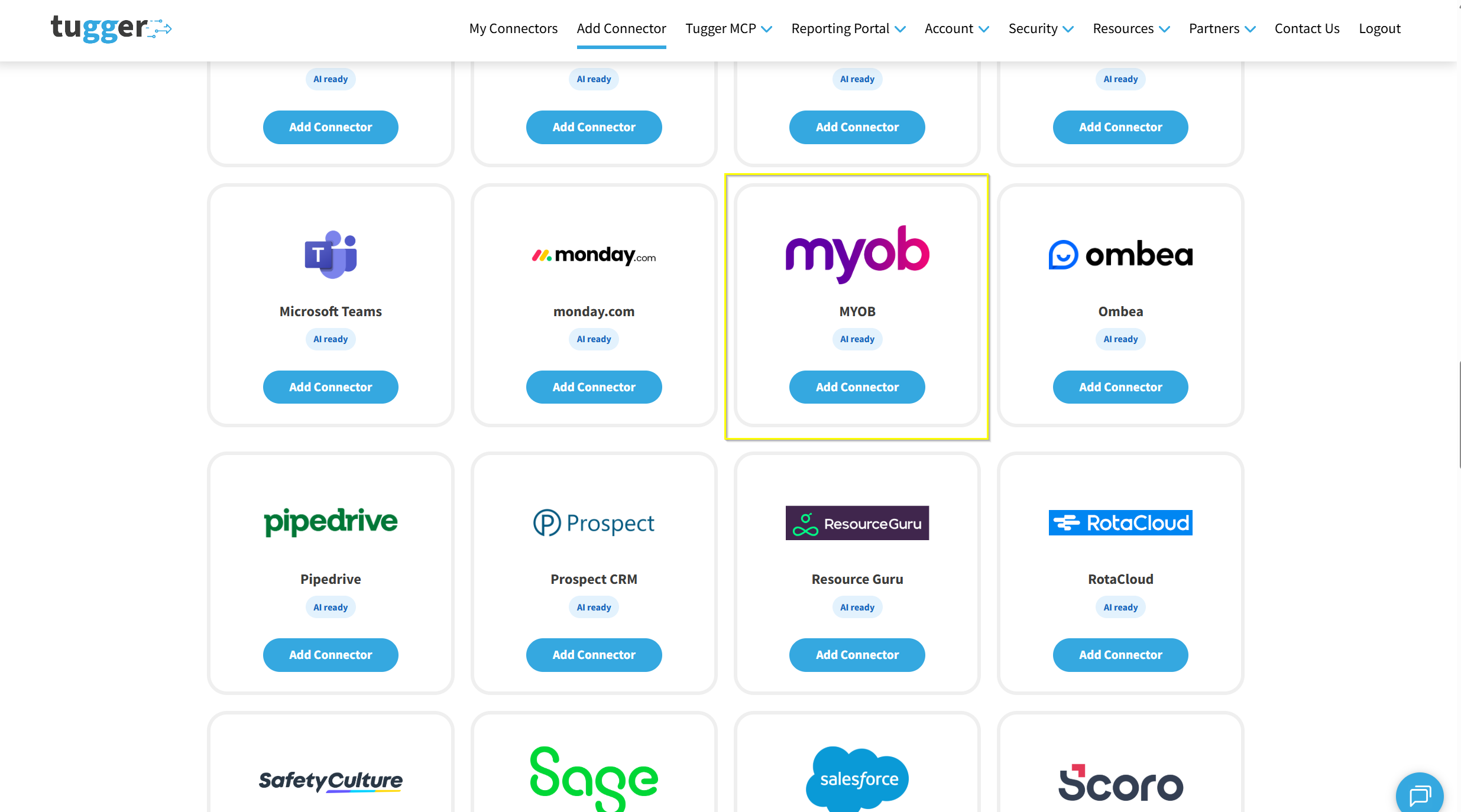
- Click Add Connector from the menu
- Select MYOB, then click Add Connector
Step 2: Configure your connector
You'll be asked to set up two things:
- Connector Name - give it a name that makes sense to you (e.g. "My MYOB Connector"). This is especially helpful if you're connecting multiple company files.
- Sync Historical Data From - choose how far back you want Tugger to pull data from. The further back you go, the more data will be stored and the longer your first sync will take.
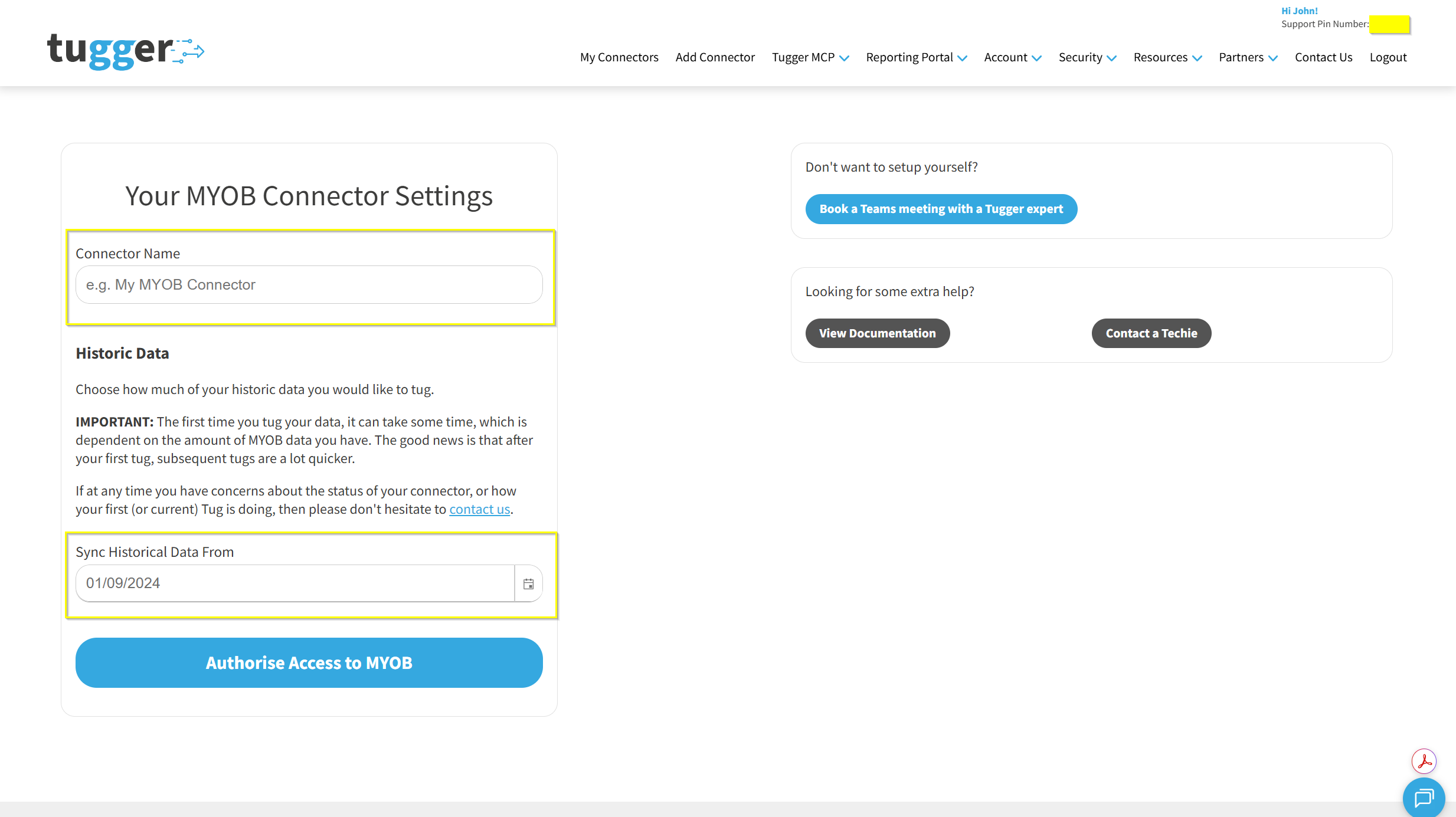
Click Authorise Access to MYOB to proceed.
Step 3: Log in to MYOB to authorise the connection
Tugger will ask you to log in to MYOB so it can securely access your data. This is the same kind of "Sign in with..." process you'll have used with other apps.
- You'll be redirected to MYOB's login page
- Sign in with your MYOB username and password
- Select the MYOB business you'd like to connect from the dropdown
- Click Connect to give Tugger permission to read your MYOB data
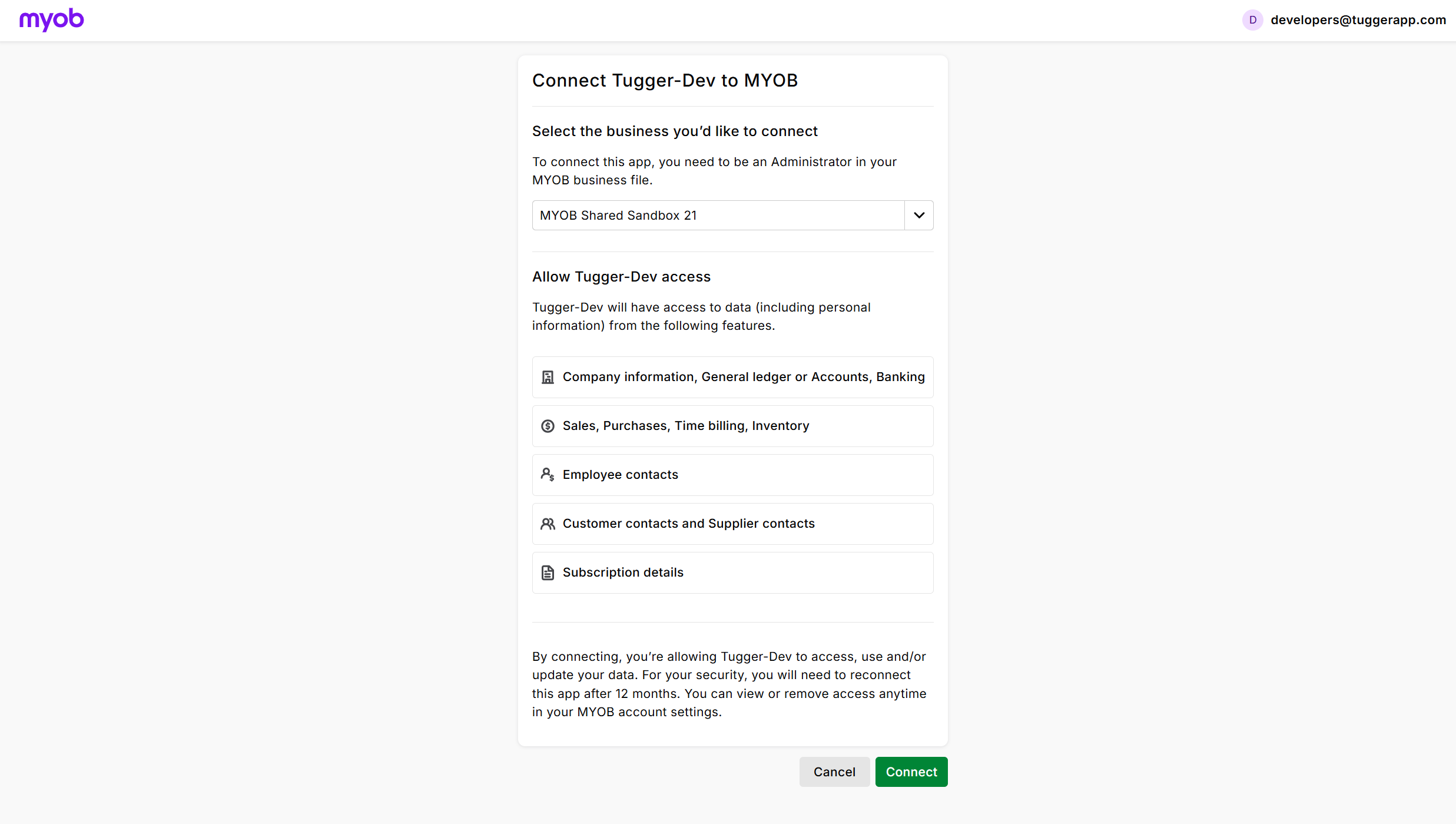
For most people there are no API keys or technical setup required - just log in and approve.
Step 3a: If Tugger asks for your company file sign-in
Most people can skip this step. If Tugger goes straight to your Summary page after you approve
access, everything is set up and there is nothing to do here.
Some MYOB company files have a second, separate login of their own - a User ID and password that
belong to the file itself rather than to your my.MYOB account. If your file is set up that way, MYOB
will not let Tugger read your data using your my.MYOB login alone, so Tugger shows a MYOB Company
File Sign-In screen after you authorise.
These are the same details you type into the second box when you open the file in MYOB:
- Company File User ID - often
Administrator - Company File Password - leave this blank if your company file user does not have one
Click Connect. Tugger checks the details with MYOB before saving them, so if something is
mistyped you will be told straight away rather than finding out later that no data arrived.
Not sure what your company file User ID is? An administrator can find the list in MYOB under
Setup, then User Access. If every user there signs on with a my.MYOB account, your file
does not need this step at all.
Step 4: Your first sync
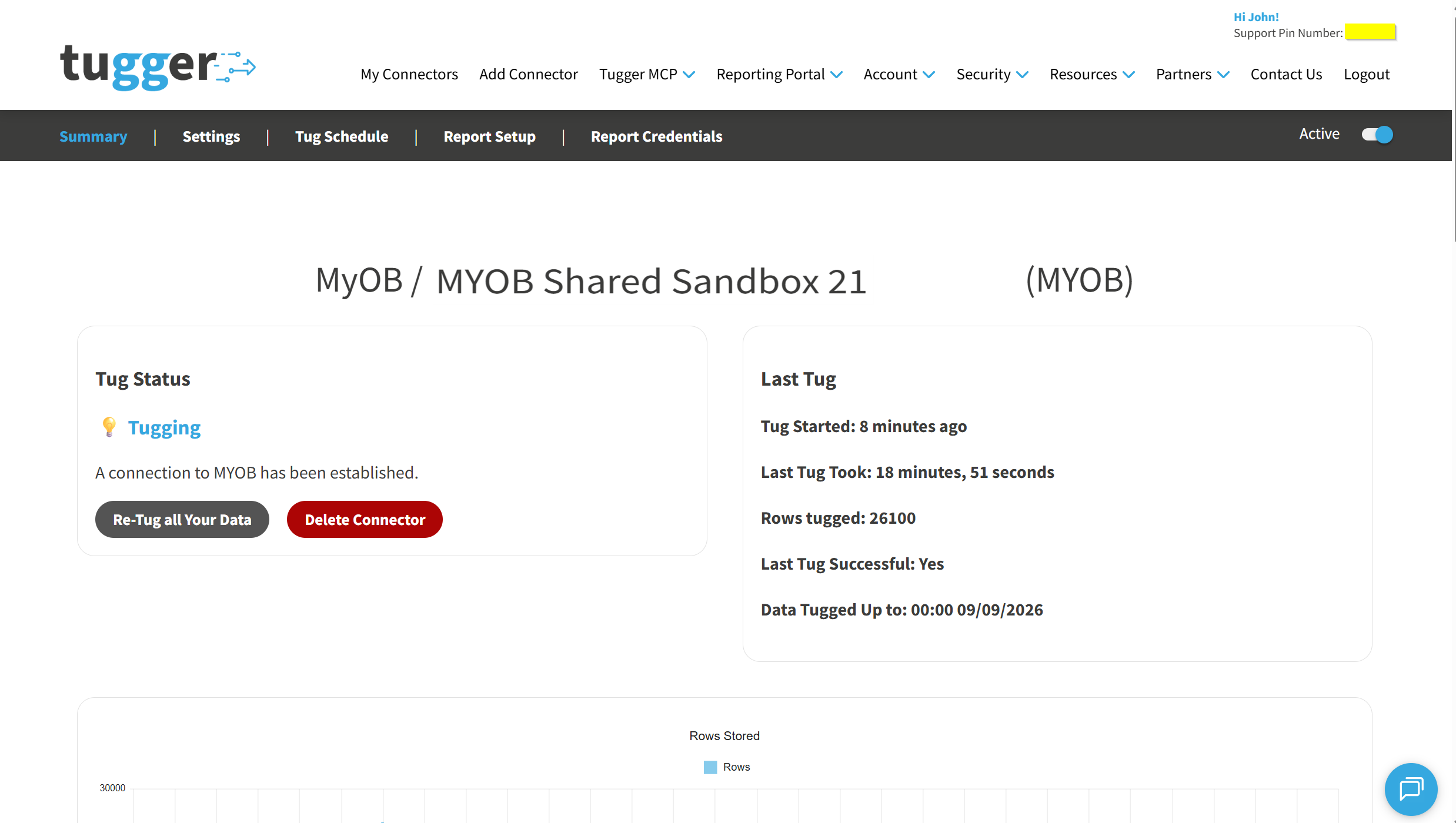
Once setup is complete, Tugger will start pulling your MYOB data automatically. You can check progress on the Summary page.
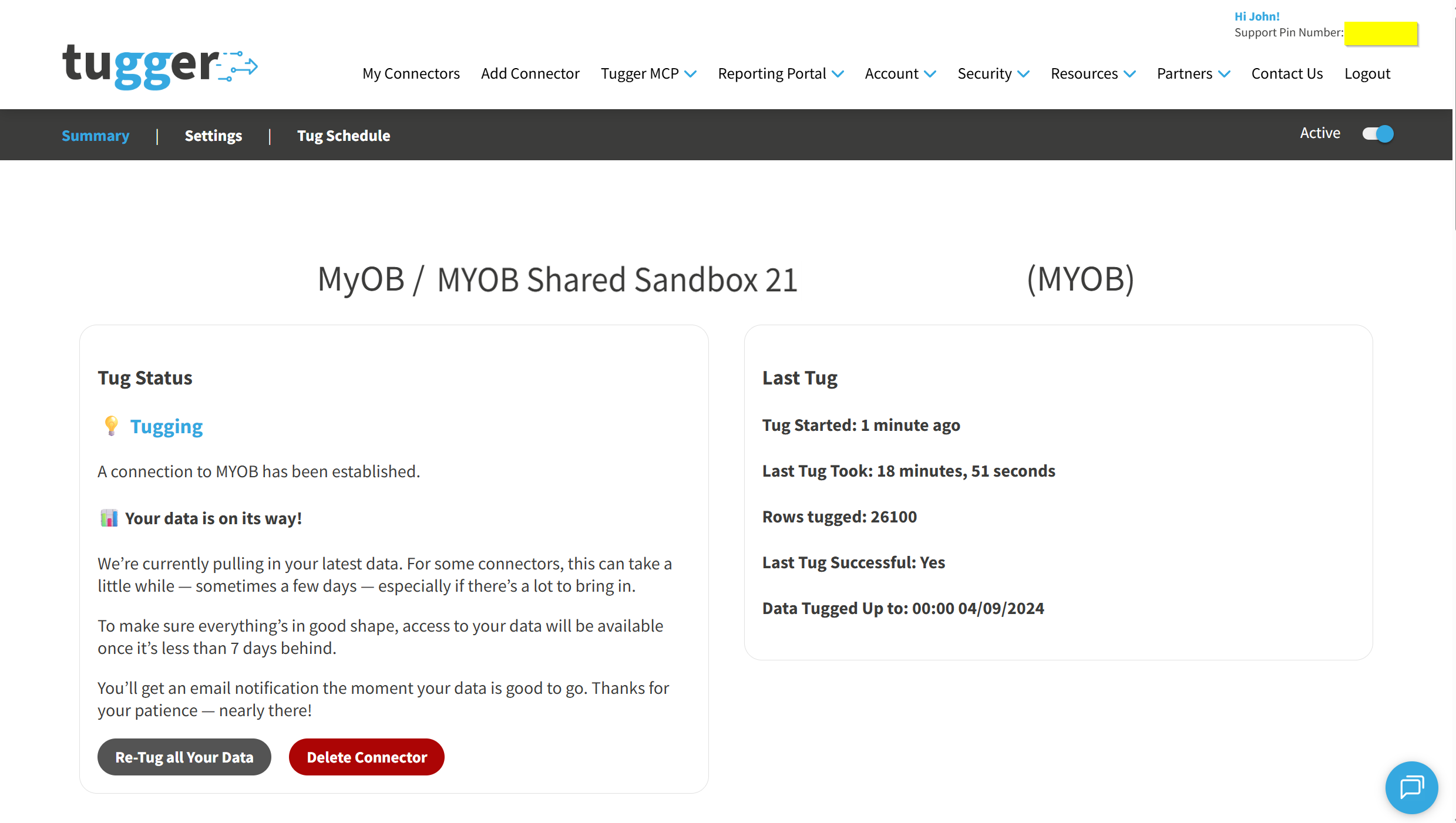
Depending on how much data you have (and how far back your data start date goes), the first sync may take anywhere from a few minutes to a longer period. After that, Tugger syncs your data automatically every day at 08:00 UK time by default. You can change this schedule if needed - see Managing Your Sync Schedule.
You'll receive an email (or SMS, if you've enabled it) once your data is ready. At that point you can start asking questions with AI Insights or building reports.
What data does Tugger pull from MYOB?
Tugger syncs a comprehensive set of accounting data from MYOB, including:
- Sales invoices, orders and quotes - across Item, Service, Professional, Miscellaneous and Time Billing layouts, with line-level detail
- Customers - contact cards, addresses, and customer payments
- Purchase bills and orders - across all layouts, with line-level detail
- Suppliers - contact cards, addresses, and supplier payments
- Banking - money received, money spent, and transfers between accounts
- Chart of accounts and general ledger - accounts, journals, categories, and tax codes
- Jobs - job costing tags used across transactions, with budgets
- Inventory - items, stock adjustments, inventory builds, and pricing
- Time billing - activities and activity slips for billable time
- Employees - contact cards, also used as the salesperson on sales documents
- Company file details - your MYOB business file's settings and preferences
For a full list of data tables and fields, ask Tugger AI Insights - try "What data is available from my MYOB connector?"
What's next?
Once you've received the email (or SMS) confirming your data is ready:
AI Insights
- What is Tugger AI Insights? - ask questions about your MYOB data in plain English
- Connect Tugger to Claude | ChatGPT
Reporting
Manage your sync schedule
- Managing Your Sync Schedule - change when and how often Tugger pulls your data
Need help? Contact the Tugger team - we're always happy to help you get up and running.