Connect your Meta Ads account to Tugger and start asking questions of your data in plain English with AI Insights - or pull it into Power BI, Tableau, or Excel. Setup takes around 5 minutes.
What you'll need
- A Tugger account. If you don't have one yet, you can sign up for free.
- A Facebook account that has access to the Meta Business holding the ad accounts you want to report on.
- At least one ad account inside that Business. You'll choose exactly which ad accounts to bring through as part of the setup.
Reporting on more than one ad account? You don't need a separate connector for each one. A single Meta Ads connector can sync as many ad accounts as you like - you pick them in Step 4.
Step 1: Add the Meta Ads connector in Tugger
- Log in to your Tugger account.
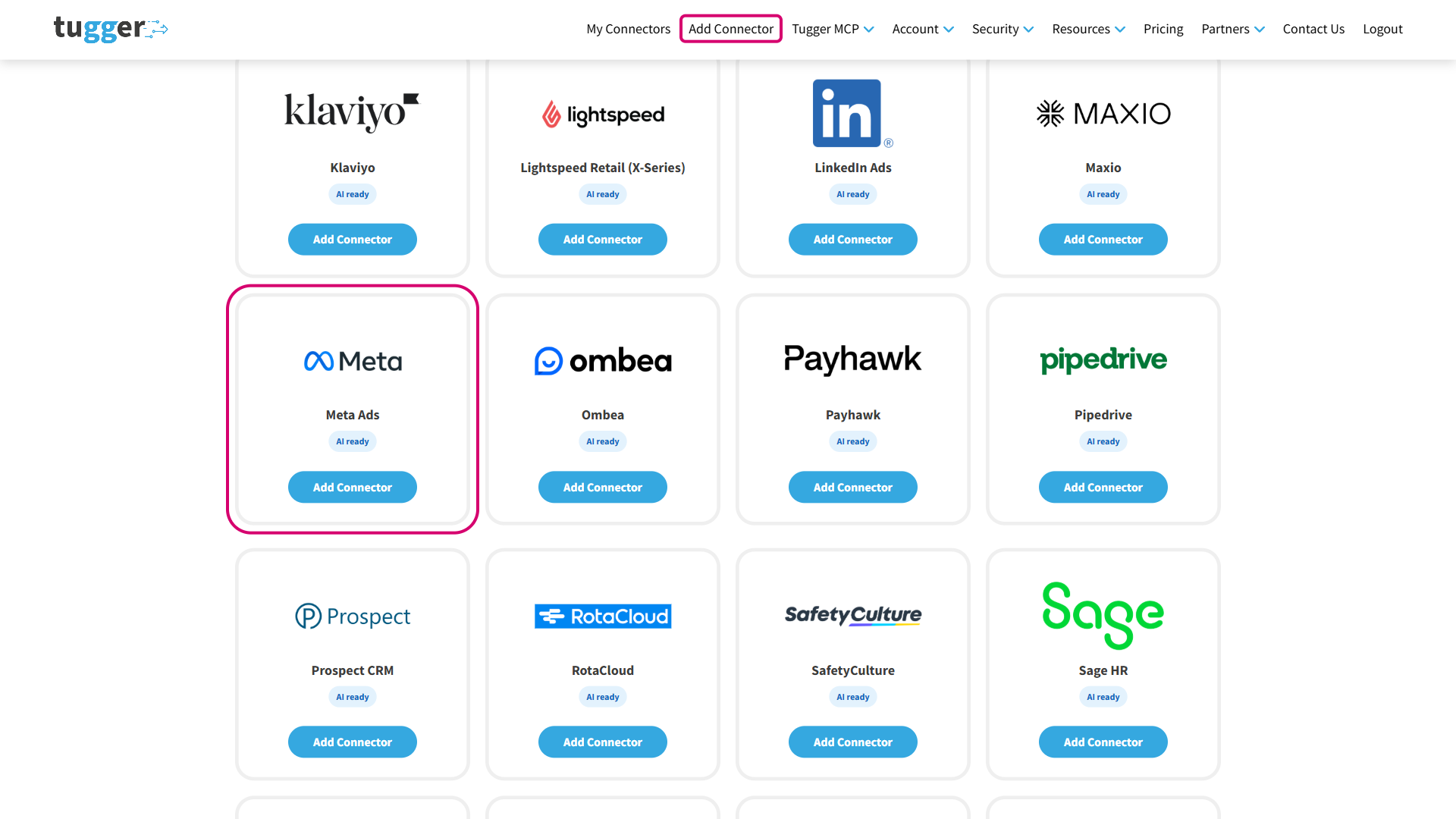
- Click Add Connector from the menu at the top of the page.
- Find Meta Ads in the list of connectors and click Add Connector on its tile. The list is in alphabetical order, so you can either scroll down to it or type meta into the Search connectors box at the top to jump straight there.
Step 2: Configure your connector
Give your connector a name and choose how far back to pull your data.
- In Connector Name, type a name that will help you recognise this connection later - for example, My Meta Ads Connector.
- In Sync Historical Data From, choose the date you'd like your data to start from. The further back you go, the more data will be stored and the longer your first sync will take.
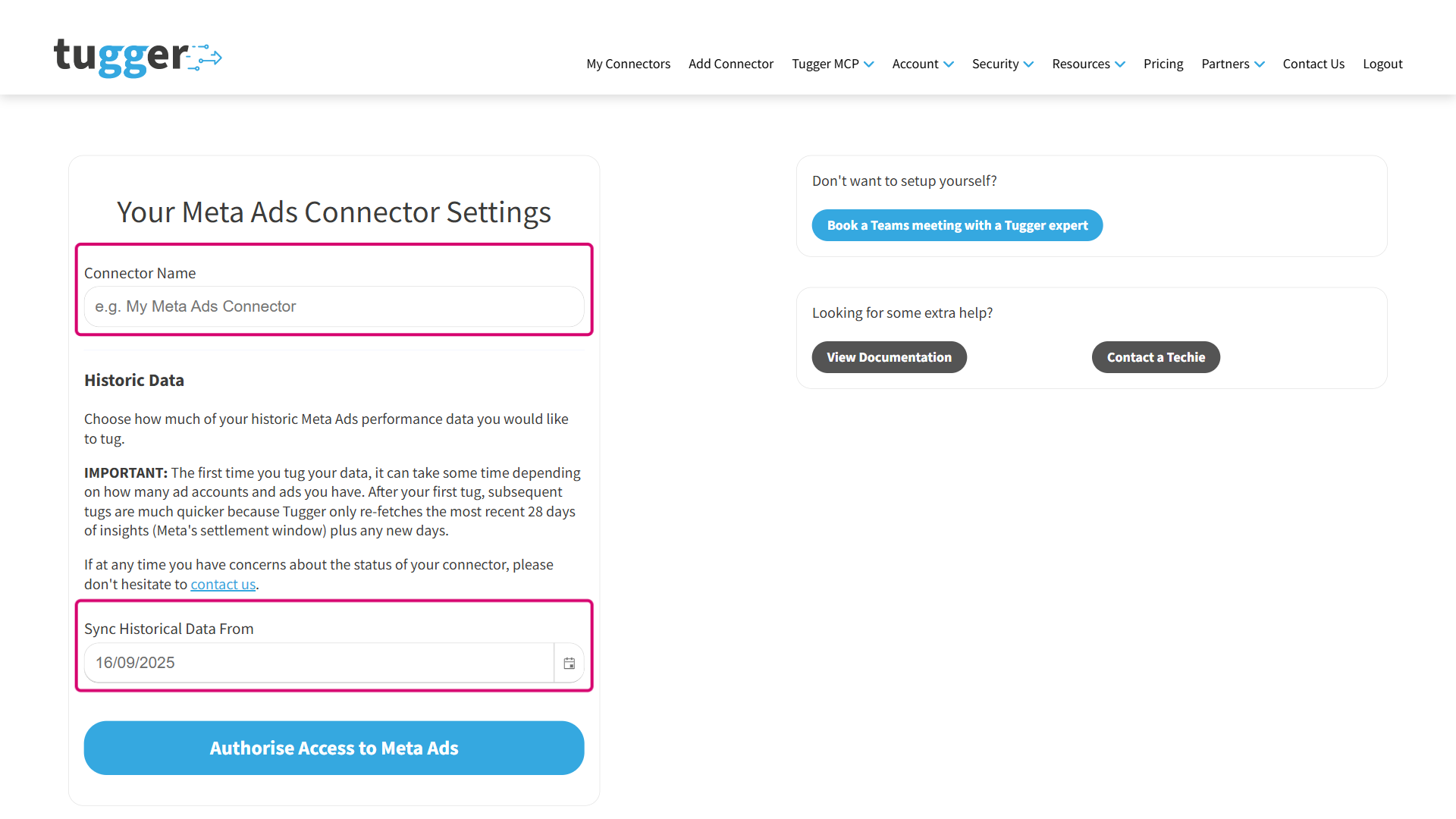
Your first sync is the slow one, because it has to work through all the history you asked for. After that, syncs are much quicker - Tugger only re-checks the most recent 28 days of performance figures, which is the window Meta can still adjust them in, plus anything new since.
When you're happy, click Authorise Access to Meta Ads.
Step 3: Log in to Meta to authorise the connection
Tugger will now send you to Meta to confirm you're happy to share your data. This is the same kind of "Sign in with..." process you'll have used with other apps.
- Sign in with your Facebook login details, if you aren't signed in already.
- On the Choose the Businesses you want Tugger to access screen, tick the Business that holds the ad accounts you want to report on.
- Click Continue, then work through the remaining Meta screens to finish granting access.
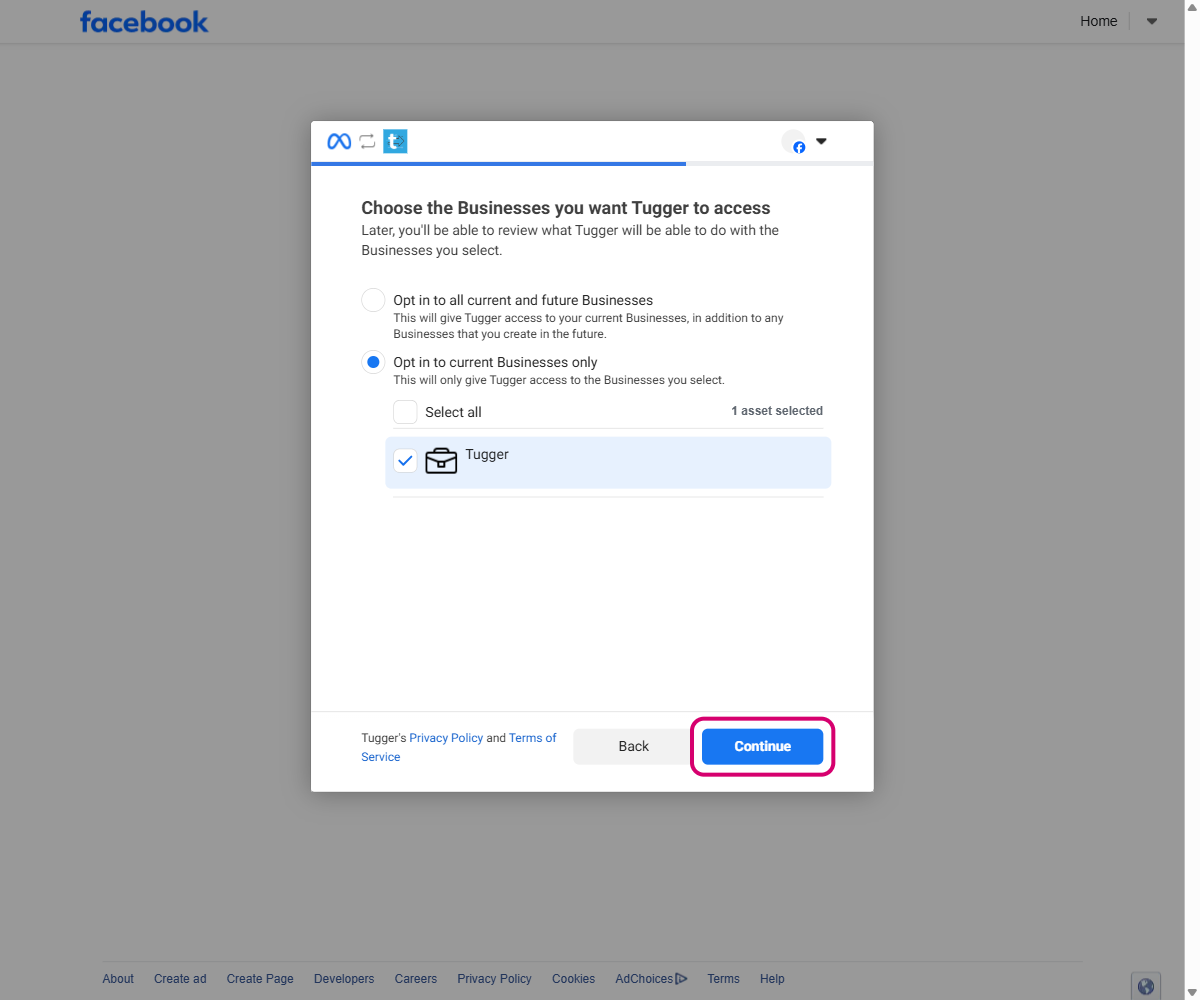
No API keys or technical setup required - just log in and approve. Meta will show you what Tugger is asking for: read access to your ads data, plus the ability to see which Businesses and ad accounts you have - that second one is how Tugger builds the list you'll choose from in the next step. Tugger only ever reads your data: it never creates, edits, pauses or spends anything in your ad accounts.
Step 4: Choose which ad accounts to sync
Once you've approved the connection, Tugger shows you every ad account it can see and asks which ones you'd like to bring through.
- Tick each ad account you want to report on. If you have a long list, use the Search box to filter by name.
- Click Save Ad Account Selection.
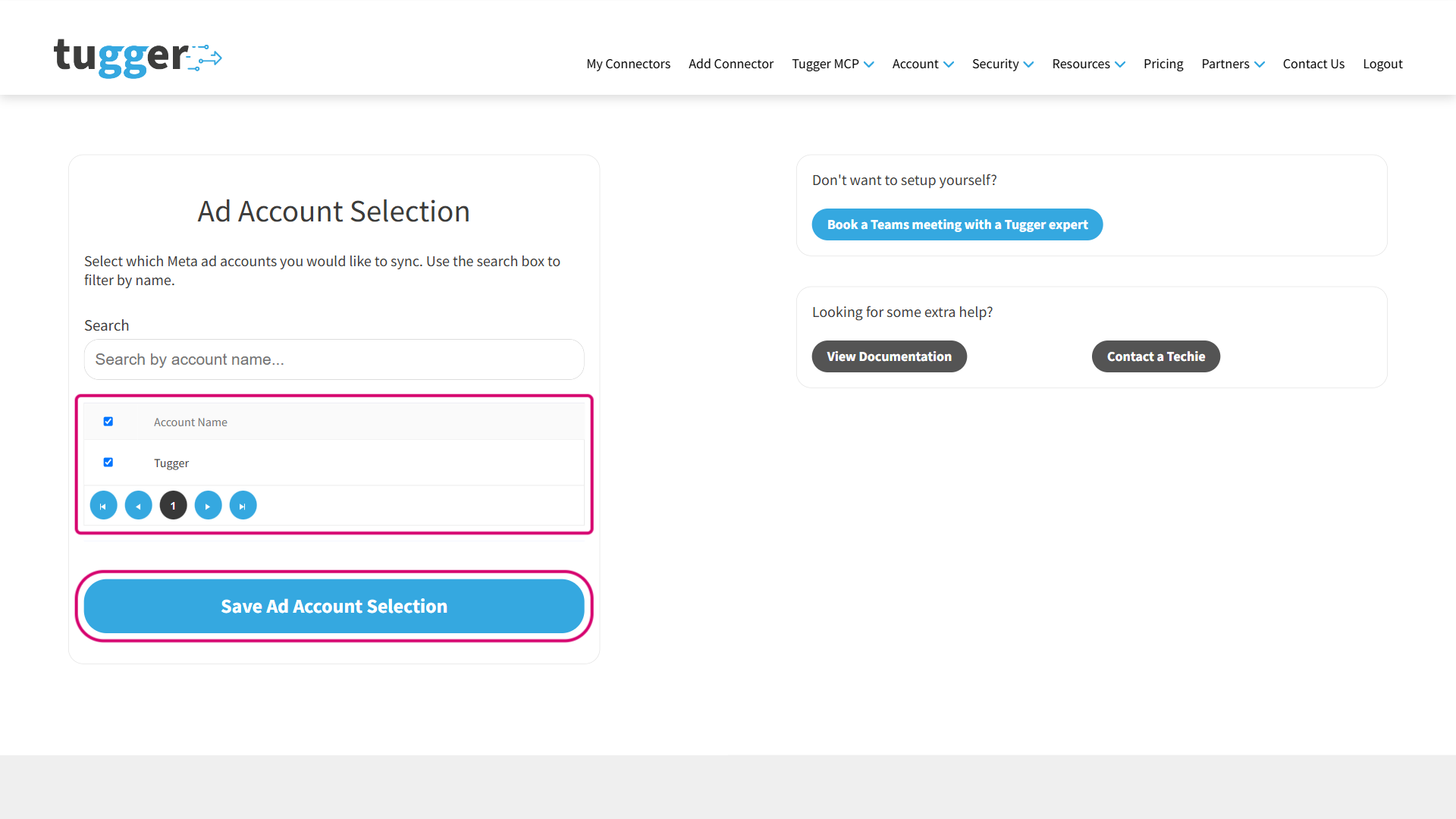
Only the ad accounts you tick here are synced. If you don't tick any, your connector will be set up correctly but no campaign, ad or performance data will come through. You can change your selection at any time - open your connector, go to Settings and click Manage Ad Accounts.
Step 5: Your first sync
With your ad accounts chosen, Tugger takes you to the Summary page for your new connector and starts pulling your data straight away.
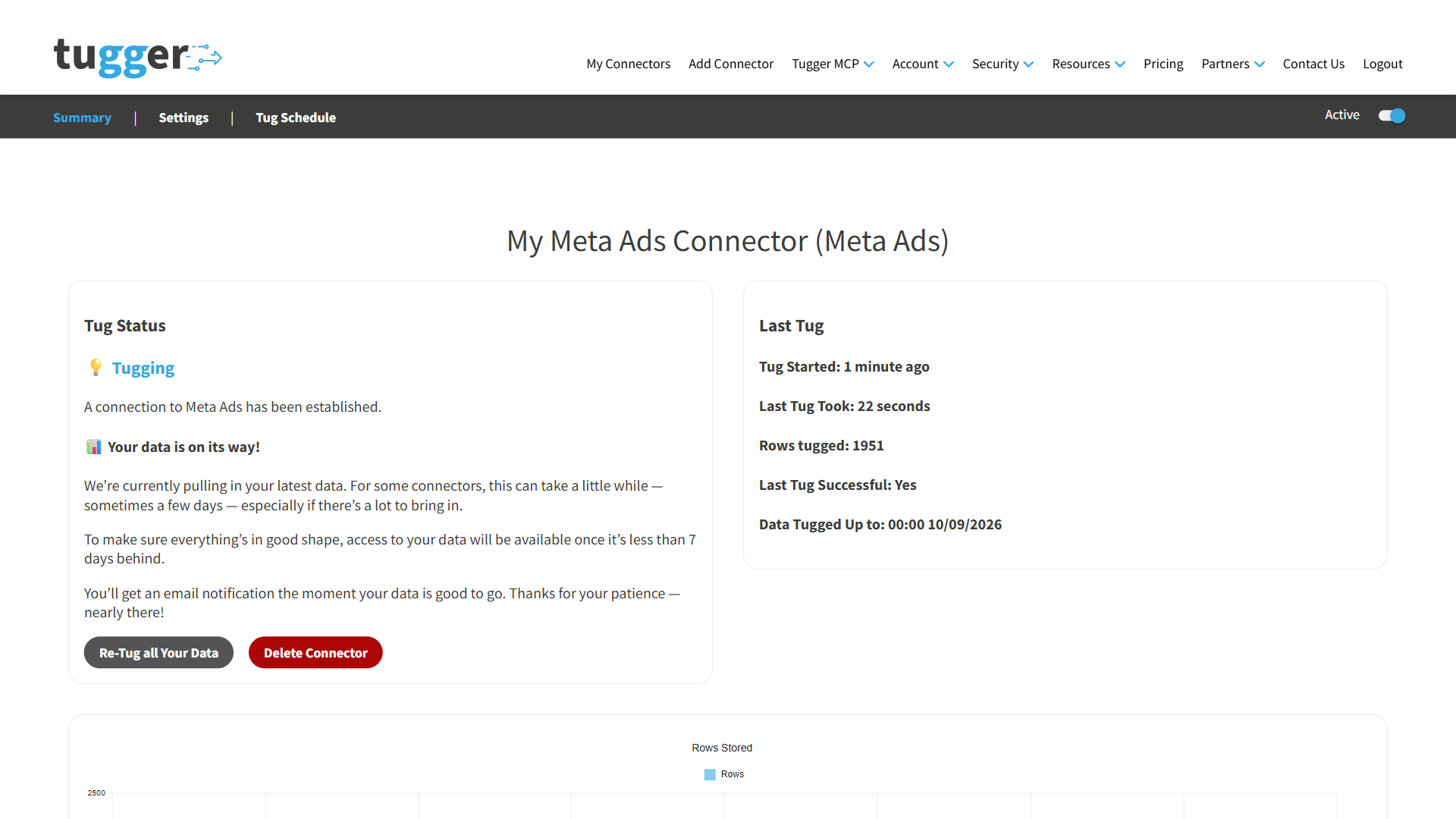
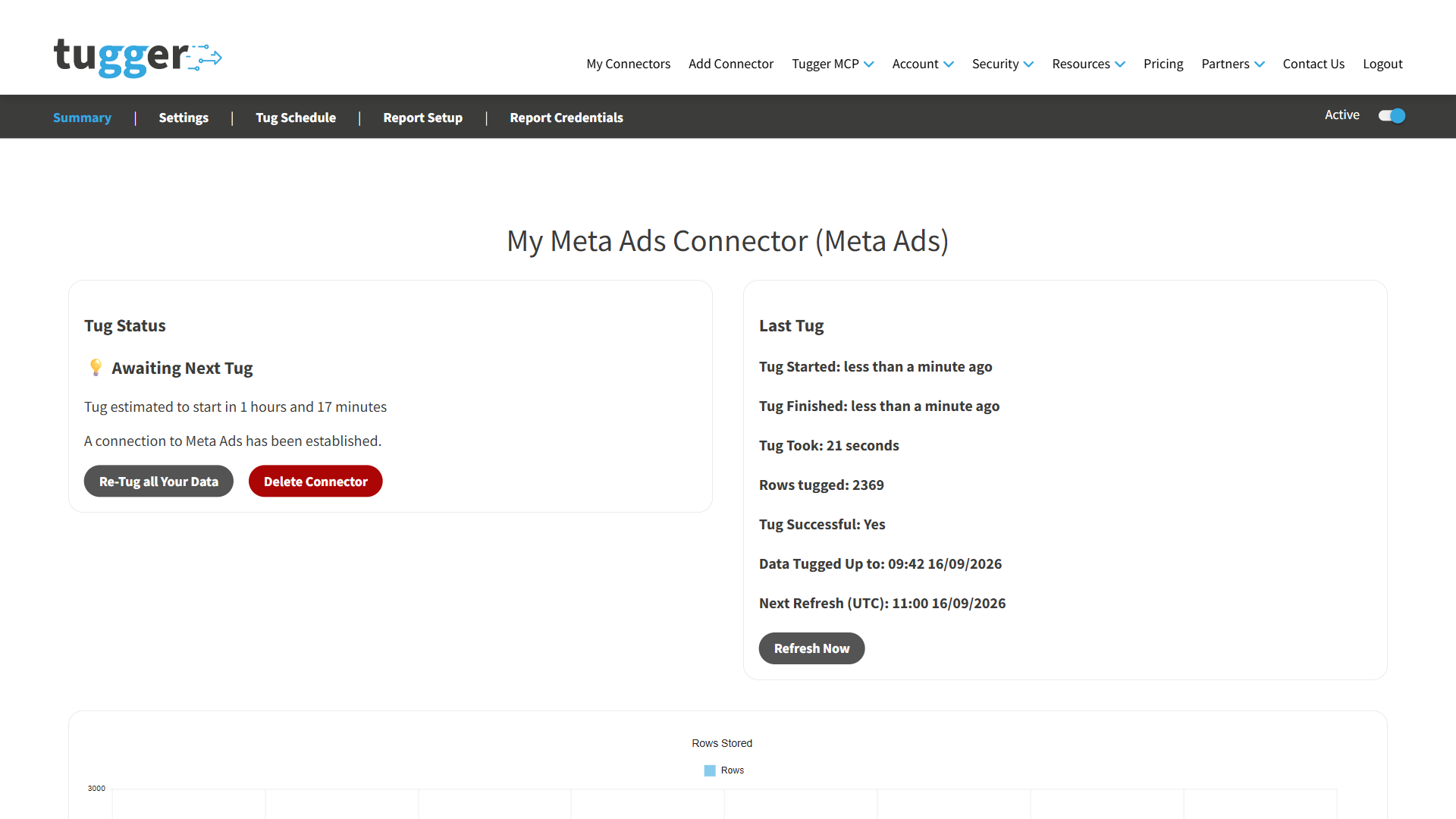
While it's still working, Tug Status reads Tugging, and the Data Tugged Up to date creeps forward as Tugger works through your history. You'll know the first sync has finished when Tug Status changes to Awaiting Next Tug and that date reaches today.
How long the first sync takes depends on how far back you asked for and how many ad accounts and ads you have.
After that, Tugger refreshes your data automatically every hour. You can change this whenever you like - see Managing Your Sync Schedule.
You'll receive an email (or SMS, if you've enabled it) once your data is ready. At that point you can start asking questions with AI Insights or building reports.
What data does Tugger pull from Meta Ads?
Tugger brings through the structure of your advertising and the numbers behind it, so you can report on spend, reach and results in one place.
- Ad accounts - the accounts you chose to sync, with their currency, time zone and status.
- Campaigns - your campaigns with their objective, budget, schedule and status, so you can report on how spend is split across your goals.
- Ad sets - the audience, placement, schedule and bidding settings sitting under each campaign.
- Ads - the individual ads, and which ad set and campaign each one belongs to.
- Creatives, images and videos - the assets behind your ads, including which creative each ad uses.
- Daily performance - impressions, clicks, spend and results for every ad, broken down by day.
- Conversion actions - your results split by action type, so you can separate purchases from leads, messages or page views.
- Custom audiences - the audiences set up on each account, such as uploaded customer lists, website visitors and engagement audiences.
- Custom conversions - the conversion definitions you've built for tracking and optimisation.
- Pixels - the Meta pixels on your website that feed conversion data back to your ads.
For a full list of data tables and fields, ask Tugger AI Insights - try "What data is available from my Meta Ads connector?"
What's next?
Once you've received the email (or SMS) confirming your data is ready:
AI Insights
- What is Tugger AI Insights? - ask questions about your Meta Ads data in plain English, without building a report first.
- Connect Tugger to Claude
- Connect Tugger to ChatGPT
Reporting
Manage your sync schedule
Need help? Contact the Tugger team - we're always happy to help you get up and running.