Connect your Capsule account to Tugger and start asking questions of your data in plain English with AI Insights - or pull it into Power BI, Tableau, or Excel. Setup takes around 5 minutes.
What you'll need
- A Tugger account. If you don't have one yet, you can sign up for free.
- A Capsule account, with a user that can see the data you want to report on. Tugger only ever reads your data - it never creates, edits or deletes anything in Capsule.
- Your Capsule site address. This is the part of your Capsule web address that comes before
.capsulecrm.com- for example, if you sign in atacmeltd.capsulecrm.com, your site address isacmeltd.
Connecting multiple Capsule accounts? Each Capsule account counts as one connector on your Tugger plan. Add them one at a time, following these steps for each.
Step 1: Add the Capsule connector in Tugger
- Log in to your Tugger account.
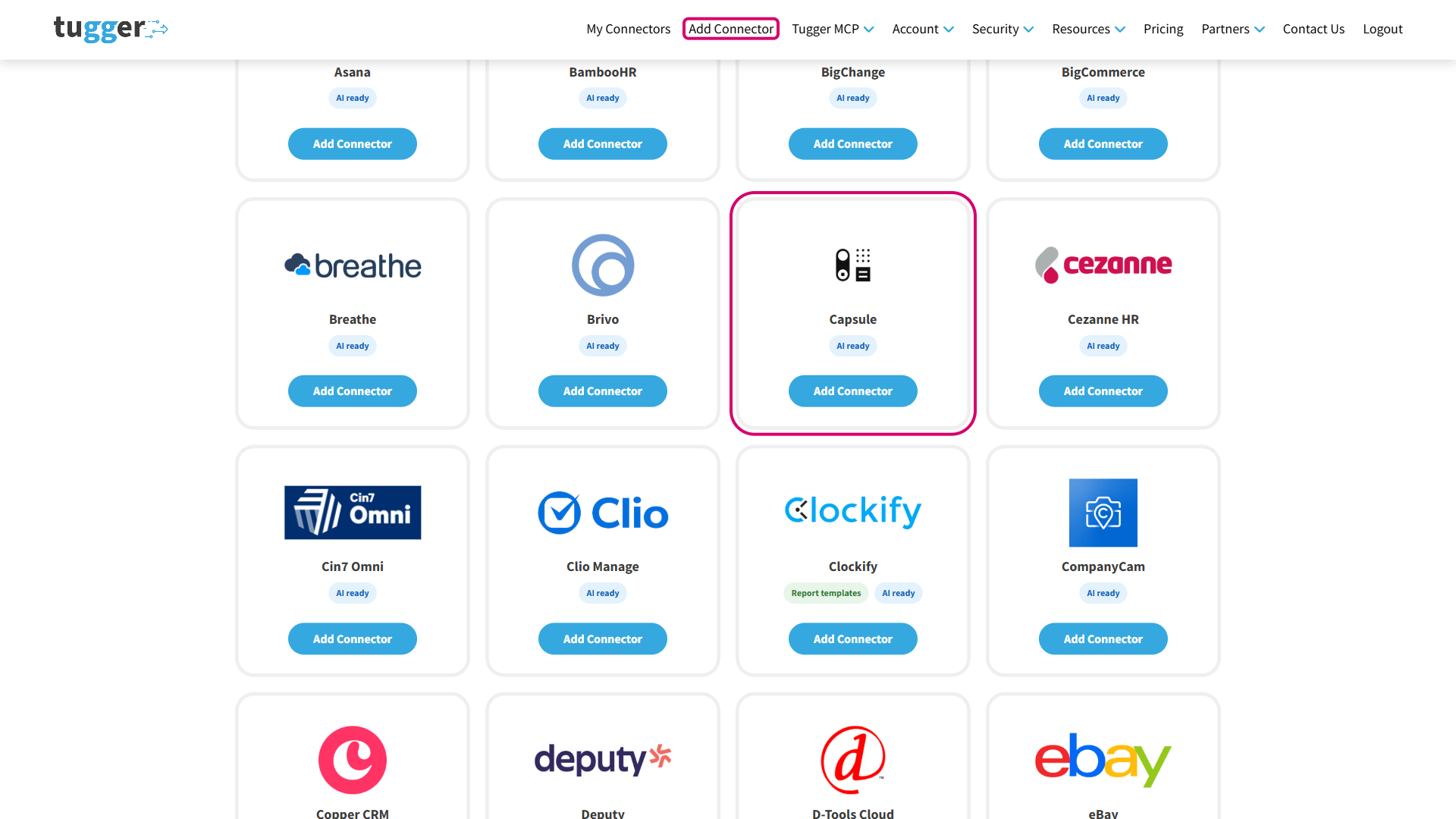
- Click Add Connector from the menu at the top of the page.
- Find Capsule in the list of connectors and click Add Connector on its tile.
Step 2: Configure your connector
Give your connector a name and choose how far back to pull your data.
- In Connector Name, type a name that will help you recognise this connection later - for example, My Capsule Connector. If you plan to connect more than one Capsule account, use the account name here.
- In Sync Historical Data From, choose the date you'd like your data to start from. The further back you go, the more data will be stored and the longer your first sync will take.
- Under Optional Data, decide whether to leave Include notes & emails switched on. This brings through the notes, emails and completed task details from your contact timelines. Turn it off if you only report on contacts, opportunities and projects - you can change it at any time afterwards.
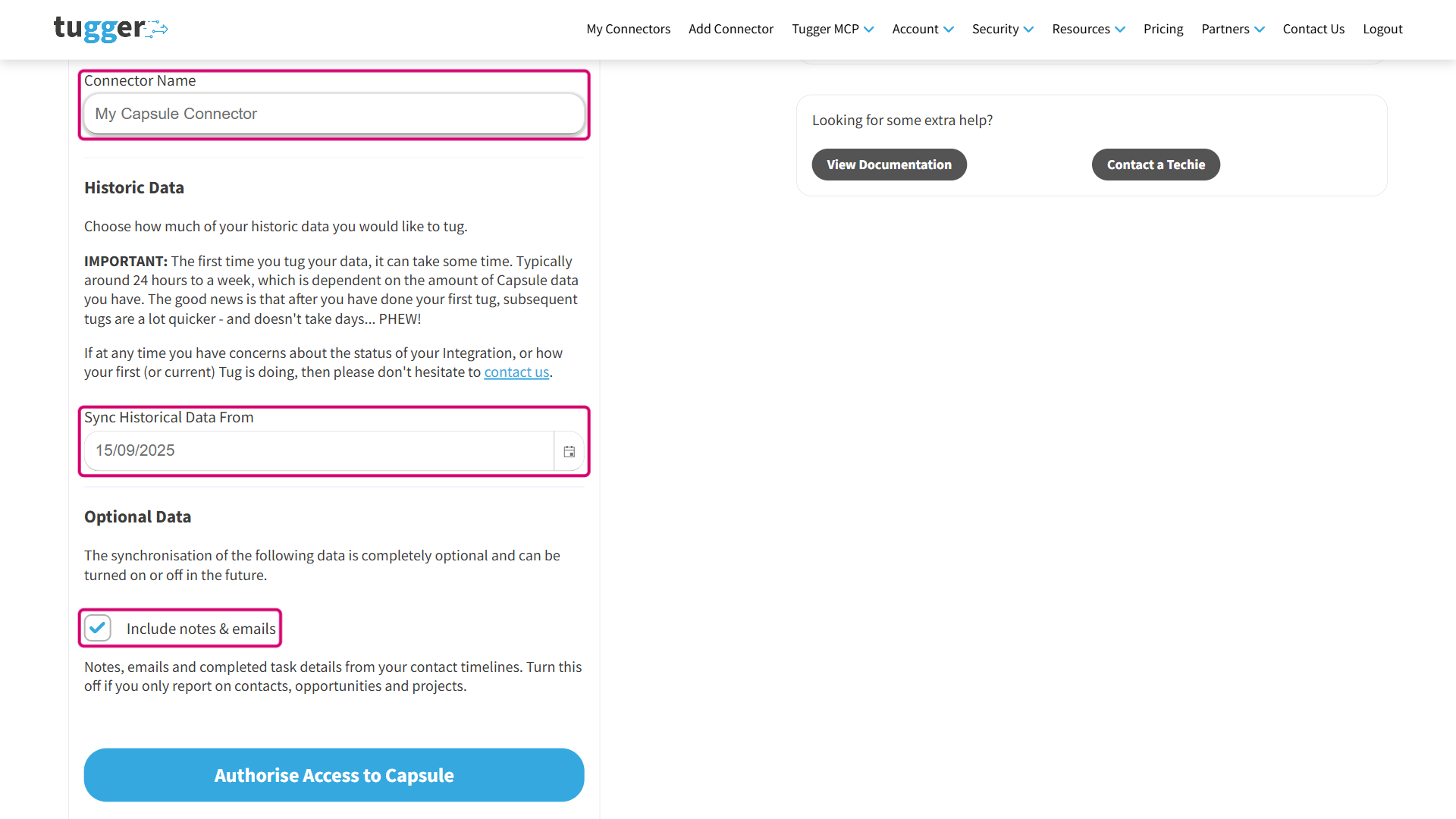
When you're happy, click Authorise Access to Capsule.
Step 3: Log in to Capsule to authorise the connection
Tugger will now send you to Capsule to confirm you're happy to share your data. This is the same kind of "Sign in with..." process you'll have used with other apps.
- Enter your Capsule site address (the part before
.capsulecrm.com) and click Continue. - Sign in with your Capsule username and password. Capsule asks for your username here, not your email address.
- Check the details on the approval screen and click Allow.
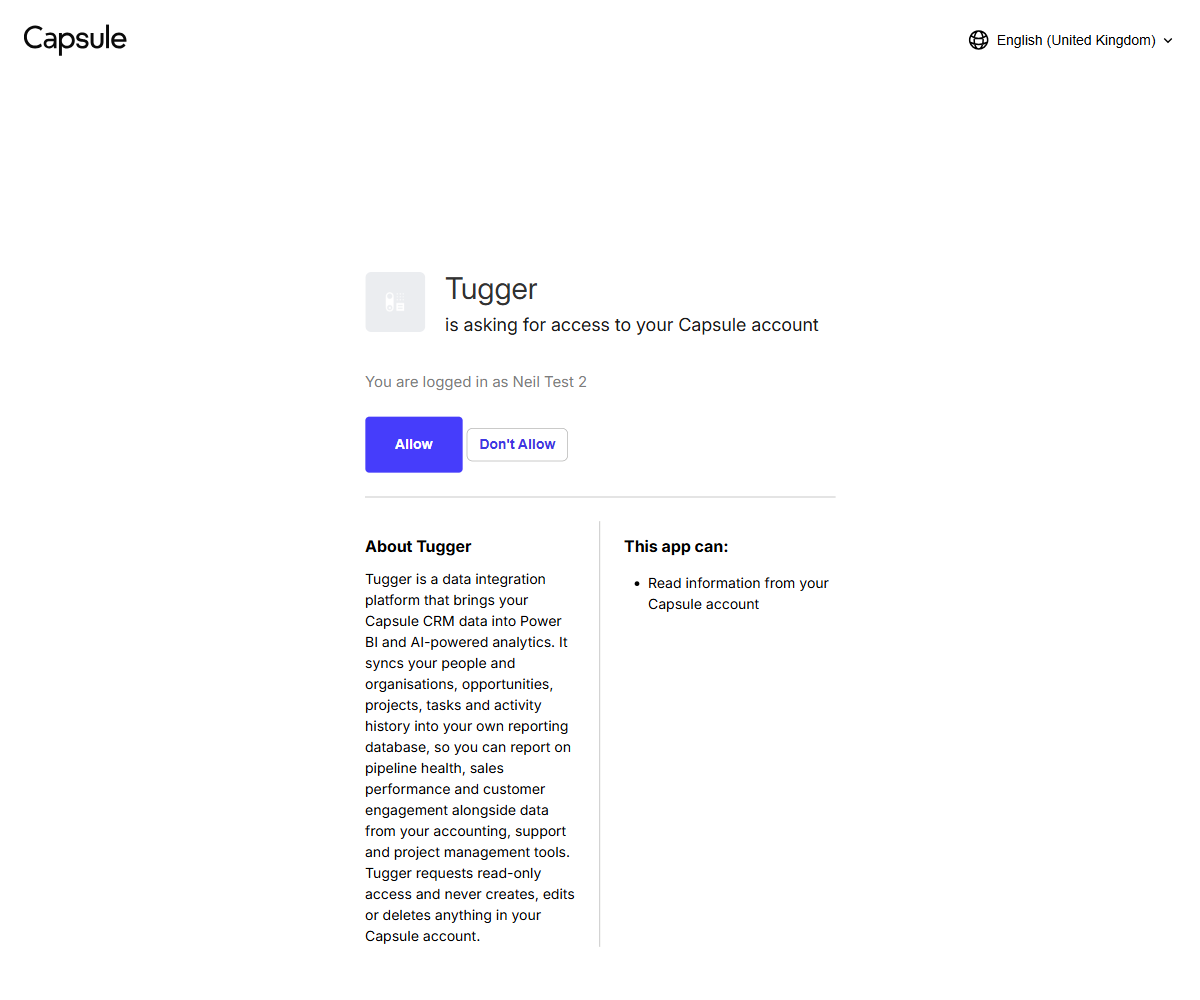
No API keys or technical setup required - just log in and approve. Capsule will tell you exactly what Tugger is asking for: permission to read information from your Capsule account, and nothing more.
Step 4: Your first sync
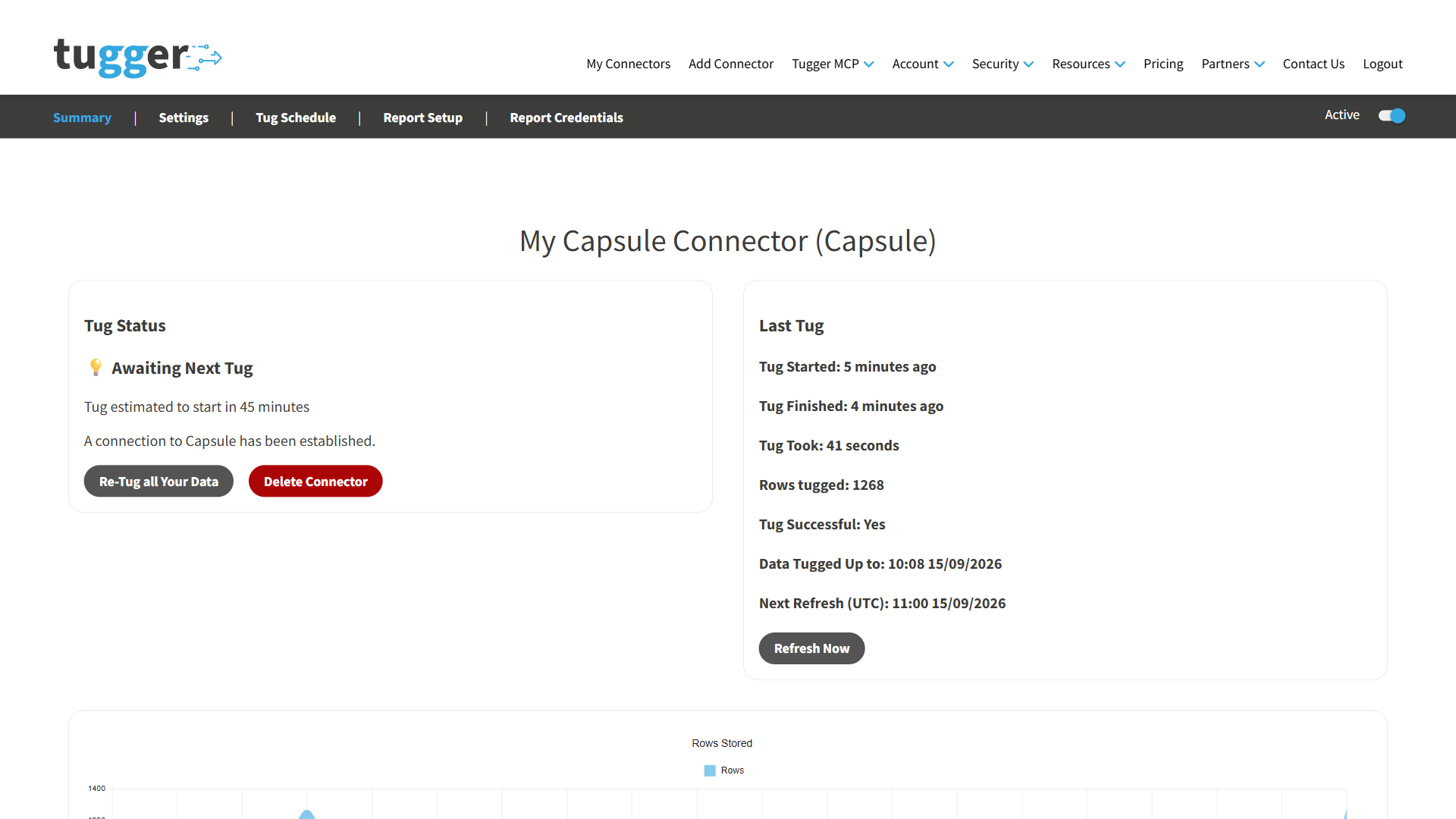
Once you've approved the connection, Tugger takes you to the Summary page for your new connector and starts pulling your data straight away.
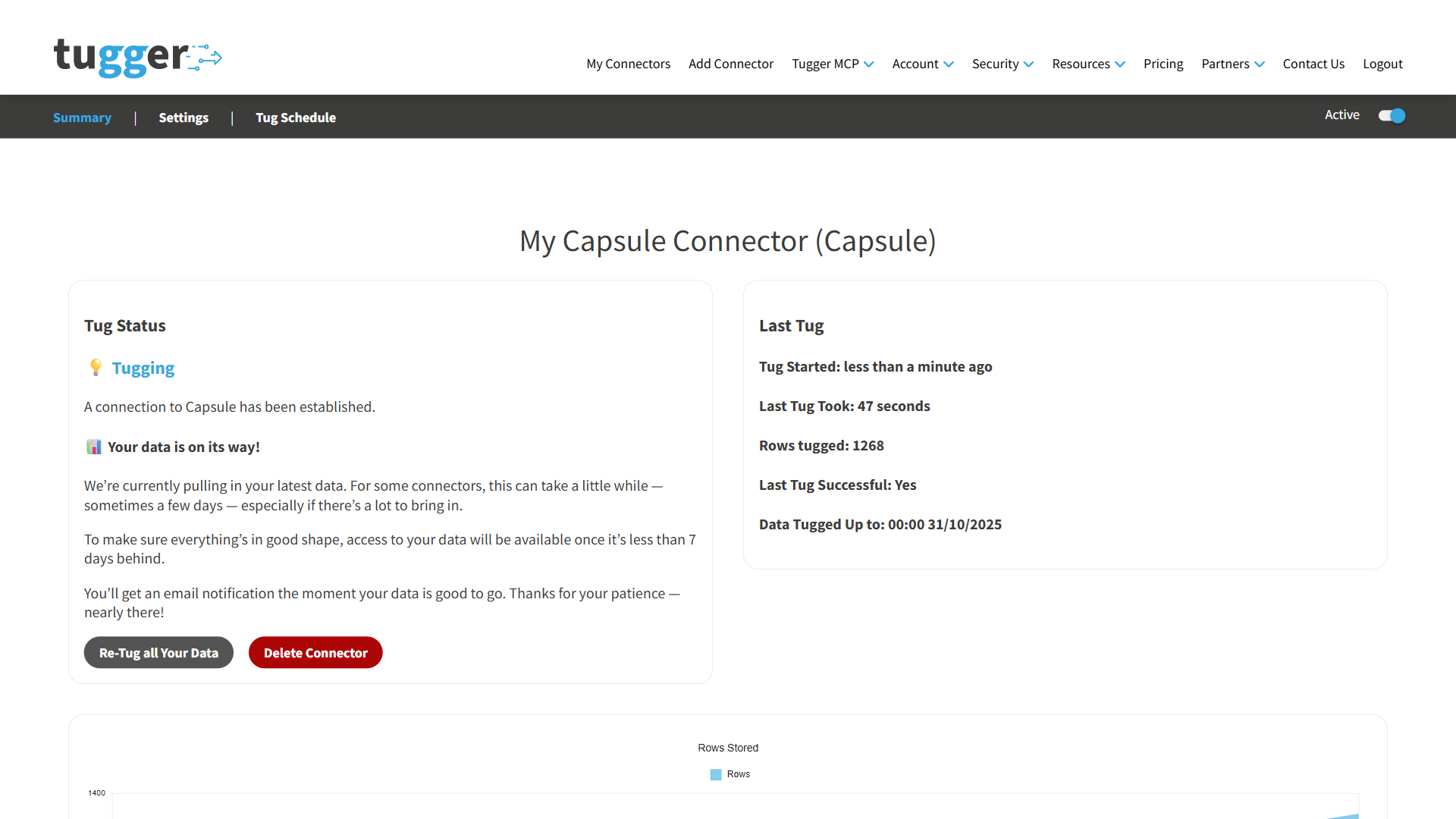
Your first sync can take a while, depending on how much history you asked for and how much data is in your Capsule account. Later syncs are much quicker, because Tugger only collects what has changed.
After that, Tugger refreshes your data automatically every day at 08:00 UK time. You can change this whenever you like - see Managing Your Sync Schedule.
You'll receive an email (or SMS, if you've enabled it) once your data is ready. At that point you can start asking questions with AI Insights or building reports.
While it's still working, Tug Status reads Tugging, and the Data Tugged Up to date creeps forward as Tugger works through your history. You'll know the first sync has finished when Tug Status changes to Awaiting Next Tug and that date reaches today.
What data does Tugger pull from Capsule?
Tugger brings through the information behind your contacts, sales and delivery work, so you can report on the whole picture in one place.
- People and organisations - your full contact list, along with their addresses, email addresses, phone numbers and websites.
- Opportunities - your sales opportunities, including value, expected close date and the people and organisations attached to each one.
- Pipelines, stages and milestones - the structure of your sales process, so you can report on how deals move through it.
- Lost reasons - why opportunities didn't go ahead, so you can spot patterns.
- Projects - your ongoing pieces of work, including the people and organisations linked to each one.
- Tasks - what's due, what's done and who it belongs to.
- Notes, emails and activity history - the timeline entries against your contacts, with their attachments and participants. This one is optional, and only comes through if you left Include notes & emails switched on.
- Tracks - the repeatable sets of tasks you apply to contacts, opportunities and projects, along with their definitions.
- Sales goals - the targets set for your team, and the periods they apply to.
- Your team - the users in your Capsule account, the teams they belong to and who sits in which team.
- Tags, categories and custom fields - the labels and extra fields you've set up, so your own way of organising data carries through into your reports.
For a full list of data tables and fields, ask Tugger AI Insights - try "What data is available from my Capsule connector?"
What's next?
Once you've received the email (or SMS) confirming your data is ready:
AI Insights
- What is Tugger AI Insights? - ask questions about your Capsule data in plain English, without building a report first.
- Connect Tugger to Claude
- Connect Tugger to ChatGPT
Reporting
Manage your sync schedule
Need help? Contact the Tugger team - we're always happy to help you get up and running.