Connect your Cin7 account to Tugger and start asking questions of your data in plain English with AI Insights - or pull it into Power BI, Tableau, or Excel. Setup takes around 10 minutes.
What you'll need
- A Tugger account (sign up free)
- A Cin7 account with access to the Integrations area. If you can't see it, ask whoever administers your Cin7 account to either grant you access or create the integration for you.
- A few minutes in both Cin7 and Tugger - you'll copy two details across from one to the other
Connecting multiple Cin7 accounts? Each Cin7 account counts as one connector on your Tugger plan. You can connect as many as your plan allows.
Step 1: Add the Cin7 connector in Tugger
- Log in to Tugger at tuggerapp.com
- Click Add Connector from the menu
- Select Cin7, then click Add Connector
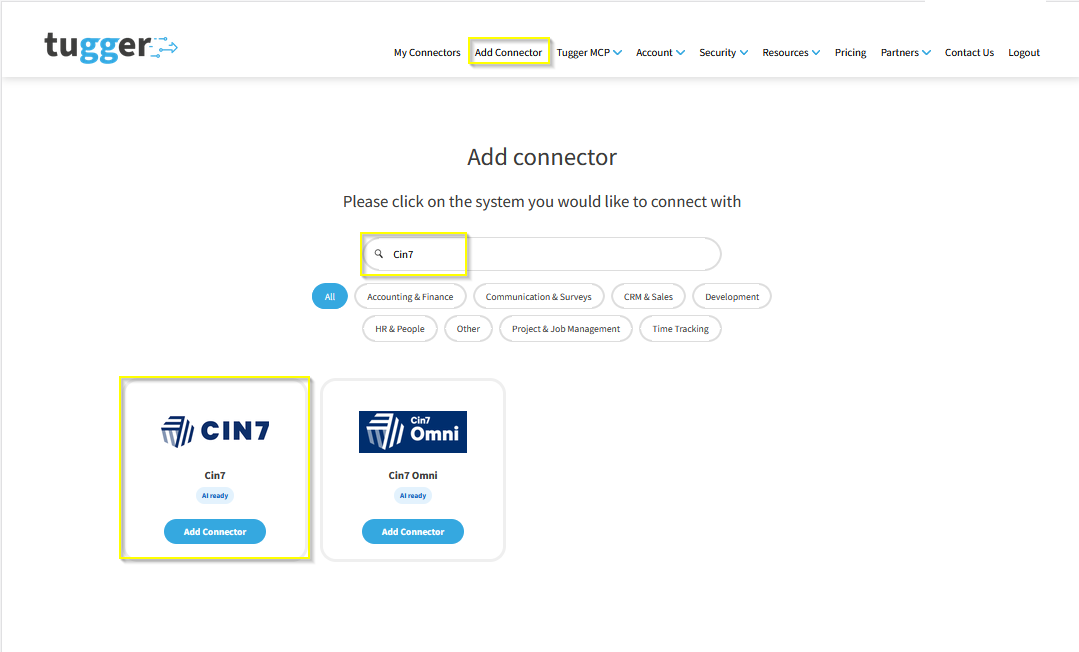
Cin7 or Cin7 Omni? Tugger has a separate connector for each. Choose Cin7 for Cin7 Core (previously called DEAR Inventory). If you use Cin7 Omni, pick that connector instead - the setup is different.
Step 2: Configure your connector
You'll be asked to set up two things:
- Connector Name - give it a name that makes sense to you (e.g. "Acme Ltd Cin7"). This is especially helpful if you're connecting more than one Cin7 account.
- Sync Historical Data From - choose how far back you want Tugger to pull data from. The further back you go, the more data will be stored and the longer your first sync will take.
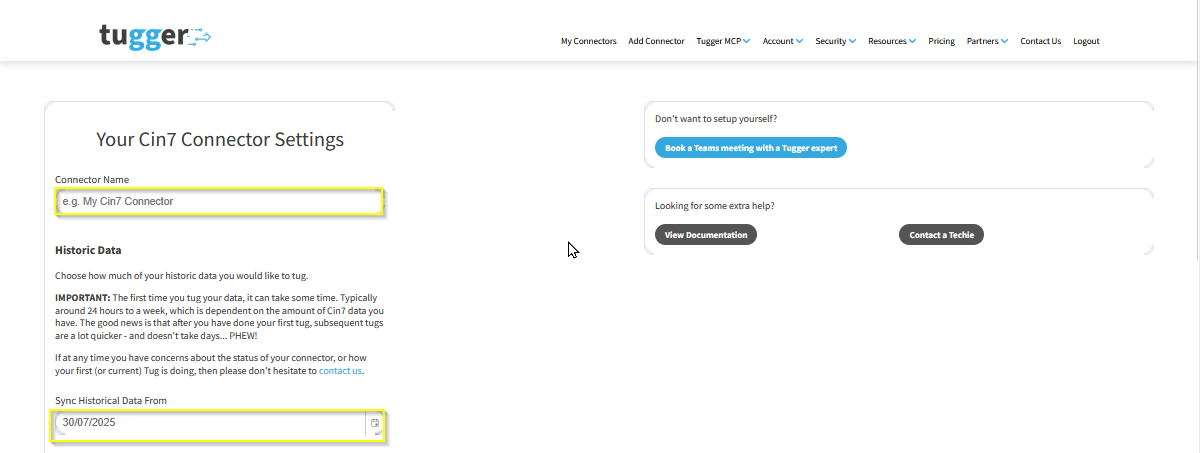
Further down the same page are two more fields - Cin7 App Account ID and Cin7 App Key - and a Check Credentials button. Leave them empty for now. The next two steps are a trip into Cin7 to fetch those two details, and you'll come back here in Step 5 to enter them.
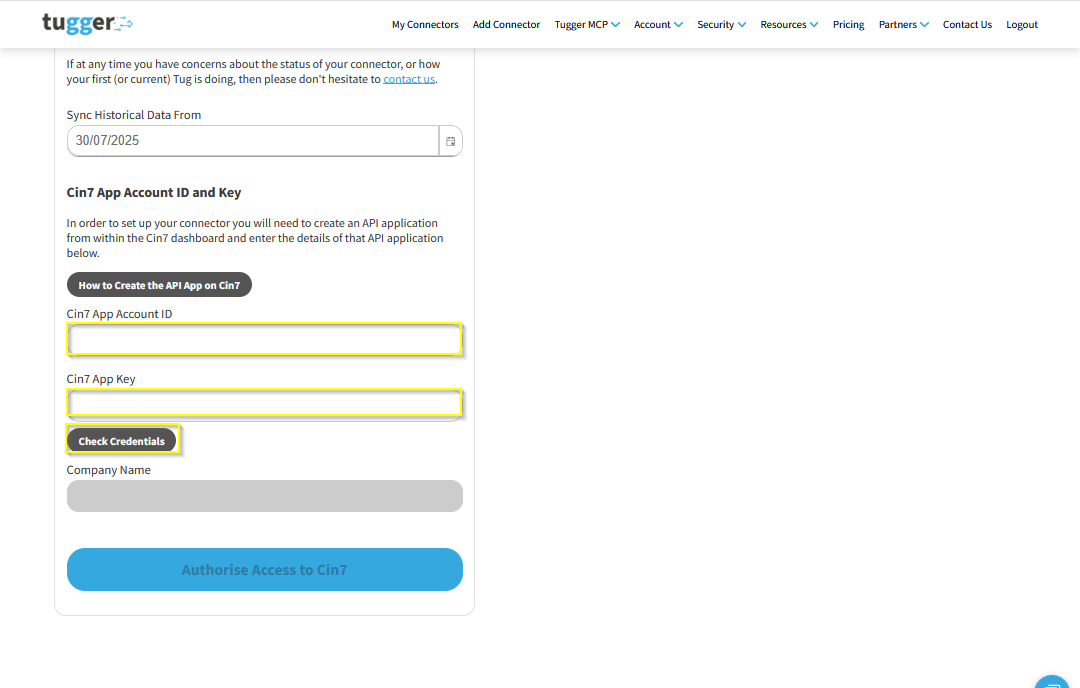
There's also a How to Create the API App on Cin7 button on this page, which shows the same instructions as the next two steps without leaving Tugger.
Step 3: Log in to Cin7
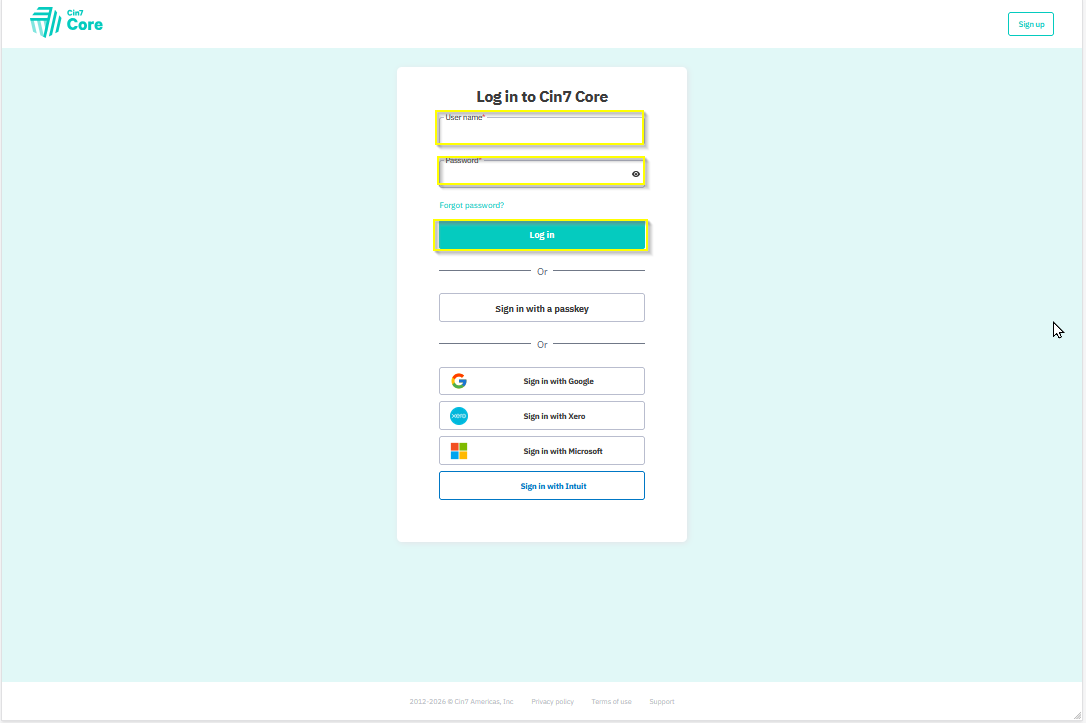
Open Cin7 Core in a new browser tab and log in, so that Tugger's settings page stays open behind it.
You can sign in with your Cin7 username and password, or with a passkey or your Google, Xero, Microsoft or Intuit account if that's how you normally sign in.
Step 4: Create an integration in Cin7
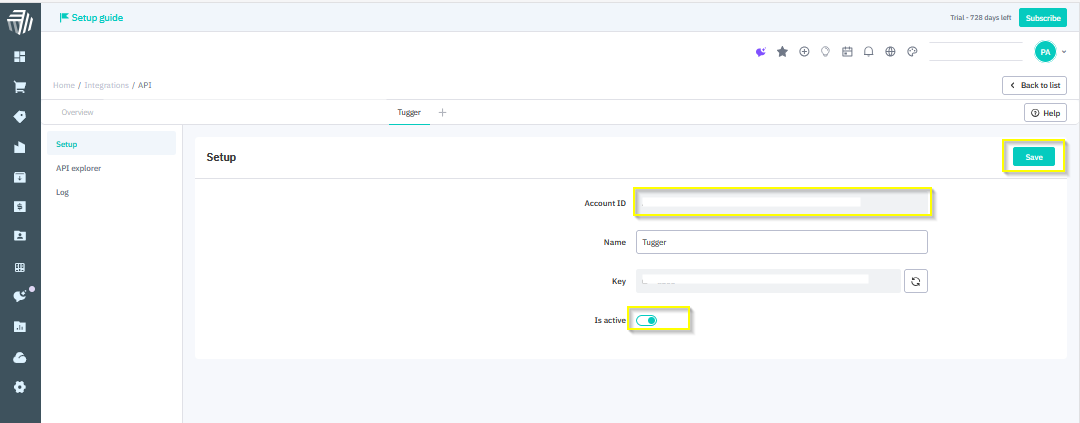
To allow Tugger to access your Cin7 data you need to create an integration, which will give you the Account ID and API Key to copy and paste into the Tugger user interface.
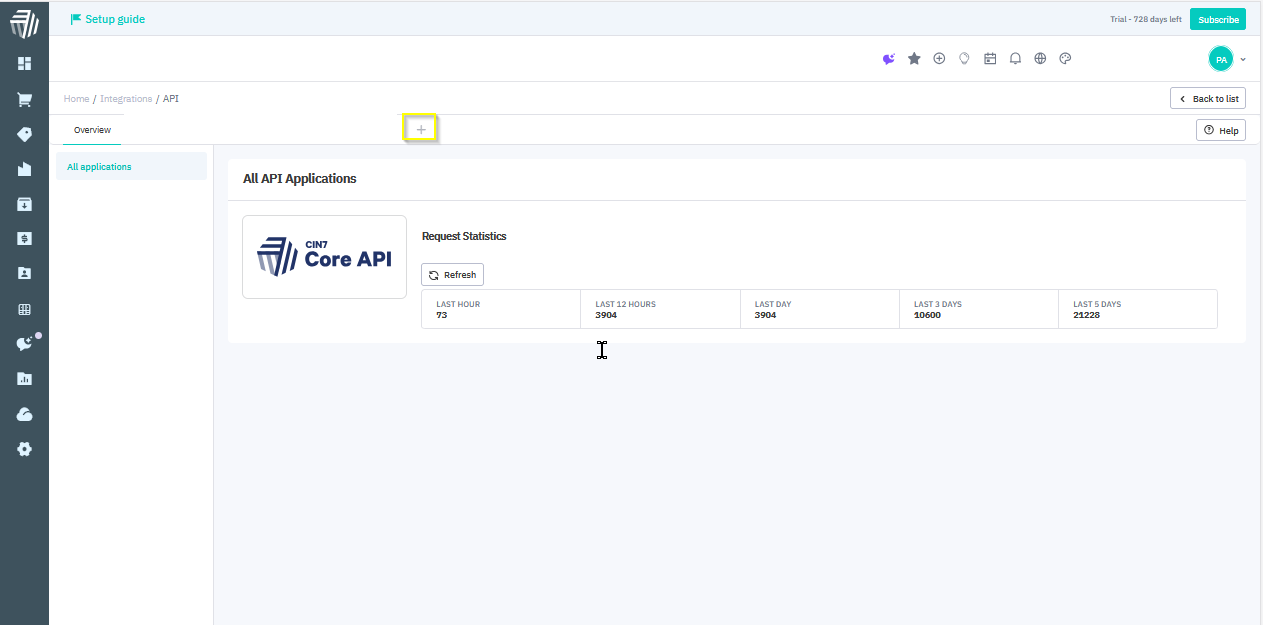
- In the left-hand menu, open Integrations. Type Cin7 Core in the search box (or choose API from the list of categories), then click the Cin7 Core API tile
- Click + to start a new integration
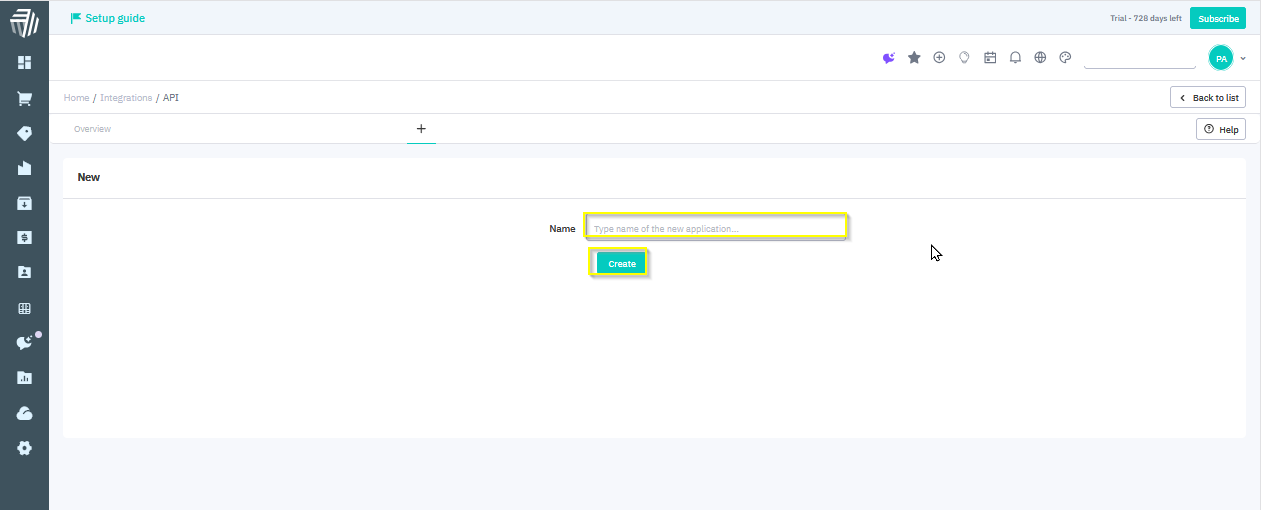
- Type a name you'll recognise later - Tugger works well - then click Create
- Cin7 shows your new API key in a pop-up. Use the copy button beside it to copy the key, then paste it straight into the Cin7 App Key field on your Tugger settings page
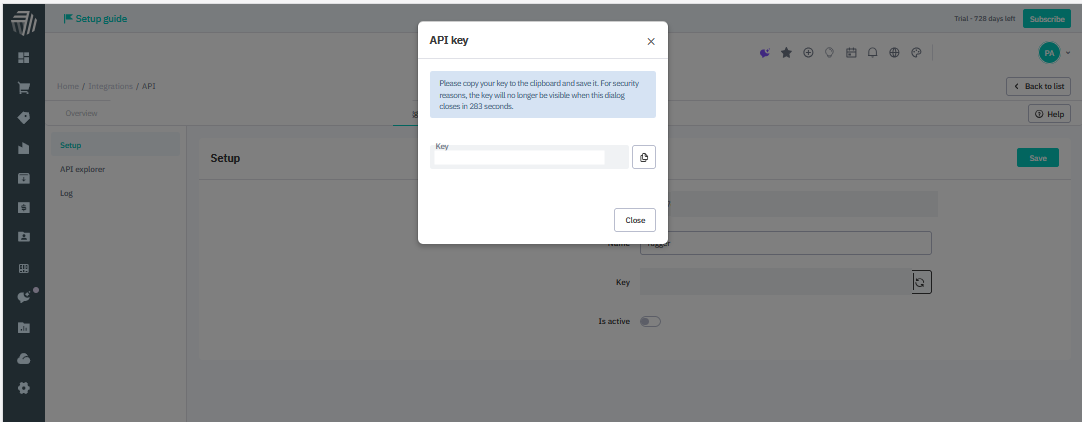
Copy the key before you close the pop-up. Cin7 shows a countdown, and once the pop-up closes the key is hidden for good. If you lose it, you'll need to generate a new one - which is easy enough, but any connector already using the old key will stop working until you update it.
- Back on the integration page, copy the Account ID and paste it into the Cin7 App Account ID field in Tugger
- Save the integration in Cin7
Step 5: Check your Cin7 details in Tugger
Back on your Tugger connector settings page, with both fields now filled in:
- Click Check Credentials
When your details are correct, your Cin7 company name appears in the Company Name field. Take a moment to check it's the Cin7 account you meant to connect - if it isn't, the details have come from a different account.
If the details aren't right, Tugger will tell you to check them. Correct them and click Check Credentials again.
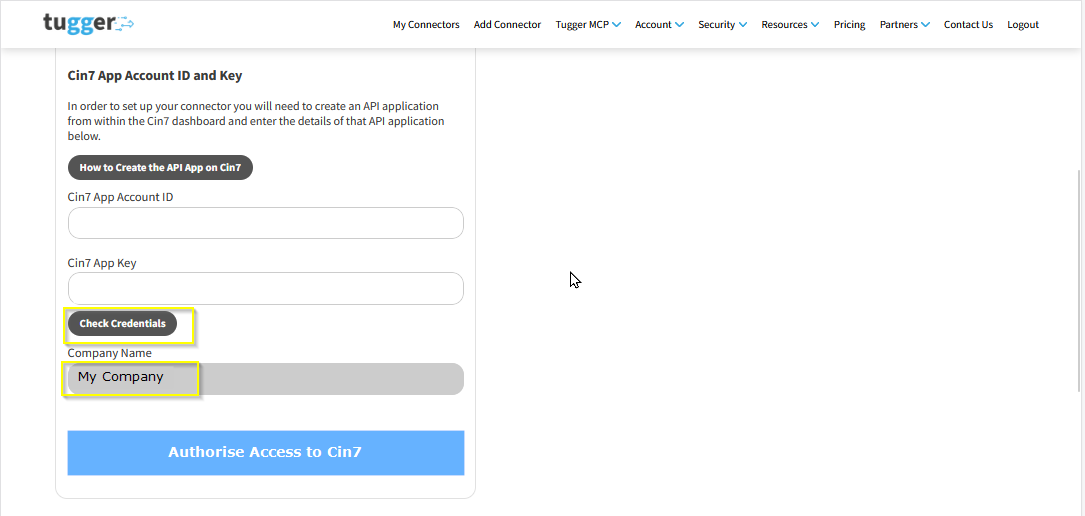
Nothing happening when you click Authorise? The Authorise Access to Cin7 button can't be used until the credentials you entered are checked by Cin7 and accepted to be correct - be careful when copy pasting. Click Check Credentials first - once your company name appears, the button will work. If you edit either field afterwards, you'll need to check them again.
Once you're happy with the company name, click Authorise Access to Cin7 to save your connector.
Step 6: Your first sync
Tugger saves your connector and takes you to the Summary page, where you can follow progress.
At first you'll see Awaiting First Tug. Tugger is getting ready to collect your data, and that can take a little while to kick off - especially on larger accounts. There's nothing to do but wait.
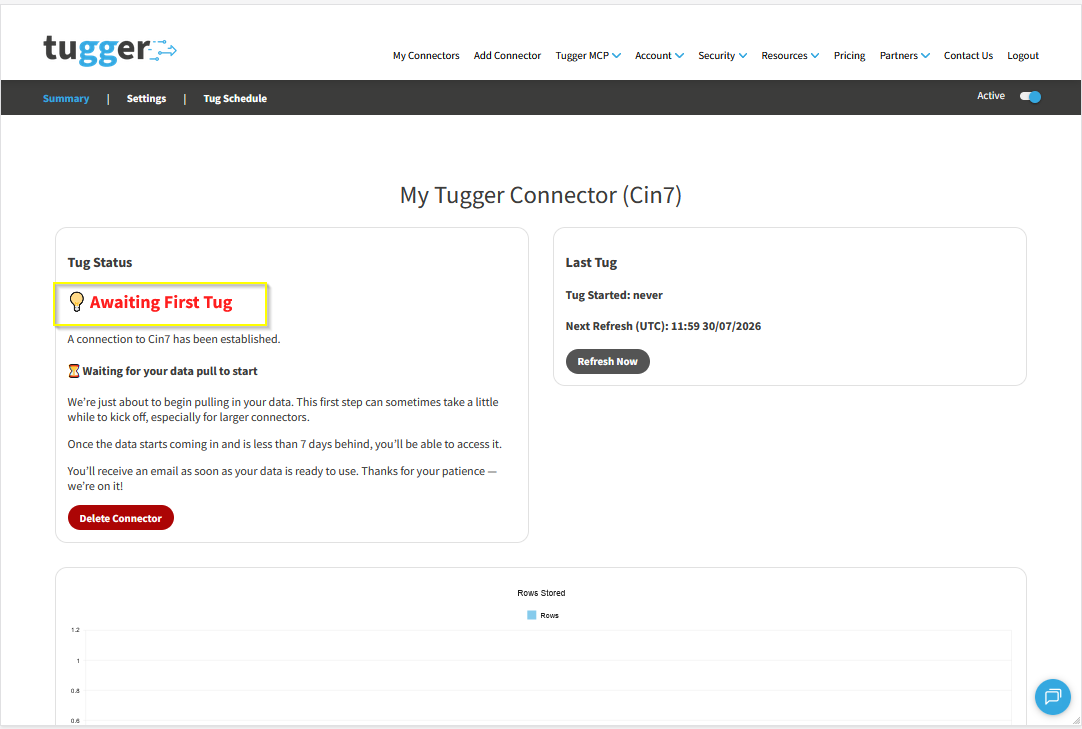
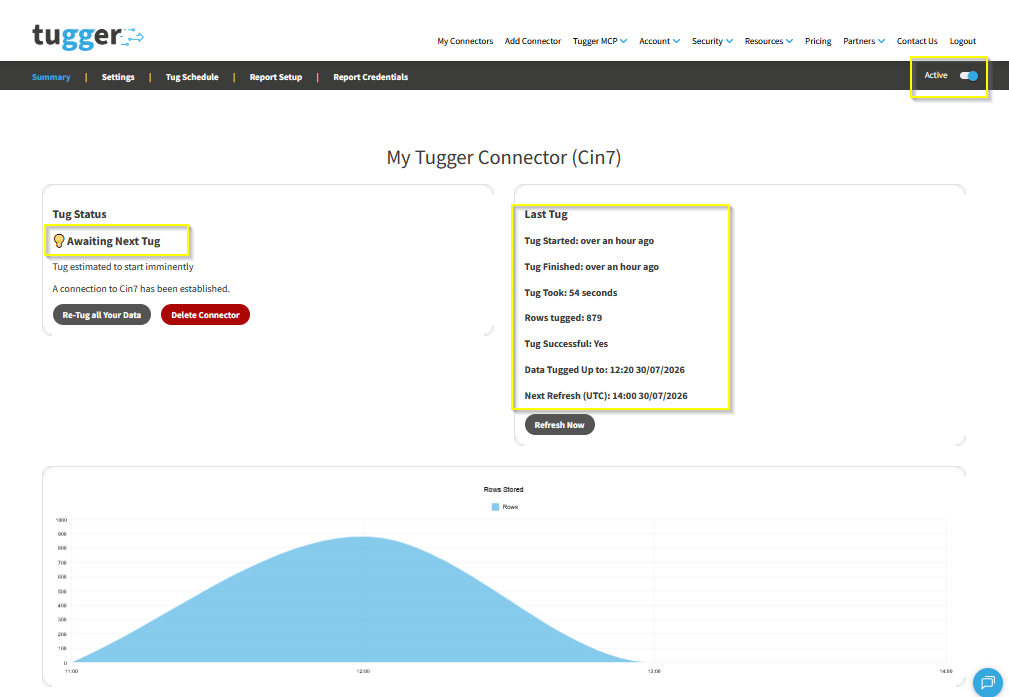
Cin7 holds a lot of detail, so please allow plenty of time for the first sync - typically around 24 hours to a week, depending on how much data you have and how far back your historical date goes. Every sync after that is much quicker, because Tugger only collects what has changed. By default Tugger then syncs your data every hour. You can change this schedule if needed - see Managing Your Sync Schedule.
You'll receive an email (or SMS, if you've enabled it) once your data is ready. At that point you can start asking questions with AI Insights or building reports.
What data does Tugger pull from Cin7?
Tugger syncs a comprehensive set of inventory, sales and financial data from Cin7, including:
- Products and pricing - product records, product families, categories, brands, units of measure, price tiers, and markup prices
- Stock levels and movements - availability by location, stock adjustments, stock takes, transfers between locations, and write-offs
- Sales - sales orders and invoices with line-level detail, quotes, deals, and product discounts
- Purchasing - purchase orders and supplier invoices, including advanced purchases, with line-level detail
- Customers and suppliers - contact records, addresses, and payment terms
- Manufacturing - production orders and runs, bills of materials for both products and product families, finished goods, disassemblies, work centres, and resources
- Financials - your chart of accounts, journals, bank accounts and transfers, customer credits, supplier deposits, and money in and out
- Accounting transactions - transactions by effective date, with amounts in both the original and your account currency
- Configuration - locations, carriers, shipping zones, tax rules, payment terms, fixed asset types, and your own company details
For a full list of data tables and fields, ask Tugger AI Insights - try "What data is available from my Cin7 connector?"
What's next?
Once you've received the email (or SMS) confirming your data is ready:
AI Insights
- What is Tugger AI Insights? - ask questions about your Cin7 data in plain English
- Connect Tugger to Claude | ChatGPT
Reporting
Manage your sync schedule
- Managing Your Sync Schedule - change when and how often Tugger pulls your data
Need help? Contact the Tugger team - we're always happy to help you get up and running.