Tugger syncs your data automatically on a schedule. By default, syncs run daily at 08:00 UK time, but you can change the frequency, days, and times to suit your needs.
Finding the schedule settings
- Log in to Tugger at tuggerapp.com
- Navigate to your connector
- Select Tug Schedule from the connector menu
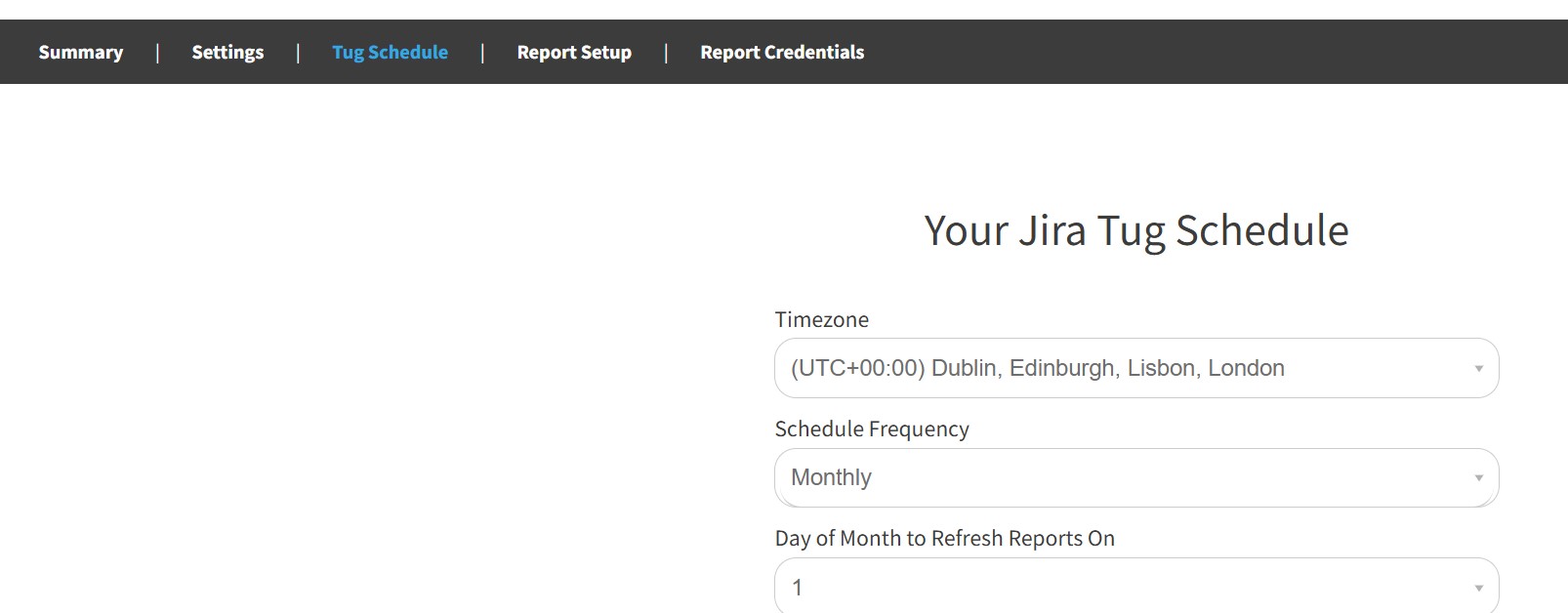
Each connector has its own schedule, so if you have multiple connectors you can set them up independently.
Schedule options
Timezone
Use the Timezone dropdown to set which timezone your schedule runs in. This defaults to (UTC+00:00) Dublin, Edinburgh, Lisbon, London.
Schedule Frequency
Choose how often Tugger syncs your data:
- Daily - syncs on the days and times you choose (most common)
- Monthly - syncs once a month on a specific day
Setting up a daily schedule
- Set Schedule Frequency to Daily
- Under Select the days of the week you want to tug your data on, toggle on the days you want syncs to run. All seven days are available.
- Under Enter up to 24 times during the day you would like your data to tug, enter the times you want syncs to run. The first time slot defaults to 08:00. You can add additional times if you need your data refreshed more than once a day.
- Click Save Schedule Changes
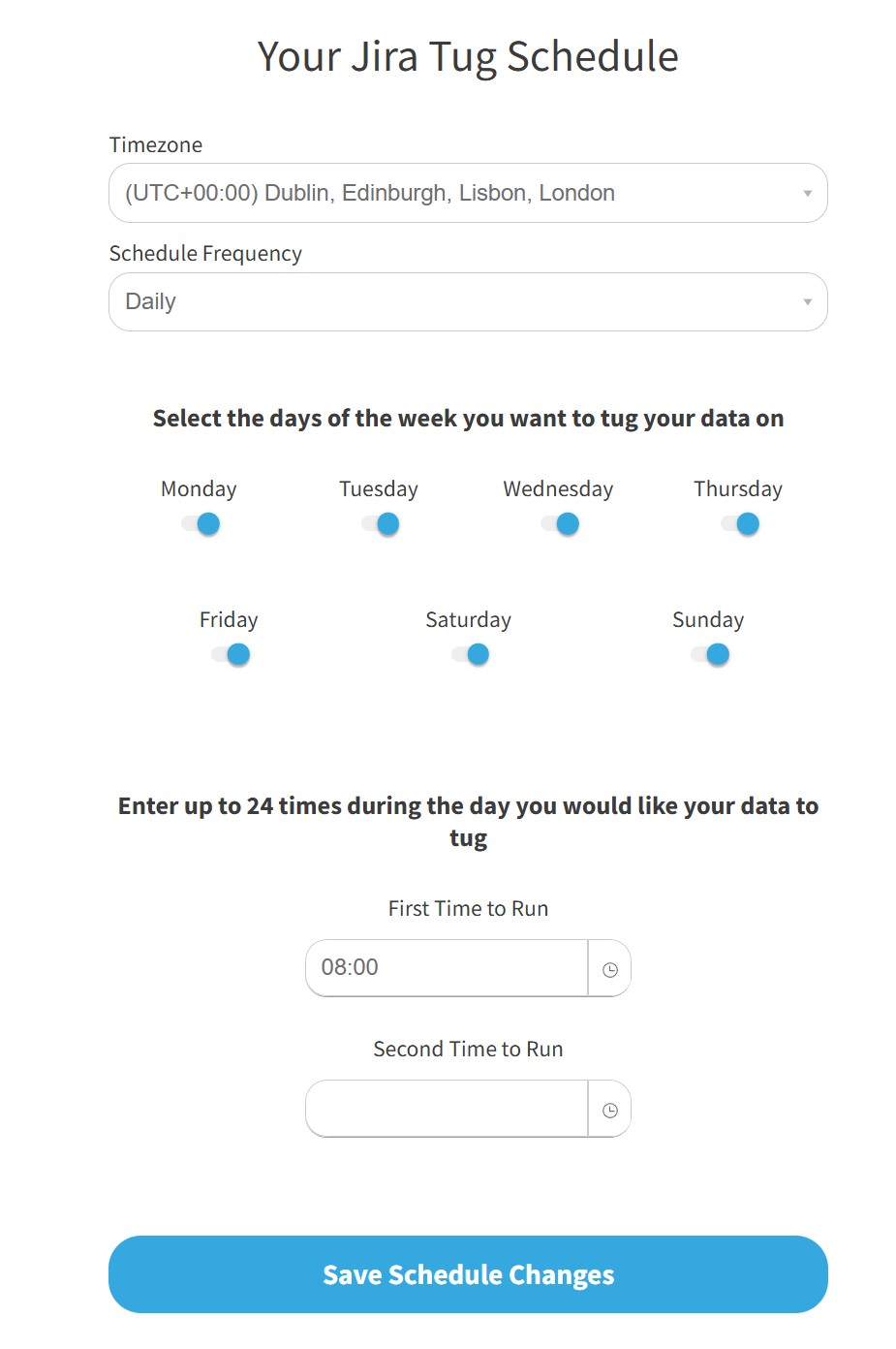
Tip: If you only need your data refreshed once a day, a single morning sync is usually enough. If your business updates data throughout the day and you need near-real-time reporting, add a second or third sync time.
Setting up a monthly schedule
- Set Schedule Frequency to Monthly
- Use the Day of Month to Refresh Reports On dropdown to choose which day of the month the sync should run (1-31)
- Enter the time(s) you want the sync to run
- Click Save Schedule Changes
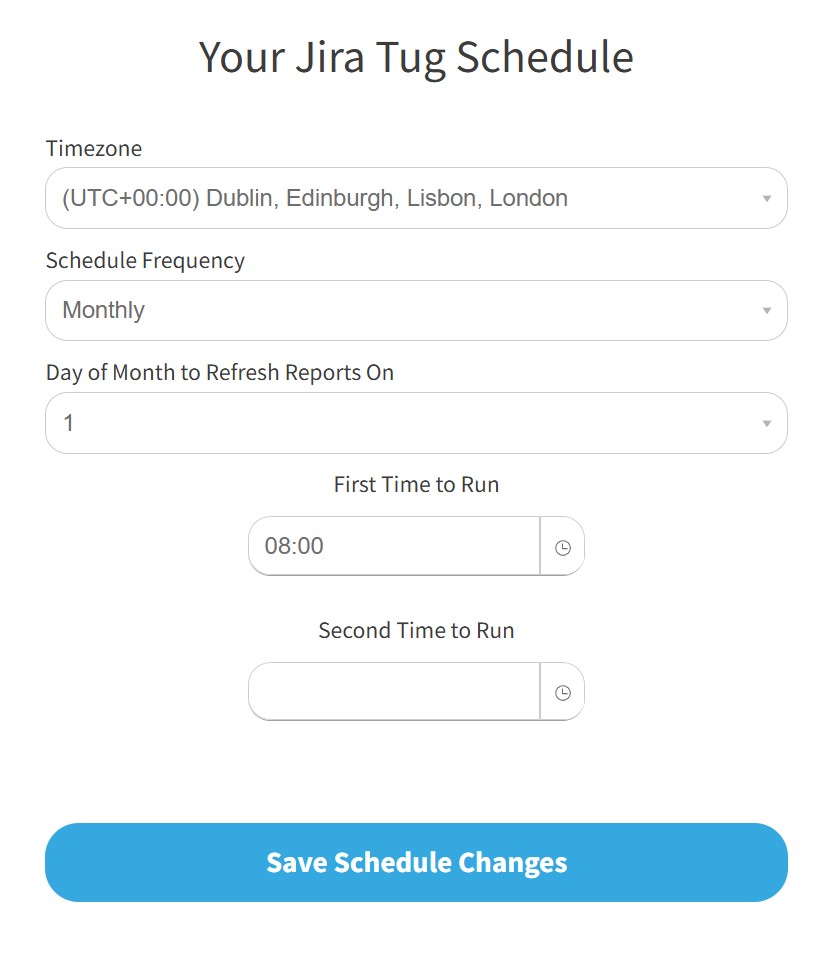
Monthly schedules are useful for connectors where data only changes at month-end, such as budgets or monthly financial reports.
Choosing the right schedule
For most connectors, a daily sync at 08:00 works well. Here are some things to consider when adjusting:
More frequent syncs - if your team relies on up-to-date data throughout the day (e.g. sales pipeline, support tickets), add a second sync time in the afternoon.
Fewer syncs - if your data doesn't change often (e.g. monthly accounting data, HR records), you may only need syncs on weekdays or even monthly.
Timing around reports - if you have Power BI scheduled refreshes set up, make sure your Tugger sync completes before Power BI tries to refresh. For example, if your Tugger sync runs at 08:00, schedule your Power BI refresh for 09:00 or later. See Publishing to Power BI Service for more on scheduled refreshes.
Triggering a manual sync
If you need your data updated right away without waiting for the next scheduled sync, you can trigger a manual sync from the Summary page of your connector.
Related articles: