A re-tug rebuilds everything Tugger holds for one connector. Instead of picking up where the last tug left off, Tugger goes back to your sync start date and pulls the full history from the source system again.
Most of the time you won't need this. Your connector tugs on its own schedule and keeps itself up to date. A re-tug is the tool for the rarer occasions when the data in Tugger no longer matches the source system and a normal tug won't put it right.
When to re-tug
Consider a re-tug when:
- Records in your reports look wrong, incomplete, or out of date, and the next scheduled tug hasn't corrected them
- Historical records were edited or deleted in the source system outside the window that incremental tugs look at
- Data was restored, merged, or reorganised in the source system
- Tugger support has asked you to run one
A re-tug is not the right tool when:
- You simply want today's data sooner. Wait for the next scheduled tug, or adjust the timing on the Tug Schedule tab
- The connector is reporting a credential or authentication problem. Fix the credentials first, otherwise the re-tug will fail in the same way
- Only one report looks wrong. Check the report itself first, since a re-tug will not change how a report is built
What happens when you re-tug
It helps to know what Tugger does behind the scenes, because a re-tug is not instant and your reports are affected while it runs.
- You confirm the request. Tugger flags the connector for a re-tug and returns you to the connector summary. Nothing is deleted at the moment you click the button.
- The tug service picks it up. The request is collected on the next cycle, usually within a few minutes. A tug that is already running is allowed to finish first.
- The connector is reset to a fresh state. Tugger clears down the data it holds for that connector and resets its sync position, including the last tug date, the incremental sync point, the stored row count, and the last tug timings. The connector goes back to looking exactly as it did before its very first tug.
- A full tug runs. Because there is no sync position to resume from, Tugger pulls everything from your sync start date to now, rather than only the recent window an ordinary tug covers.
- Normal service resumes. Once the re-tug finishes, the Last Tug panel shows the new figures, and the connector goes back to its usual schedule with ordinary incremental tugs.
What a re-tug does not change:
- Your credentials and connection to the source system
- Your tug schedule
- Your report setups, OData URLs, and Power BI or Excel connections
- Your AI Insights (MCP) access and permissions
- The connector's sync start date, which is what defines how far back the re-tug goes
Before you start
- Expect it to take a while. A re-tug is usually slower than your original first tug, because the existing data is cleared down before the new data is pulled. On a large data set this can take hours.
- Your reports will be affected while it runs. Until the re-tug finishes, reports built on this connector may show partial data or no data at all. Avoid re-tugging just before a board meeting or a reporting deadline.
- It cannot be cancelled from the app. Once the re-tug is under way it runs to completion. Contact support if something looks wrong.
- Check the sync start date first. The re-tug pulls history from the connector's sync start date, so if you want a different window, set it before you re-tug rather than after.
How to re-tug a connector
Note: You need edit (write) access to the connector. If you only have read access, the option won't be available to you.
- Open the connector from My Connectors
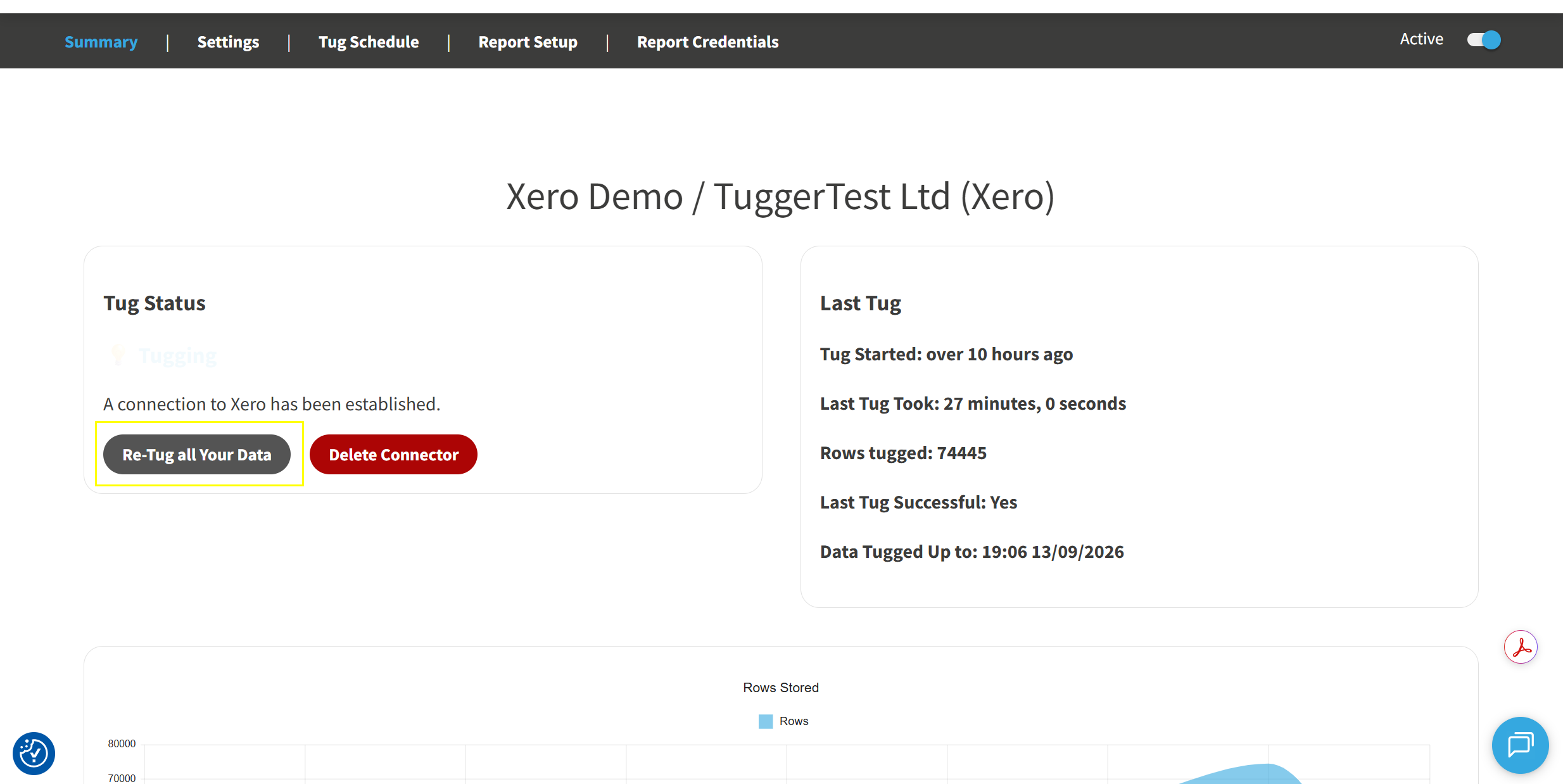
- On the Summary tab, find the Tug Status panel and click Re-Tug all Your Data
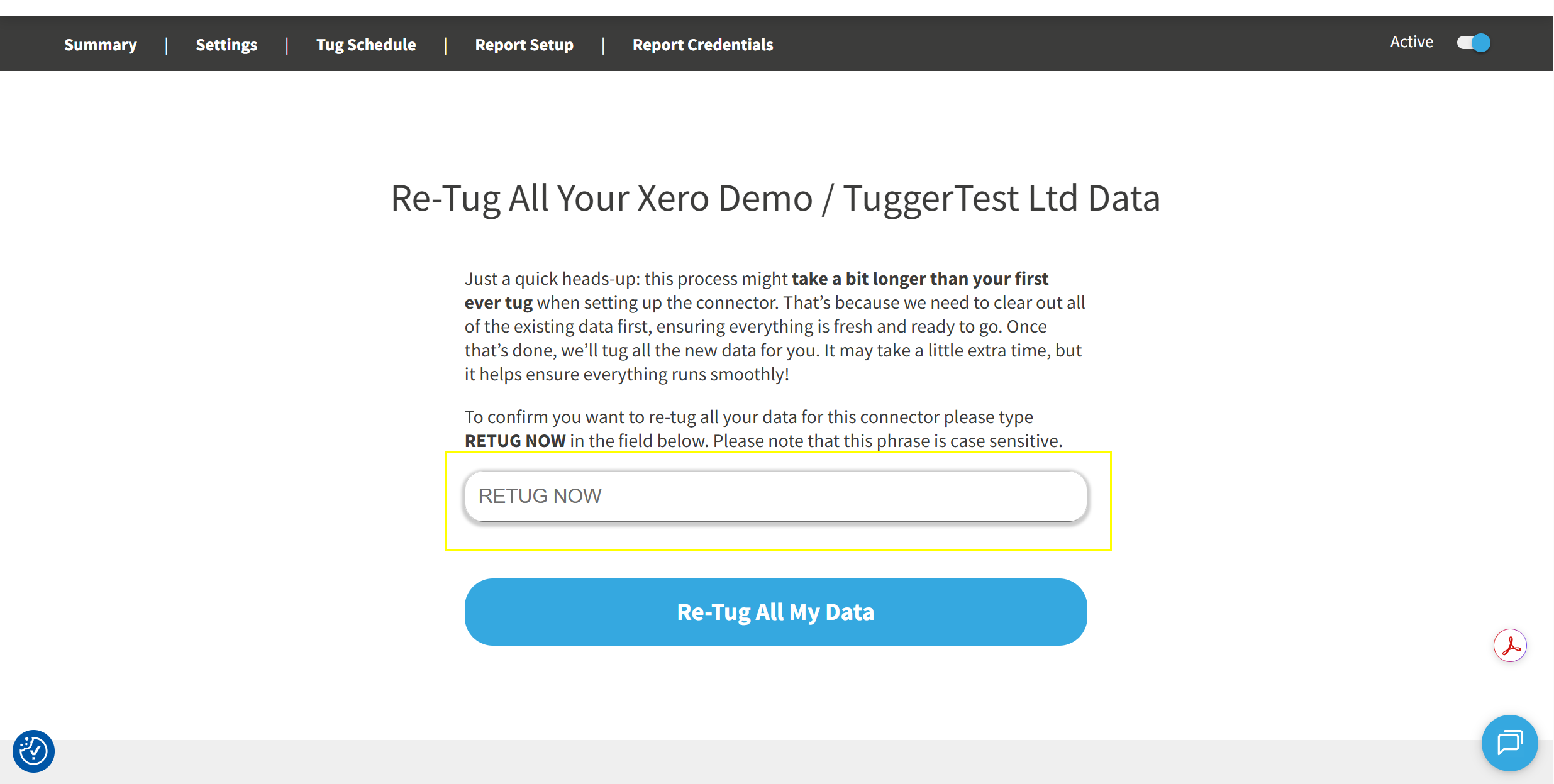
- Read the confirmation page, then type RETUG NOW in the field. The phrase is case sensitive, so it must be typed in capitals exactly as shown
- Click Re-Tug All My Data
You'll be returned to the connector summary. The re-tug is now queued.
Following progress
Watch the Tug Status and Last Tug panels on the connector's Summary tab.
- Tug Status shows the connector working through the re-tug
- Last Tug shows the new figures once it completes, including rows tugged and how long the tug took
- Data Tugged Up to tells you the point the data has reached
If the figures still show the values from before the re-tug, the request has not been collected yet. Give it a few minutes and refresh the page.
After the re-tug
Once the connector reports a successful tug:
- Refresh your Power BI, Excel, or Tableau reports so they pick up the rebuilt data
- Check the records that prompted the re-tug and confirm they now match the source system
- If anything is still missing, contact support with the connector name and an example of a record that is wrong, rather than re-tugging again
Troubleshooting
The Re-Tug button isn't there
- You may have read-only access to the connector. Ask an administrator in your organisation to run the re-tug, or to give you edit access.
The confirmation is rejected
- The phrase must be typed exactly as RETUG NOW, in capitals, with a single space. Copying and pasting sometimes brings in a trailing space, so type it manually.
Nothing appears to be happening
- Requests are collected on the next tug cycle, so a short wait is normal. If a tug was already running, the re-tug starts after it finishes.
It's taking much longer than the first tug did
- This is expected. The existing data is cleared down first, and the full history is then pulled again. Large data sets and source systems with strict API rate limits both add to the time.
The re-tug failed
- Check the Tug Status panel for the message shown. A credential or authorisation problem needs fixing on the Settings or credentials page first, after which the connector will try again on its next cycle.
Related articles: