Connect your Lightspeed Retail (X-Series) account to Tugger and start asking questions of your data in plain English with AI Insights - or pull it into Power BI, Tableau, or Excel. Setup takes around 5 minutes.
What you'll need
- A Tugger account (sign up free)
- A Lightspeed Retail (X-Series) account for the store you want to connect
- Permission to approve third-party apps for your Lightspeed store (usually a store owner or admin)
Running more than one store? Each Lightspeed Retail store counts as one connector on your Tugger plan. You can connect as many as your plan allows - just repeat these steps for each store.
Step 1: Add the Lightspeed Retail connector in Tugger
- Log in to Tugger at tuggerapp.com
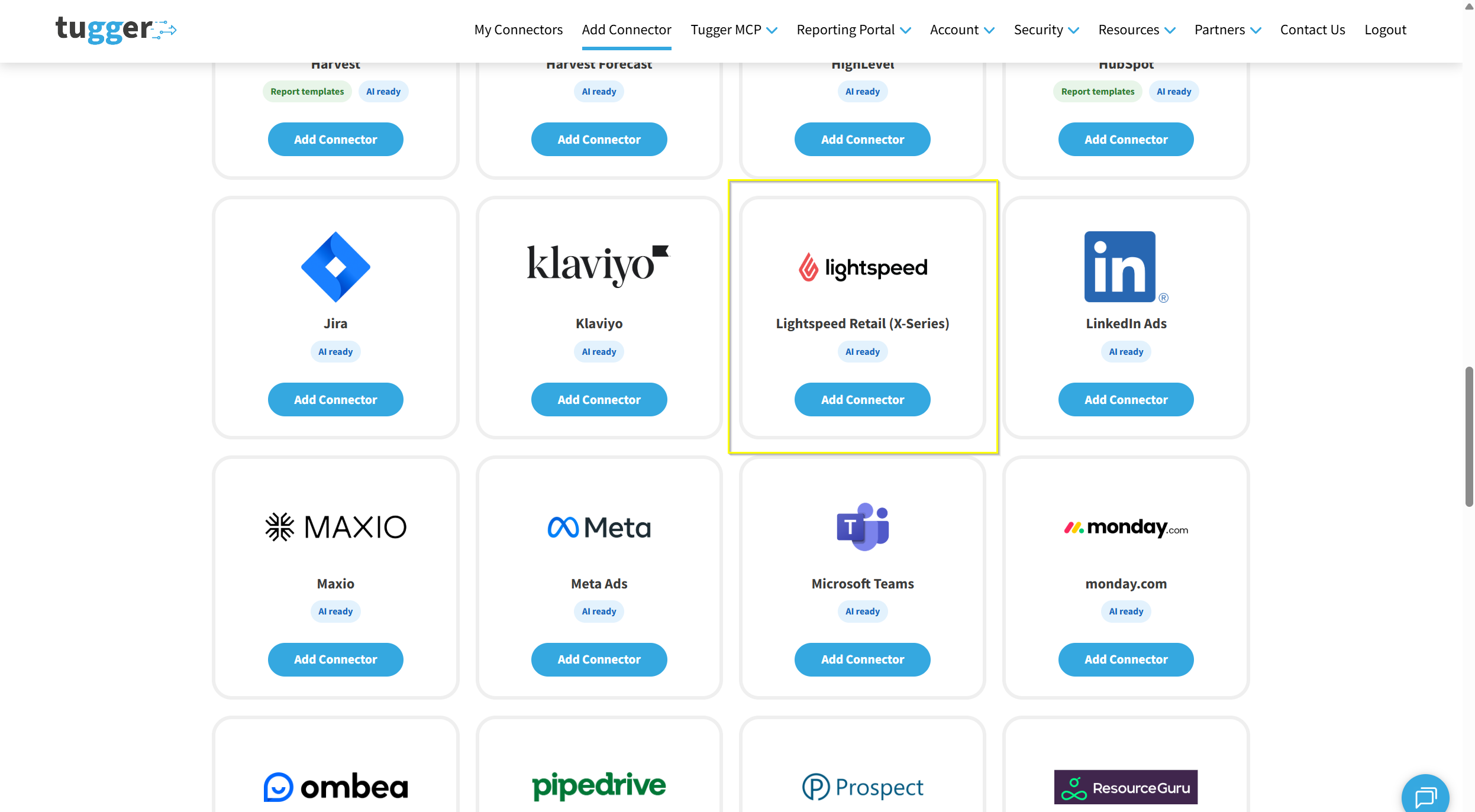
- Click Add Connector from the menu
- Find Lightspeed Retail (X-Series), then click Add Connector
Step 2: Configure your connector
You'll be asked to set up two things:
- Connector Name - give it a name that makes sense to you (e.g. "My Lightspeed Retail Connector" or the name of your store). This is especially helpful if you're connecting more than one store.
- Sync Historical Data From - choose how far back you want Tugger to pull data from. The further back you go, the more data will be stored and the longer your first sync will take.
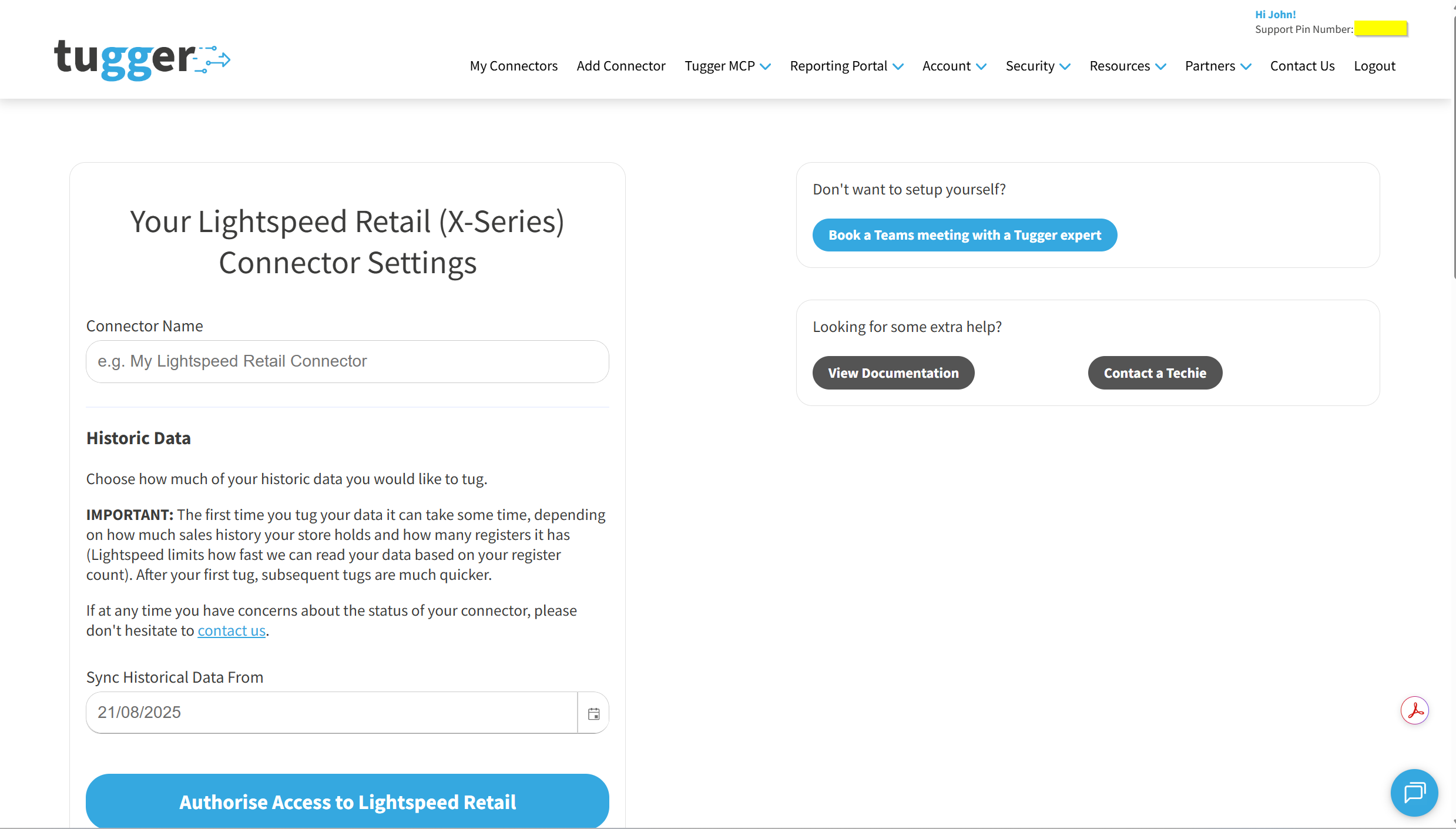
Click Authorise Access to Lightspeed Retail to continue.
Step 3: Log in to Lightspeed to authorise the connection
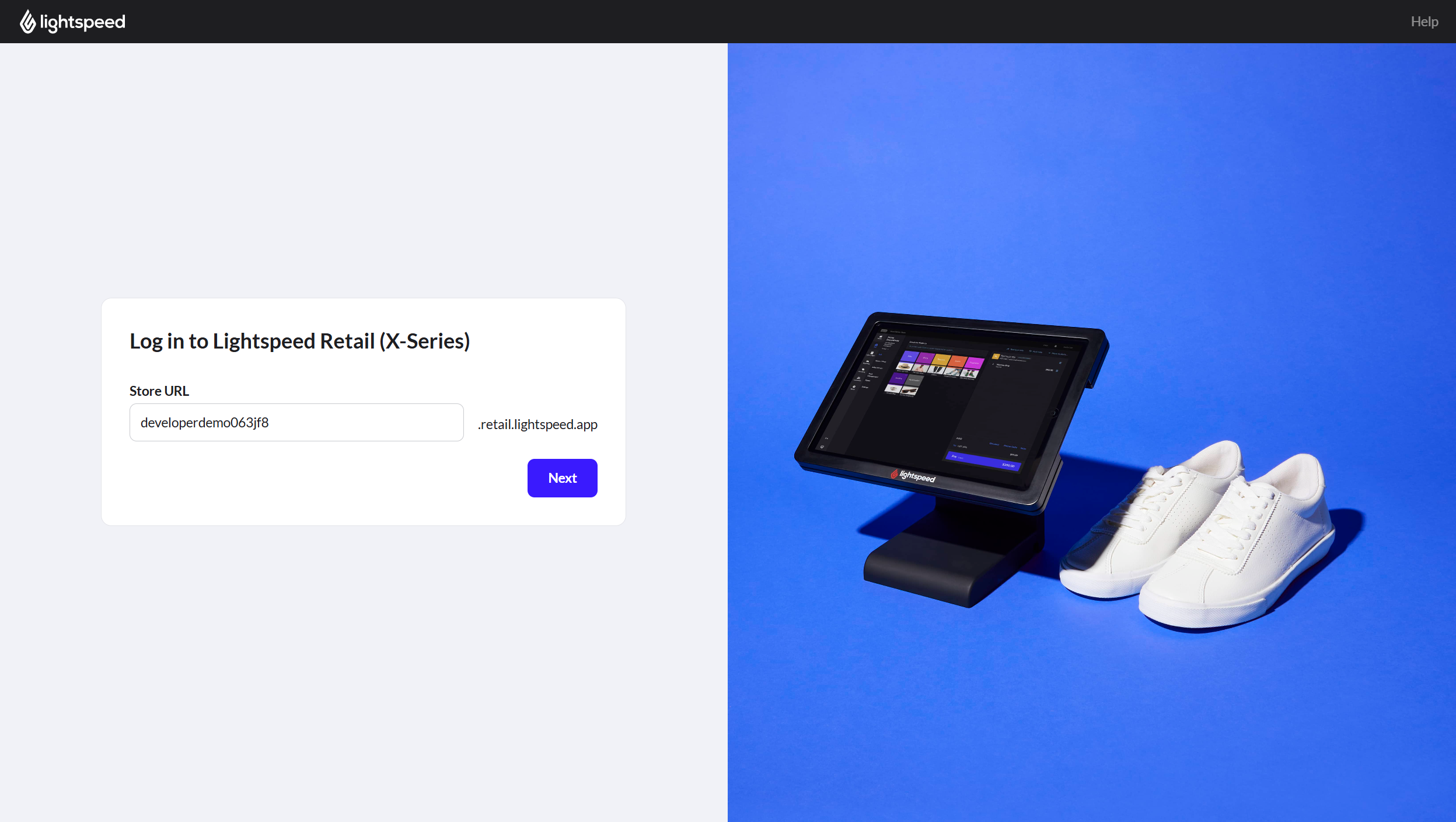
Tugger will send you to Lightspeed so it can securely connect to your store. This is the same kind of "Sign in with..." process you'll have used with other apps.
- Enter your Store URL (the part before
.retail.lightspeed.app), then click Next - Sign in with your Lightspeed username and password if prompted
Lightspeed will then show you what Tugger would like to read from your store - sales, catalogue, inventory, customers, staff and store settings. Review the list and click Approve installation.
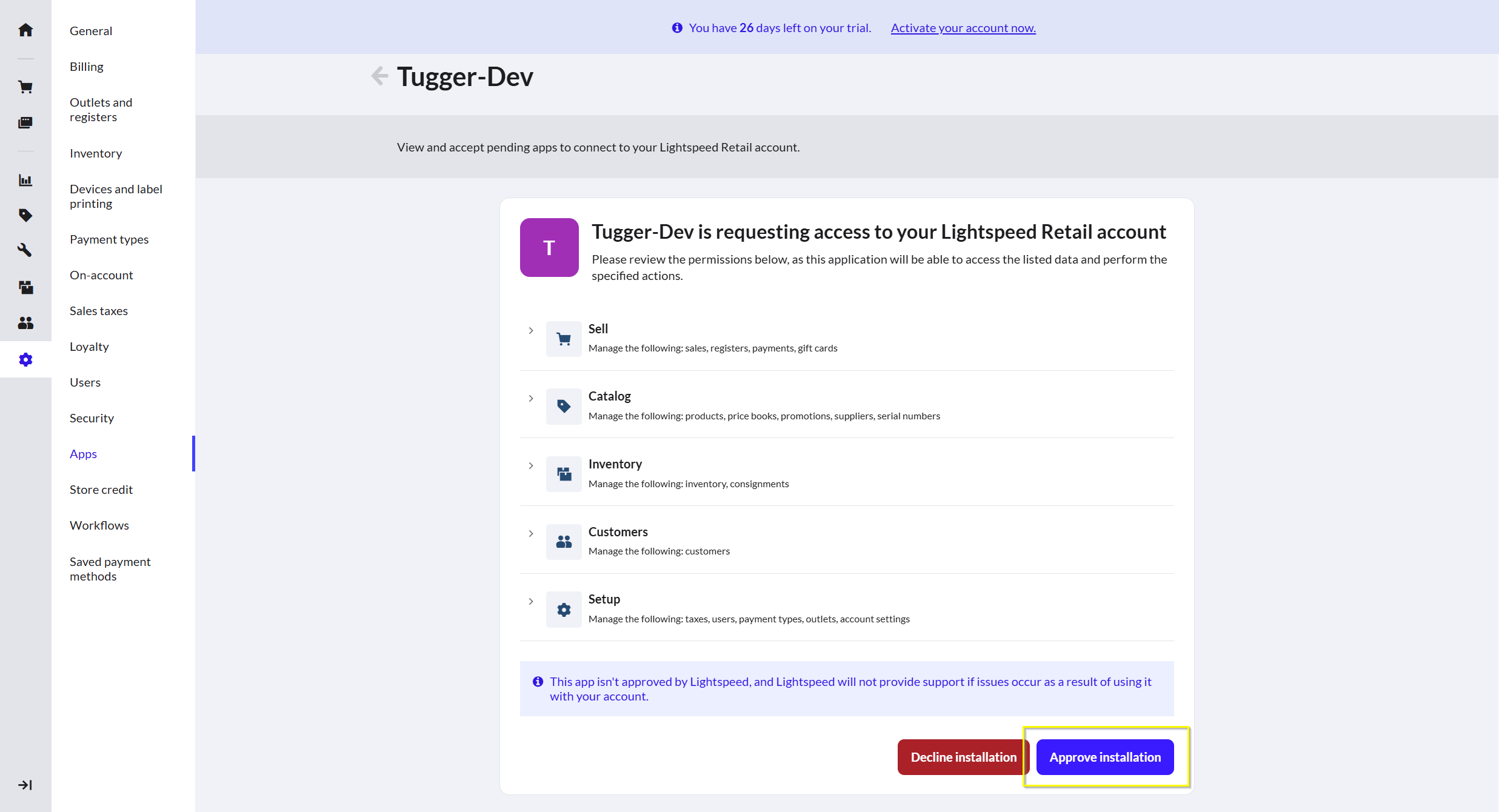
No API keys or technical setup required - just log in and approve.
Step 4: Your first sync
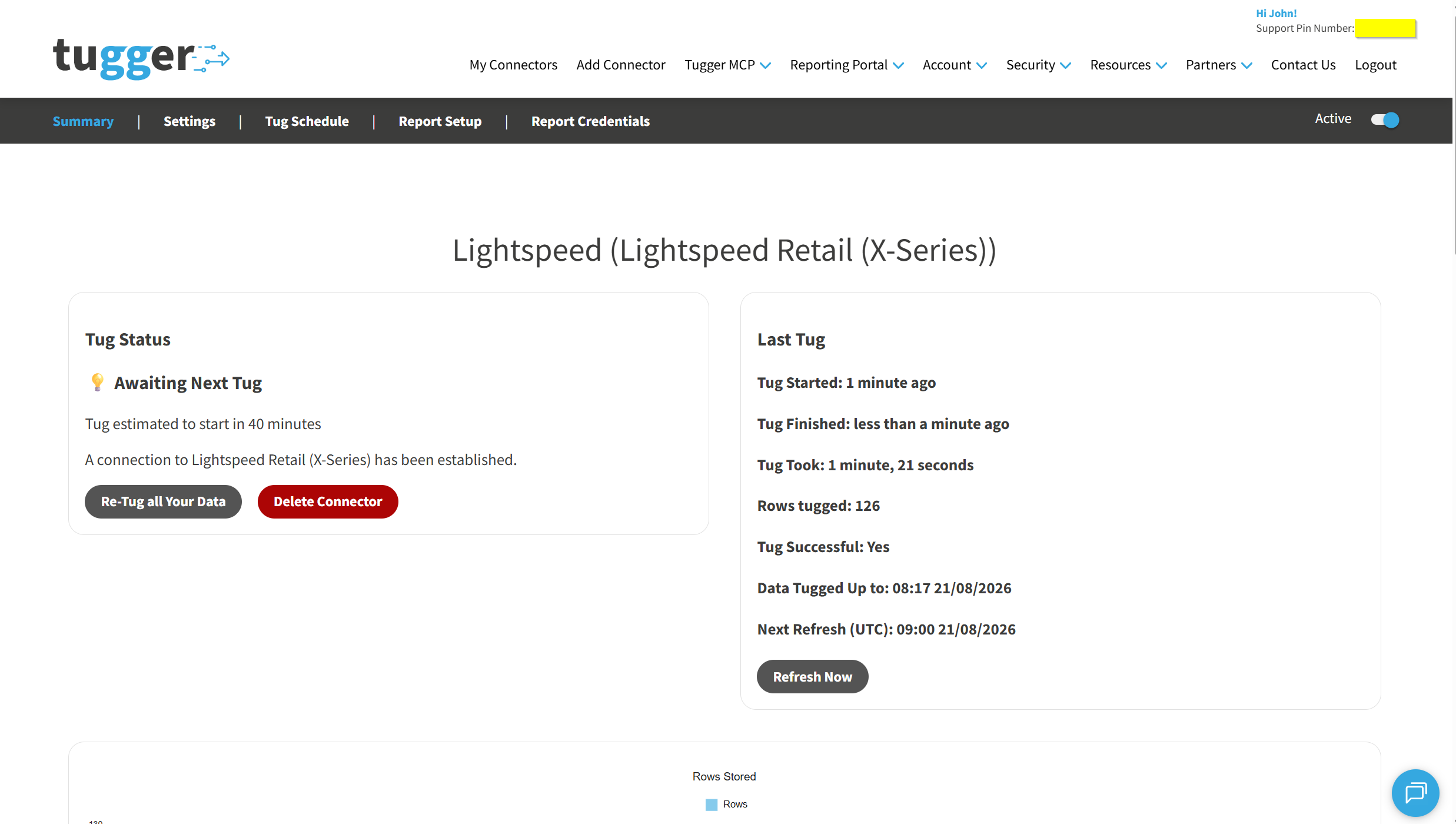
Once you've approved access, Tugger will start pulling your Lightspeed Retail data automatically. You can check progress on the Summary page.
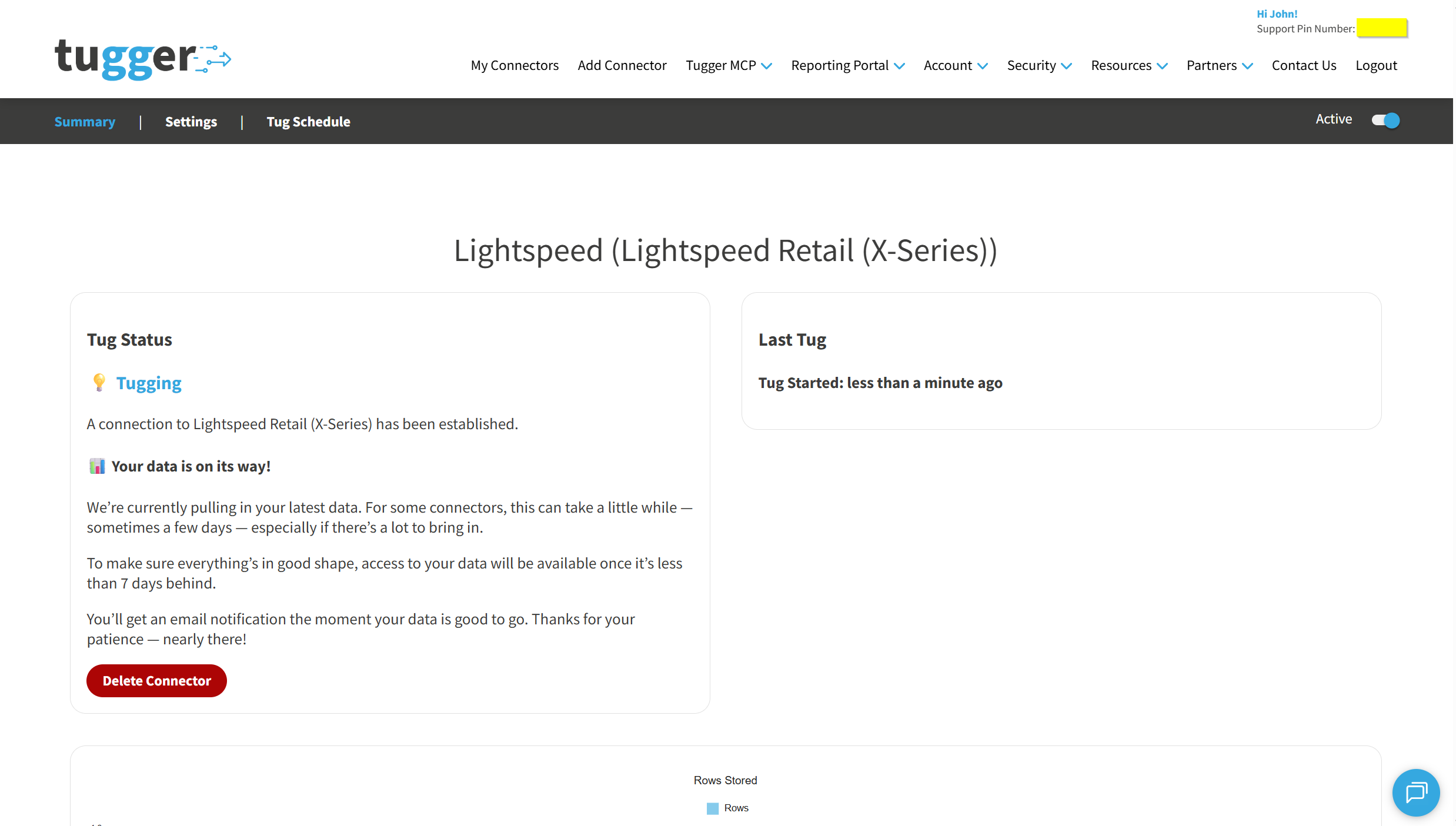
The first sync can take a little while - sometimes longer for stores with a lot of sales history. Lightspeed also limits how quickly we can read your data based on how many registers your store has, so busier stores take longer on that first pull. After that, subsequent syncs are much quicker, and Tugger refreshes your data automatically every hour by default. You can change this schedule if needed - see Managing Your Sync Schedule.
You'll receive an email (or SMS, if you've enabled it) once your data is ready. At that point you can start asking questions with AI Insights or building reports.
What data does Tugger pull from Lightspeed Retail?
Tugger syncs a comprehensive set of retail data from Lightspeed Retail (X-Series), including:
- Sales - point-of-sale transactions with line items and the payments (tenders) taken against each sale
- Products and catalogue - products and their variants, category tree, brands, and tags
- Pricing - price books and the per-product prices within them
- Promotions - promotion rules and the discounts they apply
- Gift cards - balances, and lifetime totals sold and redeemed
- Inventory - per-outlet stock levels and serial numbers for serialised products
- Purchasing and stock control - consignments (supplier orders, stock transfers, and stocktakes) with their line items
- Suppliers - the vendors used on supplier orders and products
- Customers - customers and the customer groups they belong to
- Staff - user accounts and register/staff shift sessions
- Store setup - outlets, registers, taxes, payment types, and account-level store settings
For a full list of data tables and fields, ask Tugger AI Insights - try "What data is available from my Lightspeed Retail connector?"
What's next?
Once you've received the email (or SMS) confirming your data is ready:
AI Insights
- What is Tugger AI Insights? - ask questions about your Lightspeed Retail data in plain English
- Connect Tugger to Claude | ChatGPT
Reporting
Manage your sync schedule
- Managing Your Sync Schedule - change when and how often Tugger pulls your data
Need help? Contact the Tugger team - we're always happy to help you get up and running.