Connect your Katana account to Tugger and start asking questions of your manufacturing and inventory data in plain English with AI Insights - or pull it into Power BI, Tableau, or Excel. Setup takes around 5 minutes.
What you'll need
- A Tugger account (sign up free)
- A Katana account with permission to authorise third-party apps
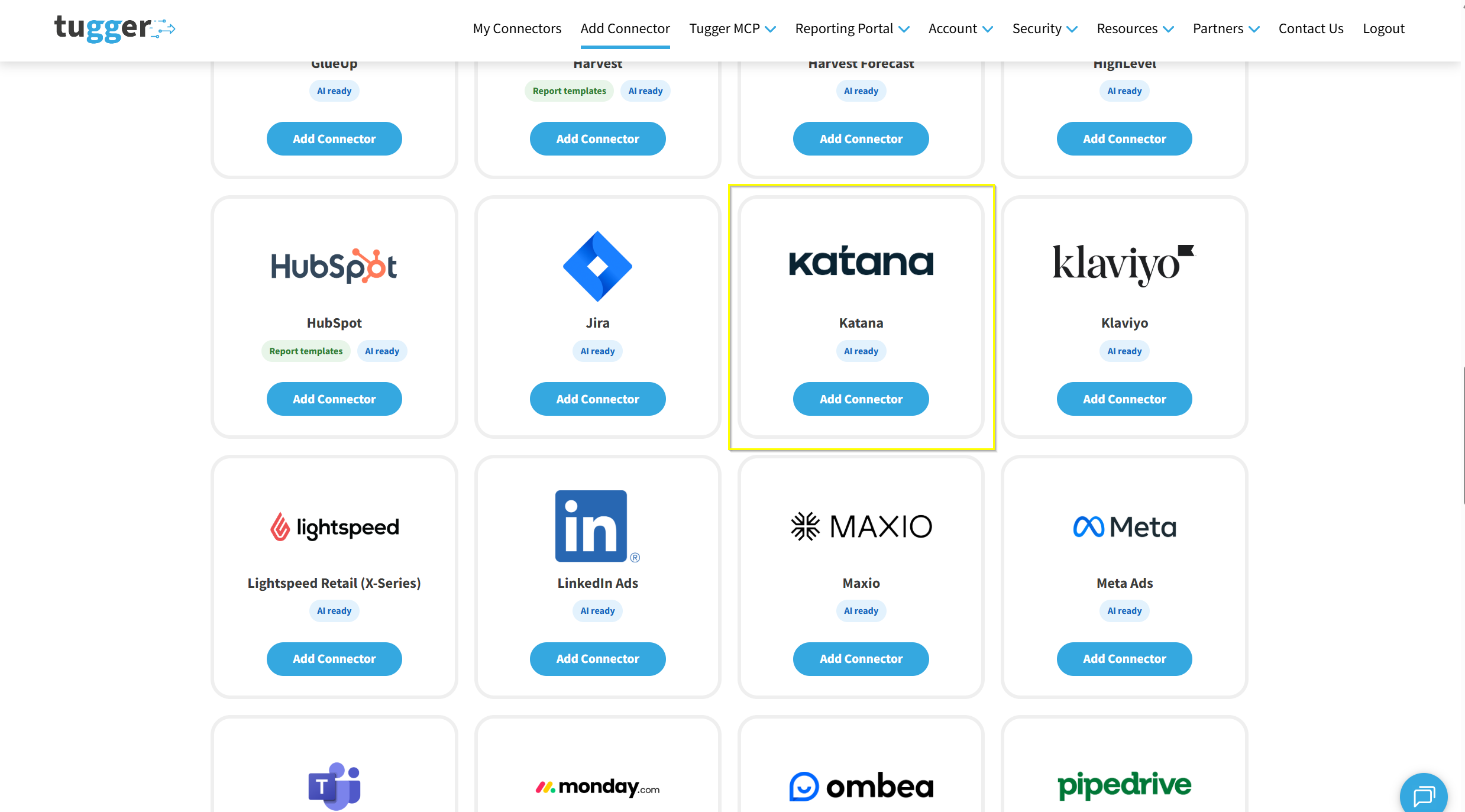
Step 1: Add the Katana connector in Tugger
- Log in to Tugger at tuggerapp.com
- Click Add Connector from the menu
- Select Katana, then click Add Connector
Step 2: Configure your connector
You'll be asked to set up two things:
- Connector Name - give it a name that makes sense to you (e.g. "Acme Manufacturing Katana" or "Katana - Main Site").
- Sync Historical Data From - choose how far back you want Tugger to pull data from. The further back you go, the more data will be stored and the longer your first sync will take.
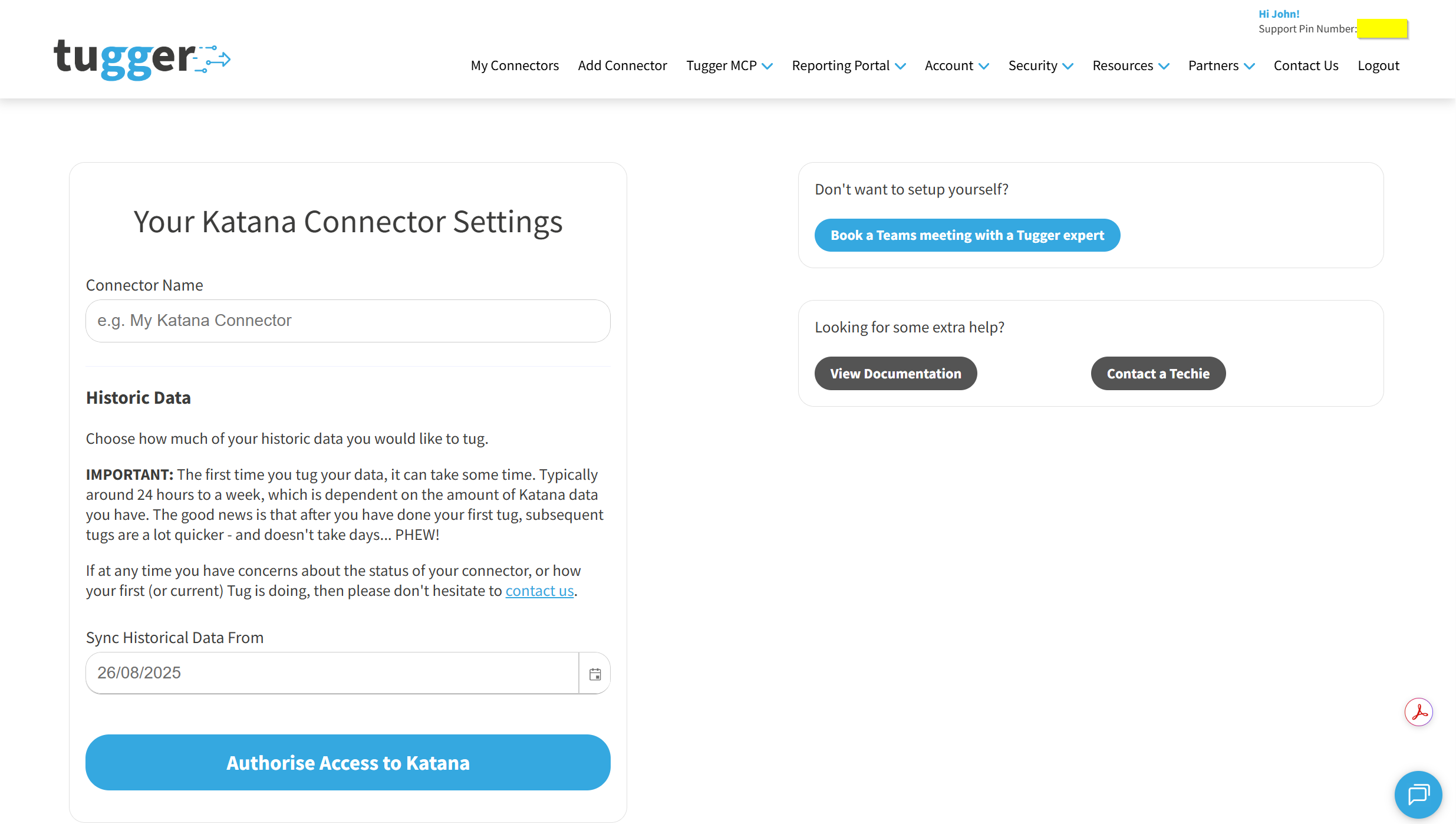
Click Authorise Access to Katana to proceed.
Step 3: Log in to Katana to authorise the connection
Tugger will ask you to log in to Katana so it can securely access your data. This is the same kind of "Sign in with..." process you'll have used with other apps.
- You'll be redirected to Katana's login page
- Sign in with your Katana username and password
- Approve access to give Tugger permission to read your Katana data
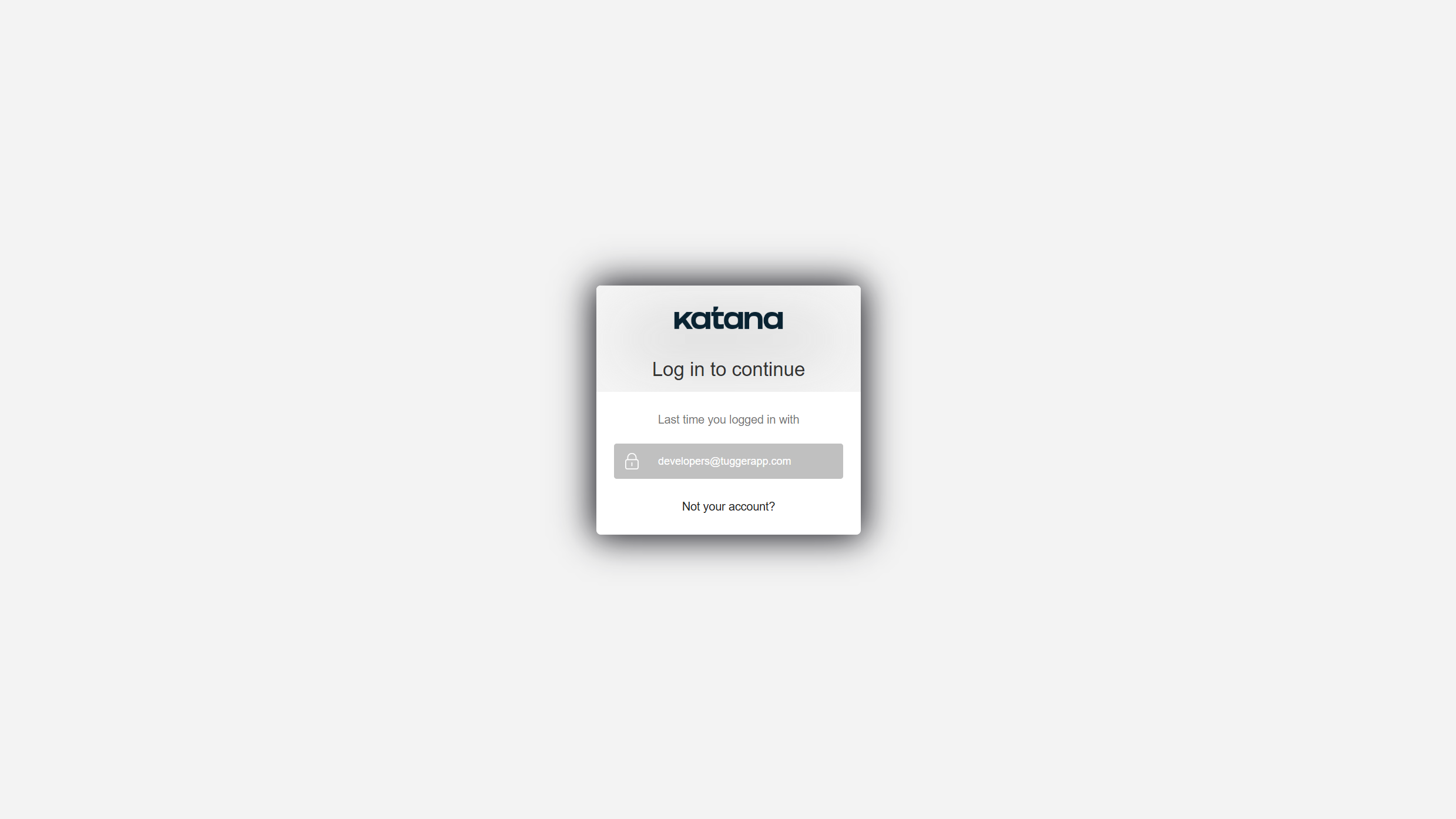
No API keys or technical setup required - just log in and approve.
Step 4: Your first sync
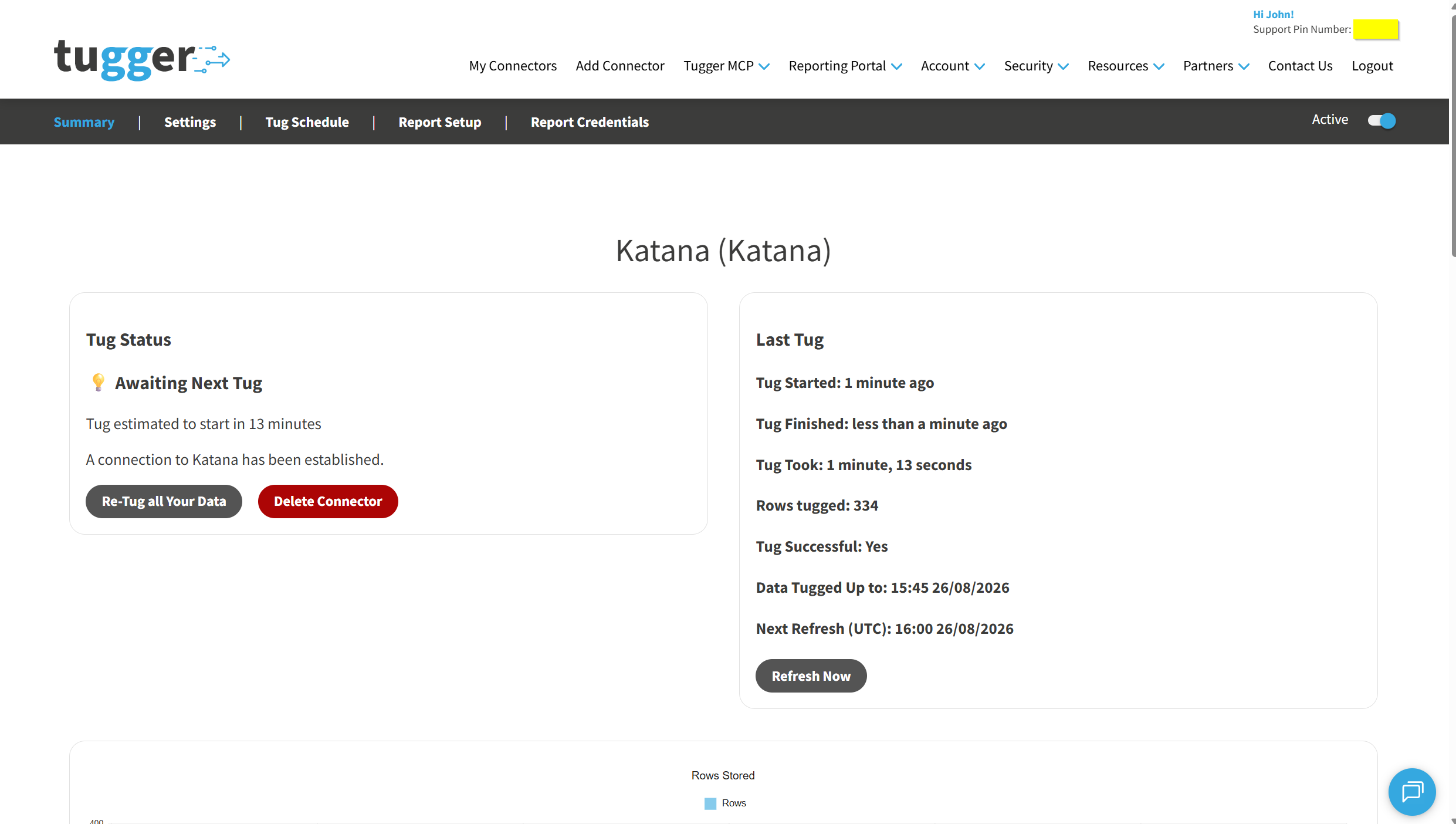
Once setup is complete, Tugger will start pulling your Katana data automatically. You can check progress on the Summary page.
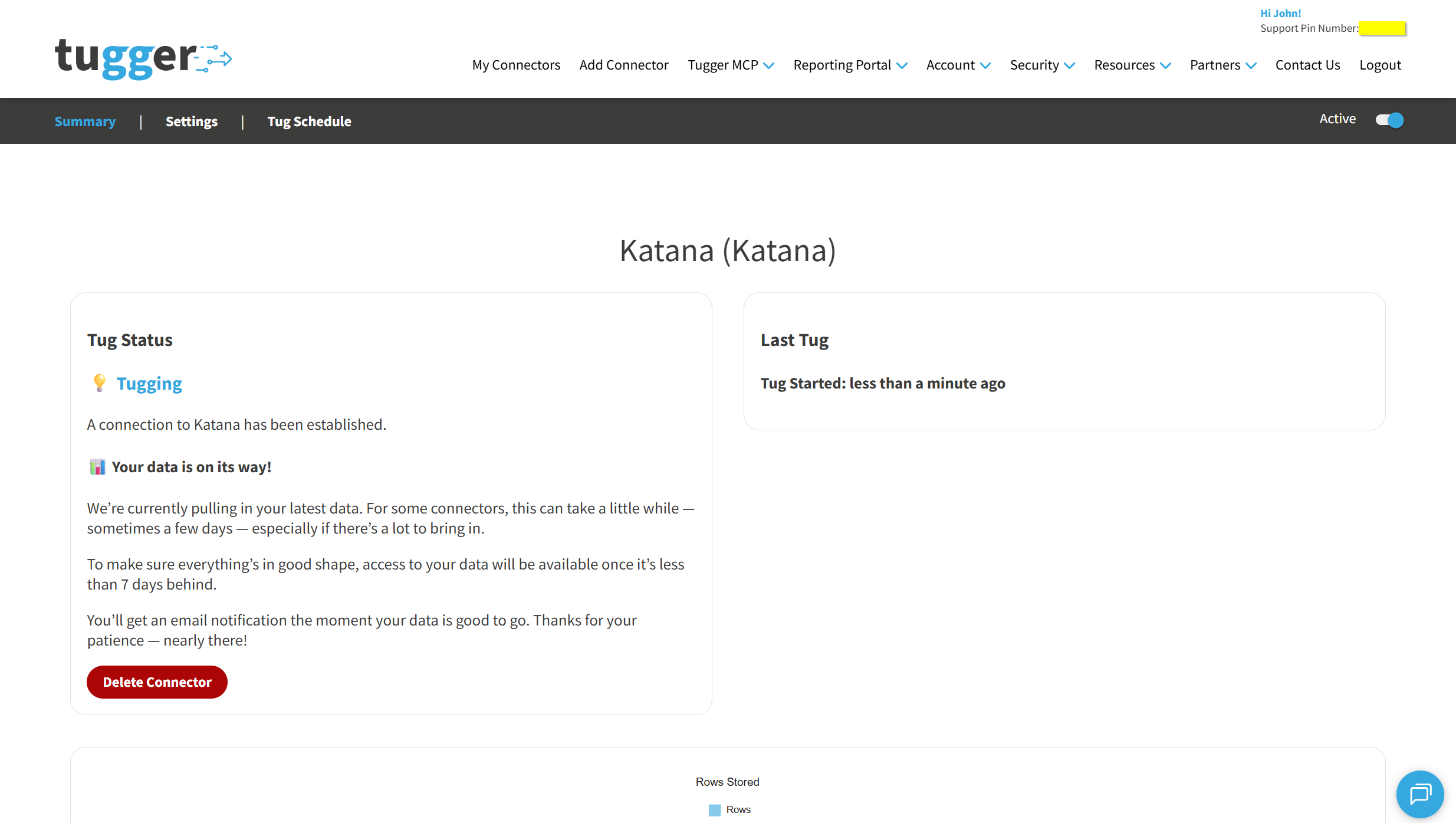
Depending on how much data you have (and how far back your data start date goes), the first sync may take anywhere from a few minutes to a longer period. After that, Tugger syncs your data automatically every hour by default. You can change this schedule if needed - see Managing Your Sync Schedule.
You'll receive an email (or SMS, if you've enabled it) once your data is ready. At that point you can start asking questions with AI Insights or building reports.
What data does Tugger pull from Katana?
Tugger syncs a comprehensive set of manufacturing and inventory data from Katana, including:
- Sales orders and returns - order lines, fulfillments, shipping fees, and customer returns with credit lines
- Purchase orders - supplier orders, line items, and additional costs such as freight or duty
- Products, materials, and variants - your full catalog of sellable products, raw materials, and SKUs
- Bills of materials and recipes - which ingredients and quantities go into each product
- Manufacturing orders - work orders, their operations/steps, ingredient consumption, and production output
- Inventory and stock movements - stock levels by variant and location, plus the full movement audit trail
- Bin, batch, and serial tracking - finer-grained stock detail for accounts using bin locations, batch numbers, or serial-tracked units
- Locations - your warehouses and manufacturing sites
- Customers and suppliers - master data and addresses for the people and companies you trade with
- Price lists - custom pricing tiers and the customers and products they apply to
- Configuration - tax rates, users, and custom field definitions
For a full list of data tables and fields, ask Tugger AI Insights - try "What data is available from my Katana connector?"
What's next?
Once you've received the email (or SMS) confirming your data is ready:
AI Insights
- What is Tugger AI Insights? - ask questions about your Katana data in plain English
- Connect Tugger to Claude | ChatGPT
Reporting
Manage your sync schedule
- Managing Your Sync Schedule - change when and how often Tugger pulls your data
Need help? Contact the Tugger team - we're always happy to help you get up and running.