If a map visual in your Tugger report is blank or showing a "map visuals are disabled" message, this is a Power BI settings issue rather than a Tugger data issue. Power BI requires map visuals to be explicitly enabled, and Microsoft is currently transitioning from Bing Maps to Azure Maps.
Enable map visuals in Power BI Desktop
Map and Filled Map visuals are disabled by default in Power BI Desktop.
- In Power BI Desktop, go to File > Options and Settings > Options
- Under Global, click Security
- In the Map and Filled Map Visuals section, tick Use Map and Filled Map visuals
- Also tick Use Azure Maps visual (recommended, as Microsoft is deprecating Bing Maps)
- Click OK
- Close Power BI Desktop completely and reopen your report
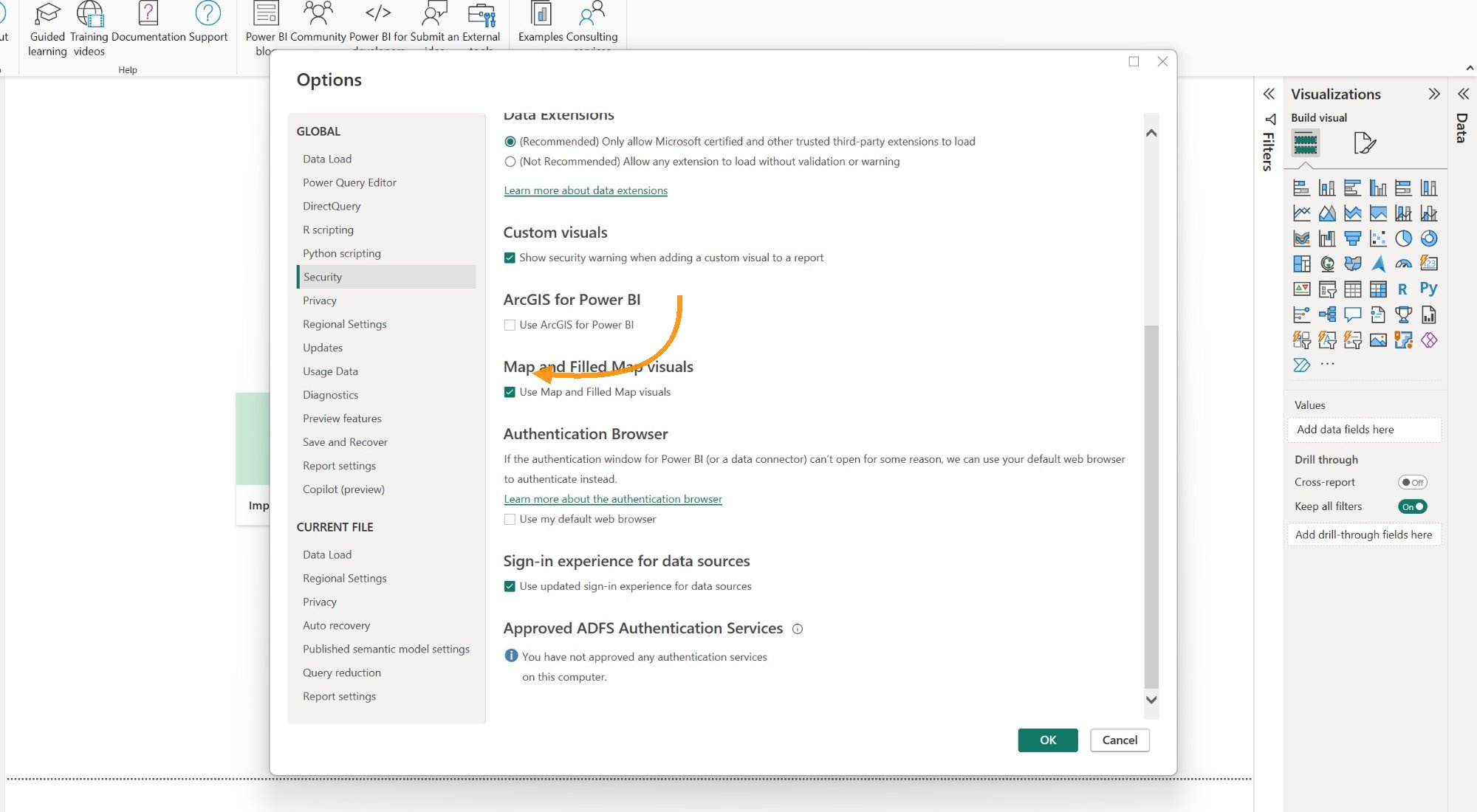
If the checkboxes appear greyed out or won't save, this is likely controlled by your organisation's Power BI admin (see below).
Enable map visuals for your organisation
If you're signed in to Power BI with a work or school account, your tenant admin may need to enable map visuals at the organisation level.
Your Power BI admin needs to:
- Go to the Power BI Admin Portal
- Navigate to Tenant settings > Integration settings
- Enable Map and filled map visuals
- Enable Use Azure Maps visual
- Click Apply
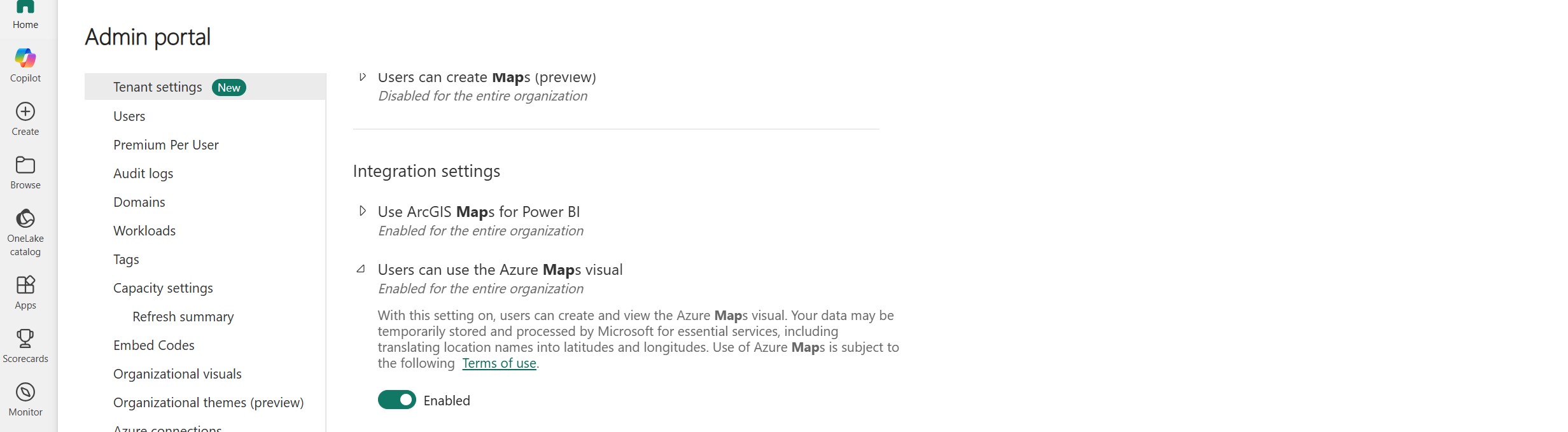
If you're not sure who your Power BI admin is, check with your IT team or Microsoft 365 administrator.
Tip: If maps work when you're signed out of Power BI Desktop but disappear when you sign in, this confirms it's a tenant-level setting that your admin needs to enable.
Upgrade to Azure Maps
Microsoft is deprecating the classic Bing Maps visuals in Power BI and replacing them with Azure Maps. If your Tugger report template uses the older Bing Maps visual, it will continue to work for now, but Microsoft recommends migrating to Azure Maps for better performance and long-term support.
To switch a map visual to Azure Maps:
- Select the map visual in your report
- In the Visualizations pane, click the Azure Maps icon (it looks like a globe with a pin)
- Re-assign the same data fields (location, latitude/longitude, size, legend) to the new visual
No changes are needed on the Tugger side. The same location data works with both Bing Maps and Azure Maps.
Note: Azure Maps is not currently supported in China, Korea, or government clouds. If your report users are in these regions, continue using the existing map visual until Microsoft extends support.
Check your firewall
If map visuals are enabled but still showing blank, your network or firewall may be blocking the map service.
Make sure the following can be accessed from your network:
atlas.microsoft.com(Azure Maps)*.bing.com(if still using Bing Maps)
Check with your IT team if you suspect a firewall or proxy is blocking these.
Clear the Power BI cache
If maps were previously working and have suddenly stopped:
- In Power BI Desktop, go to File > Options and Settings > Options
- Under Global, click Data Load
- Click Clear Cache
- Close and reopen Power BI Desktop
Still not working?
If none of the above resolves the issue:
- Make sure Power BI Desktop is updated to the latest version (Help > About or download from the Microsoft Store)
- Try creating a simple test map visual with basic location data (e.g. a table with country names) to confirm maps work outside of the Tugger report
- Contact the Tugger team if you need help with map visuals in a Tugger report template
Related articles: