Remove a colleague's access when they leave or no longer need Tugger. You can switch their access back on at any time. Deactivating takes under a minute.
What you'll need
- You must be an Account Administrator on your Tugger account
- The user must be on your account
Deactivating someone who is about to lose access anyway? Do it as soon as you can. A deactivated user is signed out at their next request.
Step 1: Open the user
- Log in to Tugger at tuggerapp.com
- In the menu, click Account, then User Accounts
- Click the user's name
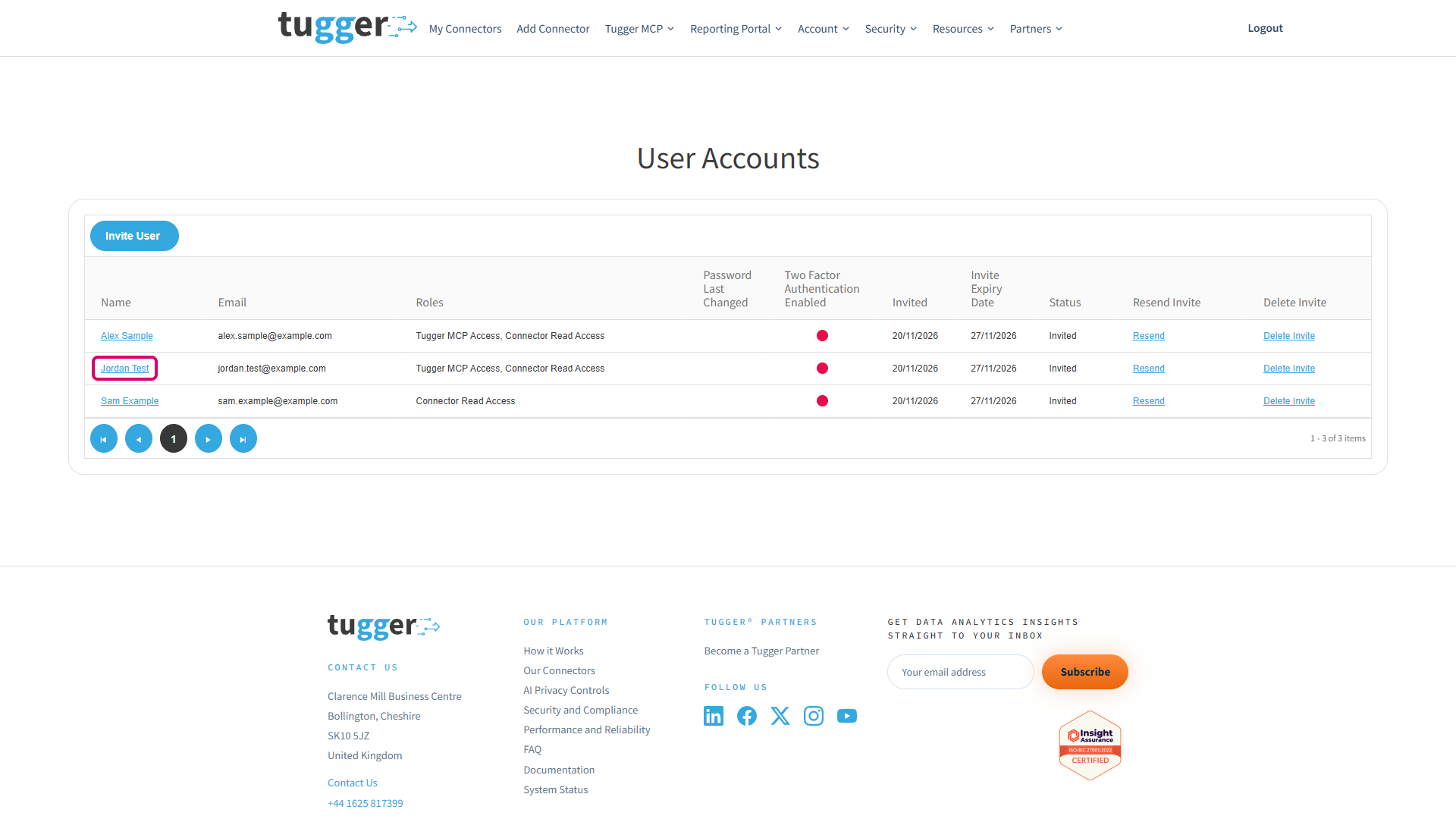
Step 2: Switch on No Access
At the top of Account Permissions, switch on No Access. This switches off every permission for the user in one go:
- Account Administrator, Billing Management, Connector Write Access and Connector Read Access
- Reporting Portal Configuration, if you use it
- AI Insights Access (MCP), and their AI Insights connector choices
- Partner Admin, if you have it
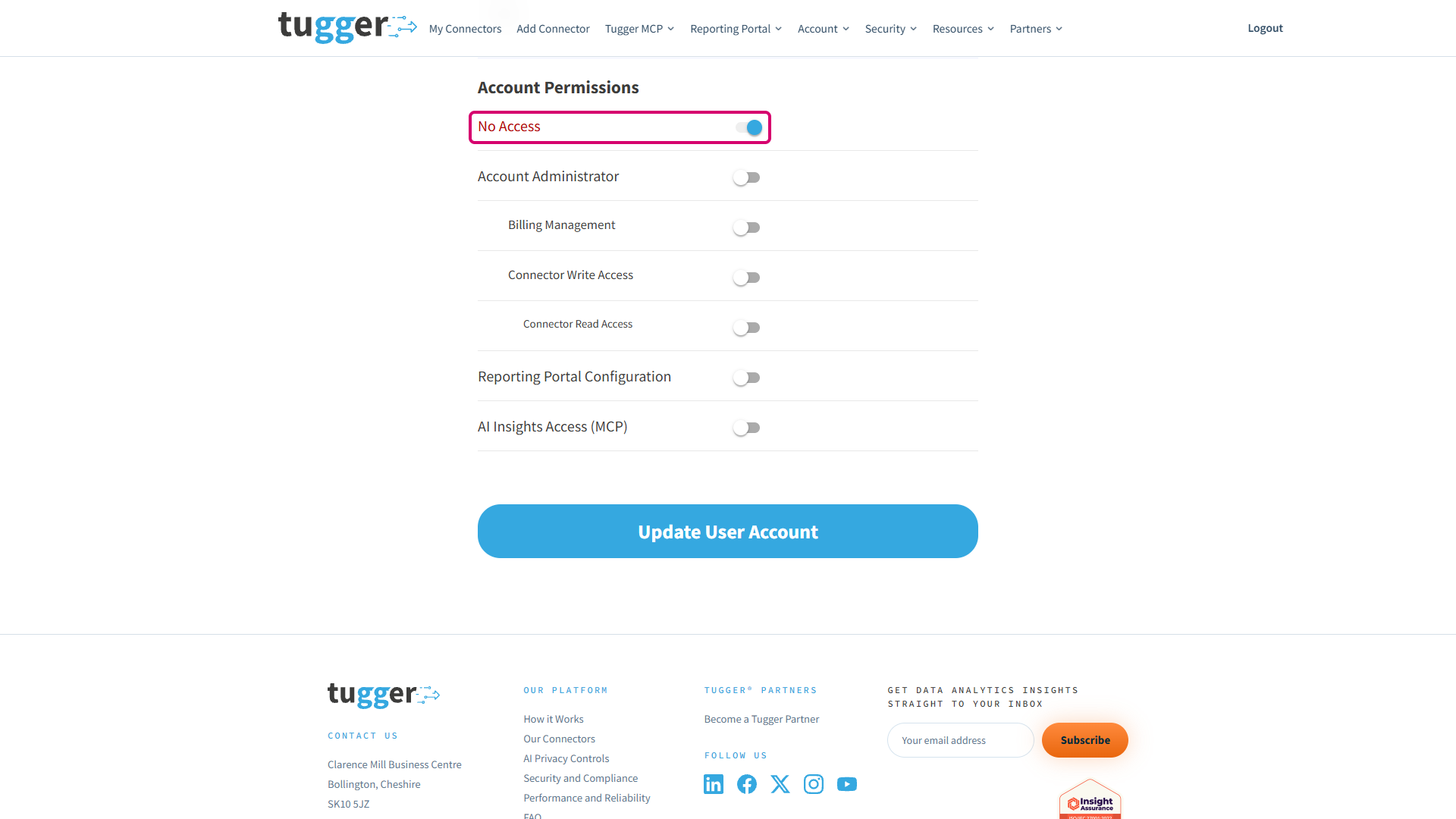
Step 3: Save
Click Update User Account.
What the user loses access to
- Tugger. They can no longer sign in, including with Sign in with Xero. If they are signed in at the moment you save, they are signed out at their next request.
- Reporting Portal. The same applies: they can no longer sign in there.
- AI Insights. Their connector access is cleared. An AI tool they have already connected to Tugger with their own sign-in, such as Claude or ChatGPT, stops returning data the next time it asks.
Nothing else changes. Connectors, data and other users on your account are not affected.
Some access belongs to your account, not to the person. Deactivating someone doesn't change these, so check them if the person is leaving:
- Reports in Power BI, Excel or Tableau connect with your account's report credentials, so they keep refreshing. If the person had a copy of the credentials, regenerate them. See Regenerating Report Credentials.
- AI Insights API keys keep working, because a key belongs to your account. If the person had a copy of a key, revoke it on the API Keys tab of the MCP Configuration page.
Bringing someone back
To give a deactivated user access again:
- Open them from the User Accounts page, as in Step 1
- Switch No Access off
- Switch on the permissions they need. Switching on any permission also switches No Access off.
- If they should have AI Insights again, switch on AI Insights Access (MCP) and choose their connectors. Their earlier connector choices were cleared when you deactivated them, so it starts from All connectors.
- Click Update User Account
Did the user never finish accepting their invitation? Deactivating them also stops the invitation link from working. To bring them back, switch No Access off first, then click Resend on the User Accounts page. The invitation keeps its original expiry date. If it has already expired, Tugger will have removed it from your list, so invite them again instead. See Inviting a user.