Change a colleague's details or permissions at any time, including which connectors they can query with AI Insights. Changes take effect straight away.
What you'll need
- You must be an Account Administrator on your Tugger account
- The user must already be on your account. To add someone new, see Inviting a user.
Want to change your own details? You can't edit your own account from this screen. Click Account, then My Profile instead.
Step 1: Open the user
- Log in to Tugger at tuggerapp.com
- In the menu, click Account, then User Accounts
- Click the user's name
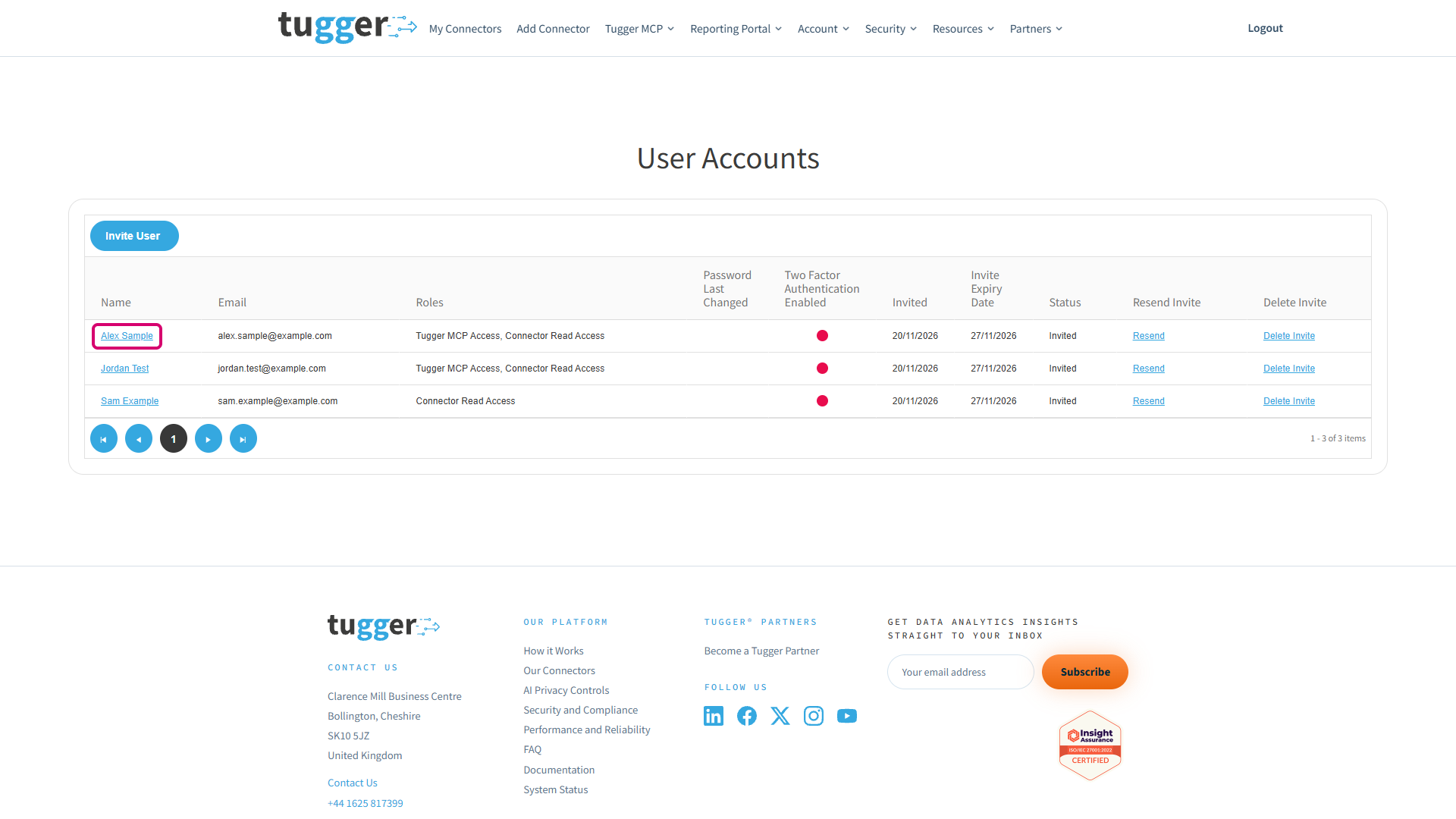
Step 2: Change their details
On the Edit User Account screen you can change their Email, First Name and Last Name.
If you change the email address, Tugger sends a verification email to the new address. The old address is not replaced until the user has verified the new one. They have 48 hours to do this, so ask them to check their inbox.
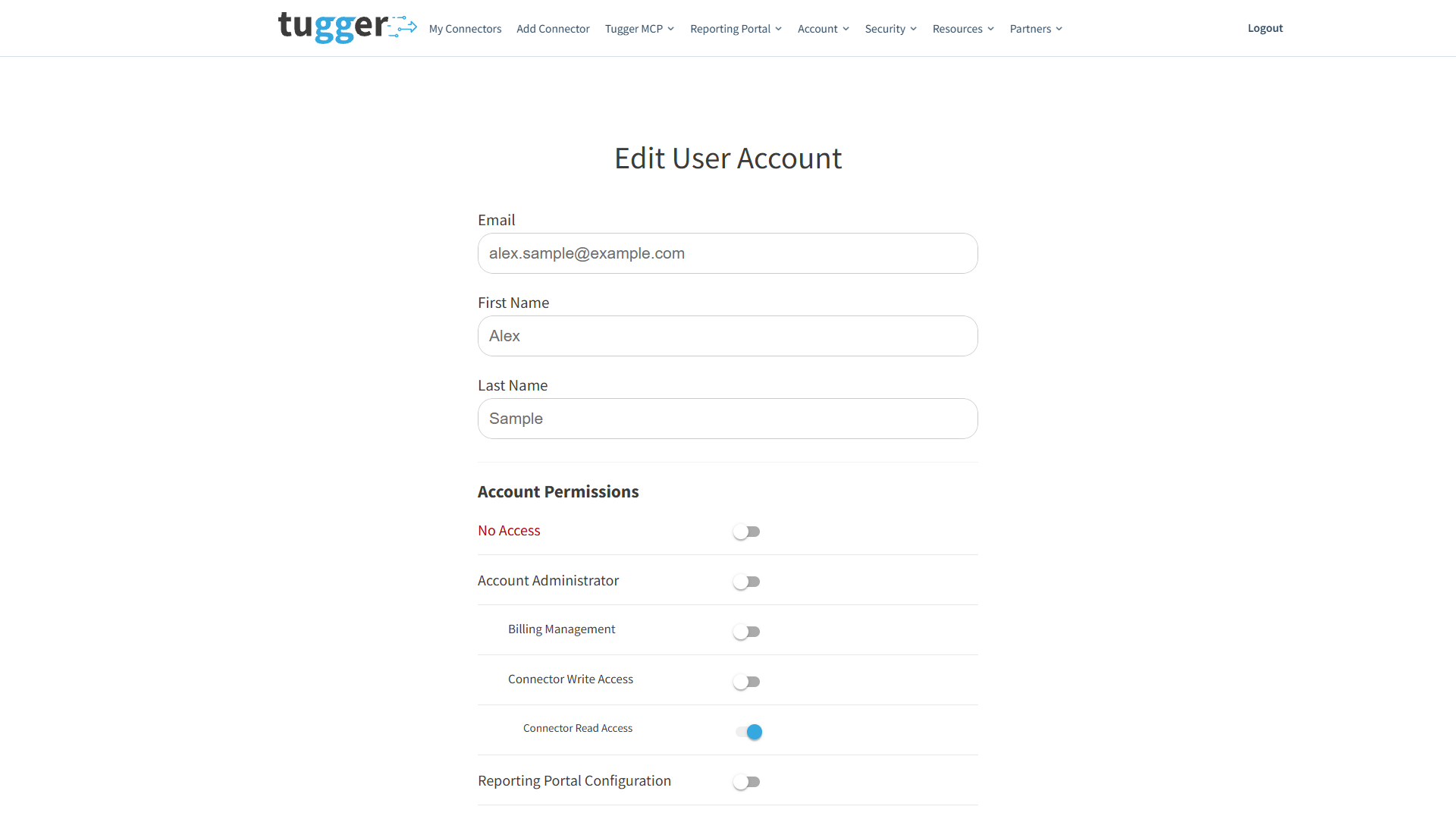
Step 3: Change their permissions
Under Account Permissions, switch permissions on or off. The options are the same as when you invite a user, plus a No Access switch (see Deactivating a user).
- Account Administrator switches on and locks Billing Management, Connector Write Access, Connector Read Access and AI Insights Access. Turning it off unlocks them again.
- Connector Write Access includes Connector Read Access.
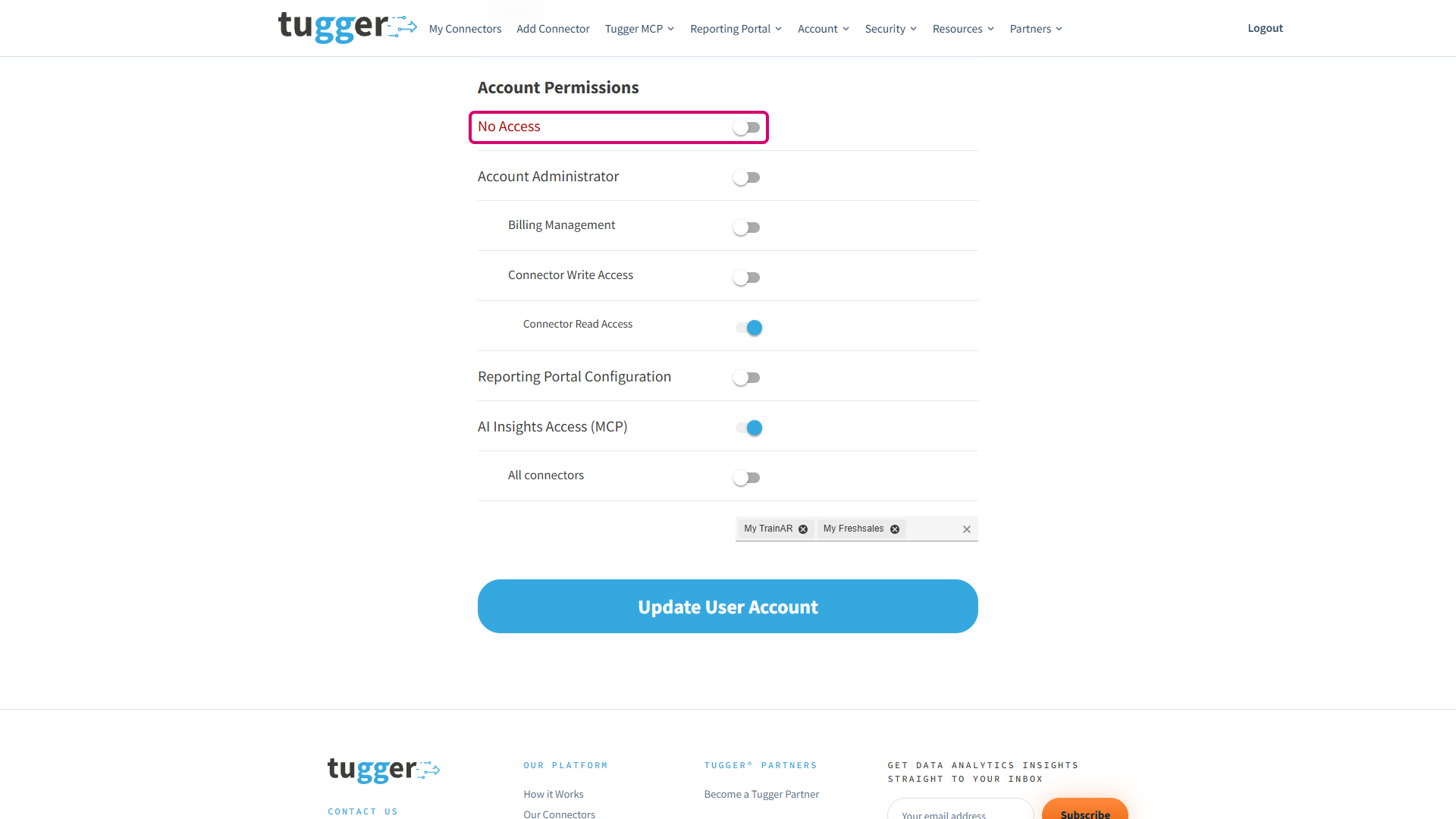
Step 4: Add, change or remove AI Insights connector access
With AI Insights Access (MCP) on, the connector section underneath shows what this user's AI tools can see.
- Add access: switch AI Insights Access (MCP) on. All connectors is on by default for a user who has not had access before. Switch it off and a connector list appears under it, so you can choose specific connectors instead.
- Change access: switch All connectors on or off, or add and remove connectors in the list. The list only shows while All connectors is off, and you must choose at least one connector from it. It only shows connectors on your own account.
- Remove access: switch AI Insights Access (MCP) off. The connector choices are cleared, so if you switch it on again later you start from All connectors.
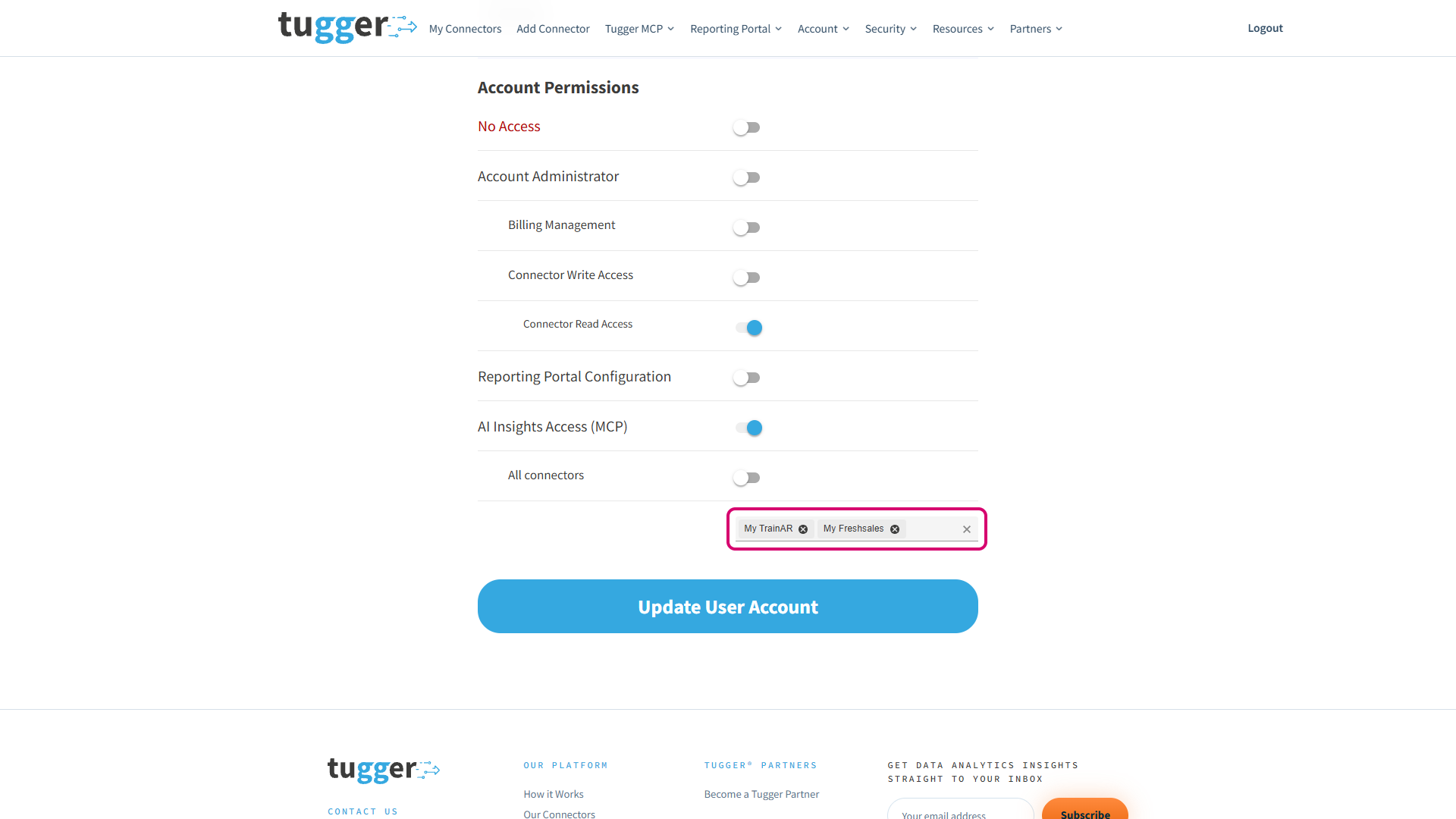
Is the user already using AI Insights? Changes apply the next time their AI tool asks Tugger for data. Removing access cuts them off at that point, without them needing to sign out.
Account Administrators keep AI Insights access. Switching Account Administrator on also switches AI Insights Access on, and it cannot be switched off while the user is an administrator. You can still change which connectors they can query.
The same connector choices are shown on the MCP Configuration page, and a change made there shows here too. That page is also where you manage API keys and the AI Insights audit log.
Step 5: Save
Click Update User Account.