This guide walks you through connecting Tugger AI Insights to Google Gemini via the Gemini CLI, so you can ask questions about your business data in natural language from your terminal.
Setup takes around 10 minutes.
Note: Gemini MCP is available through the Gemini CLI (a command line tool), not the Gemini web app at gemini.google.com.
What you'll need
- A Tugger account with at least one active connector that has completed its first sync
- MCP access enabled by your Tugger admin - by default, users have no MCP access. Your admin needs to grant you access on the User Permissions tab in MCP Configuration before you can connect.
- Node.js version 18 or higher installed on your computer
- A Google account to authenticate with Gemini
Step 1: Find your MCP server URL in Tugger
Note: This step requires administrator access. If you're not an admin, ask your Tugger admin for the server URL.
- Log in to Tugger at tuggerapp.com
- Click MCP Configuration in the menu
- On the Setup Guides tab, you'll see your Server URL at the top of the page
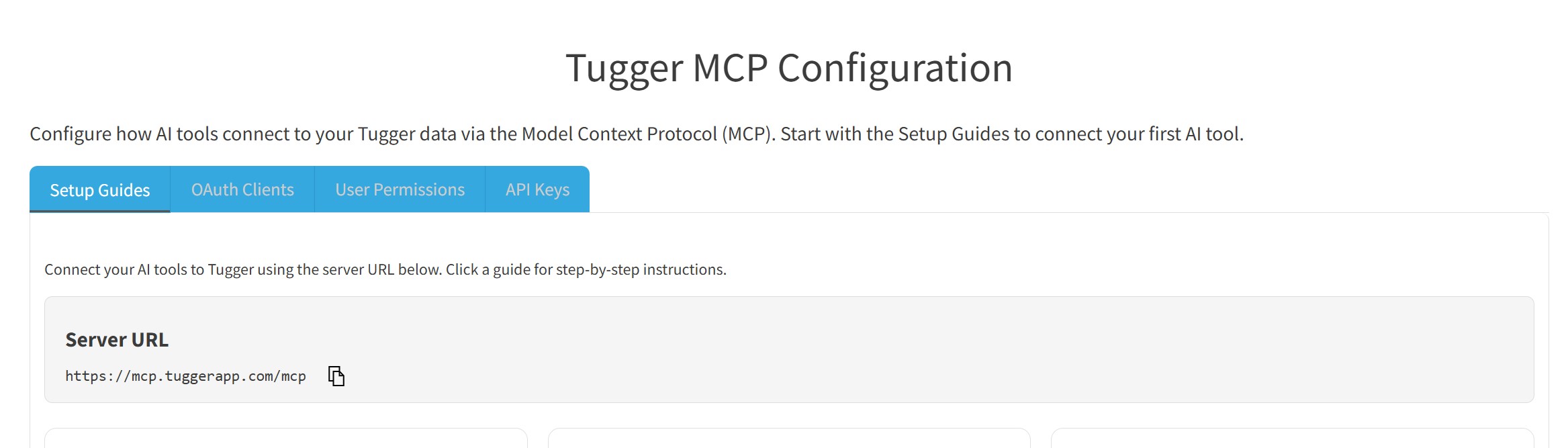
- Click the copy button next to the URL to copy it to your clipboard
Step 2: Install the Gemini CLI
Open a terminal and run the following command to install the Gemini CLI globally:
npm install -g @google/gemini-cli
Once installed, run Gemini once so it generates its configuration directories:
gemini
You can close it with Ctrl+C (or Cmd+C on macOS) after it starts.
Step 3: Configure the Tugger MCP server
- Navigate to the Gemini configuration directory:
cd ~/.gemini
If the .gemini directory does not exist, make sure you ran gemini at least once in Step 2.
- Open the
settings.jsonfile in a text editor. For example:
nano settings.json
- Add the Tugger MCP server to the
mcpServerssection. ReplaceYOUR_TUGGER_SERVER_URLwith the Server URL you copied from Tugger:
{
  "mcpServers": {
    "tugger": {
      "httpUrl": "YOUR_TUGGER_SERVER_URL"
    }
  }
}
- Save the file and close the editor
Make sure the file is valid JSON with no trailing commas or syntax errors.
Step 4: Authenticate and connect
- Start Gemini:
gemini
- Run the authentication command for Tugger:
/mcp auth tugger
- A browser window will open showing the Tugger OAuth login screen. Log in with your Tugger credentials and approve access.
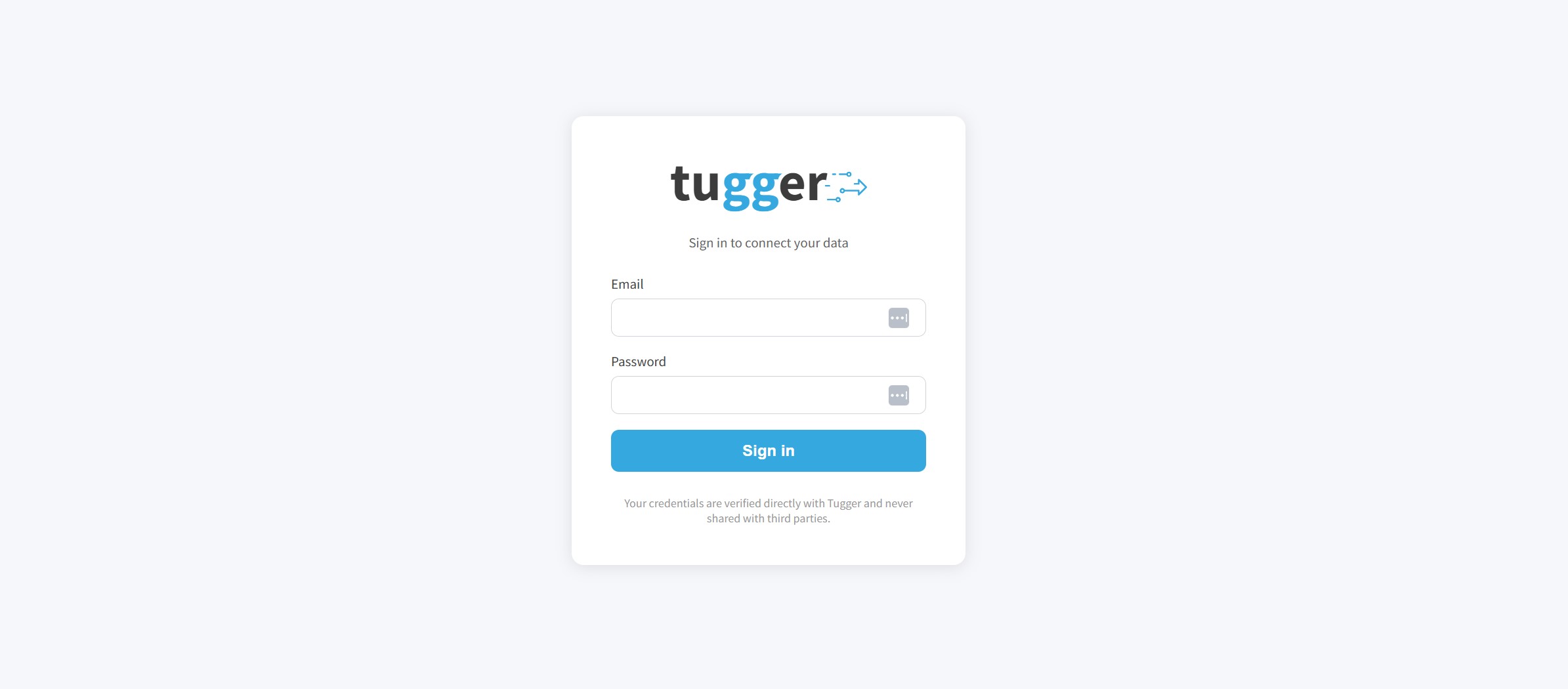
- Once authenticated, you will be returned to the Gemini CLI. To verify the connection, run:
/mcp
You should see Tugger listed with its available tools.
Note: Your Tugger admin controls which connectors you can access through AI Insights. If you can't see data from a particular connector, ask your admin to check your permissions in MCP Configuration.
Step 5: Start asking questions
You're all set. Start asking about your data directly in the Gemini CLI.
Try one of these to get started:
- "What connectors do I have access to in Tugger?" - a good first question to confirm what data is available
- "Show me a summary of my data" - lets the AI explore what's there
- "What are my top 10 customers by revenue?" - if you have an accounting connector like Xero or QuickBooks
For more example prompts and tips on getting the best answers, see Tips for Getting the Best Results from AI Insights.
Troubleshooting
"gemini: command not found"
- Make sure Node.js version 18 or higher is installed (
node --versionto check). - Make sure the Gemini CLI installed correctly. Try running
npm install -g @google/gemini-cliagain.
"/mcp auth tugger" fails or no browser opens
- Check that the Server URL in your
settings.jsonmatches the URL shown in Tugger's MCP Configuration page. - Make sure the
settings.jsonfile is valid JSON with no syntax errors.
Connected but no data showing
- Check that at least one connector has completed its first sync in Tugger.
- Ask your Tugger admin to check your access level on the User Permissions tab in MCP Configuration. By default, users have No Access and need to be granted permission.
Getting unexpected or incomplete results
- Try being more specific in your questions - see Tips for Getting the Best Results from AI Insights.
- Make sure the connector containing the data you're asking about is included in your MCP access permissions.
Need to disconnect or reconnect?
- In the Gemini CLI: remove or edit the Tugger entry in
~/.gemini/settings.json, then restart Gemini. - In Tugger: your admin can deactivate the OAuth client from the OAuth Clients tab in MCP Configuration.
Related articles: