This guide walks you through connecting Tugger AI Insights to Claude (by Anthropic), so you can ask questions about your business data in natural language.
Setup takes around 5 minutes.
What you'll need
- A Tugger account with at least one active connector that has completed its first sync
- MCP access enabled by your Tugger admin - by default, users have no MCP access. Your admin needs to grant you access on the User Permissions tab in MCP Configuration before you can connect.
- A Claude account - sign up at claude.ai if you don't have one. You'll need a Pro, Team, or Enterprise plan to use MCP connectors.
Step 1: Find your MCP server URL in Tugger
Note: This step requires administrator access. If you're not an admin, ask your Tugger admin for the server URL.
- Log in to Tugger at tuggerapp.com
- Click MCP Configuration in the menu
- On the Setup Guides tab, you'll see your Server URL at the top of the page
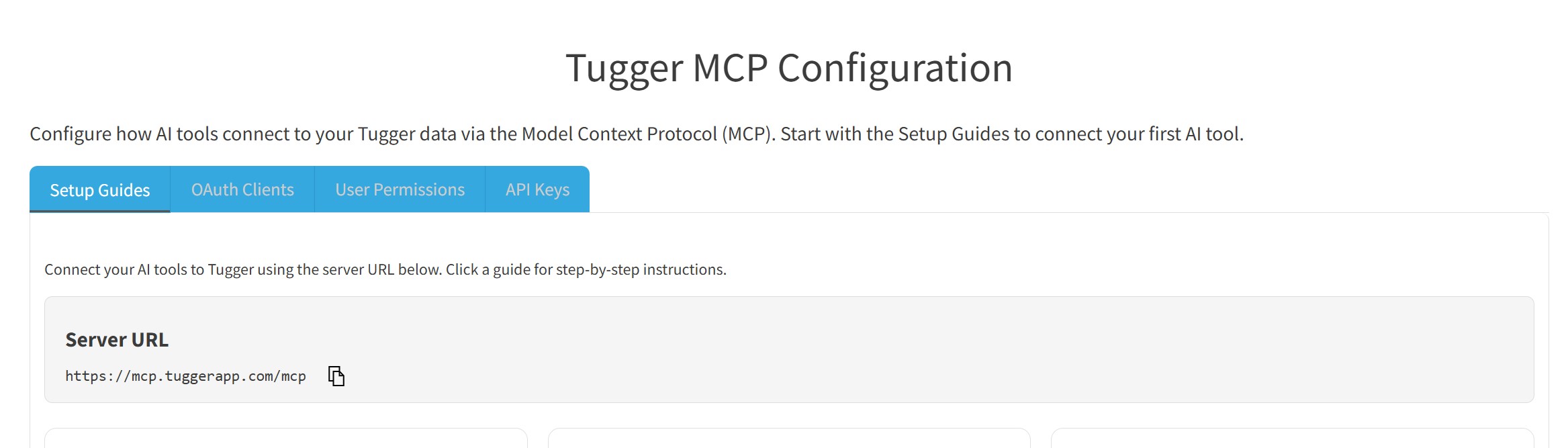
- Click the copy button next to the URL to copy it to your clipboard
Step 2: Add the Tugger MCP server in Claude
- Go to claude.ai and sign in
- Click on your profile icon (bottom-left) and select Settings
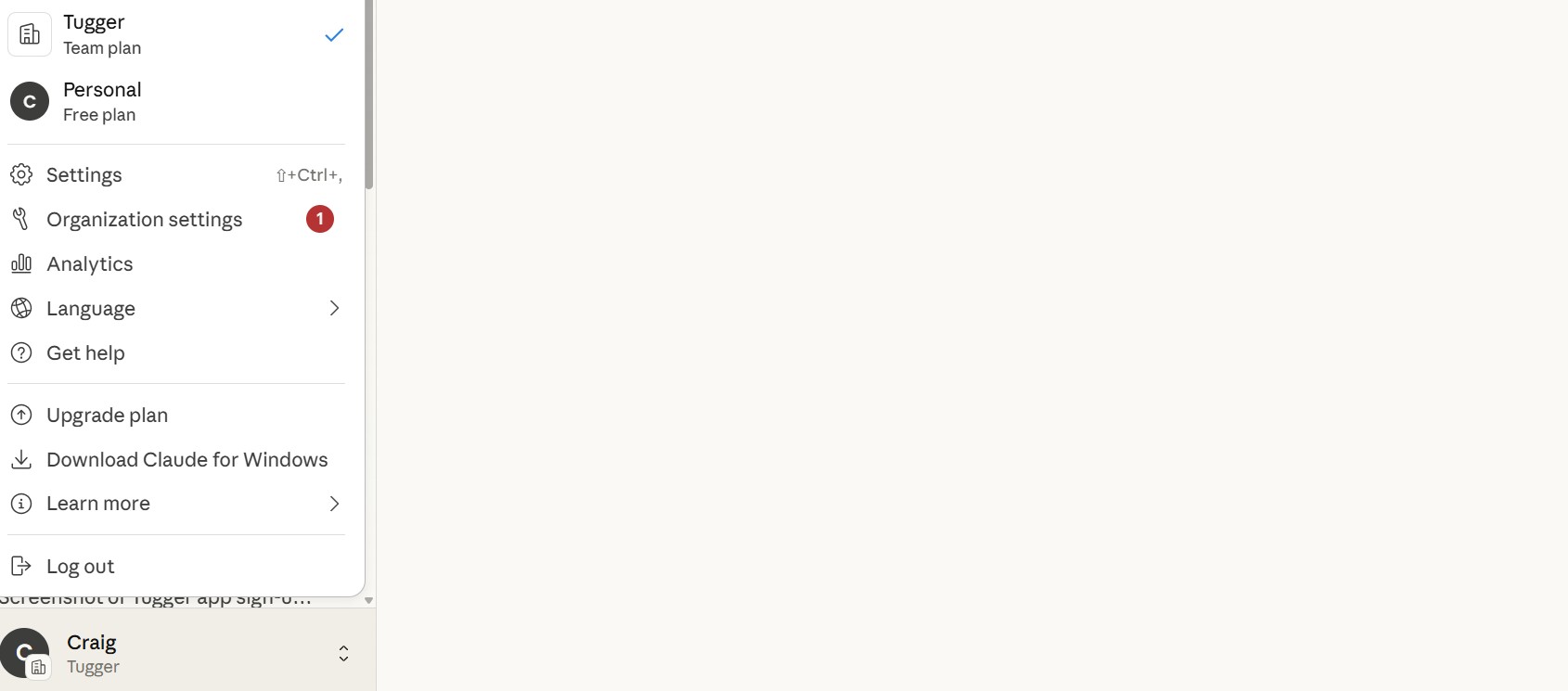
Note: If you are on a Team plan you may need to add the Tugger MCP server via Organization settings instead of via Settings.
- In the left sidebar, click Connectors
- Click Add Custom Connector
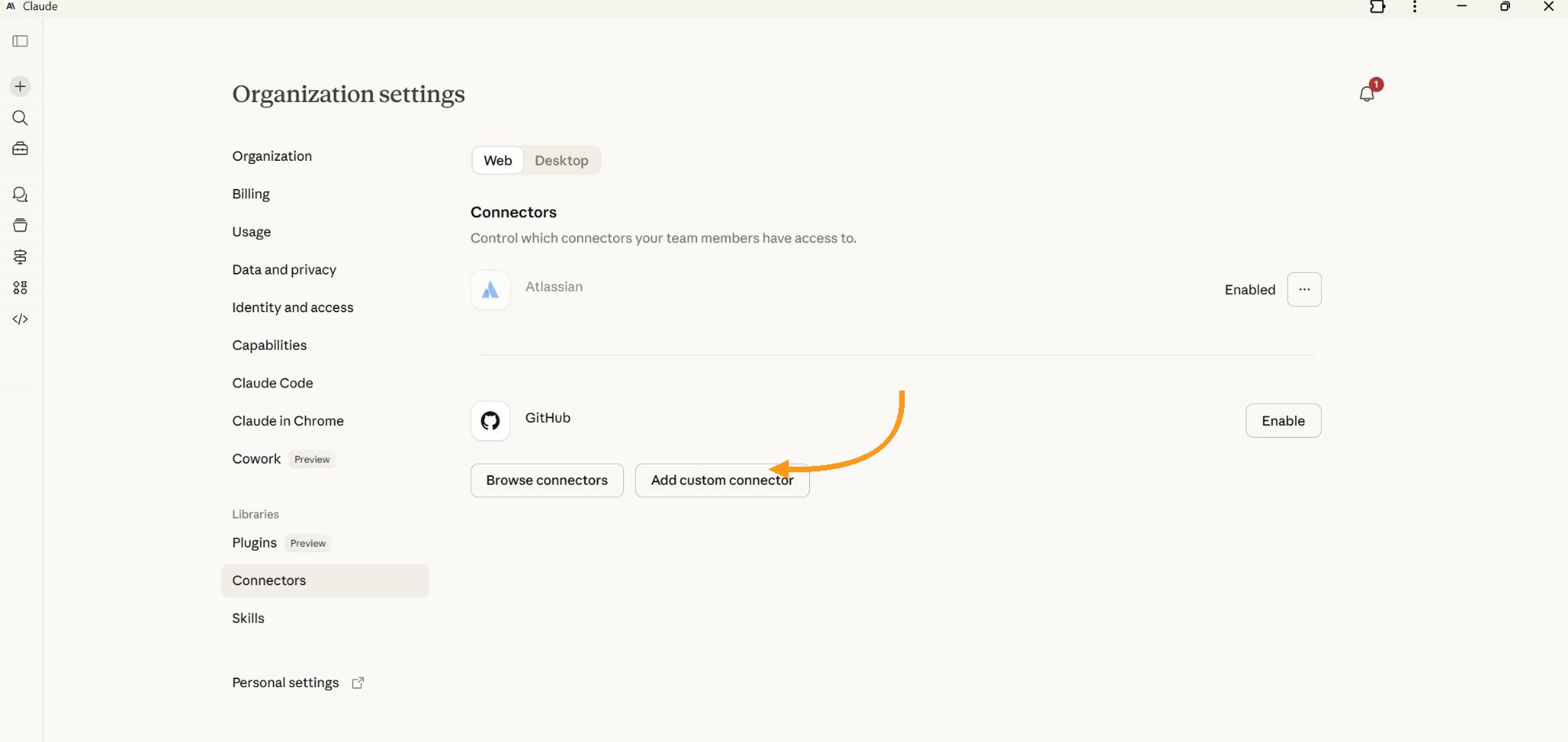
- Enter a name - for example: Tugger
- Paste the Server URL you copied from Tugger
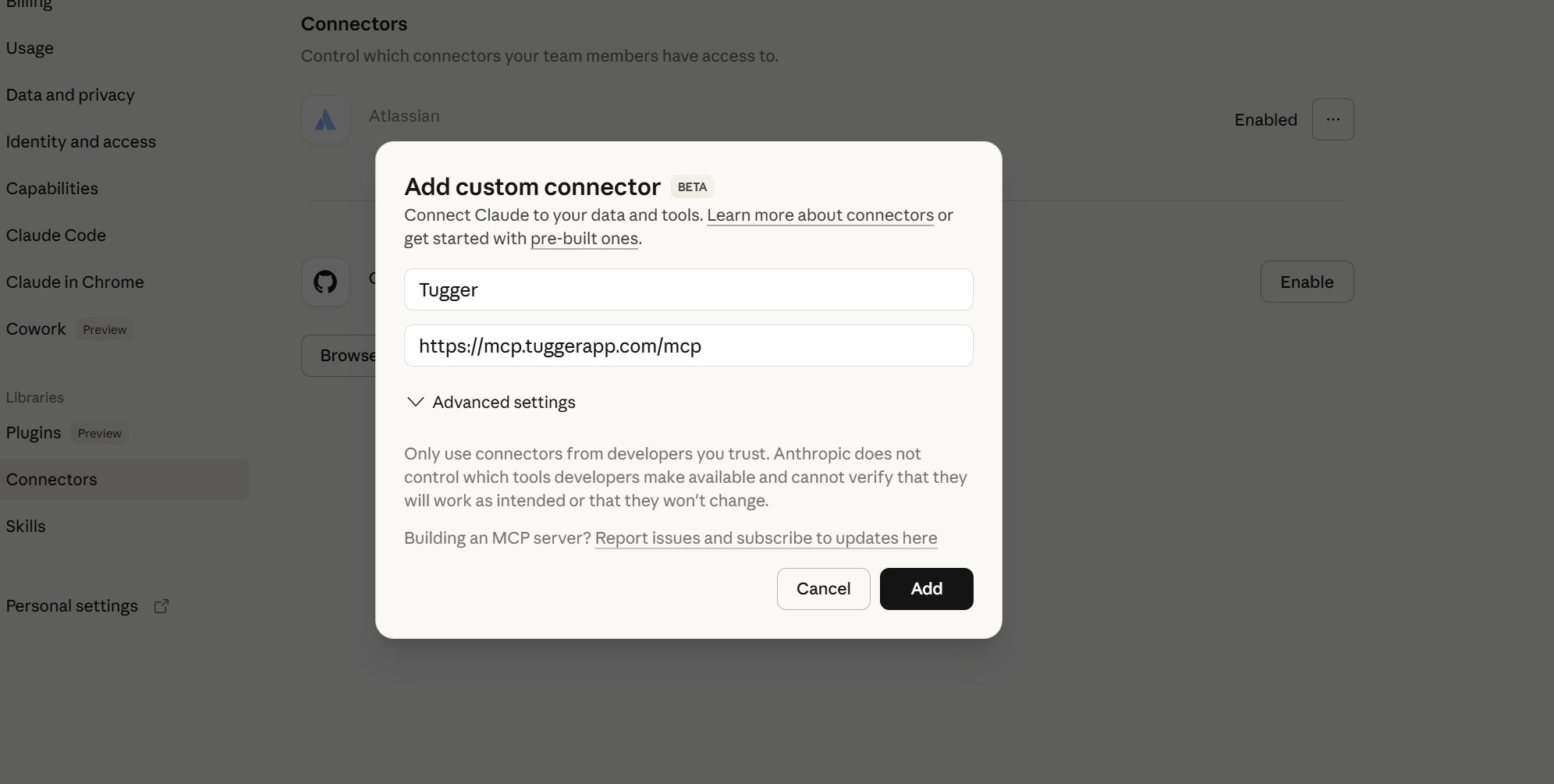
- Click Add
Step 3: Authorise the connection
After saving, Claude will redirect you to Tugger to authorise access.
- You'll see the Tugger OAuth login screen - log in with your Tugger credentials
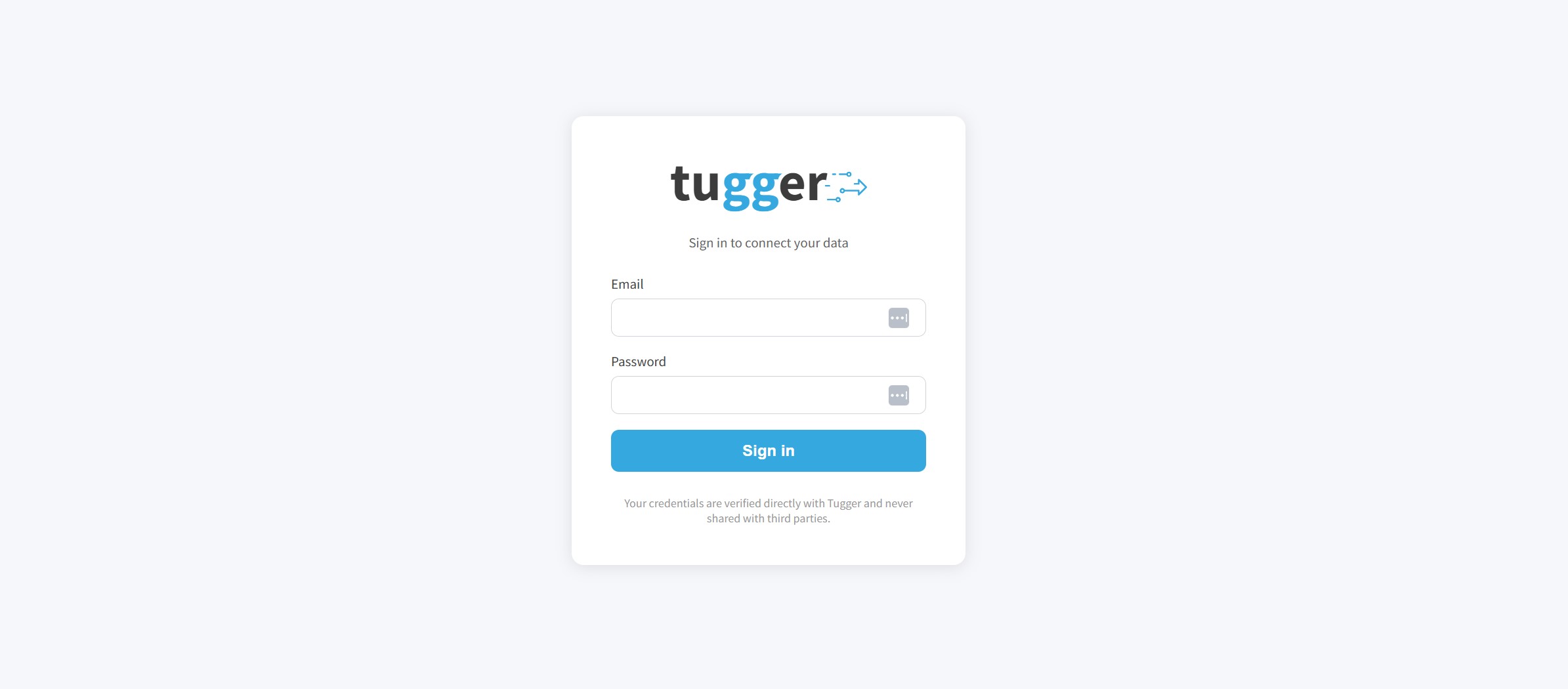
- You'll be redirected back to Claude. The connection should now show as Connected
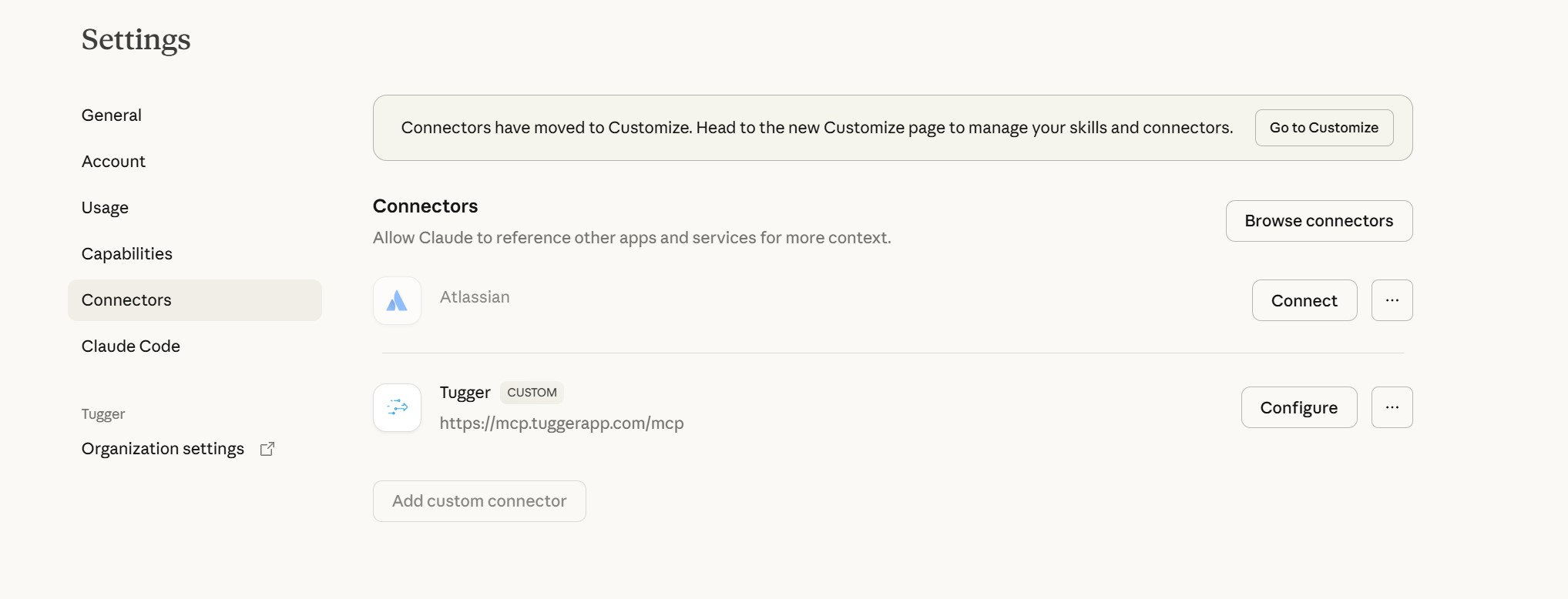
Note: Your Tugger admin controls which connectors you can access through AI Insights. If you can't see data from a particular connector, ask your admin to check your permissions in MCP Configuration.
Step 4: Start asking questions
You're all set. Open a new conversation in Claude and start asking about your data.
Try one of these to get started:
- "What connectors do I have access to in Tugger?" - a good first question to confirm what data is available
- "Show me a summary of my data" - lets the AI explore what's there
- "What are my top 10 customers by revenue?" - if you have an accounting connector like Xero or QuickBooks
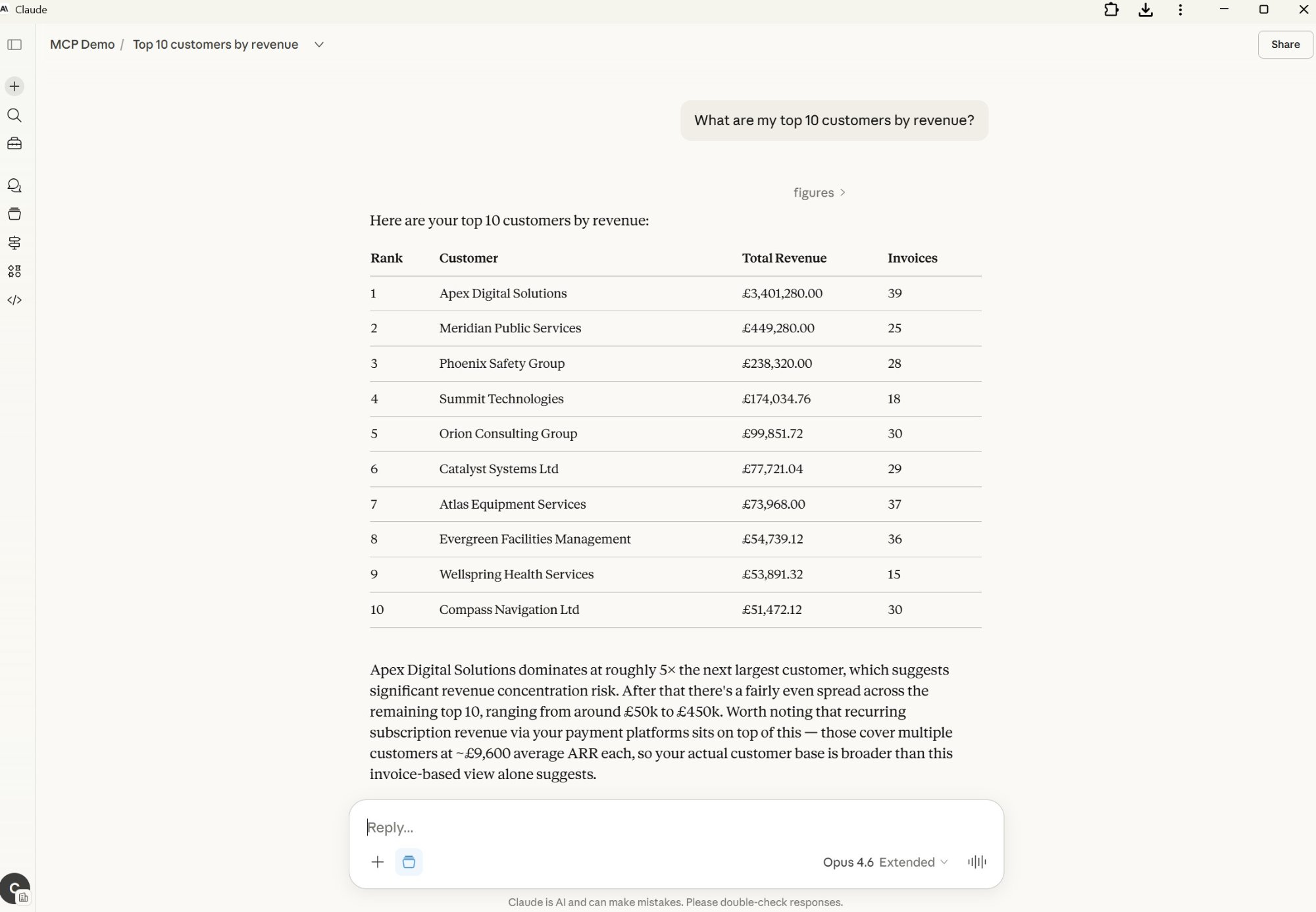
For more example prompts and tips on getting the best answers, see Tips for Getting the Best Results from AI Insights.
Troubleshooting
Connection failed or timed out
- Double-check the Server URL in your Tugger MCP Configuration and make sure it matches what you entered in Claude.
- Make sure you're using a Claude Pro, Team, or Enterprise account - MCP isn't available on the free plan.
Connected but no data showing
- Check that at least one connector has completed its first sync in Tugger.
- Ask your Tugger admin to check your access level on the User Permissions tab in MCP Configuration. By default, users have No Access and need to be granted permission.
Getting unexpected or incomplete results
- Try being more specific in your questions - see Tips for Getting the Best Results from AI Insights.
- Make sure the connector containing the data you're asking about is included in your MCP access permissions.
Need to disconnect or reconnect?
- In Claude: go to Settings > Connectors and remove the Tugger connection, then add it again.
- In Tugger: your admin can deactivate the OAuth client from the OAuth Clients tab in MCP Configuration.
Related articles: