This guide walks you through connecting Tugger AI Insights to Perplexity, so you can ask questions about your business data in natural language.
Setup takes around 10 minutes.
Note: Perplexity MCP is available through the Perplexity desktop app only, not the web version at perplexity.ai.
What you'll need
- A Tugger account with at least one active connector that has completed its first sync
- A Tugger API key - your Tugger admin generates this from the API Keys tab in MCP Configuration
- The Perplexity desktop app installed on your computer - download from perplexity.ai/hub/download
- A Perplexity Pro account (MCP connectors are not available on the free plan)
- Python with
uvpackage manager installed (used to install the MCP proxy tool)
Step 1: Get your Server URL and API key from Tugger
Perplexity connects to Tugger using an API key rather than the OAuth login used by platforms like Claude and ChatGPT.
Note: This step requires administrator access. If you're not an admin, ask your Tugger admin for the Server URL and an API key.
- Log in to Tugger at tuggerapp.com
- Click MCP Configuration in the menu
- On the Setup Guides tab, copy your Server URL
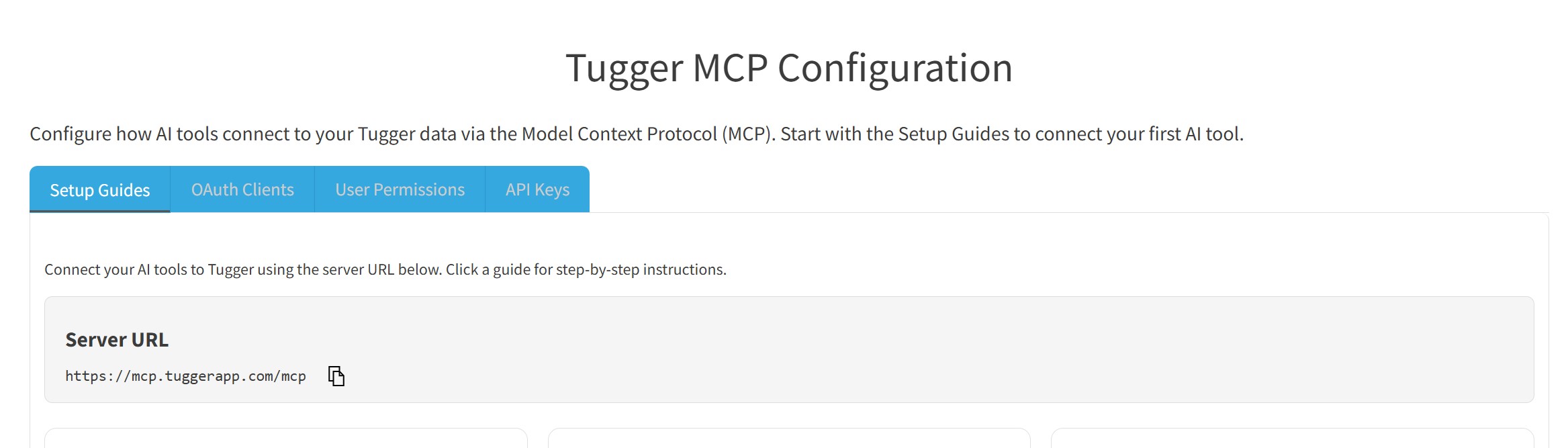
- Switch to the API Keys tab
- Click Generate New API Key
- Enter a name (e.g. "Perplexity") and choose the integration scope and expiry as needed
- Click Generate Key
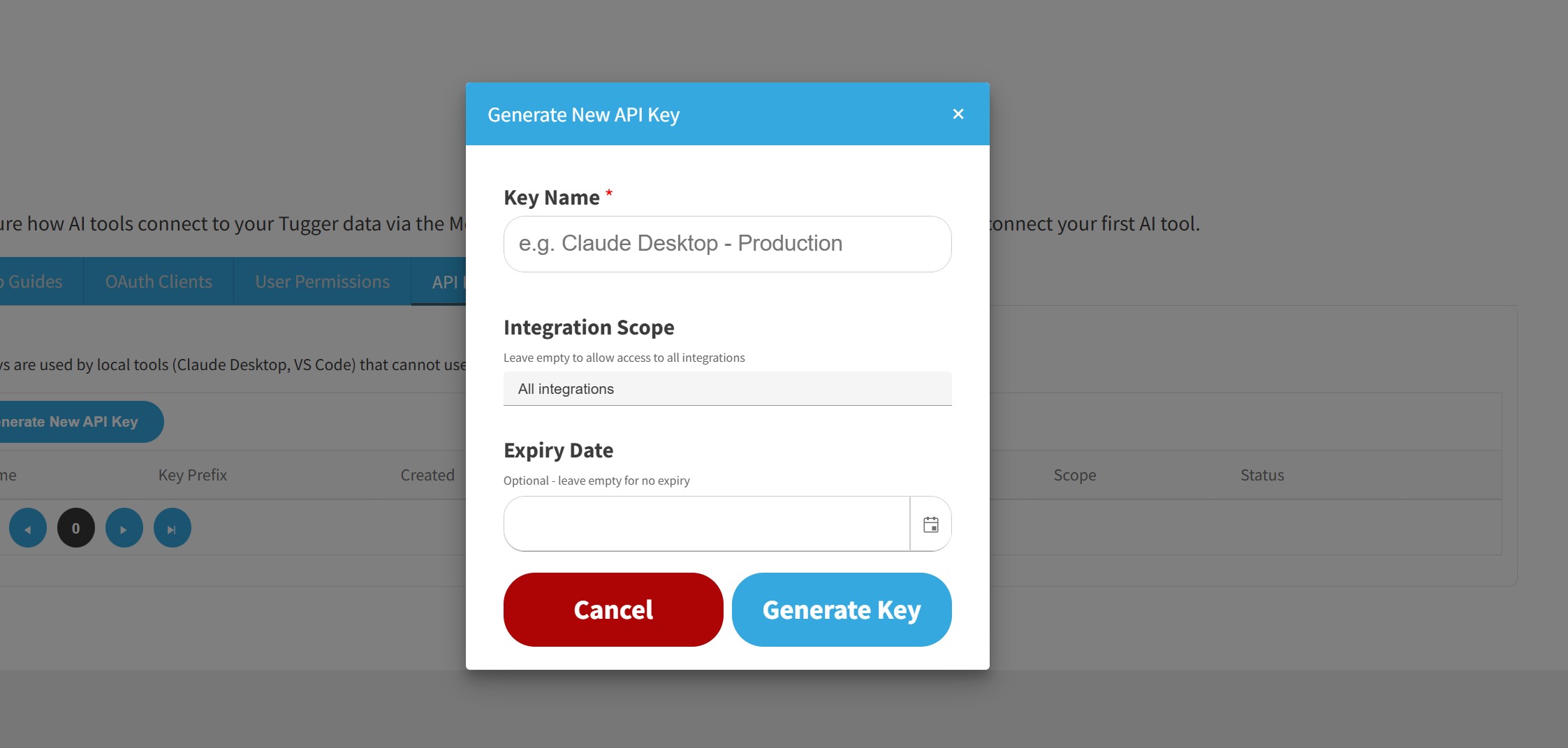
- Copy the generated API key immediately - you won't be able to see the full key again
Step 2: Install the MCP proxy tool
Perplexity's desktop app uses a local proxy to connect to remote MCP servers. Open a terminal and run:
uv tool install mcp-proxy
This installs the mcp-proxy bridge that allows Perplexity to communicate with Tugger's remote server.
Don't have
uvinstalled? You can install it by following the instructions at docs.astral.sh/uv.
Step 3: Add the Tugger connector in Perplexity
- Open the Perplexity desktop app
- Go to Settings then Connectors
- Click Add connector then Advanced
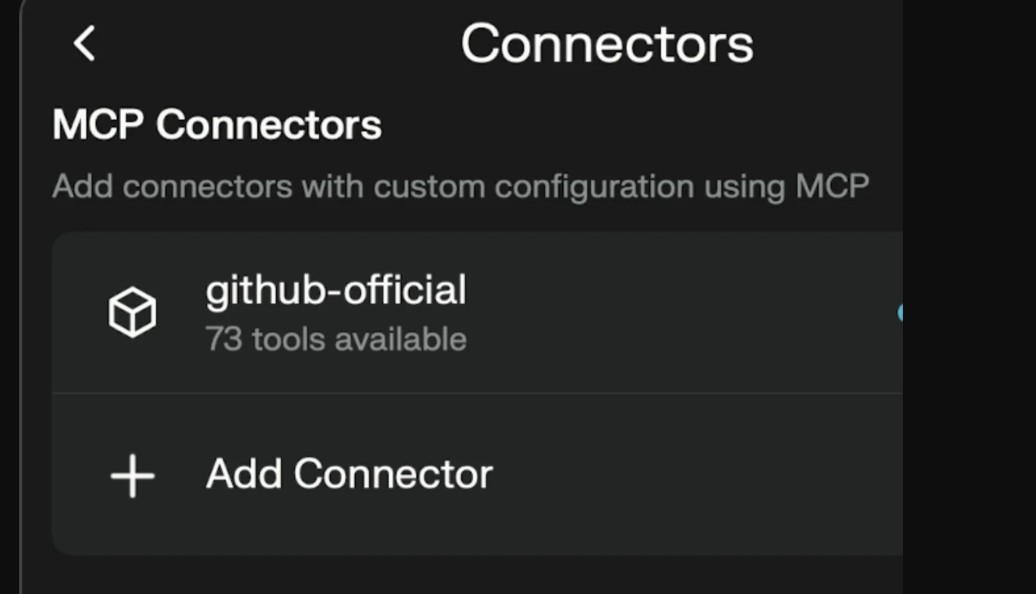
- Enter a server name - for example: Tugger
- Paste the following configuration, replacing the placeholder values with your Tugger details:
{
  "command": "mcp-proxy",
  "args": [
    "https://mcp.tuggerapp.com/mcp",
    "--transport=streamablehttp"
  ],
  "env": {
    "API_ACCESS_TOKEN": "YOUR_API_KEY"
  }
}
- Replace
YOUR_TUGGER_SERVER_URLwith the Server URL from Tugger's MCP Configuration page - Replace
YOUR_API_KEYwith the API key you generated in Step 1
- Click Save
Step 4: Start asking questions
Open a new chat in Perplexity and start asking about your data. The Tugger connector should be active automatically.
Try one of these to get started:
- "What connectors do I have access to in Tugger?" - a good first question to confirm what data is available
- "Show me a summary of my data" - lets the AI explore what's there
- "What are my top 10 customers by revenue?" - if you have an accounting connector like Xero or QuickBooks
For more example prompts and tips on getting the best answers, see Tips for Getting the Best Results from AI Insights.
Troubleshooting
"mcp-proxy: command not found"
- Make sure
uvis installed and the mcp-proxy tool was installed successfully. Try runninguv tool install mcp-proxyagain.
Connector not appearing or failing to connect
- Check that the Server URL and API key in your connector config are correct.
- Make sure the
mcp-proxycommand is available in your system PATH. - Try restarting the Perplexity desktop app after adding the connector.
Connected but no data showing
- Check that at least one connector has completed its first sync in Tugger.
- Ask your Tugger admin to check the API key's scope in the API Keys tab. It may be restricted to specific connectors.
Getting unexpected or incomplete results
- Try being more specific in your questions - see Tips for Getting the Best Results from AI Insights.
- Make sure the connector containing the data you're asking about is included in the API key's scope.
API key stopped working
- Check the API Keys tab in Tugger MCP Configuration. The key may have been revoked or expired.
- If revoked, your admin will need to generate a new key and you will need to update the connector config in Perplexity.
Related articles: